
Job Post Purchasing and Posting within the Portal
After the Job Posting Application and Job Board have been configured, your constituents will interact with them through the Constituent Portal. Depending on your Job Board settings, users can purchase Job Postings, submit new Job Postings, and manage their existing postings.
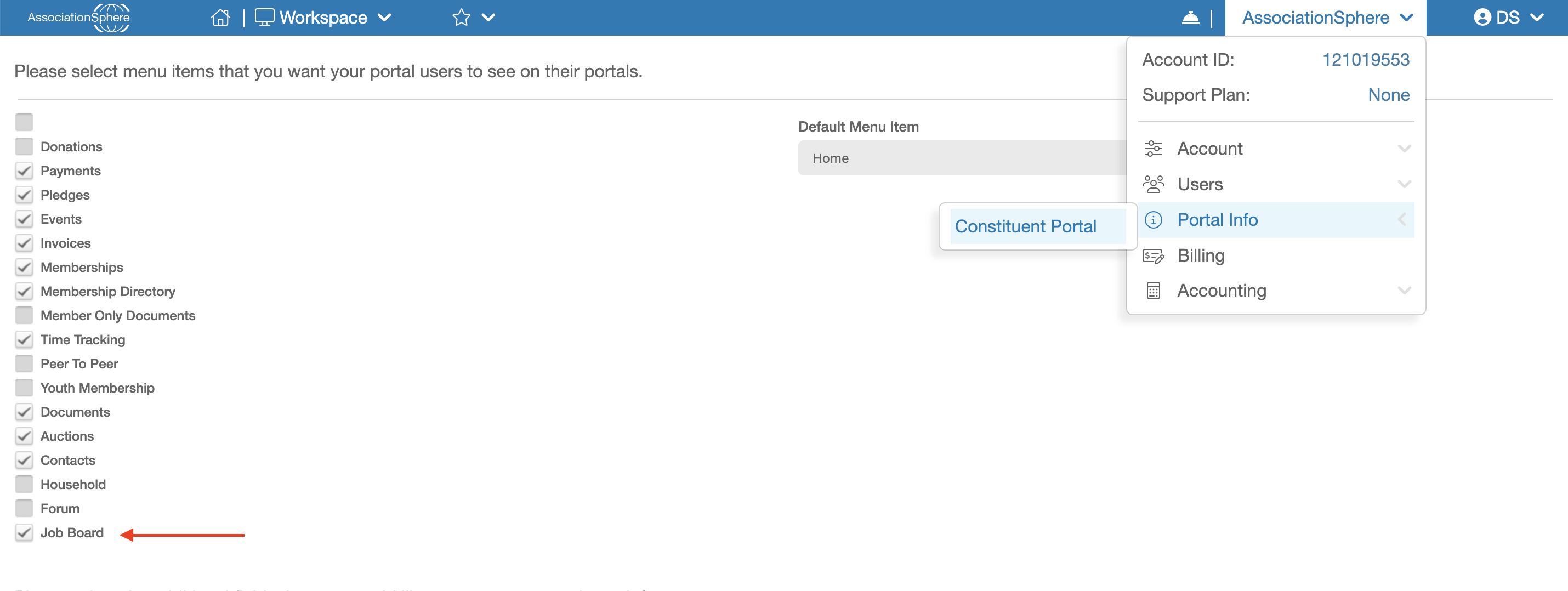
Before the Job Board is available to Portal users, the Job Board module must be enabled in the Constituent Portal. To do this, navigate to Portal Info within AssociationSphere. In the list of available Portal modules, locate Job Board and ensure the checkbox next to it is selected.
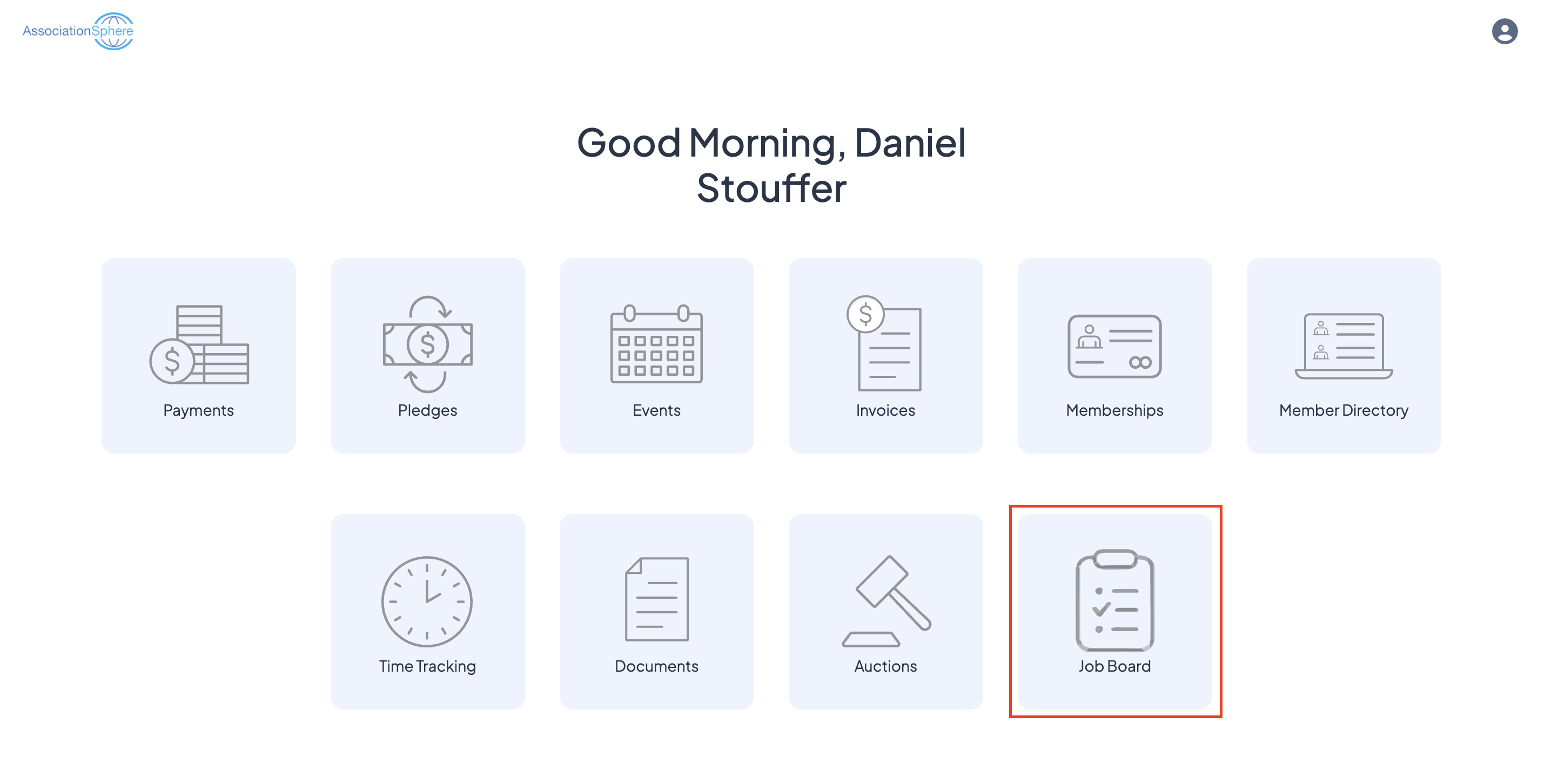
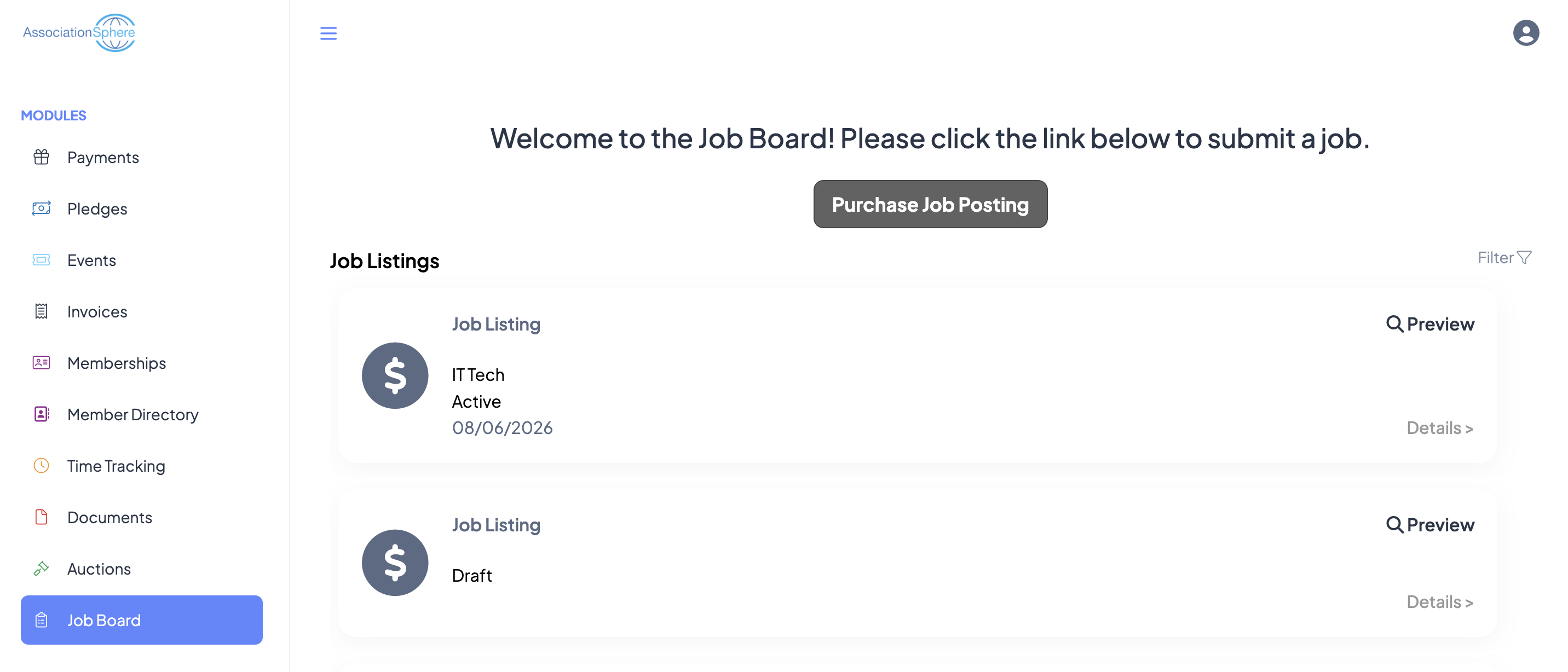
Once the module has been enabled, users can launch the Job Board from within the Constituent Portal. At the top of the page, they will see the welcome message you configured during the Job Board setup, along with one of the following buttons:
- Post Job – Displayed when Free Postings are enabled.
- Purchase Job Posts – Displayed when Job Postings require payment before they can be submitted.
Posting Free Job Listings
When users click Post Job, the Job Posting Application opens. They can complete the application and submit their Job Posting. Once submitted, the Job Posting will appear on the Job Board based on your organization's approval and display settings.
From within the Portal, users can also manage their Job Postings by editing the posting details or changing the posting's status, such as activating or deactivating the listing.
Purchasing Job Postings
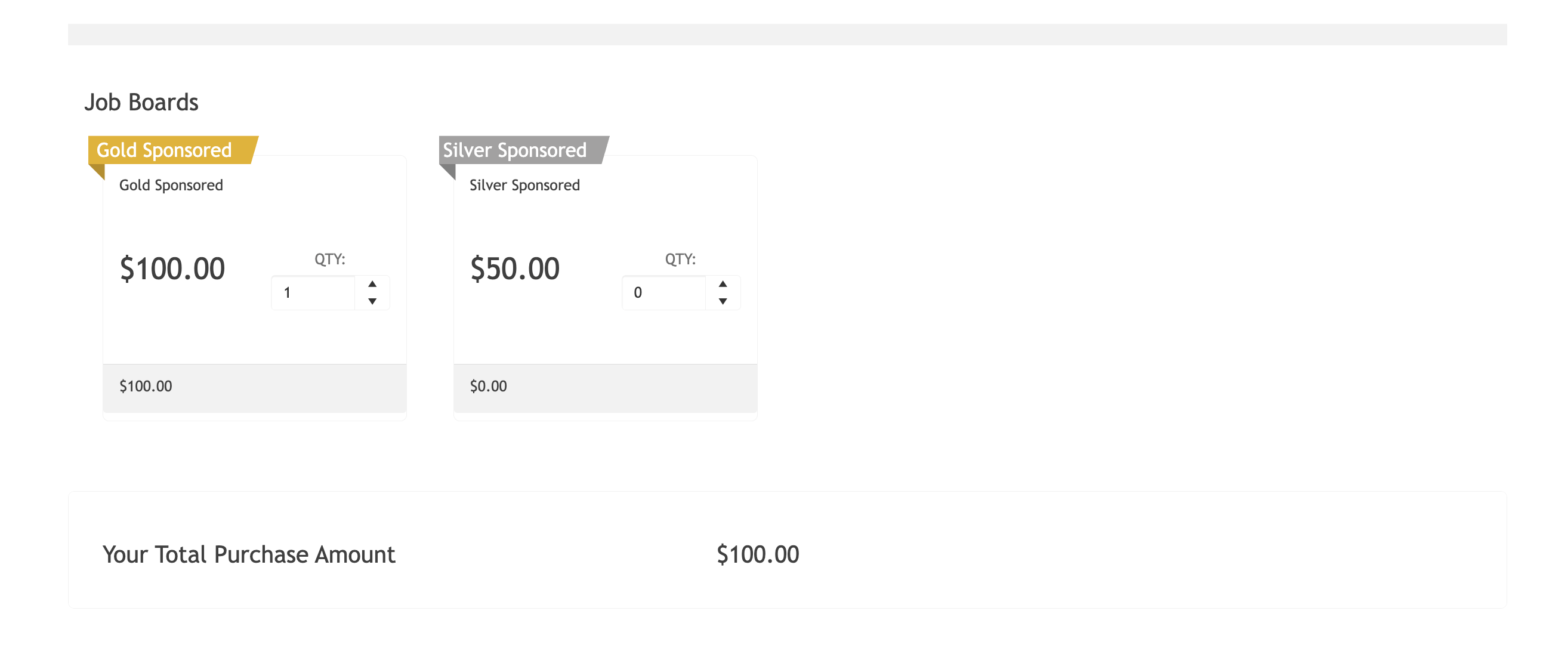
When users click Purchase Job Posts, the Job Posting Purchase Form is displayed. They can select a purchase level, complete the payment process, and receive the number of Job Postings included with their purchase.
After the purchase is complete, the available Job Postings will appear in the user's Portal account. From there, they can create new Job Postings, edit existing postings, and manage the status of each listing.
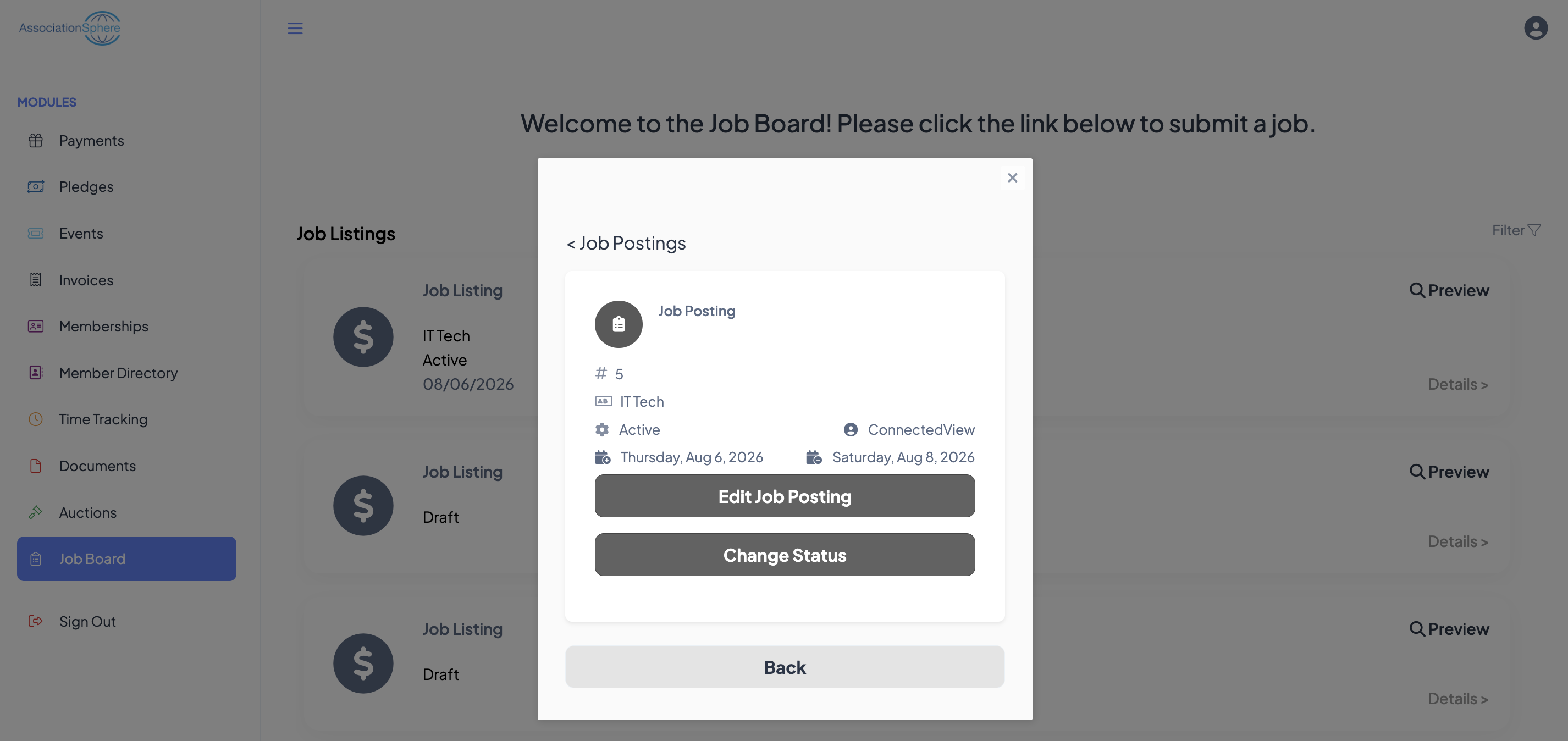
Each Job Posting will automatically expire based on the Post Expiration (Days) setting configured for the purchase level used to create the posting.