
Job Post Purchasing and Posting within AssociationSphere
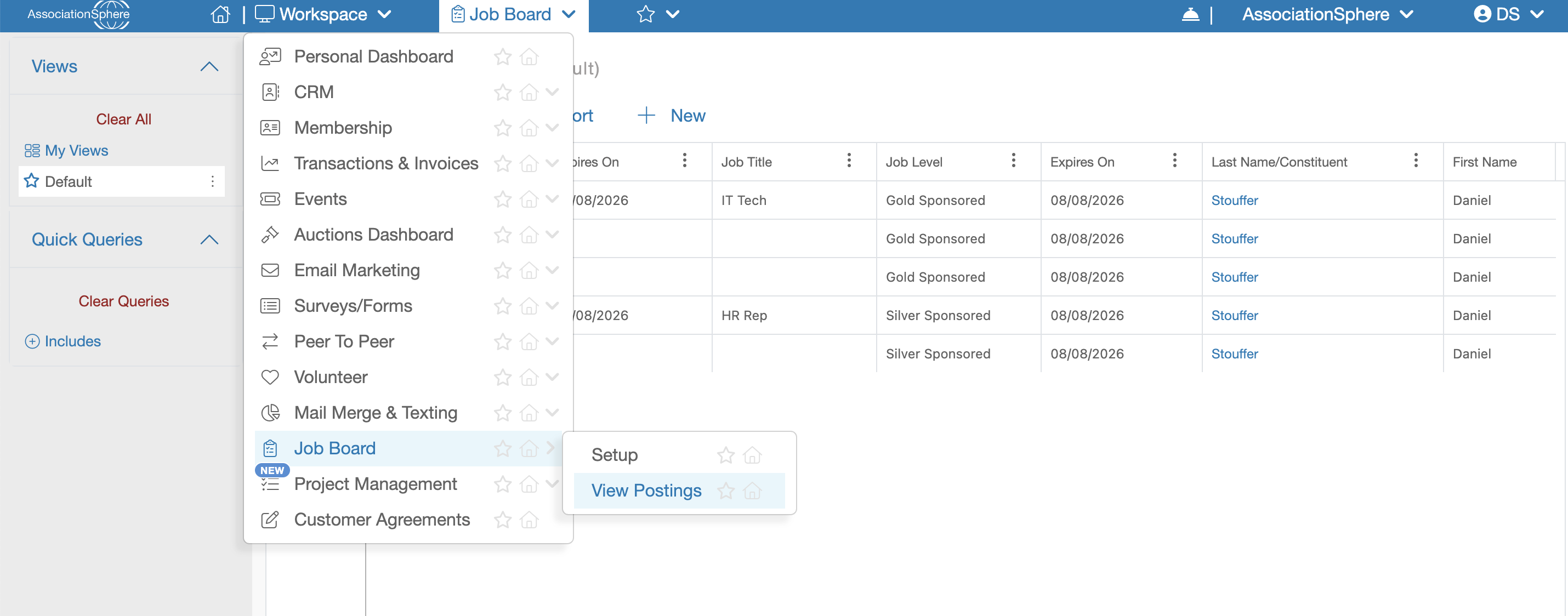
Within AssociationSphere, navigate to Workspace > Job Board > View Postings to manage existing Job Postings or submit a new Job Posting purchase on behalf of a constituent.
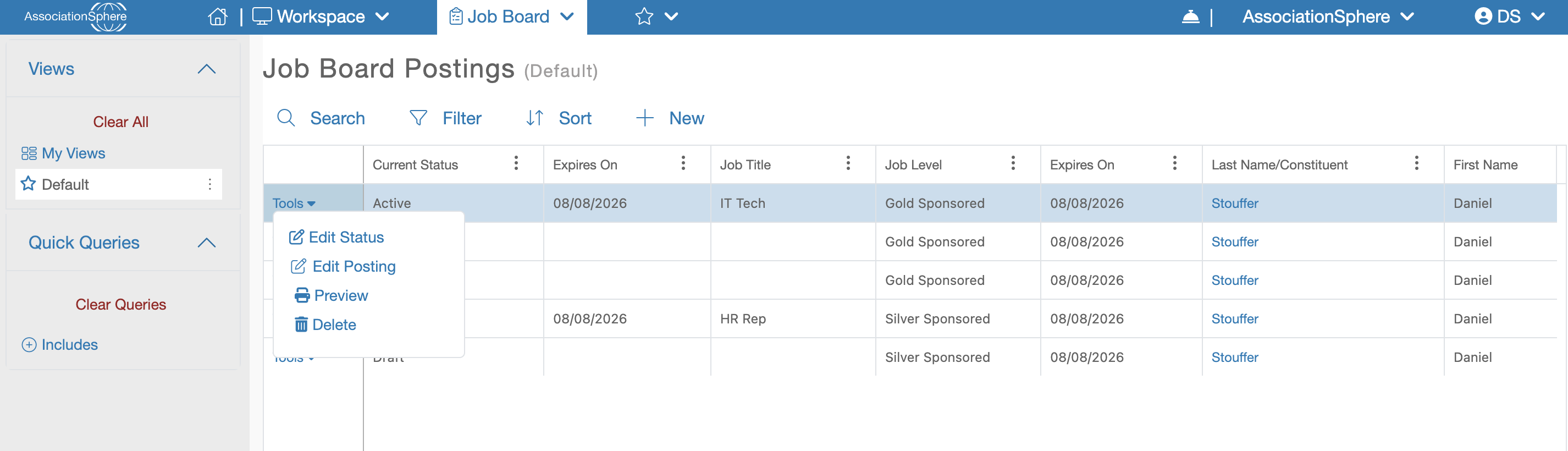
All existing Job Postings are displayed in the grid. Each posting includes a Tools menu with the following options:
- Edit Status – Change the current status of the Job Posting.
- Edit Posting – Modify the content of the Job Posting.
- Preview – View the Job Posting as it will appear on the Job Board.
- Delete – Permanently remove the Job Posting from the system.
Job Posting Statuses
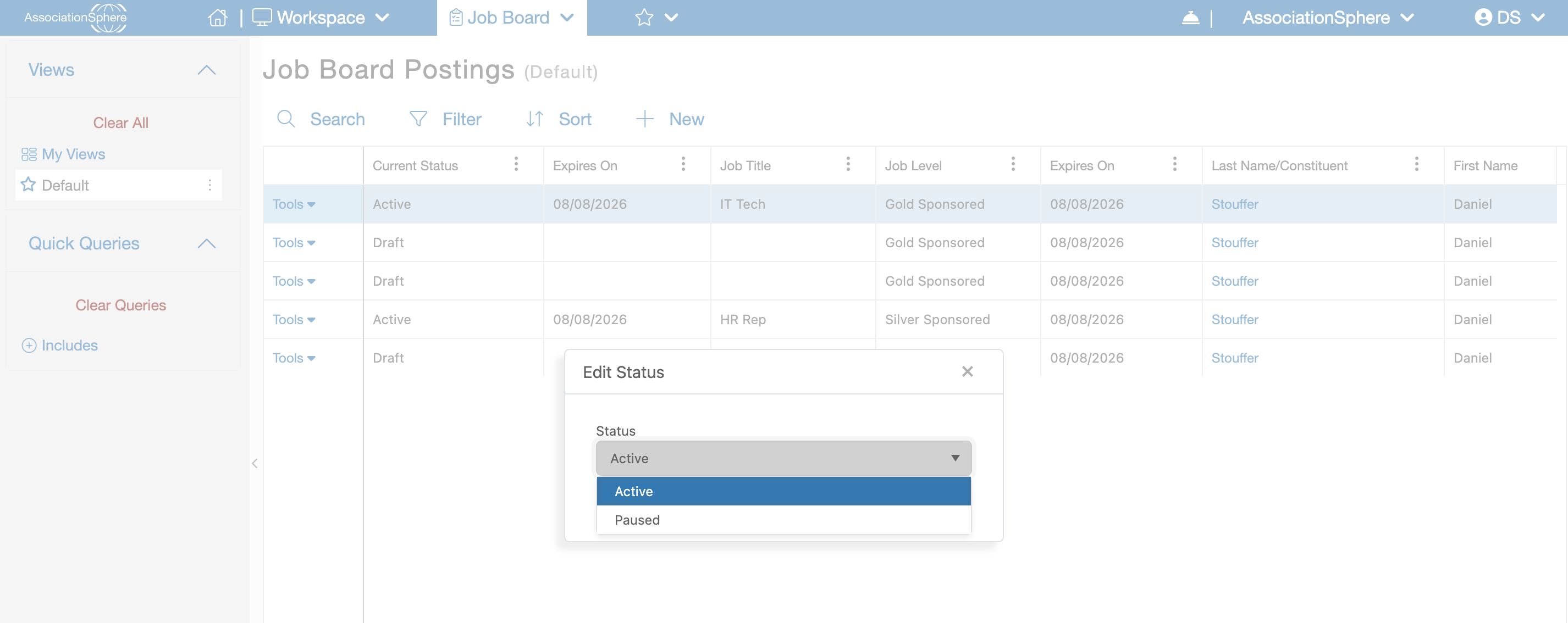
The Edit Status option allows you to control whether a Job Posting is visible on the Job Board. The available statuses are:
Draft – Indicates the Job Posting has not yet been published. Newly purchased Job Postings are initially created with a Draft status.
Active – Indicates the Job Posting has been published and is currently displayed on the Job Board.
Paused – Temporarily hides the Job Posting from the Job Board without deleting it. This status is useful when a posting needs to be removed from public view but may be reactivated later.
Expired – Indicates the Job Posting is no longer active. A posting may expire automatically after the number of days defined by its purchase level or may be manually expired by an internal user. Expired postings are removed from the Job Board and can no longer be reactivated by the Portal user.
Editing a Job Posting
Selecting Edit Posting opens the Job Posting Application, allowing you to update the information provided for each application question. After making your changes, save the posting to apply the updates.
Creating a Job Posting Purchase
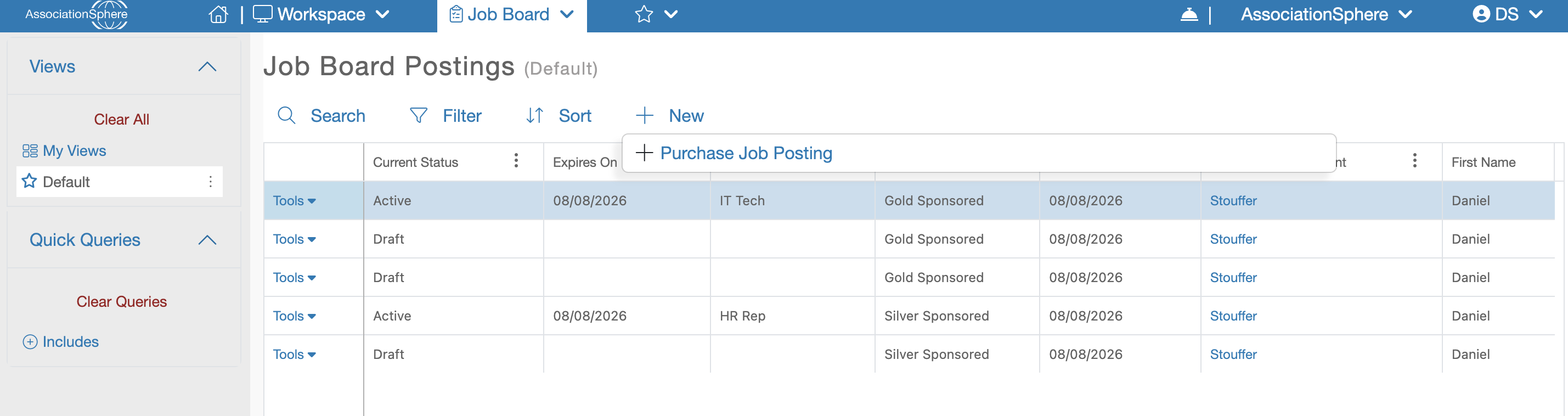
Above the grid is the + New button. Clicking this button launches the active Job Posting Purchase Form, allowing an internal user to look up an existing constituent and purchase additional Job Postings on their behalf. Once the purchase is complete, the associated Job Postings will be available for the constituent to create and manage through the Constituent Portal.