
Transactions Module Overview
Updated Aug 5, 2026·4 min read
The Transactions & Invoices Module is where you can see and manage all transactions that are recorded in the software and perform a variety of activities including:
- Creating invoice payment pages and managing invoices
- Creating invoice cover letters
- Processing refunds
- Sending manual thank you letters (acknowledgements)
- Creating revenue and transaction reports
- Managing sponsorships
- Creating online payment and donation pages
- Creating widgets to show goal progress on your website
- Managing pledges
- Managing grants
Transactions & Invoices Module Dashboard
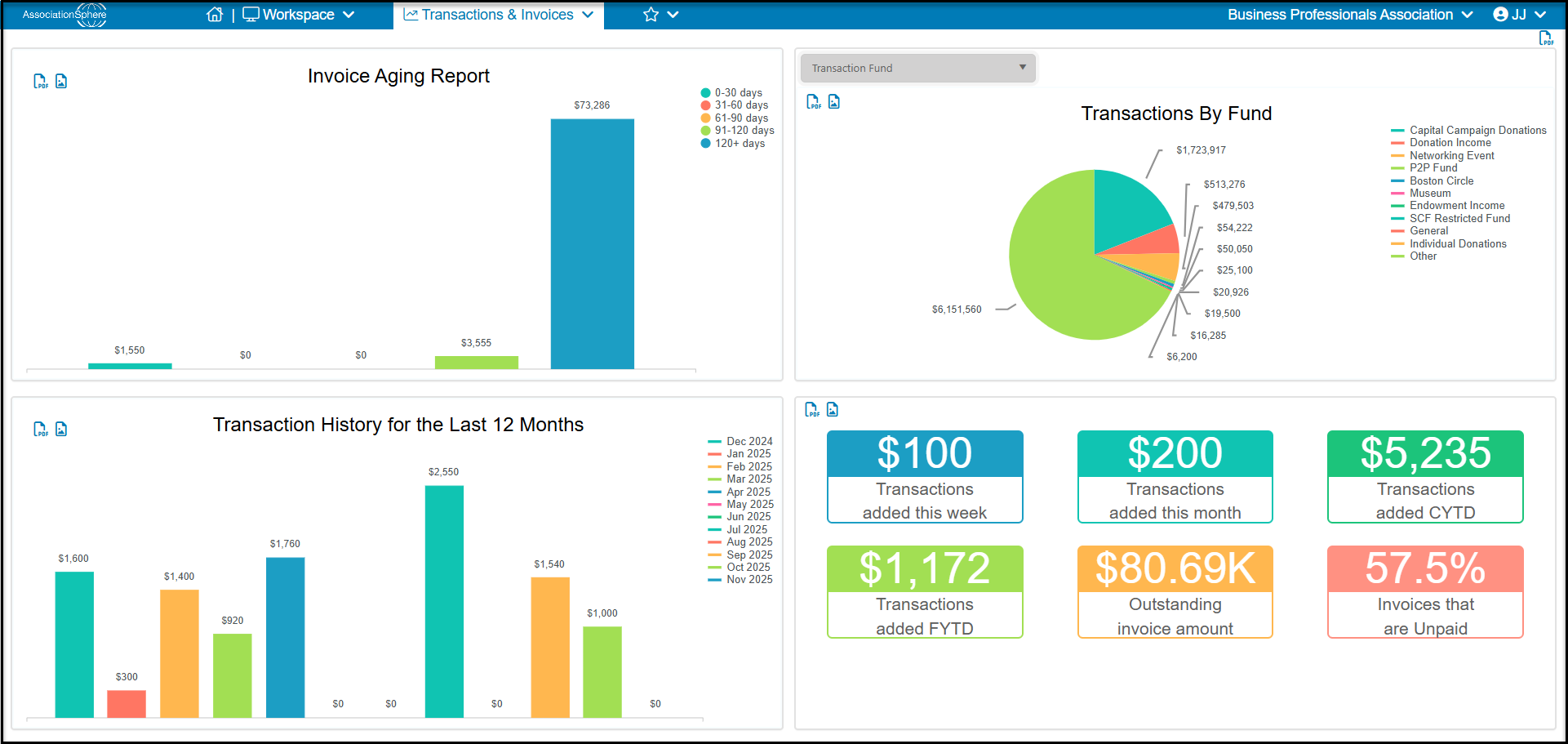
The Transaction & Invoices Module's dashboard is built into the software. The four quadrants display statistics associated with the Transaction & Invoicing Module including:
- The top left quadrantwill display you invoice aging report.
- Hovering over a bar on the graph will display the amount.
- Clicking on it will open a new view on the Invoices grid to display all the transactions included in the amount displayed.
- The top right quadrant will display a pie chart of Transactions By “For” by default. The dropdown menu allows you to select the revenue category to display including the For, Fund, Event, Appeal, Type or Location.
- The bottom left quadrantwill display the transactions received for a rolling twelve months.
- You can remove a month from the display by clicking on the bar next to the month in the top right corner.
- To see more details, you can click on a bar in the graph to open a new view in the Transactions grid to show all the transactions included in the amount displayed.
- The bottom right quadrantshows summary information for transactions recorded this week, this month, calendar year to date (CYTD) and fiscal year to date (FYTD). There is also a display of total outstanding invoice amount and percentage of invoices that are unpaid.
Transactions & Invoicing Module Sub-Menu
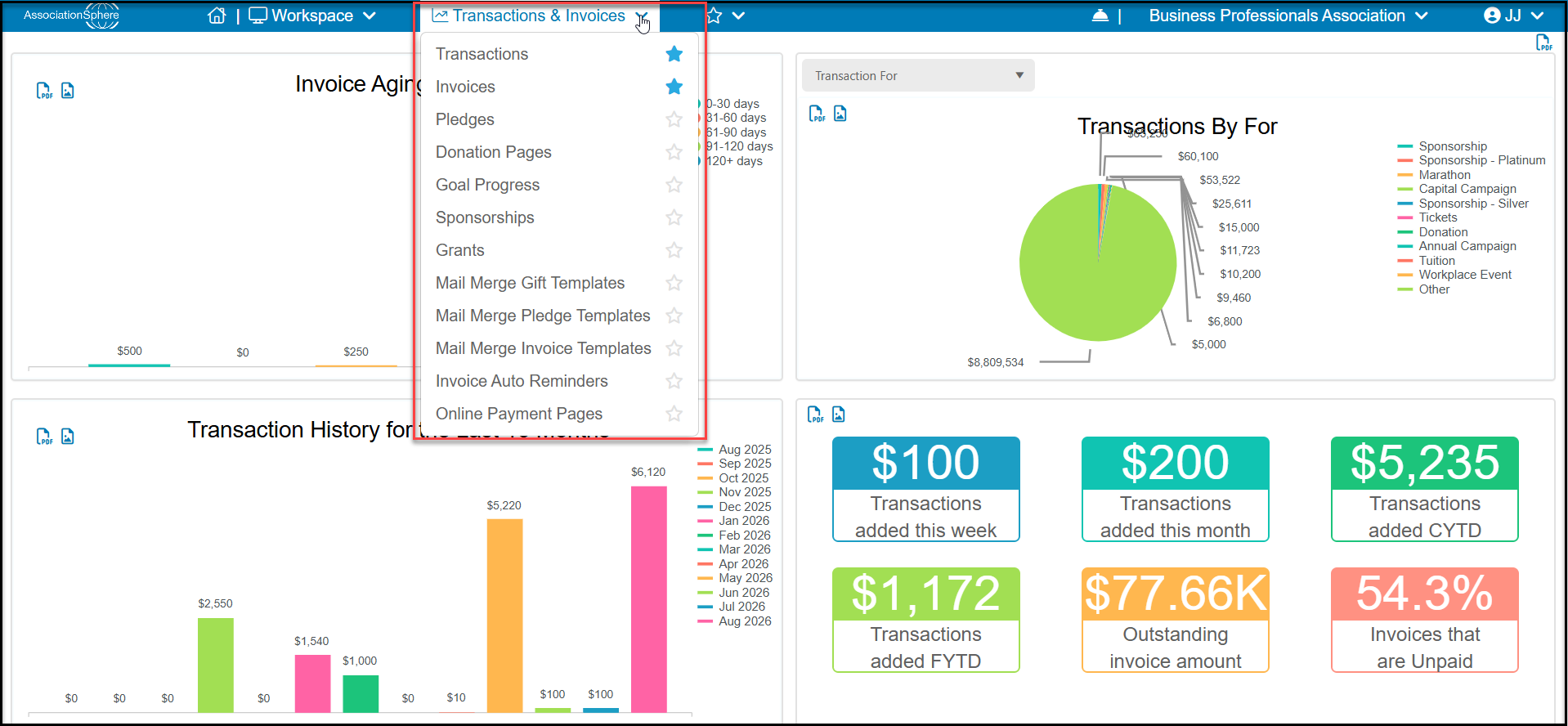
From the Transactions & Invoicing Module menu, you can access the following sub-pages (links provided to support article folders):
- https://support.donorview.com/en/support/solutions/folders/9000202780Transactions- this will display the Transactions grid where you can manually enter general transactions, send acknowledgements, and view and report on every transaction that was ever recorded in the software including:
- Memberships
- Invoice payments
- Event registrations
- General donations
- New pledges
- Pledge payments
- In Kind donations
- Stock donations
- Auction purchases
- Invoices - this will open the Invoices grid to display all invoices created in the software as well as their status and contact information
- Pledges- this is the grid that displays all the pledges. It has two grids:
- Details grid which shows all the pledge payments that are due for each pledge. This is the initial grid that loads by default.
- Summary grid which shows one row from each pledge with a summary of the entire balance.
- Donation Pages - takes you to the grid where you can create and edit your donation pages. There is no limit to how many donation pages you can create and these allow you to create the forms to share for collecting online contributions. People who contribute via a donation page will automatically receive a thank you message via email. All contributions are automatically added to the Gifts grid.
- Goal Progress - where you can create and edit goal progress widgets (progress thermometers and donuts) to show how you are doing on a specific fundraising goal, like your annual campaign or special event. These widgets include an html code that can be embedded into your website.
- Sponsorships - where you can create tasks and follow-ups associated with deliverables you owe to your sponsors. It is also where you can track the status of any of those tasks.
- Grants - opens the Grants grid to view and edit the status of all grant proposals.
- Mail Merge Gift Templates - where you create the various thank you letters associated with manually entered gifts link general donations, in kind, stock and pledge payments. The data used for the merge fields in these letters is derived from the Gifts grid.
- Mail Merge Pledge Templates- where you create thank you letters for new pledges and create pledge reminder letters. The data used for the merge fields in these letters is derived from the Pledges - Summary grid.
- Mail Merge Invoice Templates - where you create the cover letters and reminder letters for invoices.
- Invoice Auto Reminders- to create and automate invoice payment reminders.
- Online Payment Pages - which is the first step in creating invoices, you must have at least one online payment page created to establish an invoicing program.
Was this article helpful?