# Survey/Forms Contacts - Creating Email Lists for Surveys
> Source: https://support.associationsphere.com/surveyforms-contacts-creating-email-lists-for-surveys | Updated: 2026-09-08T02:58:46Z
The Contacts page in the Survey/Forms Module is used to manage all of your email lists and the contacts on those lists. Contacts are the constituents who will receive the emails sent to those lists. All of the contacts shown in the contacts page are also constituents in the database. The page your see in the Survey/Forms Module is the same as is available in the Email Marketing Module. Any changes you make via either module, will be reflected in both.
Email lists can be created from most grids by adding queries and filters to identify the specific groups of constituents you wish to contact. Email lists can also be created from constituent profile pages using the Email Lists field as well as from the Contacts Page by importing, combining, or creating new blank lists.
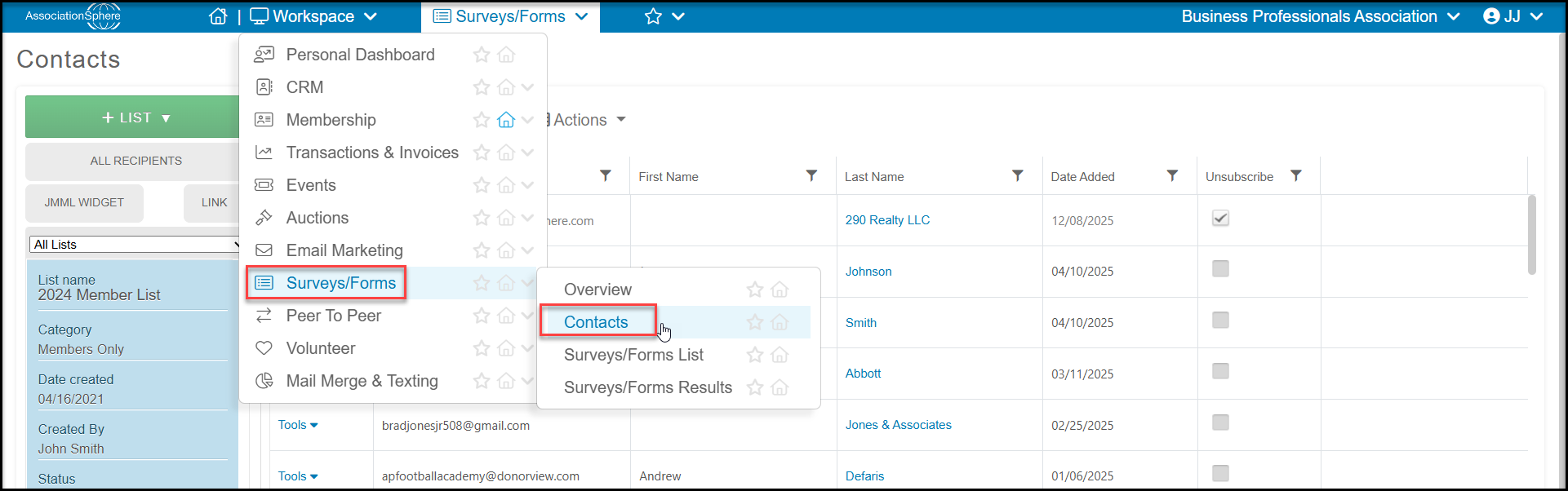
You can find the Contacts page by going to the Workspace menu, then Survey/Forms Module and click on **Contacts**.
 **Creating Email Lists**
Email lists can be created by adding queries and filters to your grids to identify a specific group of constituents you would like to receive a message.
**Example - Post-Event Survey Email List for All Event Attendees**
In the first example, we can create an email list for everyone who attended our event. lter the grid to create your list. Go to the Event Attendance grid and select your event.
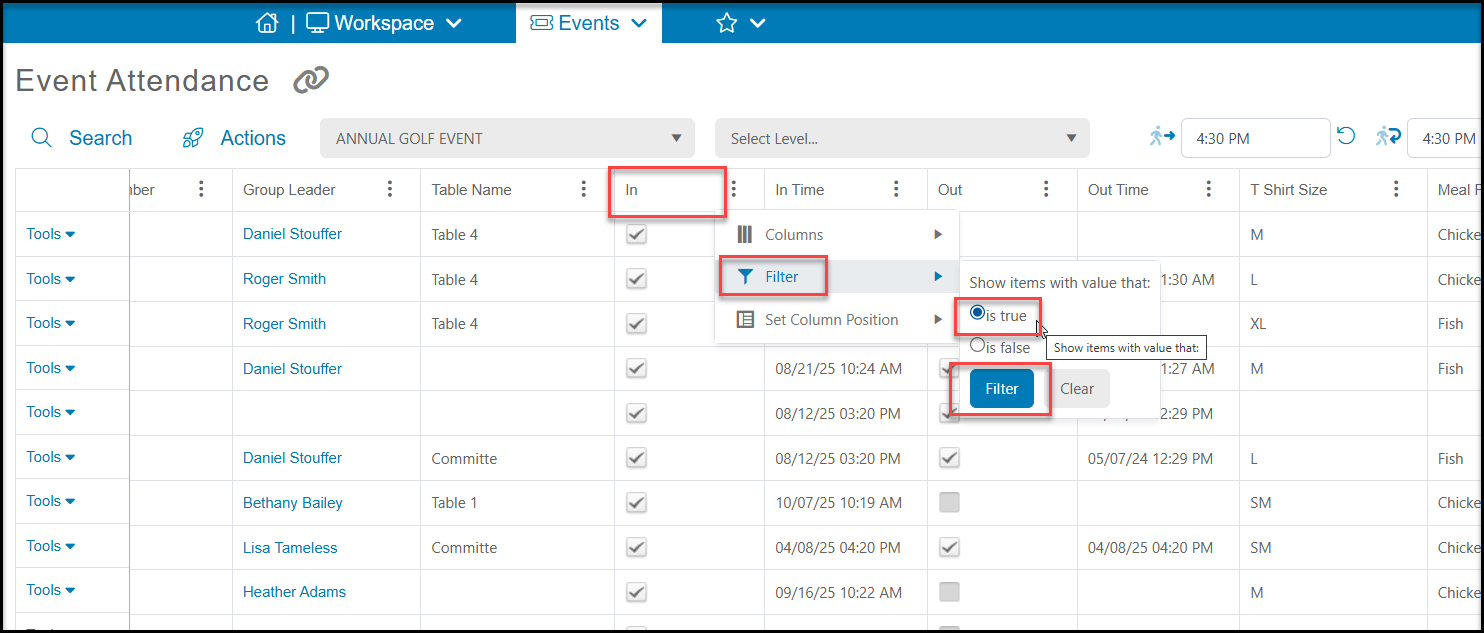
To include only those who attended, be sure to add an “Is True” filter to the**In** column.
**Creating Email Lists**
Email lists can be created by adding queries and filters to your grids to identify a specific group of constituents you would like to receive a message.
**Example - Post-Event Survey Email List for All Event Attendees**
In the first example, we can create an email list for everyone who attended our event. lter the grid to create your list. Go to the Event Attendance grid and select your event.
To include only those who attended, be sure to add an “Is True” filter to the**In** column.
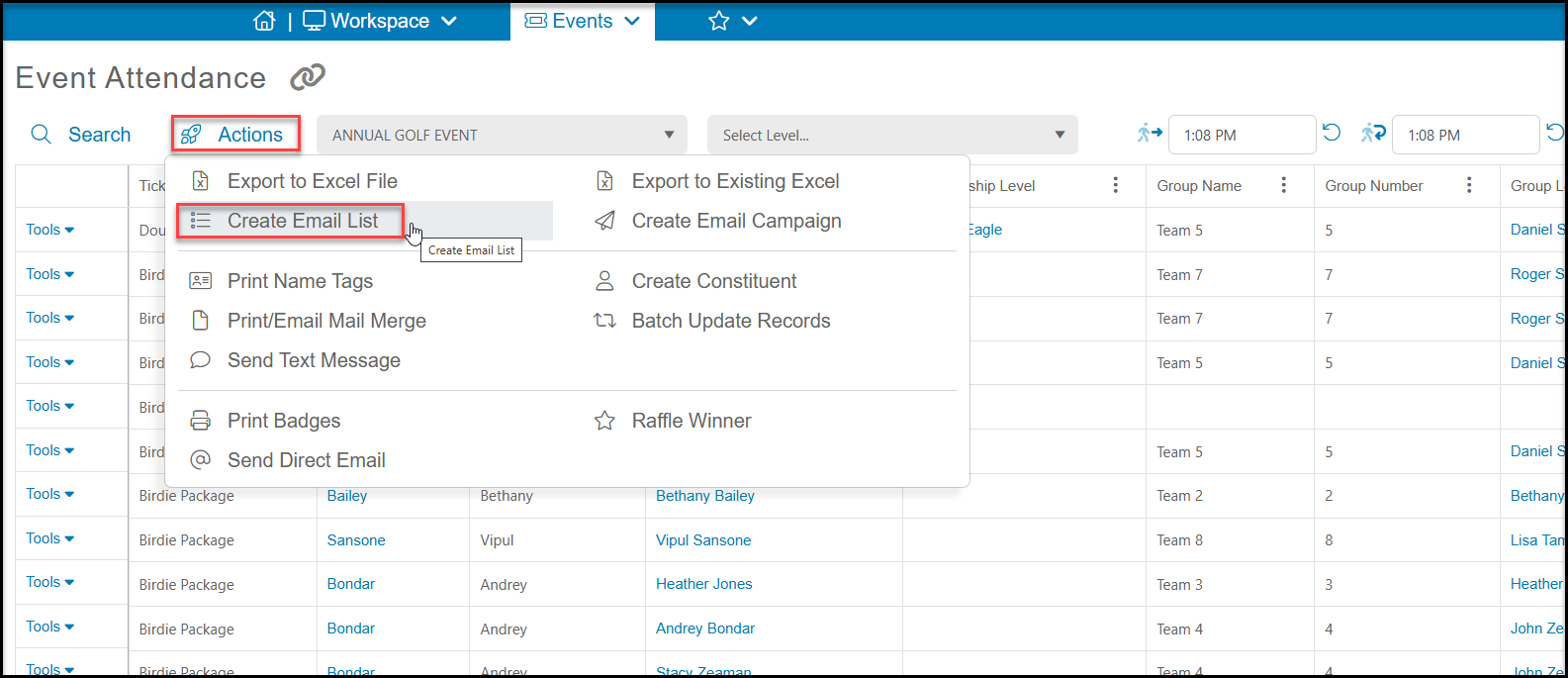
 From the Actions menu click on **Create Email List** to create your list.
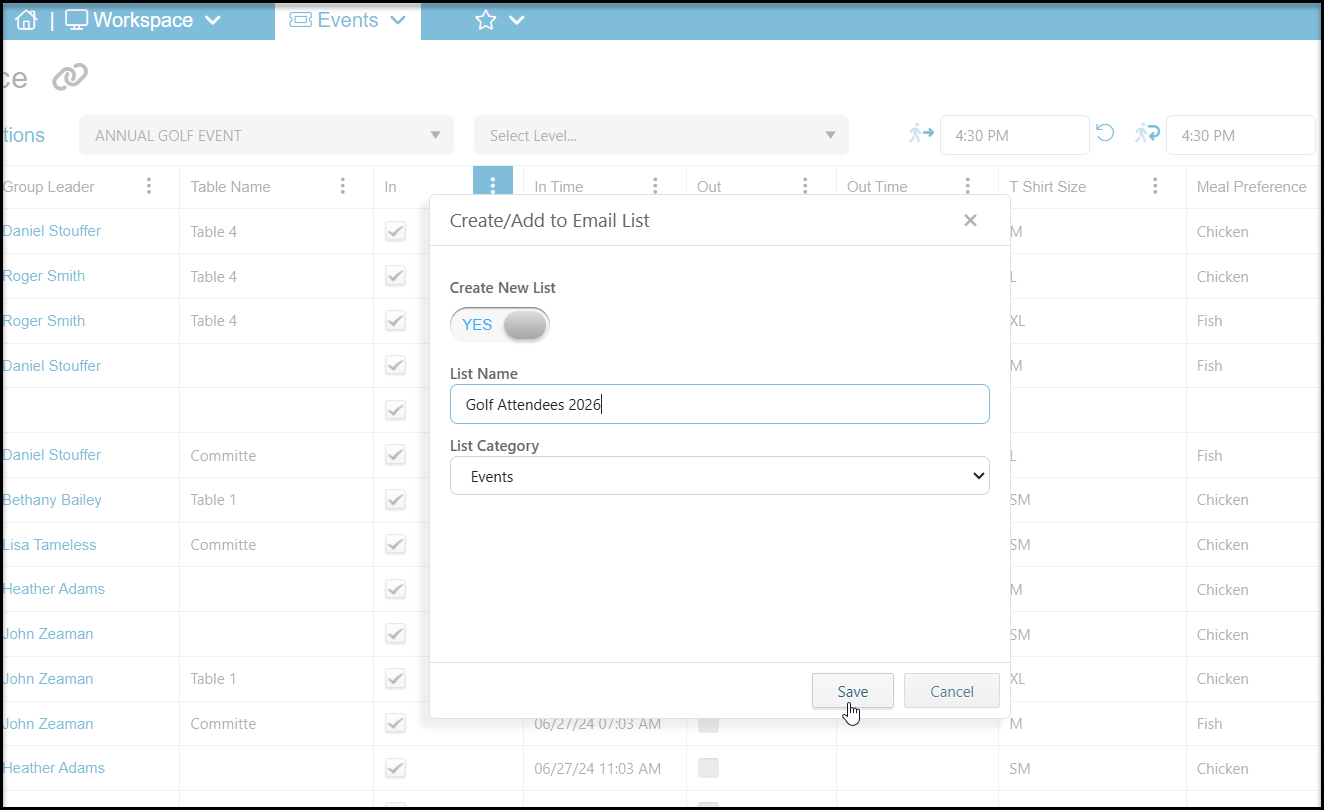
 In the new window you will set **Create New List** to “**YES**” and enter the name of your new email list. You can also assigned it to the appropriate List Category. Click **Save**to create your new list.
Once created, you can select this list when sending a survey via email on the Recipients tab.
In the new window you will set **Create New List** to “**YES**” and enter the name of your new email list. You can also assigned it to the appropriate List Category. Click **Save**to create your new list.
Once created, you can select this list when sending a survey via email on the Recipients tab.
 **Example - Membership Satisfaction Survey Email List**
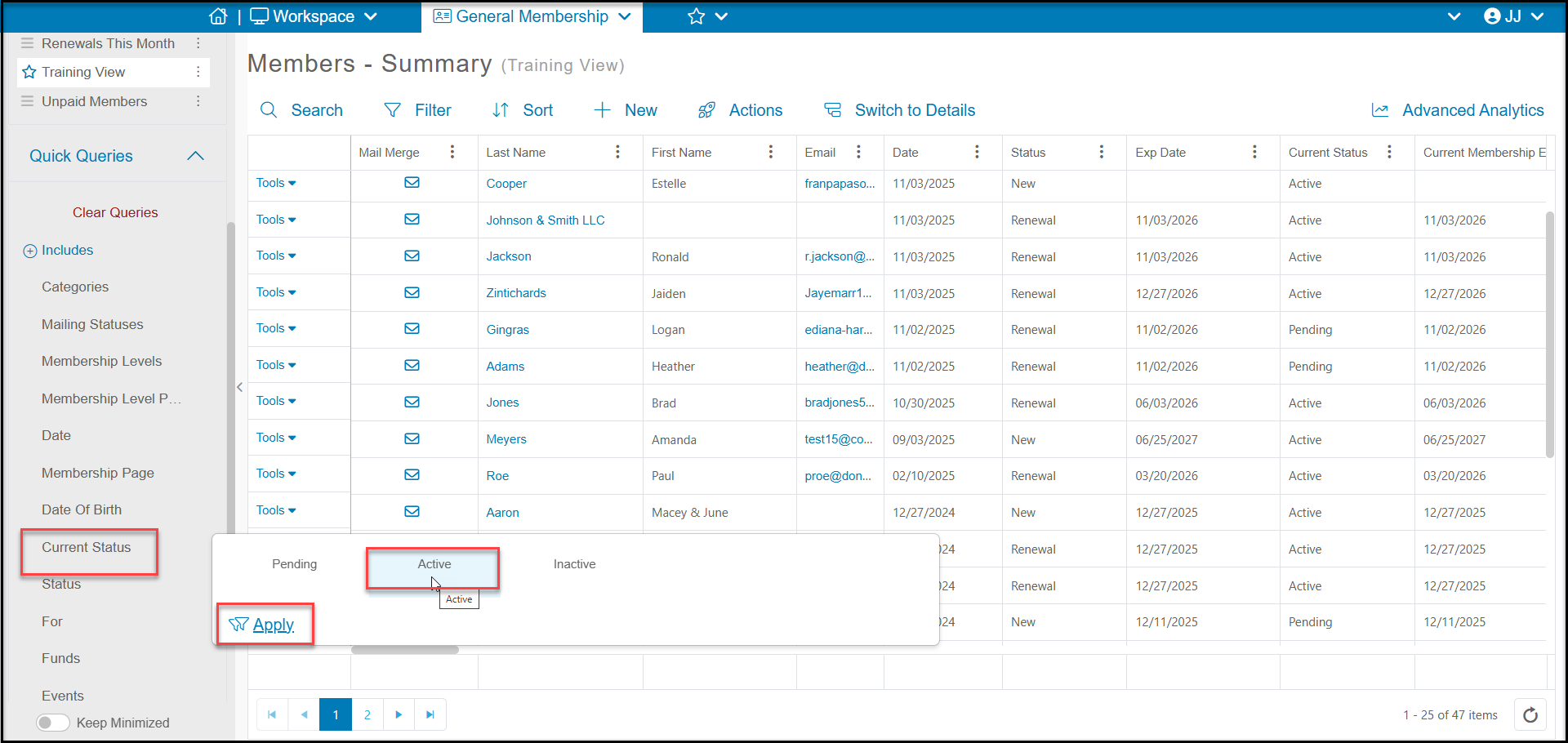
In the next example, we want to send a membership satisfaction survey to all our active members. Start from the Memberships - Summary grid. Apply a Quick Query for Current Status = Active to include only active members in the list.
**Example - Membership Satisfaction Survey Email List**
In the next example, we want to send a membership satisfaction survey to all our active members. Start from the Memberships - Summary grid. Apply a Quick Query for Current Status = Active to include only active members in the list.
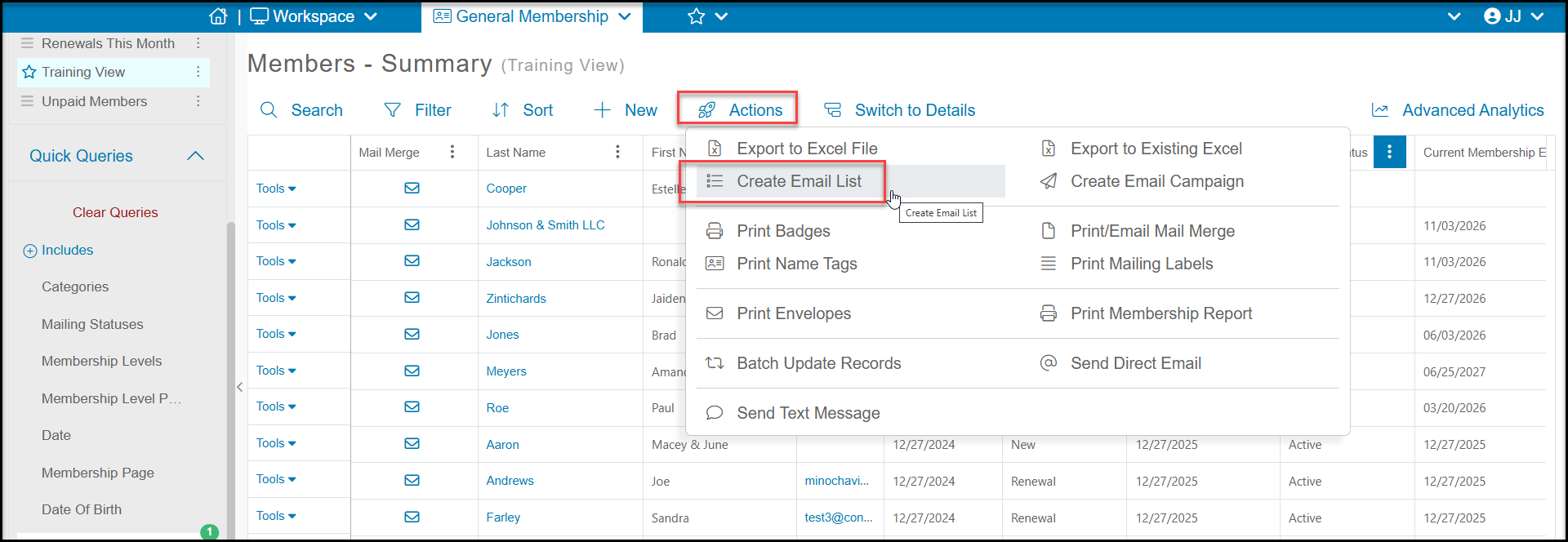
 With your list only showing Active members, go to the **Actions**menu and select **Create Email List**.
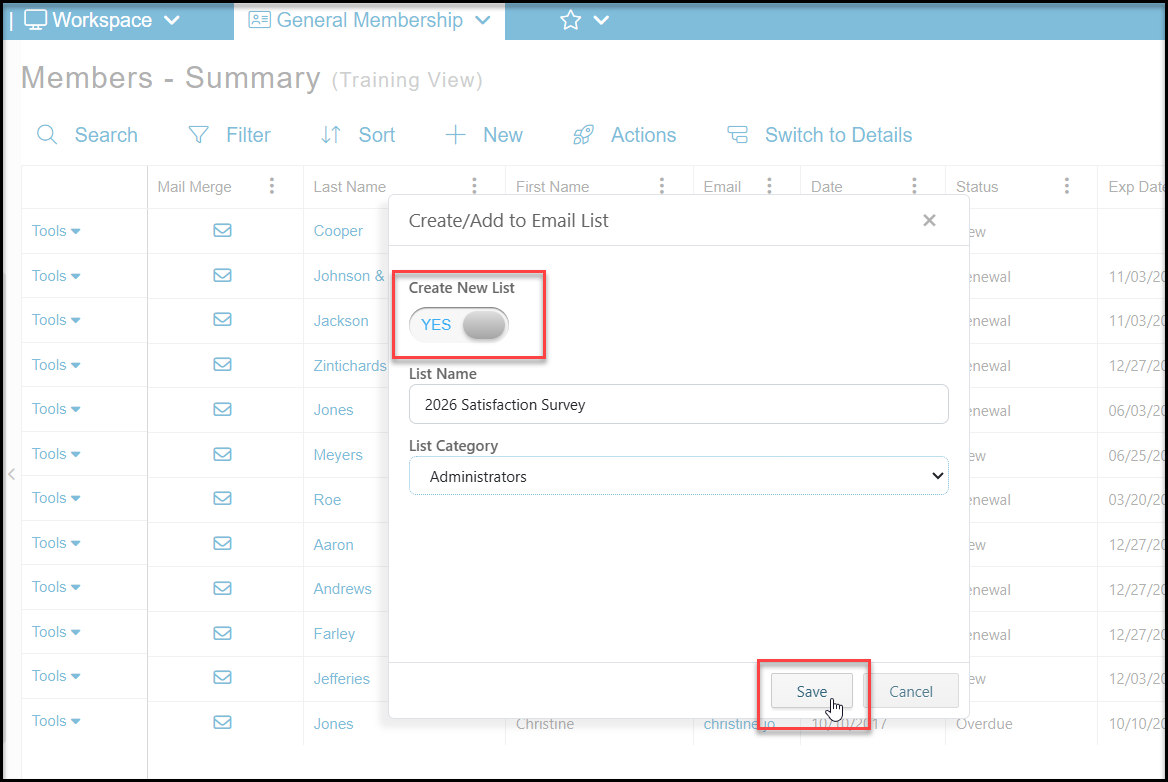
 As described above, in the new window you will set **Create New List** to “**YES**” and enter the name of your new email list. You can also assigned it to the appropriate List Category. Click **Save**to create your new list.
Once created, you can select this list when sending a survey via email.
As described above, in the new window you will set **Create New List** to “**YES**” and enter the name of your new email list. You can also assigned it to the appropriate List Category. Click **Save**to create your new list.
Once created, you can select this list when sending a survey via email.
 To learn more about sending the survey via email, see this article https://support.donorview.com/en/support/solutions/articles/9000277262-how-do-i-send-a-survey-or-form-to-an-email-list-"How do I send a survey or form to an email list?"