# Thank You Message
> Source: https://support.associationsphere.com/thank-you-message | Updated: 2026-08-06T15:18:47Z
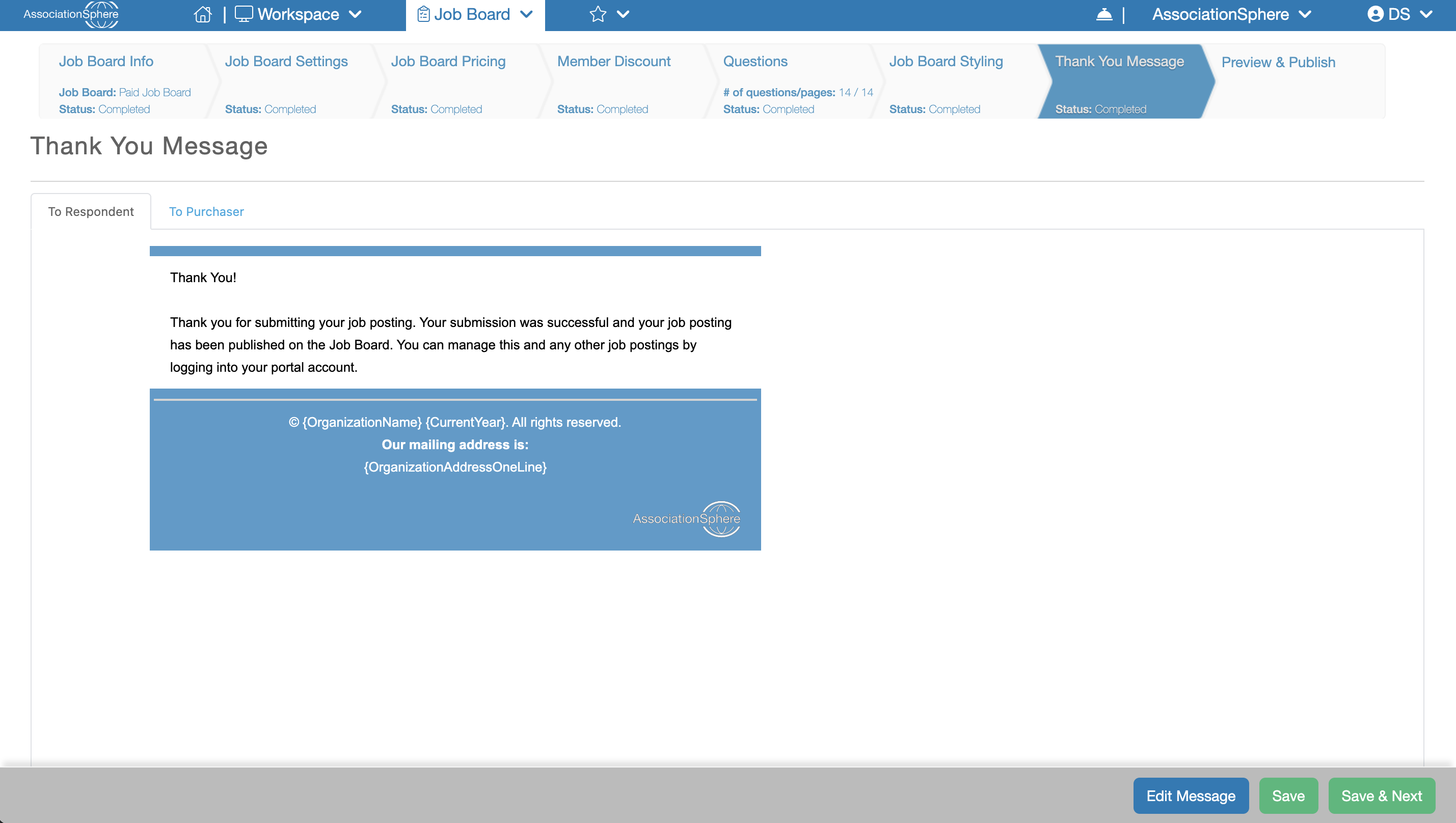 The next step in the setup of a Job Board after Job Board Styling is **Thank You Message**.
The **Thank You Message** tab allows you to customize the confirmation messages displayed after a Job Posting is submitted. A copy of the message is also emailed to the recipient.
If your Job Board includes **paid postings**, you can configure two separate confirmation messages:
- **To Respondent** – This message is displayed to the employer after they submit a Job Posting through the application. A copy of this message is also emailed to the Job Poster.
- **To Purchaser** – This message is displayed after a purchase is completed. A copy of this message is also emailed to the purchaser.
The next step in the setup of a Job Board after Job Board Styling is **Thank You Message**.
The **Thank You Message** tab allows you to customize the confirmation messages displayed after a Job Posting is submitted. A copy of the message is also emailed to the recipient.
If your Job Board includes **paid postings**, you can configure two separate confirmation messages:
- **To Respondent** – This message is displayed to the employer after they submit a Job Posting through the application. A copy of this message is also emailed to the Job Poster.
- **To Purchaser** – This message is displayed after a purchase is completed. A copy of this message is also emailed to the purchaser.
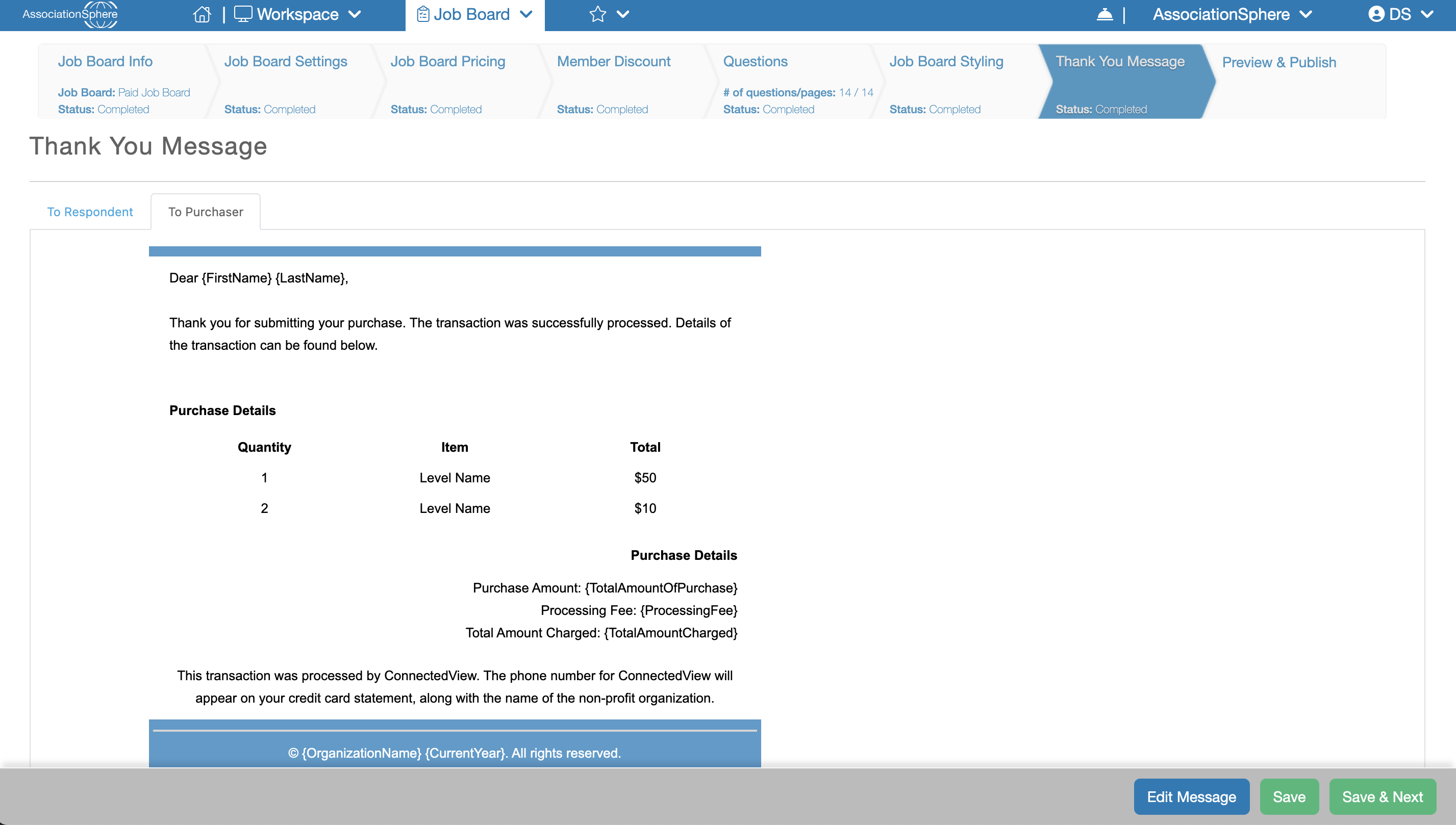 Both messages include default text, formatting, and purchase details that you can customize. To edit a message, select the appropriate tab (**To Respondent** or **To Purchaser**) and click the **Edit Message** button in the lower-right corner. The message will open in the Email Template Editor, where you can modify the content, formatting, and styling.
When you have finished making your changes, click **Save** to save your work and remain on the current tab, or click **Save & Next** to save your changes and continue to the final step of the setup process.
Both messages include default text, formatting, and purchase details that you can customize. To edit a message, select the appropriate tab (**To Respondent** or **To Purchaser**) and click the **Edit Message** button in the lower-right corner. The message will open in the Email Template Editor, where you can modify the content, formatting, and styling.
When you have finished making your changes, click **Save** to save your work and remain on the current tab, or click **Save & Next** to save your changes and continue to the final step of the setup process.