# Updating a Credit Card on a Recurring Payment
> Source: https://support.associationsphere.com/updating-a-credit-card-on-a-recurring-payment | Updated: 2026-09-08T02:58:45Z
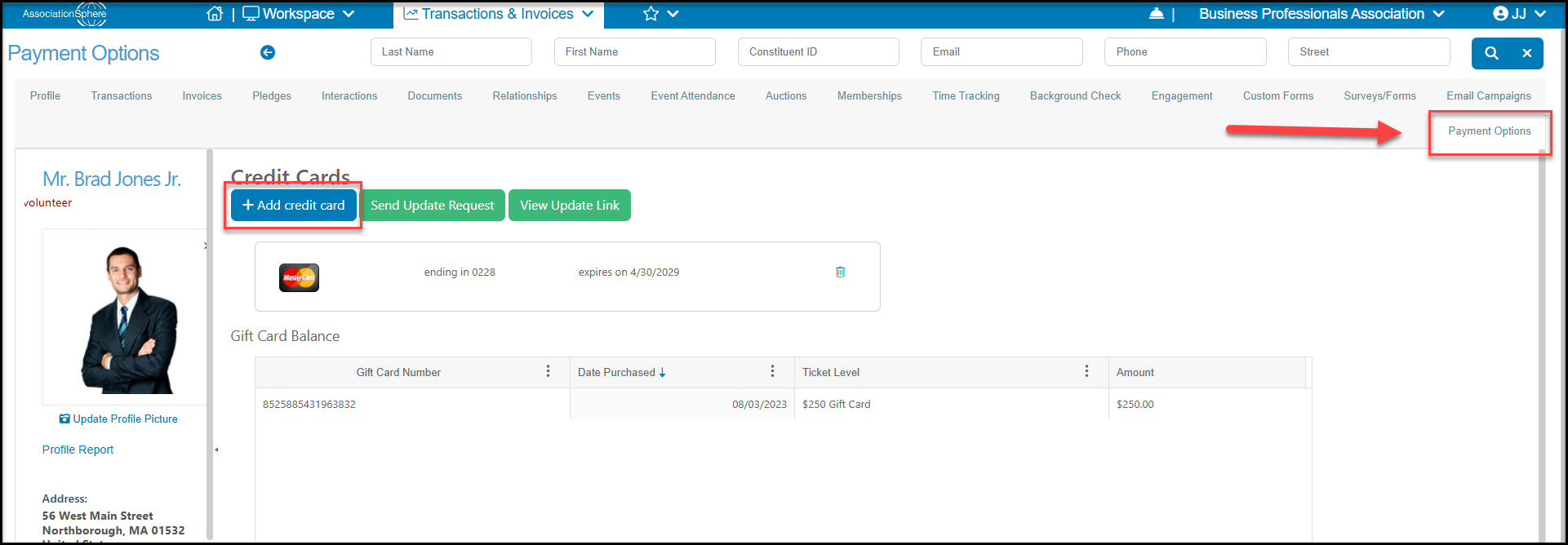
You can request an update if you received notice that a credit card was declined or the constituent reaches out to update their credit card information. Please refer to this article "Updating a Constituent Credit Card" for instructions on getting the new card number entered by the constituent using **Send Update Reques****t**. You can also manually update the card number if you received the new credit card information from your constituent. From the Payment Options tab for that constituent, click on **+Add credit card**to add a new card number.
 Once the new card has been added or the constituent wishes to charge a different card that is already on file, it will be necessary to update the pledge.
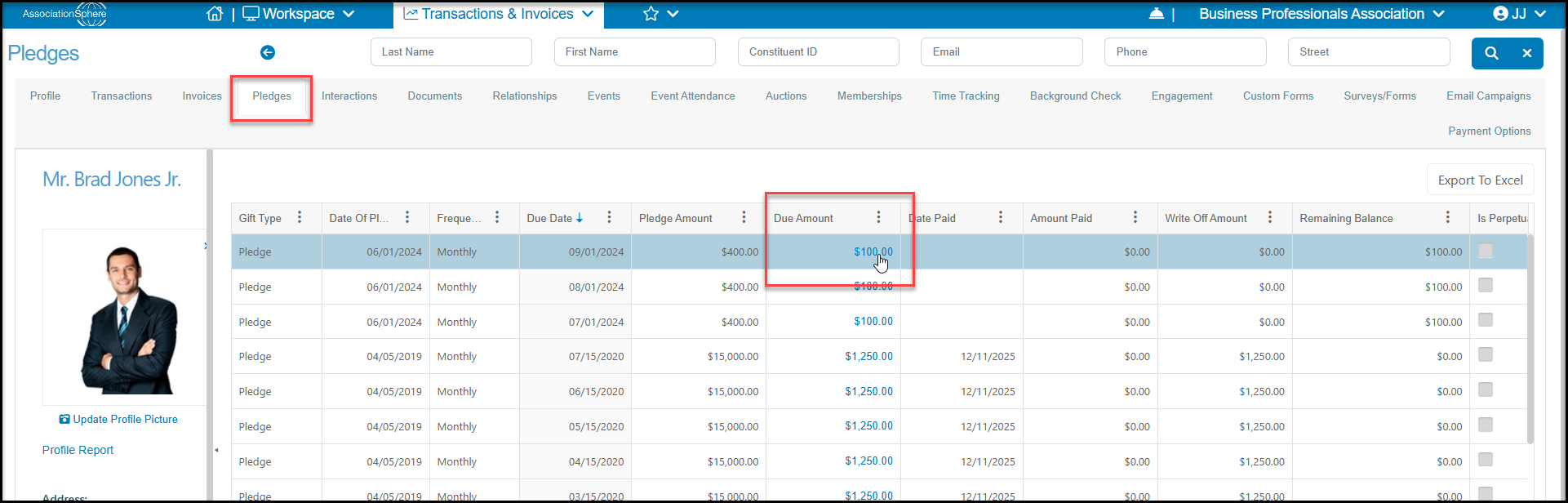
- Go to the pledge from the constituent's Pledges Tab.
- Double click on any of the Due Amounts for that pledge.
Once the new card has been added or the constituent wishes to charge a different card that is already on file, it will be necessary to update the pledge.
- Go to the pledge from the constituent's Pledges Tab.
- Double click on any of the Due Amounts for that pledge.
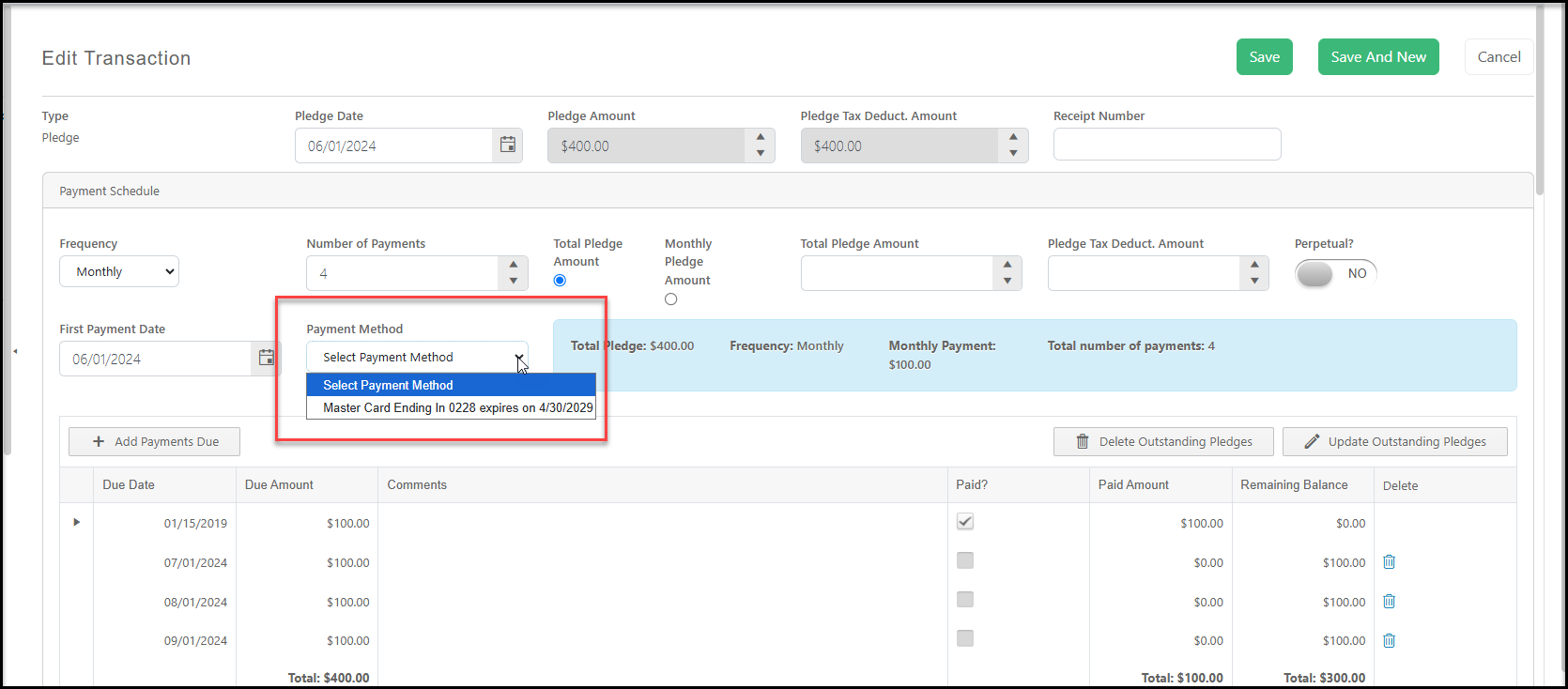
 - Go to the**Payment Method** drop-down and select the new card number.
- Click on the green **Save** button on the top or bottom of the page to save the change.
- Once the old card is no longer linked to any donations it can be deleted on the Payment Options tab.
- Deleting the old card will stop any Credit Card Expiration notification emails as well.
- Go to the**Payment Method** drop-down and select the new card number.
- Click on the green **Save** button on the top or bottom of the page to save the change.
- Once the old card is no longer linked to any donations it can be deleted on the Payment Options tab.
- Deleting the old card will stop any Credit Card Expiration notification emails as well.