# View and Quick Queries Side Bar
> Source: https://support.associationsphere.com/view-and-quick-queries-side-bar | Updated: 2024-07-19T18:30:52Z
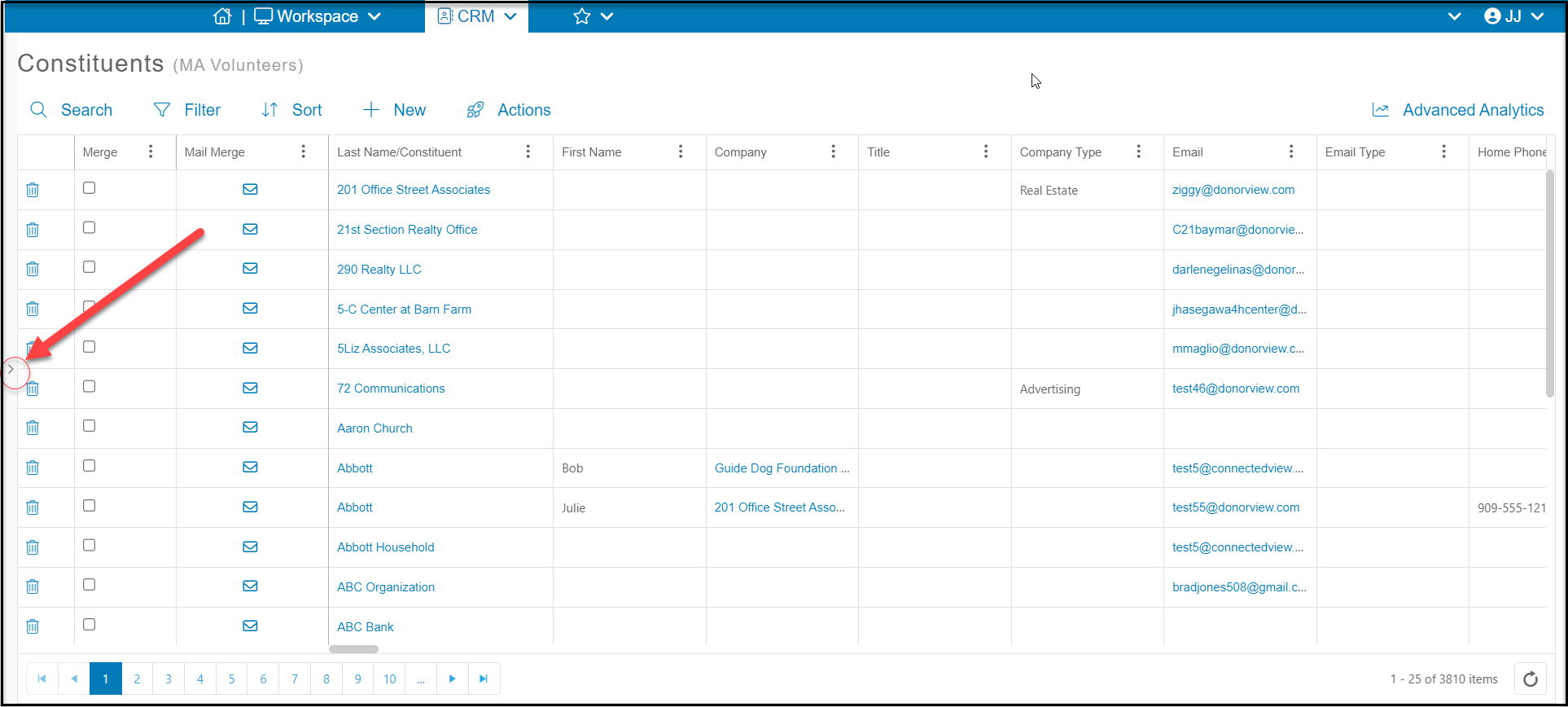
A side bar is used to manage Views and Quick Queries for grids that have this feature enabled. Not all grids have Views and Quick Queries, for example the Event Attendance grid. The side bar can be hidden and revealed using the small arrow in the center of the left side of the grid.
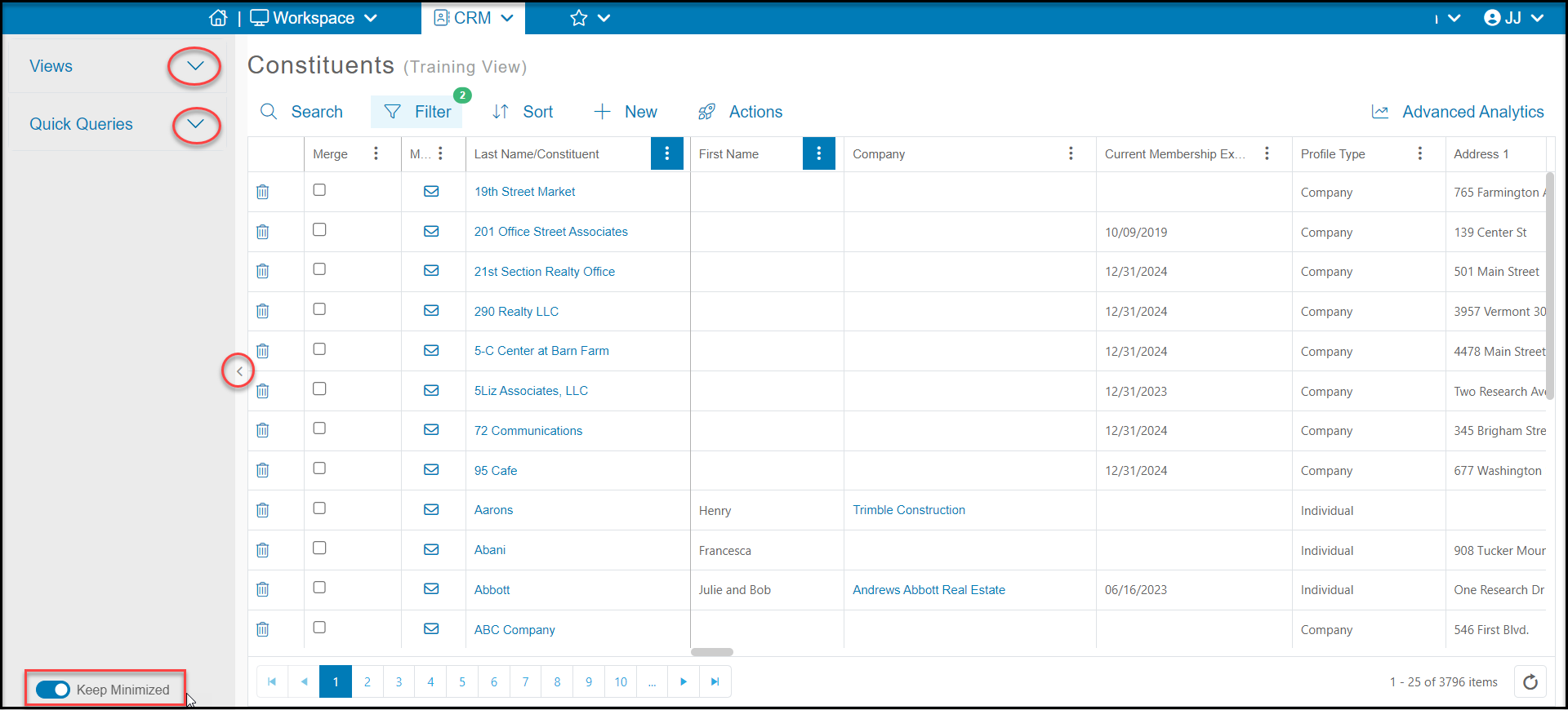
 You can elect to keep the side bar minimized using the toggle at the bottom of the side bar. There are also menu arrows to the right of the Views and Quick Queries to minimize the information shown if desired.
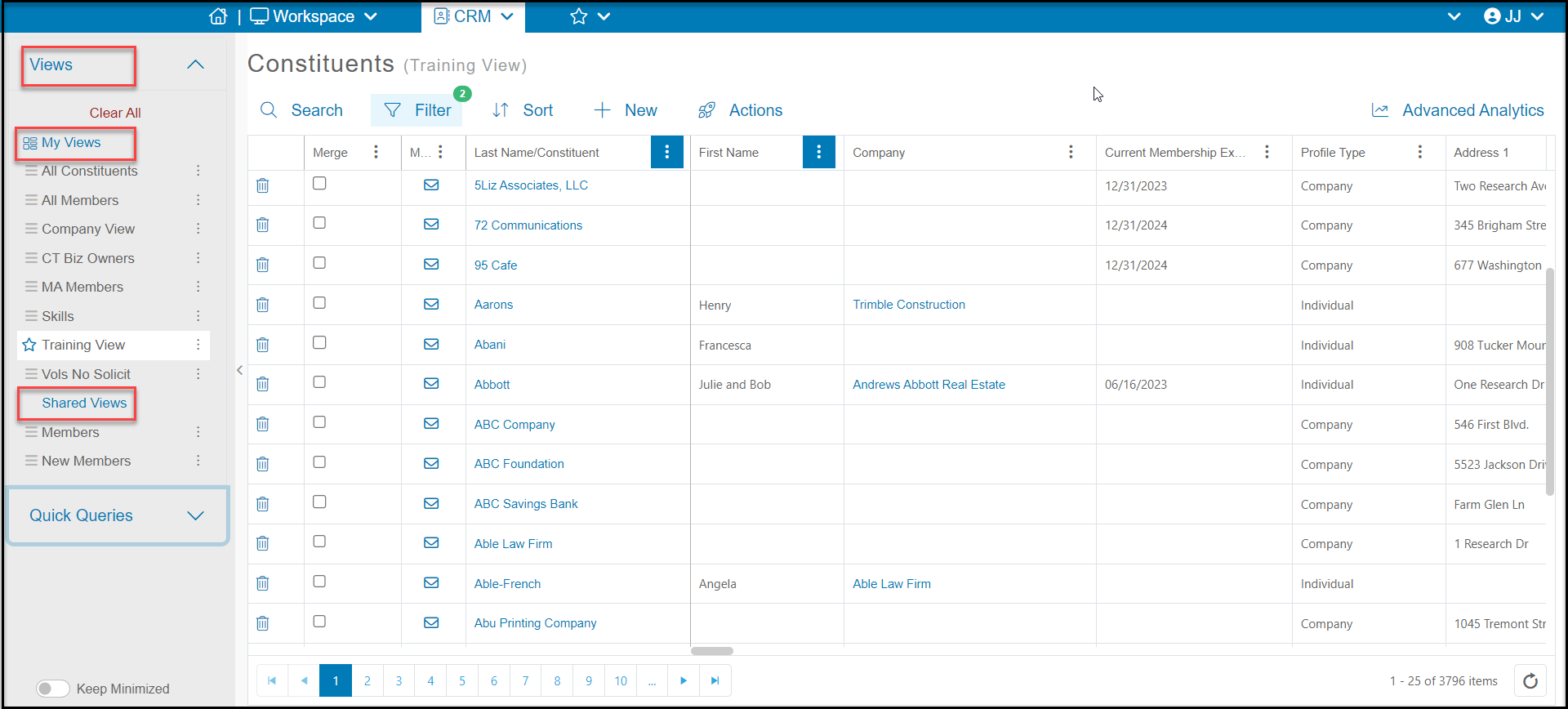
 The top menu for Views, has two subsections. At the top are **My Views**that you have created. Below that are **Shared Views** to show any views other users have shared with you.
 For Quick Queries, there are also two subsections. The top are for **Includes**queries to show constituents who include those items selected. For examples, if you would like your grid to show everyone on an event text message list, under Includes, click on Text Msg List and select Events. This will show only those constituents in your database that are subscribed to the Events text message list.
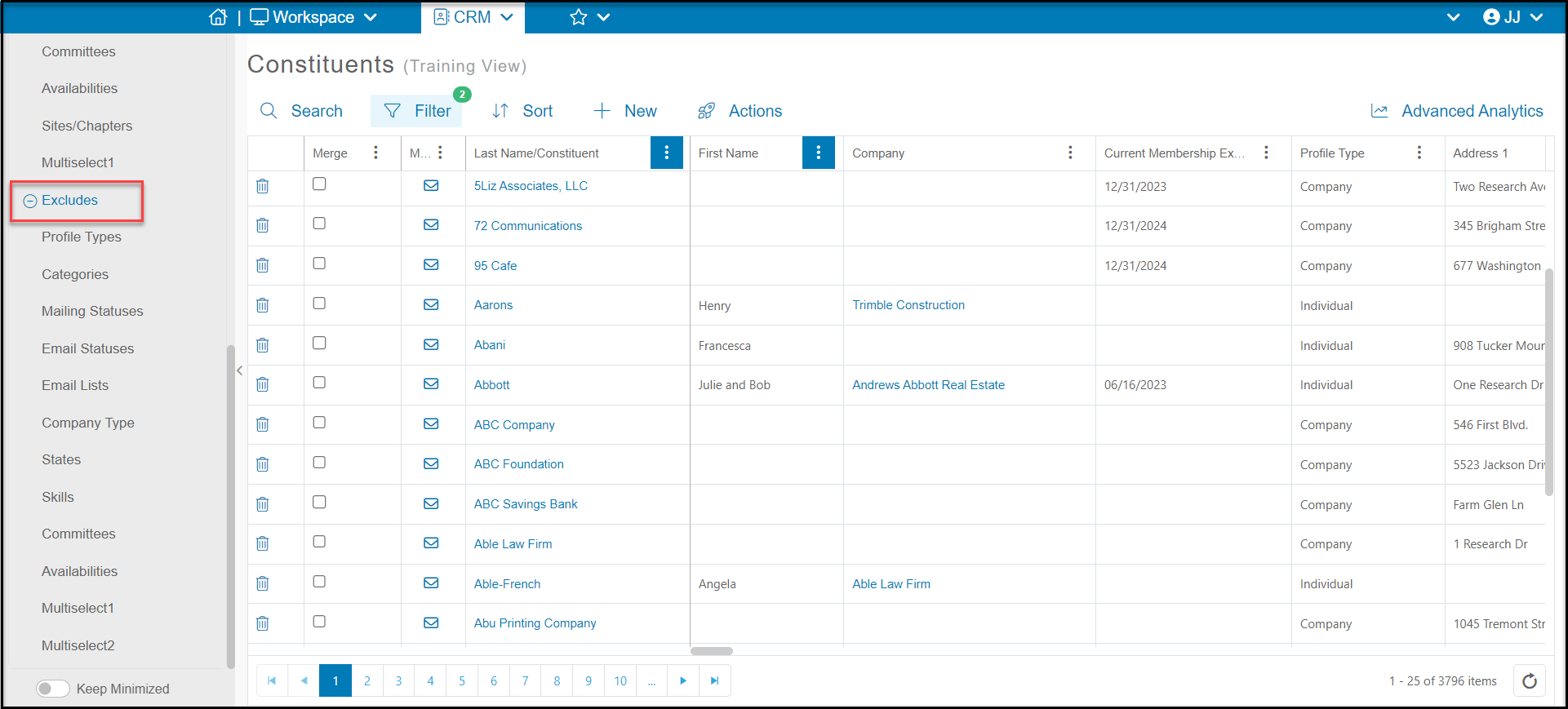
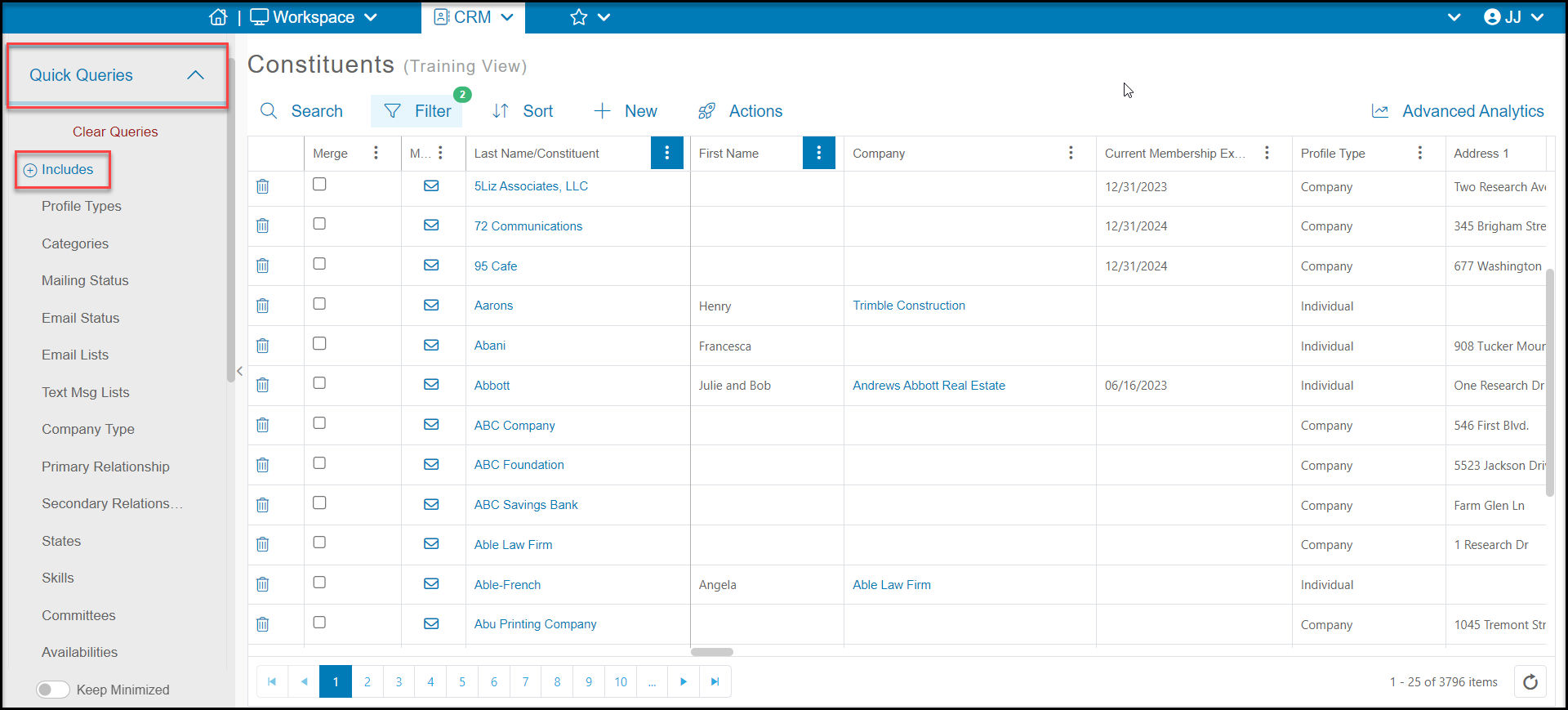 Below the Includes Quick Queries are **Excludes**to remove constituents who include any of those items selected. For example, if you want to ensure your mailing list does not include any bad addresses, you can use Excludes>Mailing Statuses and choose Bad Address to remove any constituents who have a bad address.