# Volunteer Applications
> Source: https://support.associationsphere.com/volunteer-applications | Updated: 2026-09-08T02:58:49Z
Volunteer applications and forms are created using the Surveys/Forms module. We use the generic term "survey" when describing the activities associated with creating any form, application, or survey in the software.
This article "How do I create a basic survey, application, or other form?" provides details about creating your application, which is similar to setting up other types of pages in the software. A Survey/Form page includes the following tabs for setting up your application:
- Survey/Form Info
- Survey/Form Settings
- Questions
- Survey/Form Styling
- Thank You Message
- Schedule or Send
If you decide to send your volunteer application via an email campaign, the tabs will also include:
- Attach Recipients List
- Welcome Message
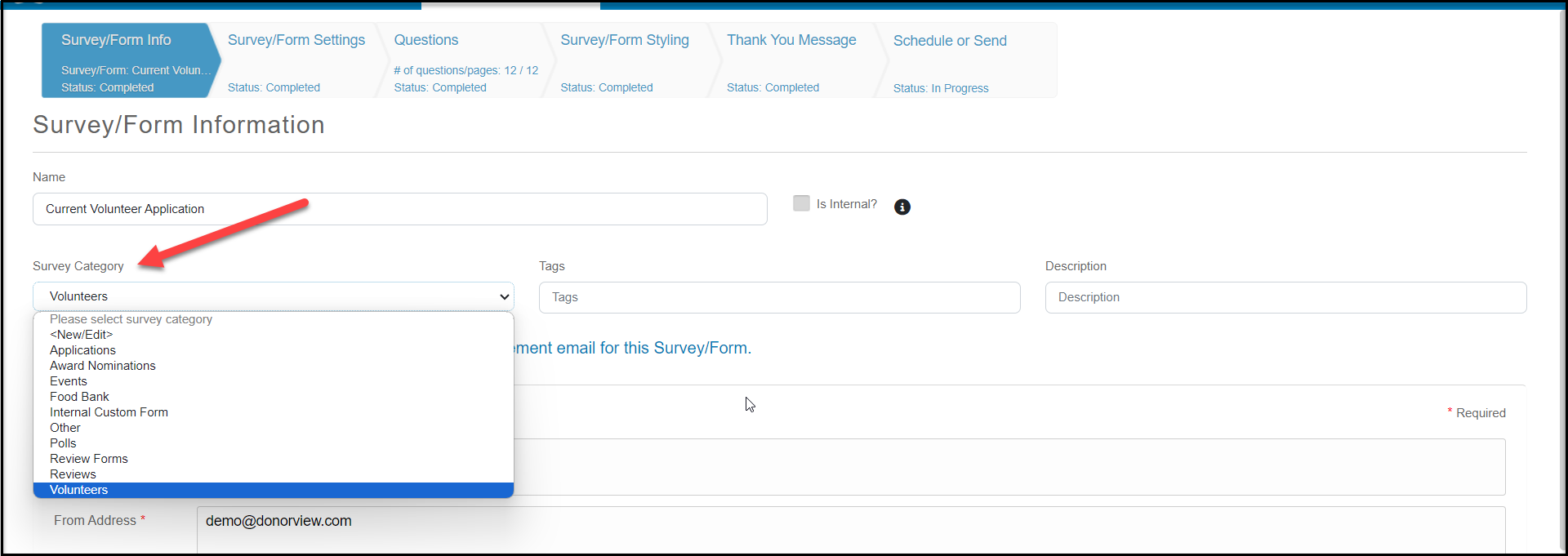
To make your volunteer applications easier to identify in the Surveys/Forms Results page, you can create a **Survey Category** called "Volunteer" if desired.
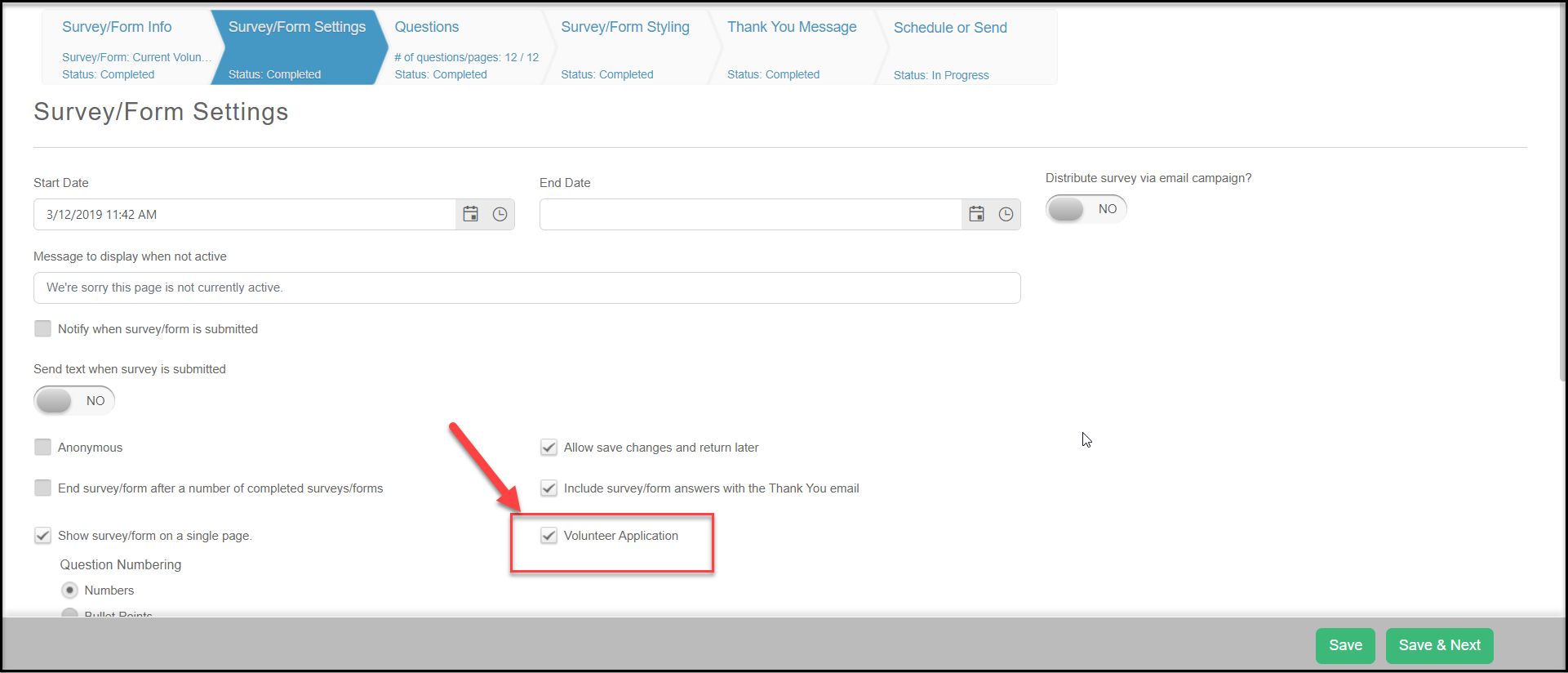
 For any applications or forms that you would like to sync with the Volunteer module, be sure to link them by checking the **Volunteer Application** box on the Survey/Forms Settings tab. This will ensure those applications will be included on the Applications page of the Volunteer Module.
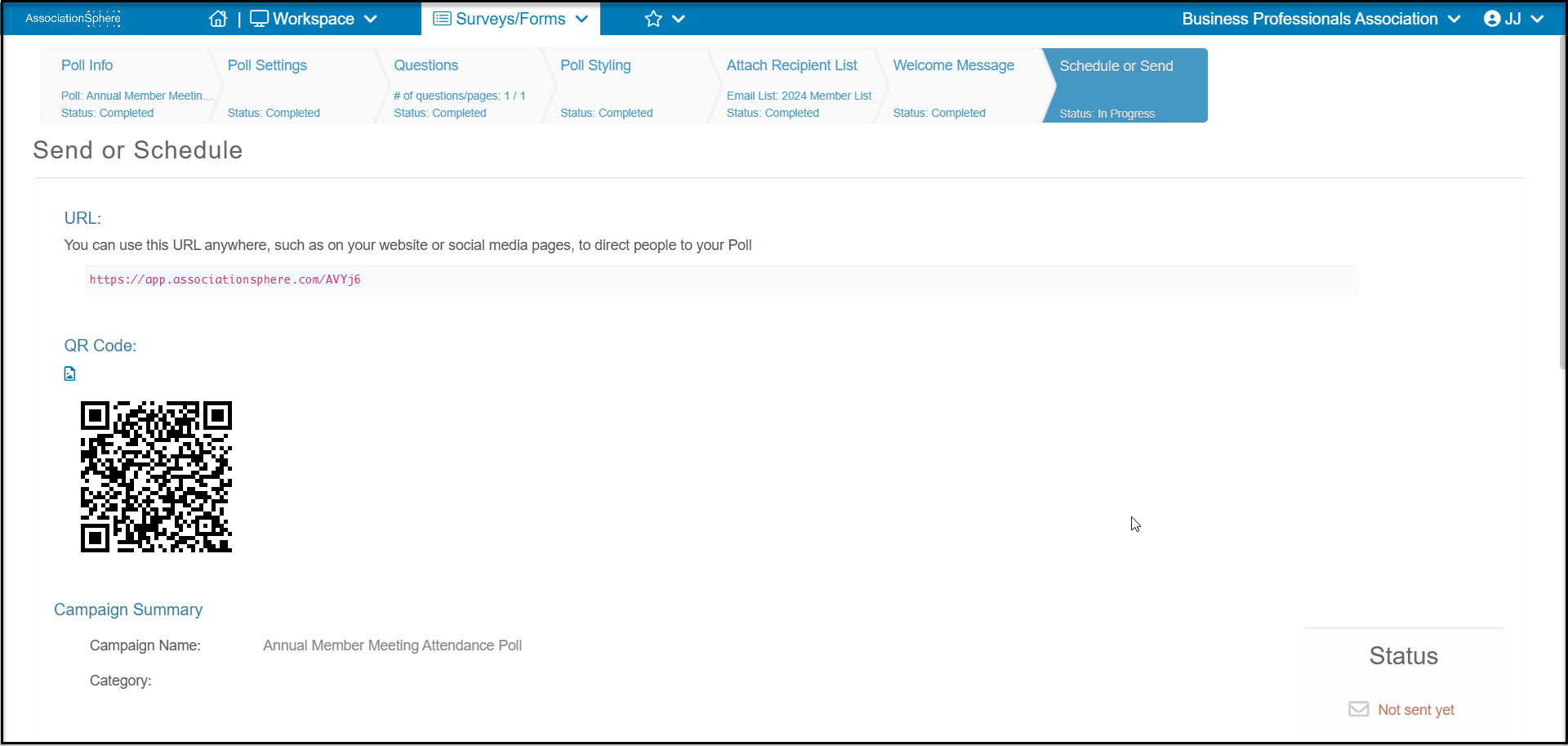
 You can share your applications using the URL or QR code on the Schedule or Send tab.
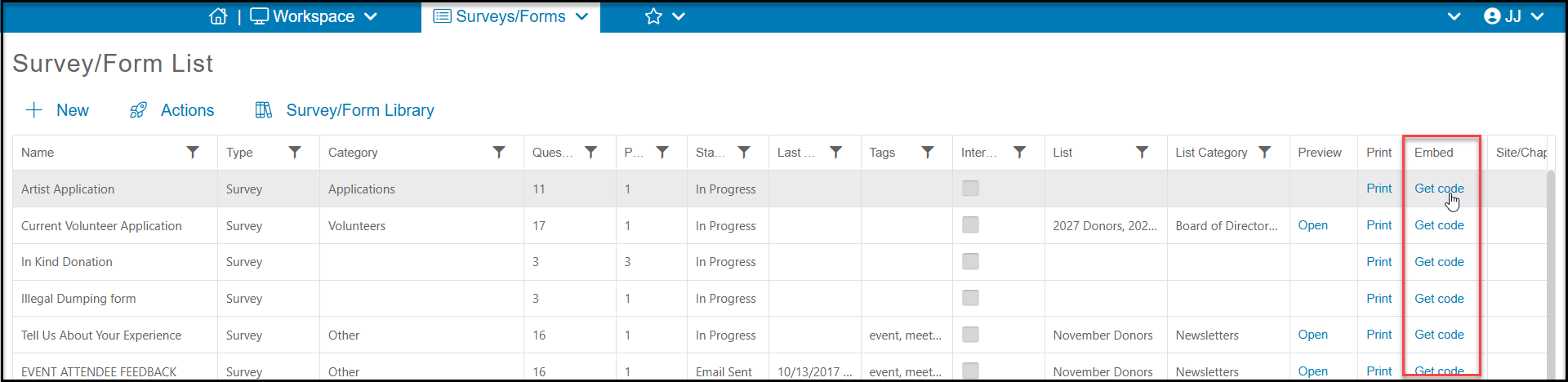
 If you would like to embed your application into your website, you can also get the embed code from the Surveys/Forms Lists page.
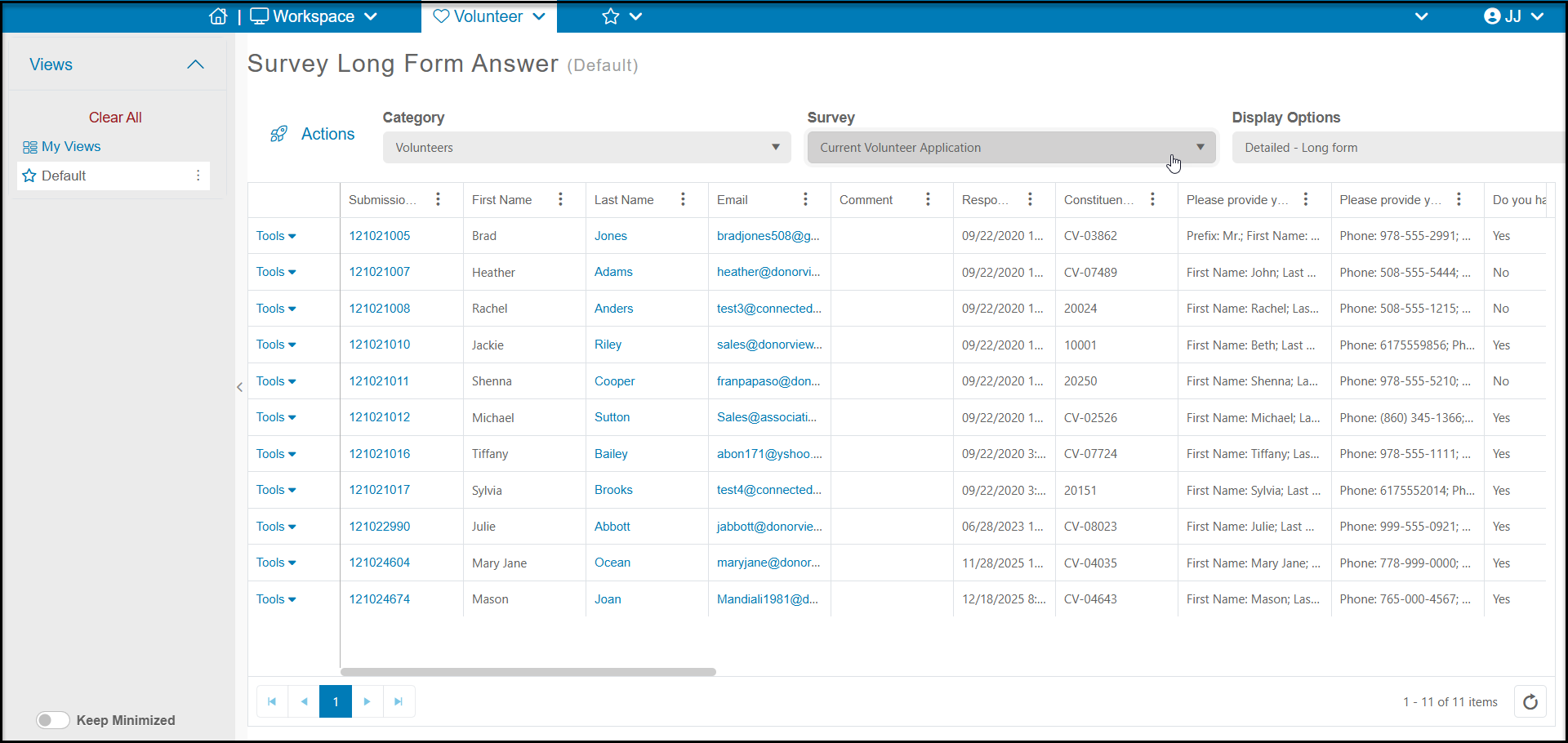
 When responses are submitted, you can find them in the Surveys/Forms Results page and in the Applications page within the Volunteer Module.