# What can I do on the Mail Merge GM Templates page?
> Source: https://support.associationsphere.com/what-can-i-do-on-the-mail-merge-gm-templates-page | Updated: 2026-09-08T02:58:48Z
The Mail Merge GM Templates page will allow you to create and edit mail merge letter templates that can be used with the data on the main Memberships grid. You can use these letters to send thank you letters, renewal reminders, payment notices, and other communications to your members.
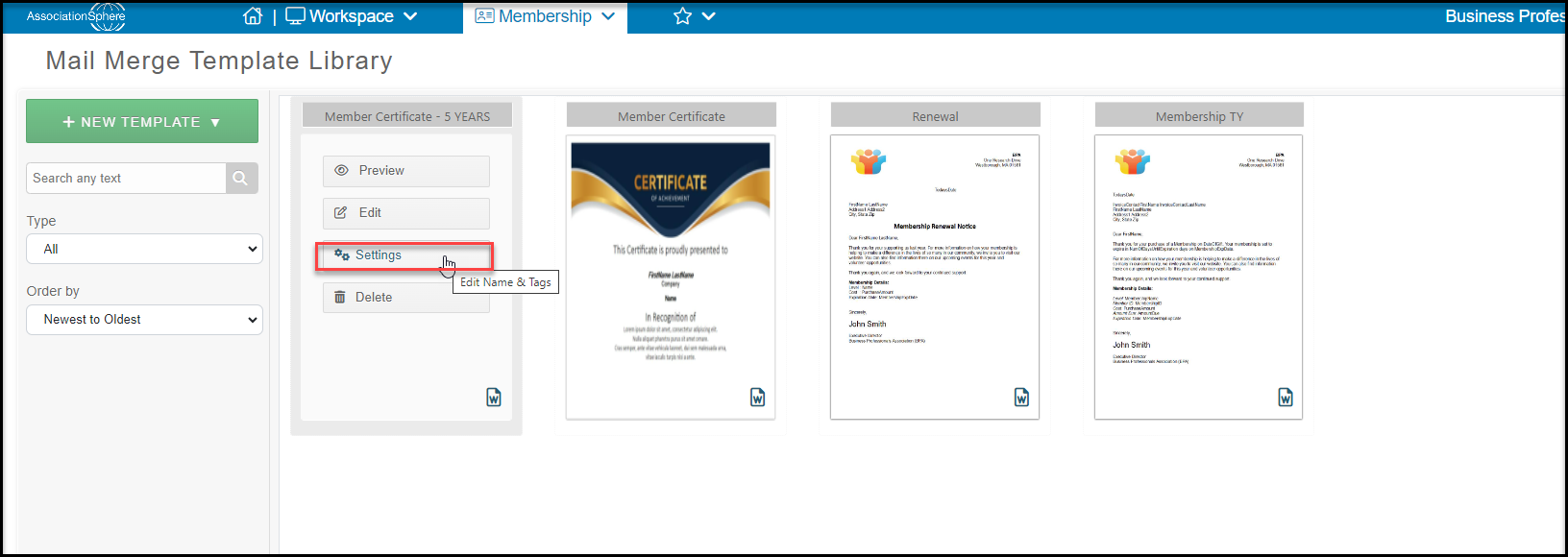
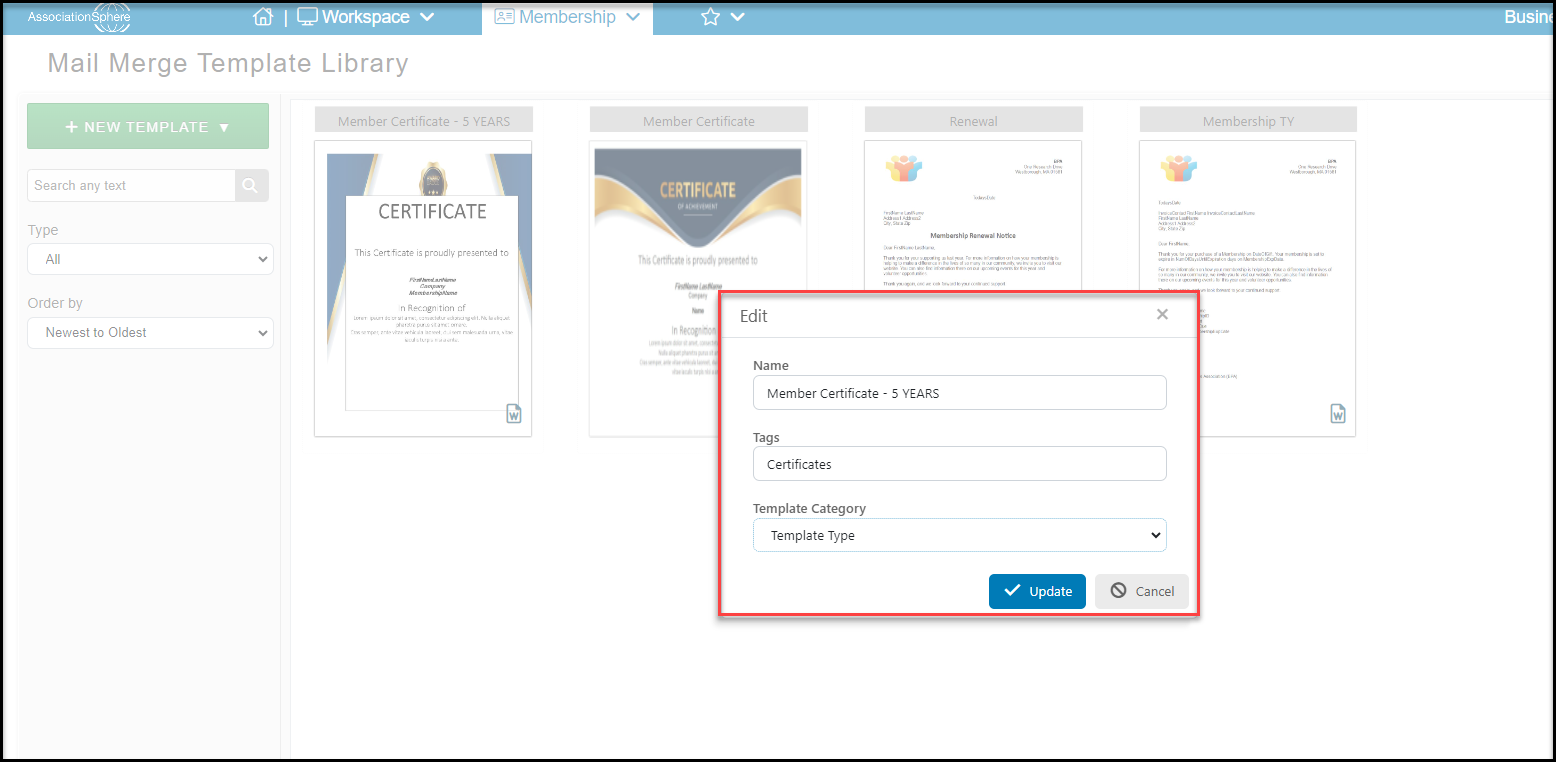
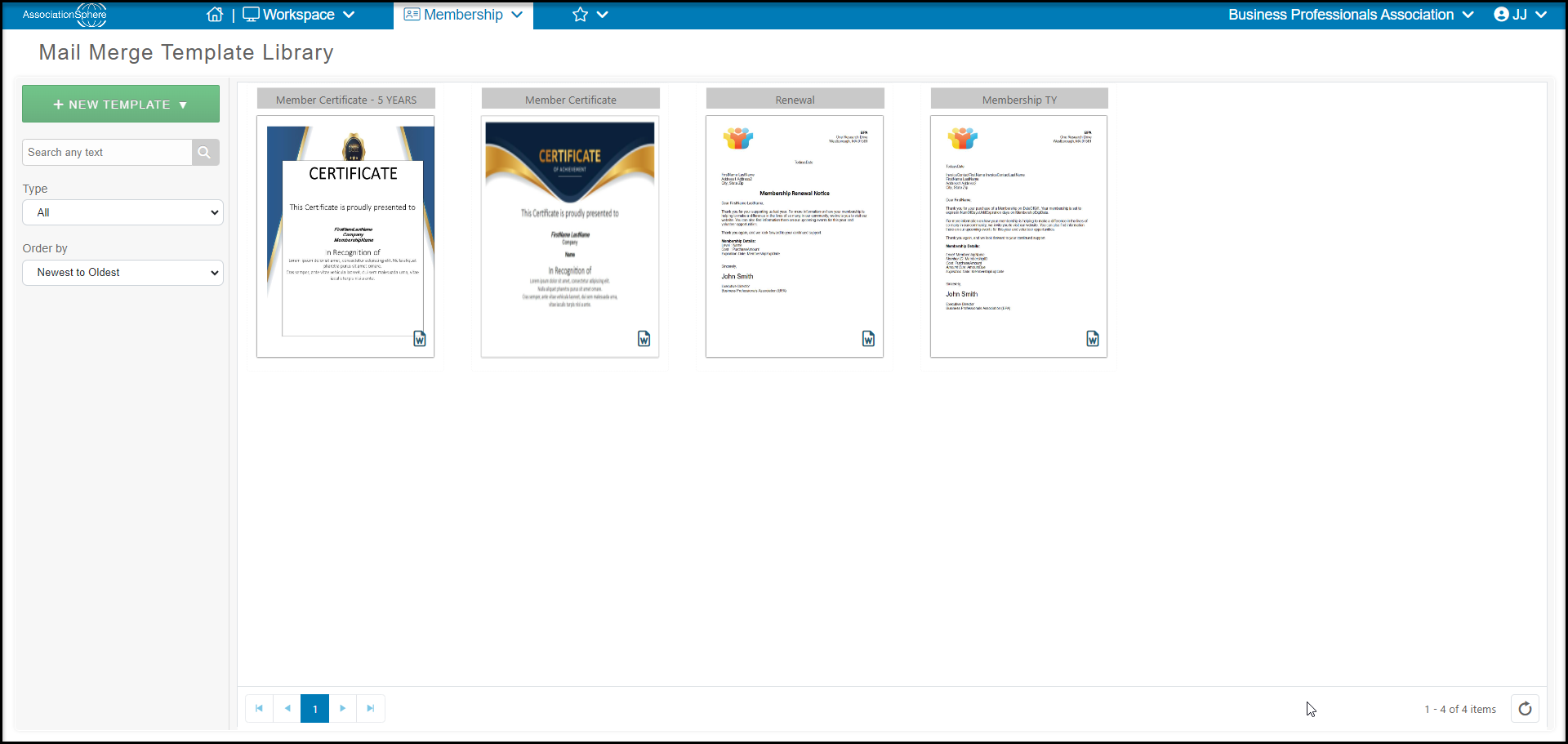 To create a new mail merge template, click the green **+New Template** button and select **Create New**. To edit or copy and existing template, mouse over that template and click **Edit.** Mousing over a template will also give you the option to Preview the letter in a new browser tab, edit the **Settings**of the template to change the **Name** or **Tags**. You are not currently able to edit the Template Category. You are also able to **Delete** the template.
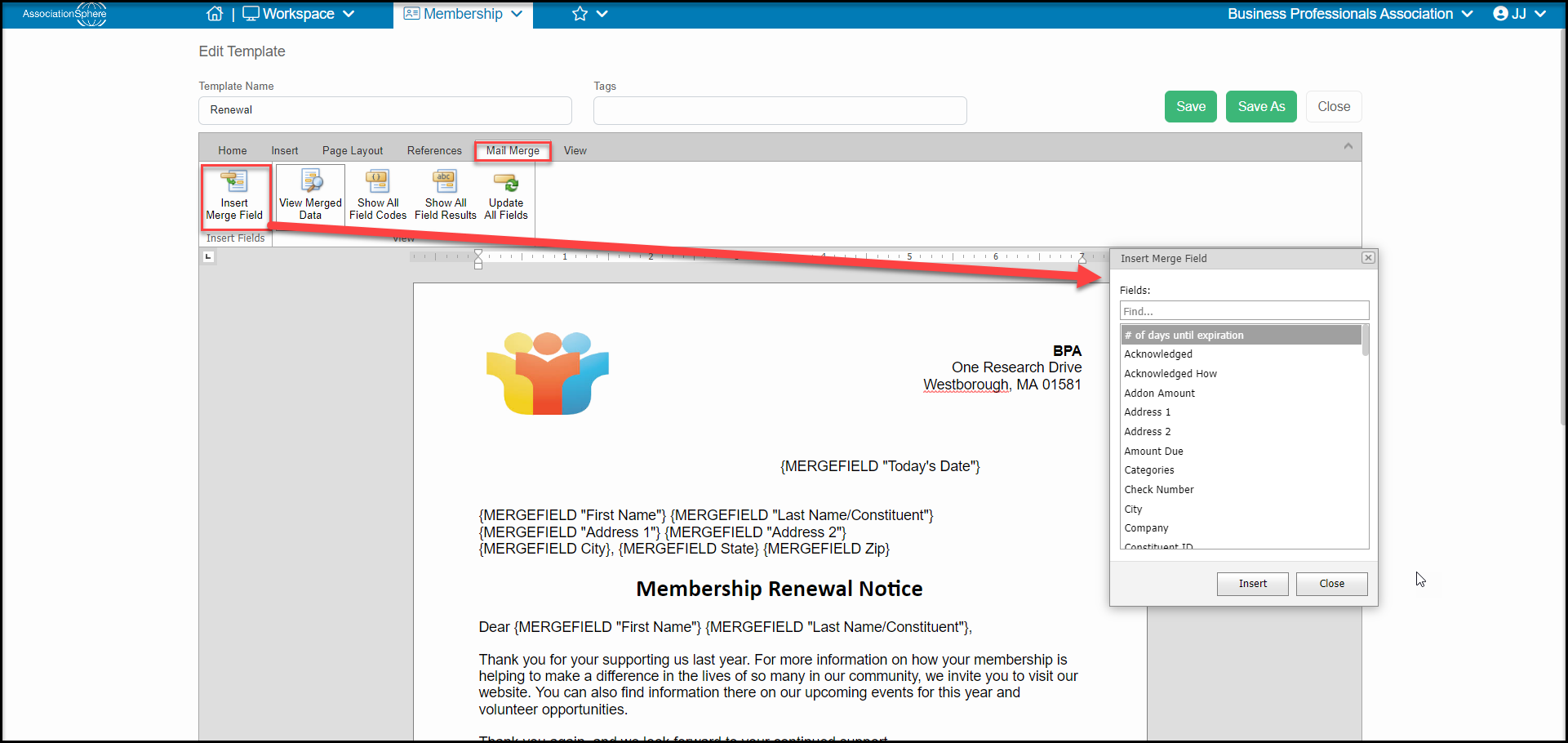
 Once inside the editor, the functionality is the same as all the other mail merge editors available within the software. However, the mail merge fields you can insert into the template are specific to the fields that appear on the Memberships grid. These fields can be found by clicking on the **Mail Merge** tab in the editor and selecting **Insert Merge Field**.
Double clicking on a field or selecting a field and clicking on the **Insert** button will insert that mail merge field into the letter where your cursor is located in the document.
The document can be designed and edited similar to other Word documents using the **Home**, **Insert**, and **Page Layout** tabs. You can also find some very basic letter examples and tips in this article: <./sample-mail-merge-membership-templates
You can use the **Save As** button to copy a letter and save it under a new name.
Once inside the editor, the functionality is the same as all the other mail merge editors available within the software. However, the mail merge fields you can insert into the template are specific to the fields that appear on the Memberships grid. These fields can be found by clicking on the **Mail Merge** tab in the editor and selecting **Insert Merge Field**.
Double clicking on a field or selecting a field and clicking on the **Insert** button will insert that mail merge field into the letter where your cursor is located in the document.
The document can be designed and edited similar to other Word documents using the **Home**, **Insert**, and **Page Layout** tabs. You can also find some very basic letter examples and tips in this article: <./sample-mail-merge-membership-templates
You can use the **Save As** button to copy a letter and save it under a new name.