# What is a Gift Membership?
> Source: https://support.associationsphere.com/what-is-a-gift-membership | Updated: 2022-10-13T17:11:13Z
Gift Membership is a setting that can be turned on during the setup of your Membership form and can allow for one Constituent to purchase a membership for another Constituent. The purchaser, or Giftor, will pay for the membership and provide the contact information for the recipient, or Giftee.
Since all thank you emails have the same subject line, if you are accepting gift memberships, be sure to have a generic subject line such as "Organization XYZ Membership" set up under the Acknowledgement Info section of the Membership Page. You are able to customize the body of the emails to the Giftor and Giftee.
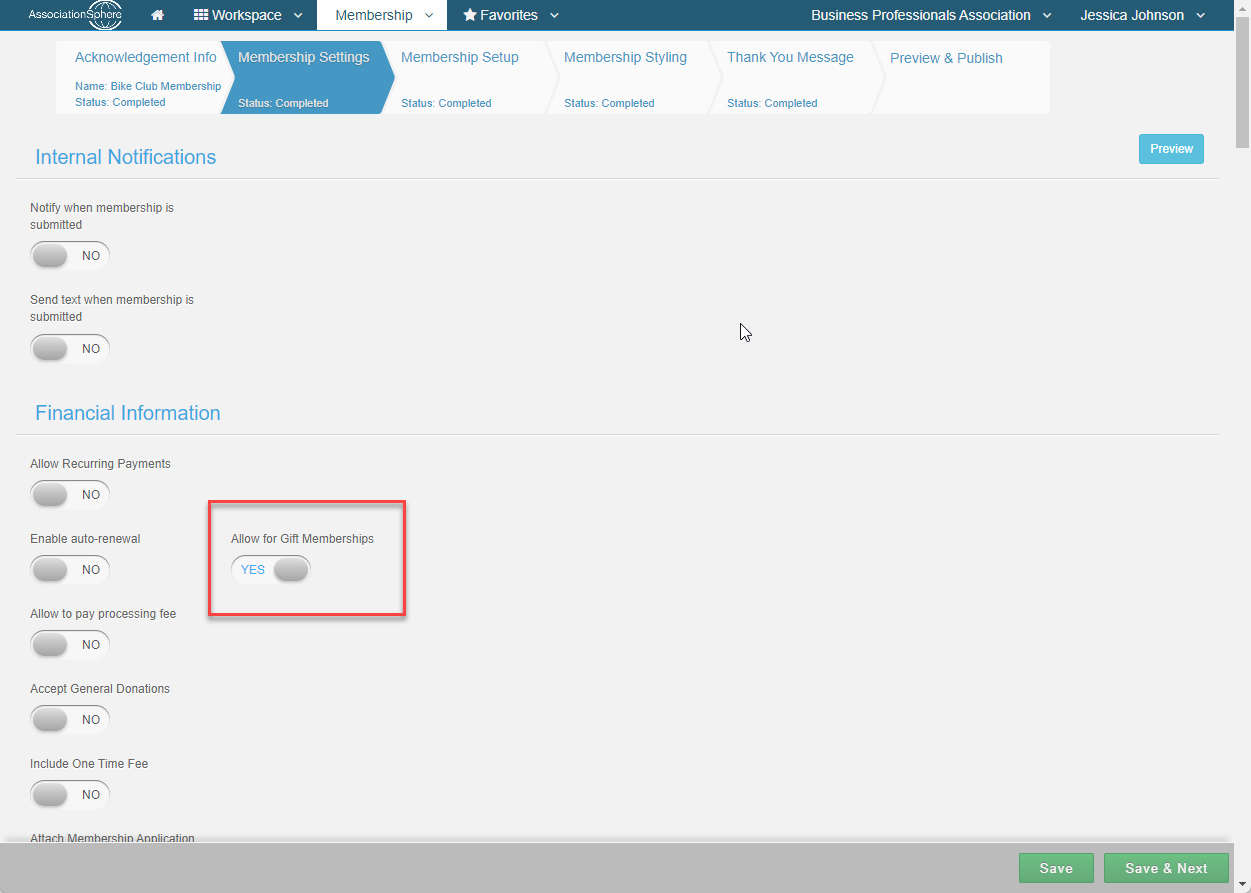
While setting up or editing the Membership Page, select **Allow Gift Memberships** to **YES**under the Financial Information section of Membership Settings to accept gift memberships.
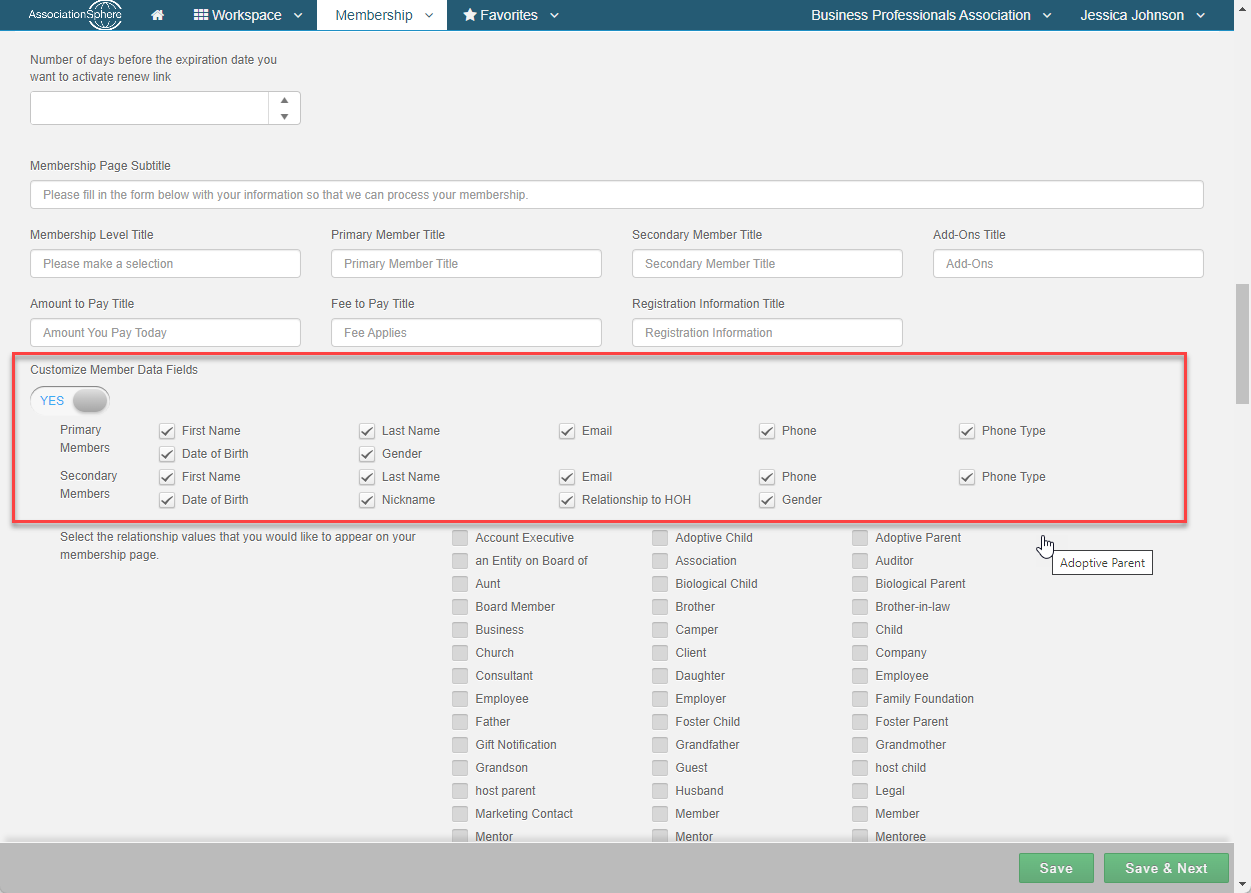
 You can also determine what information is captured for the member (including gift memberships) under the Advanced Content & Display Options in the Membership Settings.
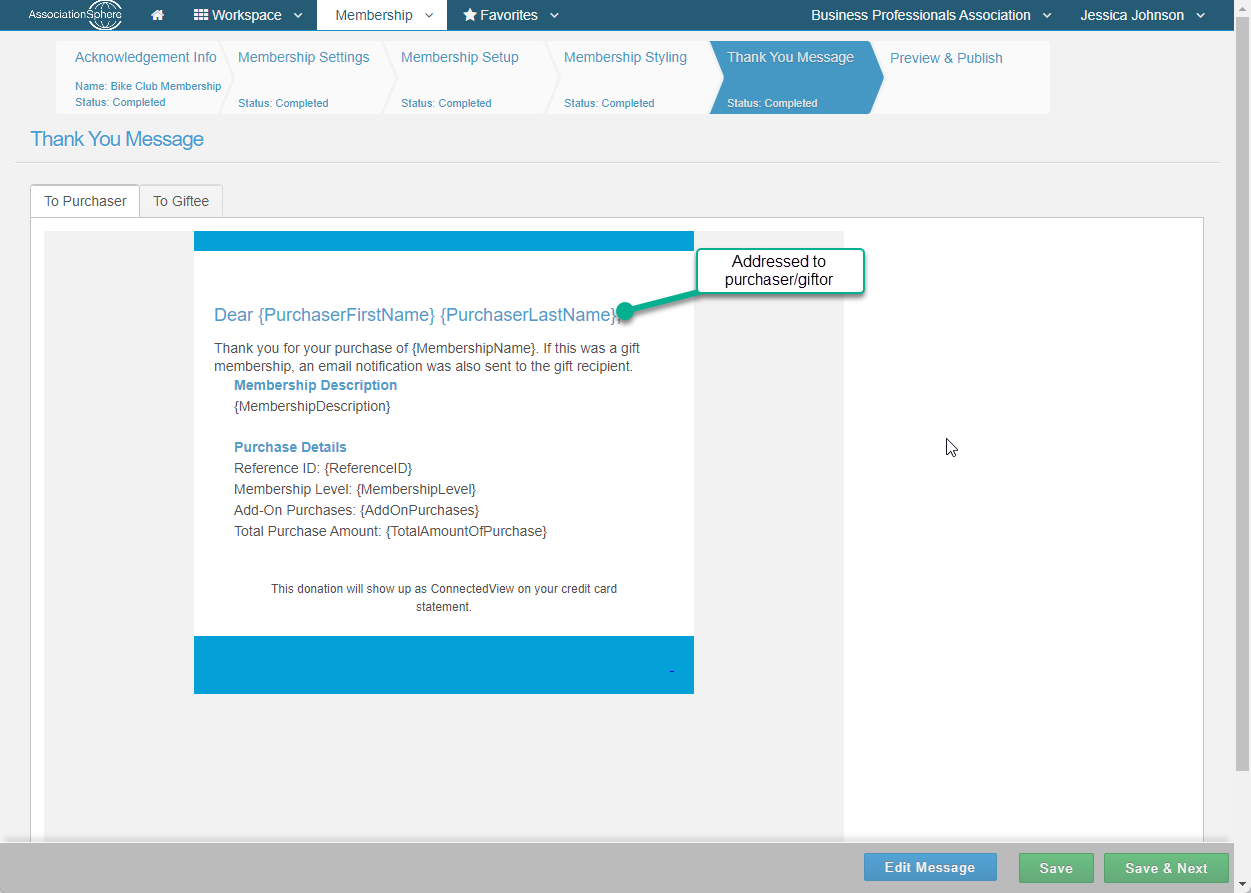
 Once gift memberships have been activated, an additional thank you email will appear under the Thank You Message section. If you already had a thank you email created before gift memberships were added as a option, you may need to update your thank you email "To Purchaser" to ensure it is addressed with the mail merge fields {PurchaserFirstName} and {PurchaserLastName}. Be sure to include generic language for this thank you email since it goes out to both regular membership purchases and gift membership purchases. A copy of the email sent to the purchaser/Giftor can be found in the Reports Module under Thank You Emails.
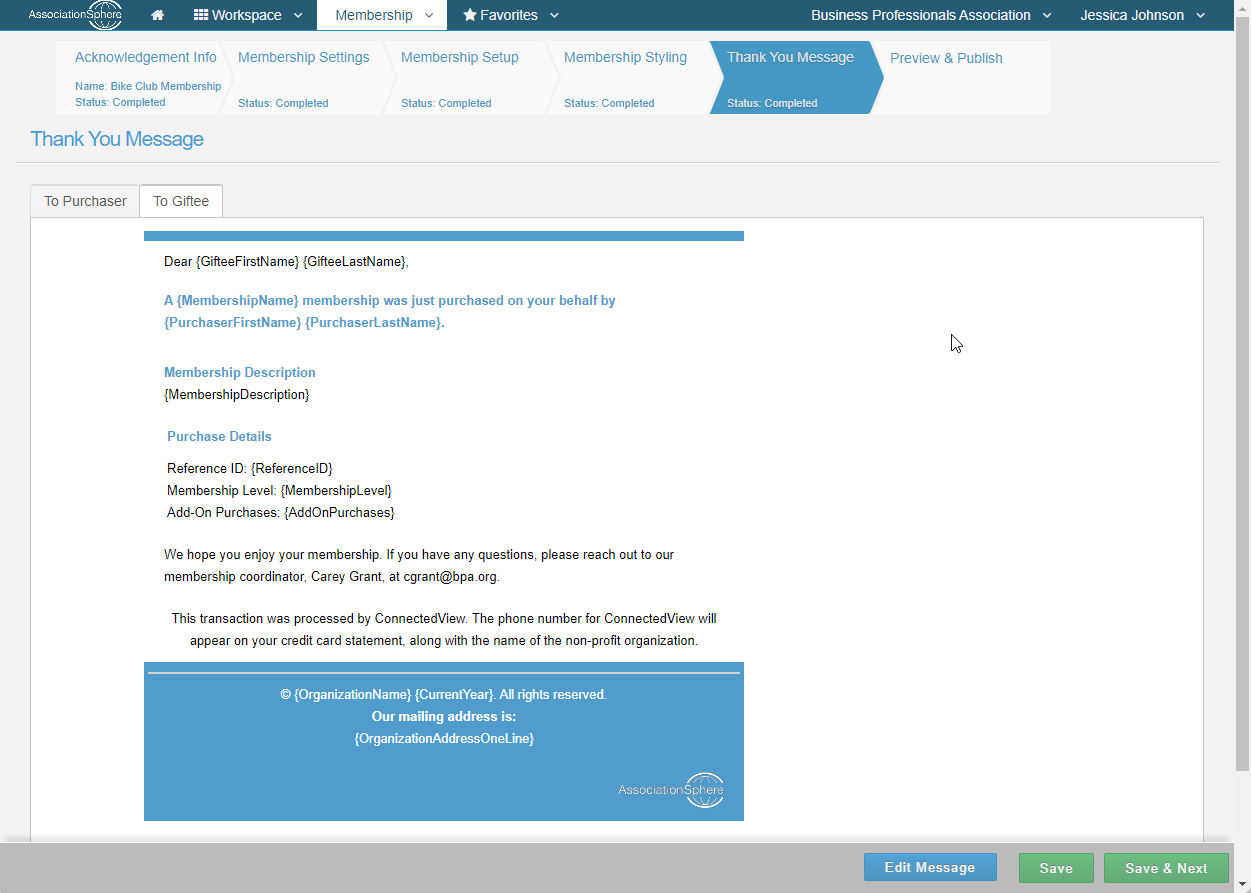
 The Giftee will also receive an email and can be edited as needed. It will have the same subject line as the Giftor's email. There is no saved copy of the Giftee's email in the Reports Module. Only the Giftor's email is saved.
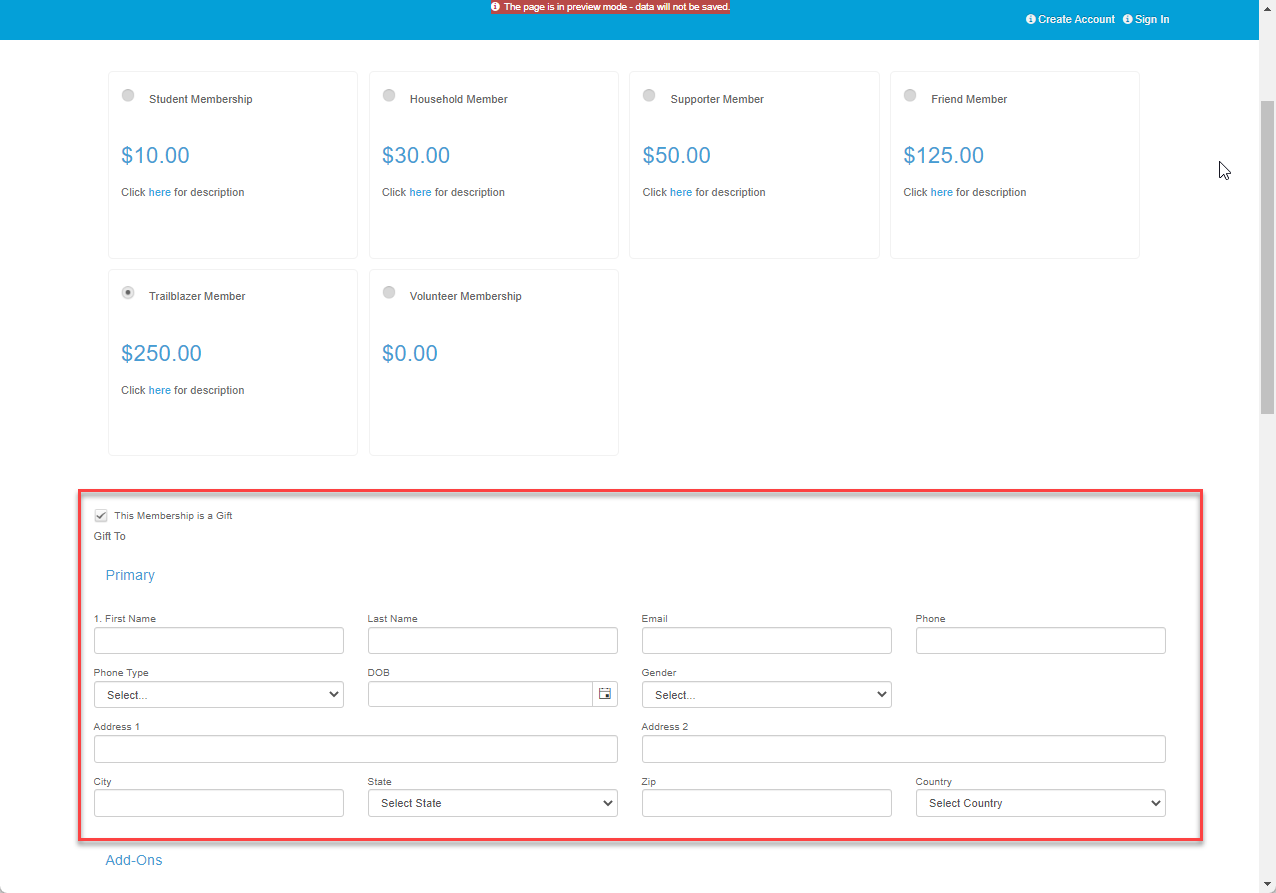
 To purchase a gift membership the Giftor checks the box next to "This Membership is a Gift" and enters the contact information for the Giftee on the membership page. If the membership includes multiple primary and/or secondary members, such as a family membership, additional contact information boxes will appear for each primary and secondary member.
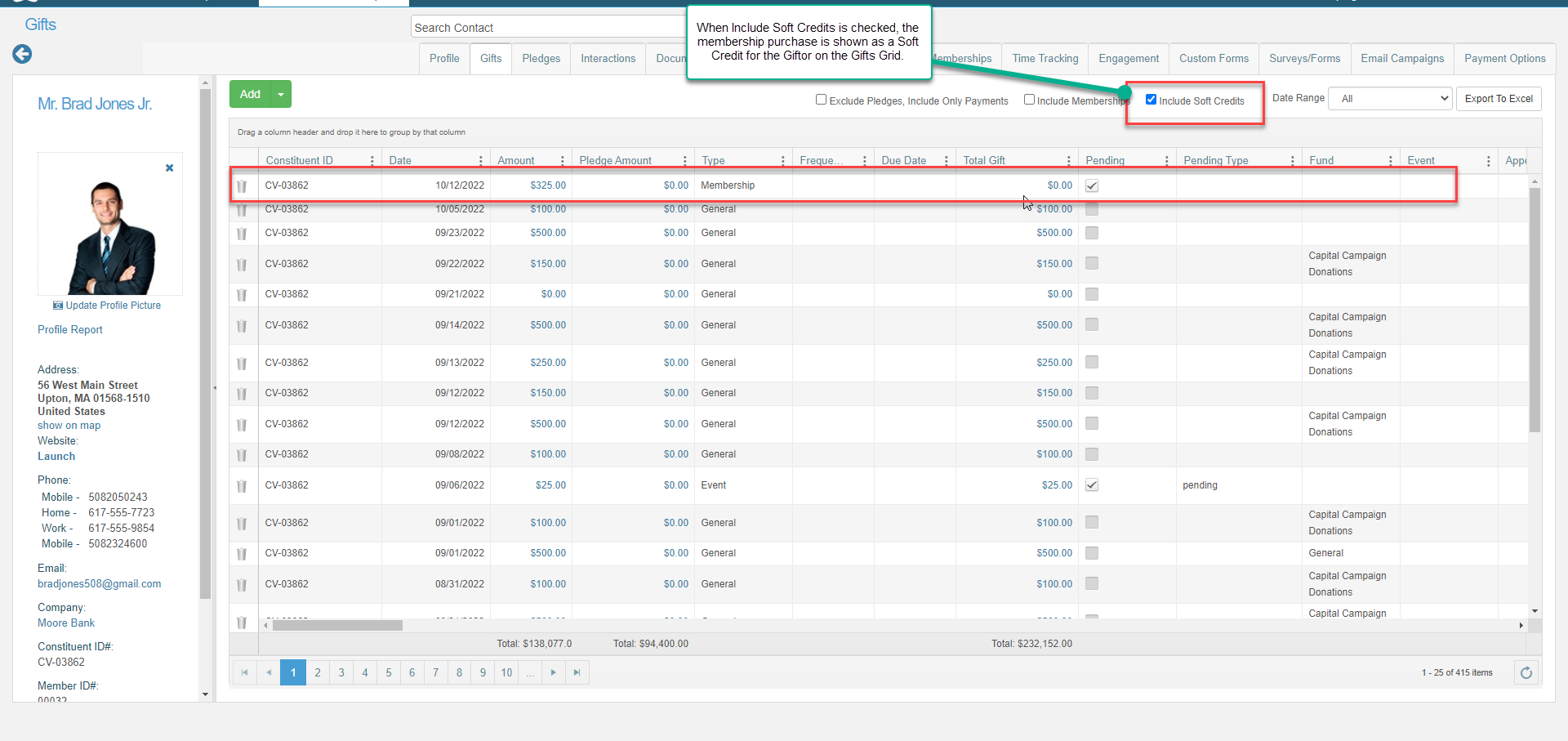
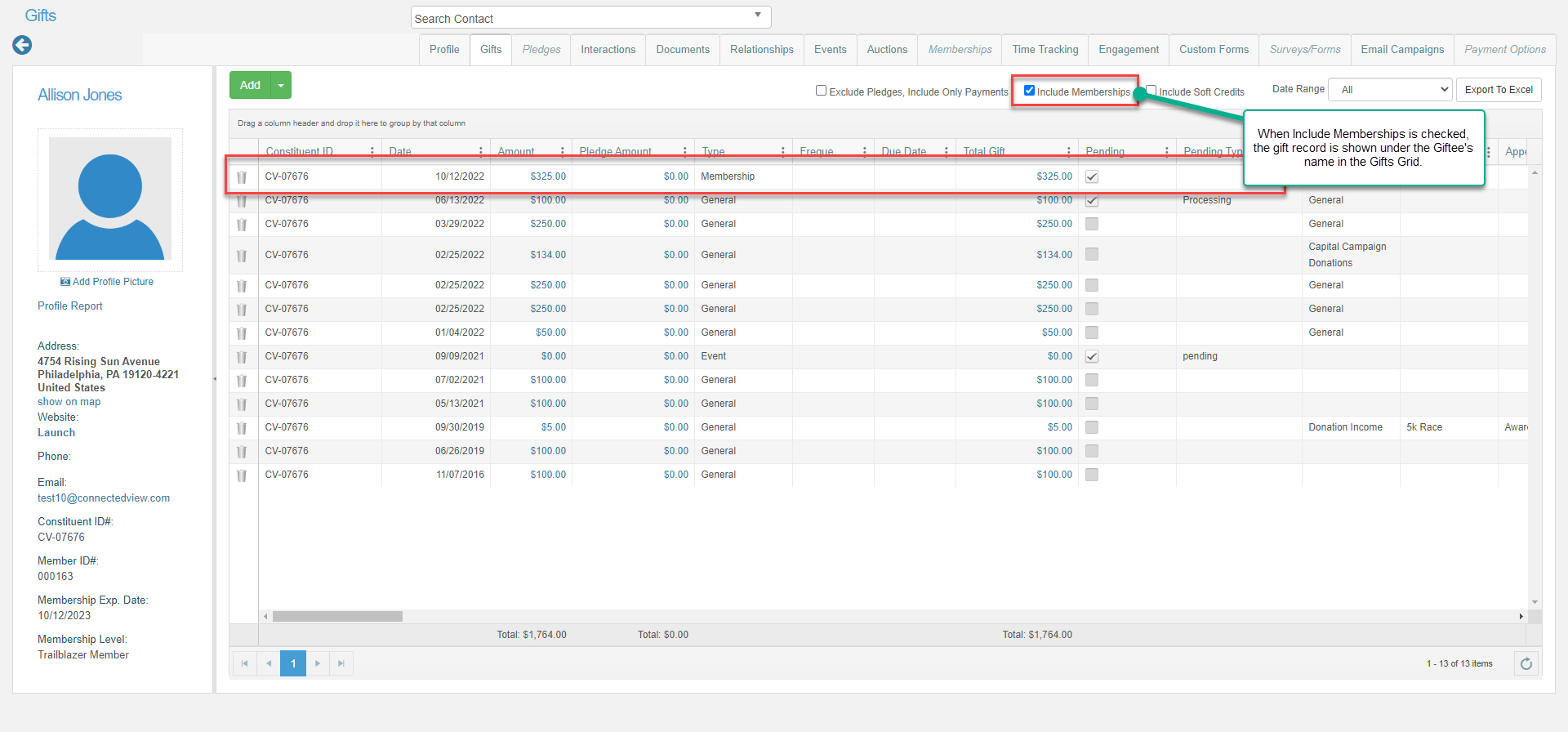
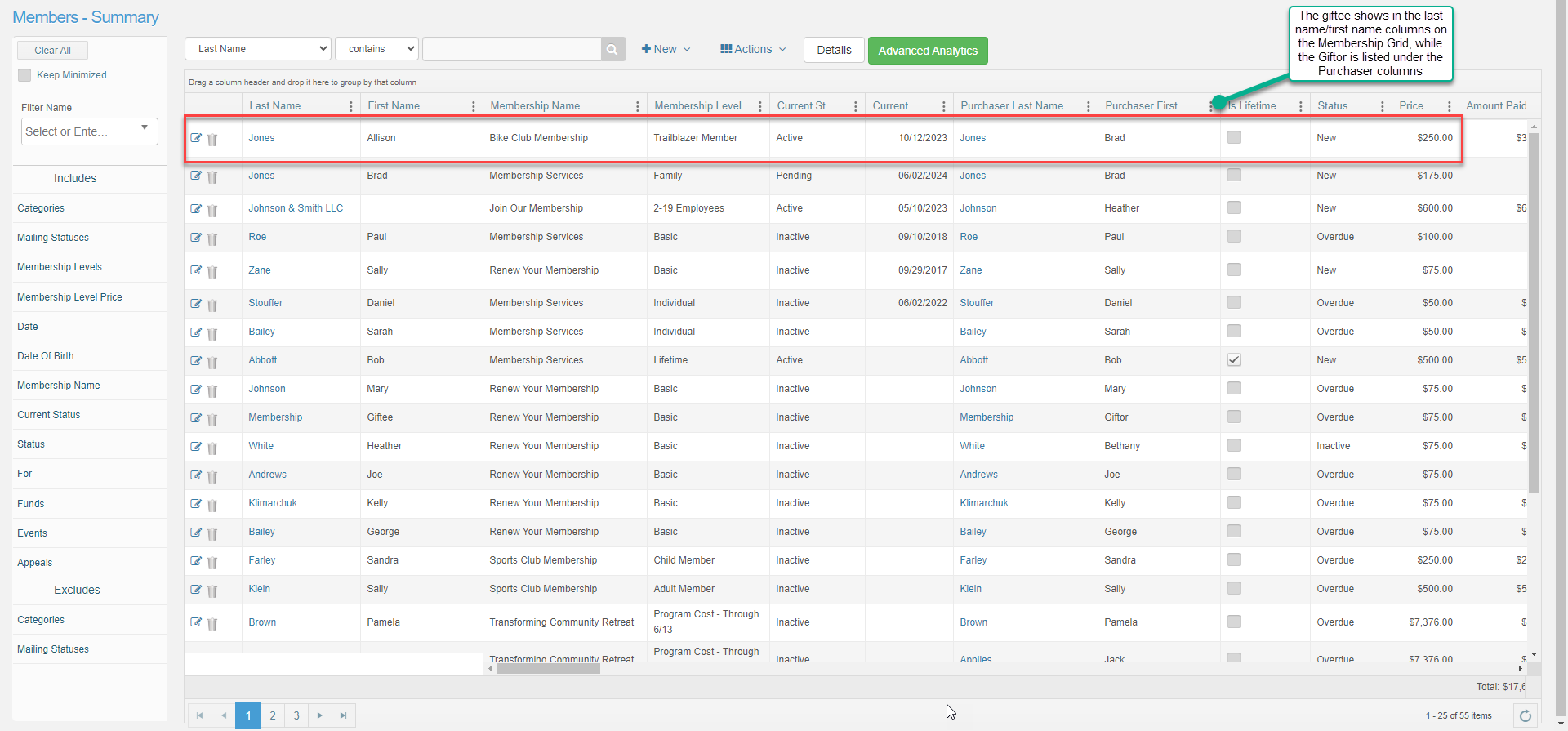
 Once the Giftor has completed the transaction, a soft credit transaction record will show under the Giftor’s constituent record, and the membership transaction will appear under the Giftee’s Constituent record. The Giftor will also appear on the membership transaction under the **Purchaser** fields on the Membership Grid. In the example below, Brad Jones bought a gift membership for his sister, Allison.