# What kind of milestones can I create for my P2P campaign?
> Source: https://support.associationsphere.com/what-kind-of-milestones-can-i-create-for-my-p2p-campaign | Updated: 2026-06-15T20:02:42Z
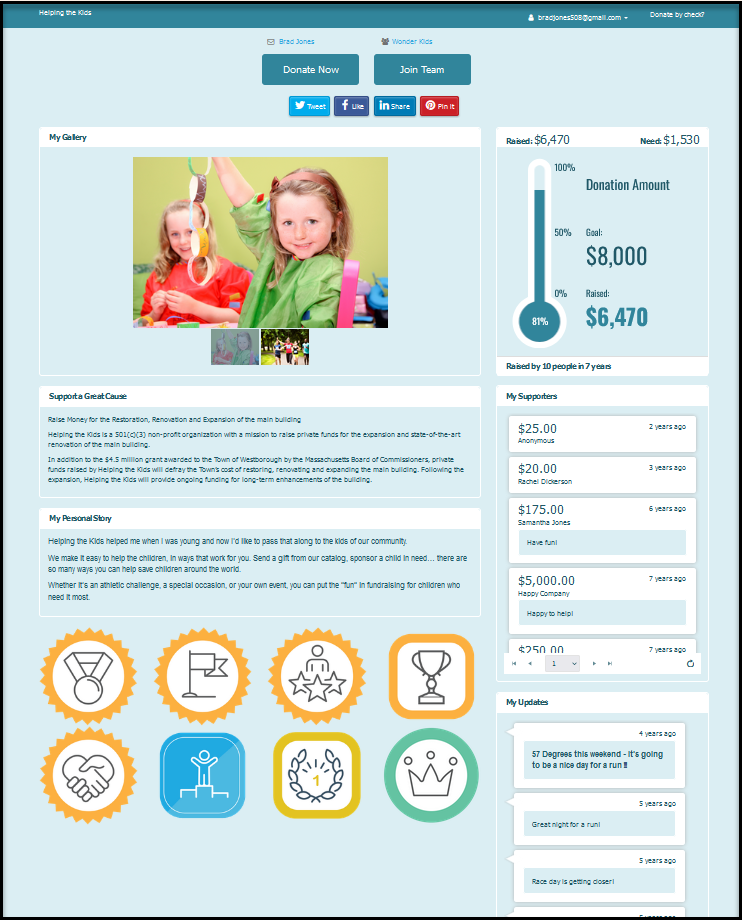
1. You can create milestones for your campaign, and some can include a badge to be displayed on the fundraiser's page. See the example below for Brad Jones' fundraising page where the badges he has earned are shown below his Personal Story.
2. Hovering over the badge will reveal what was accomplished to earn the badge.
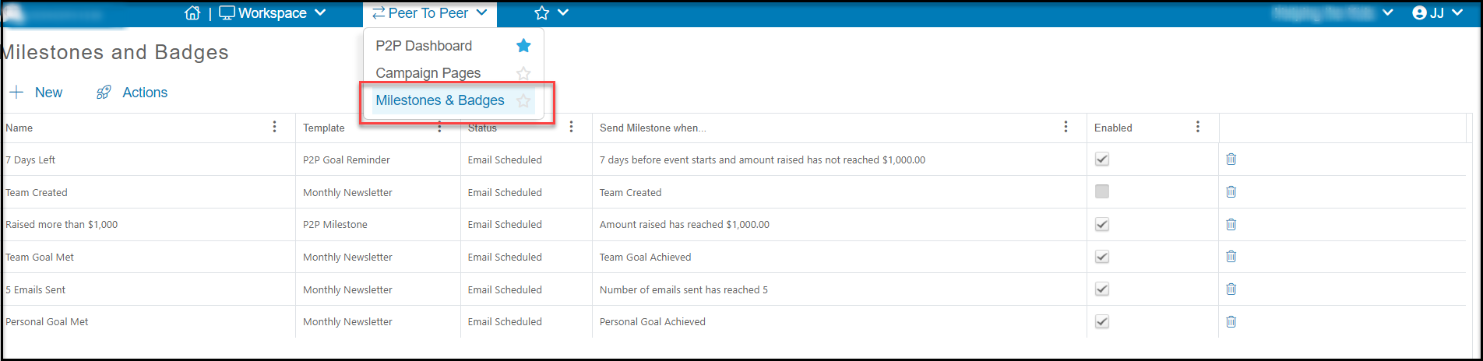
 3. Milestone and Badges are set up by accessing the page in the P2P module.
4. Click on **+New** to create a new milestone or use the Actions menu to copy an existing milestone.
3. Milestone and Badges are set up by accessing the page in the P2P module.
4. Click on **+New** to create a new milestone or use the Actions menu to copy an existing milestone.
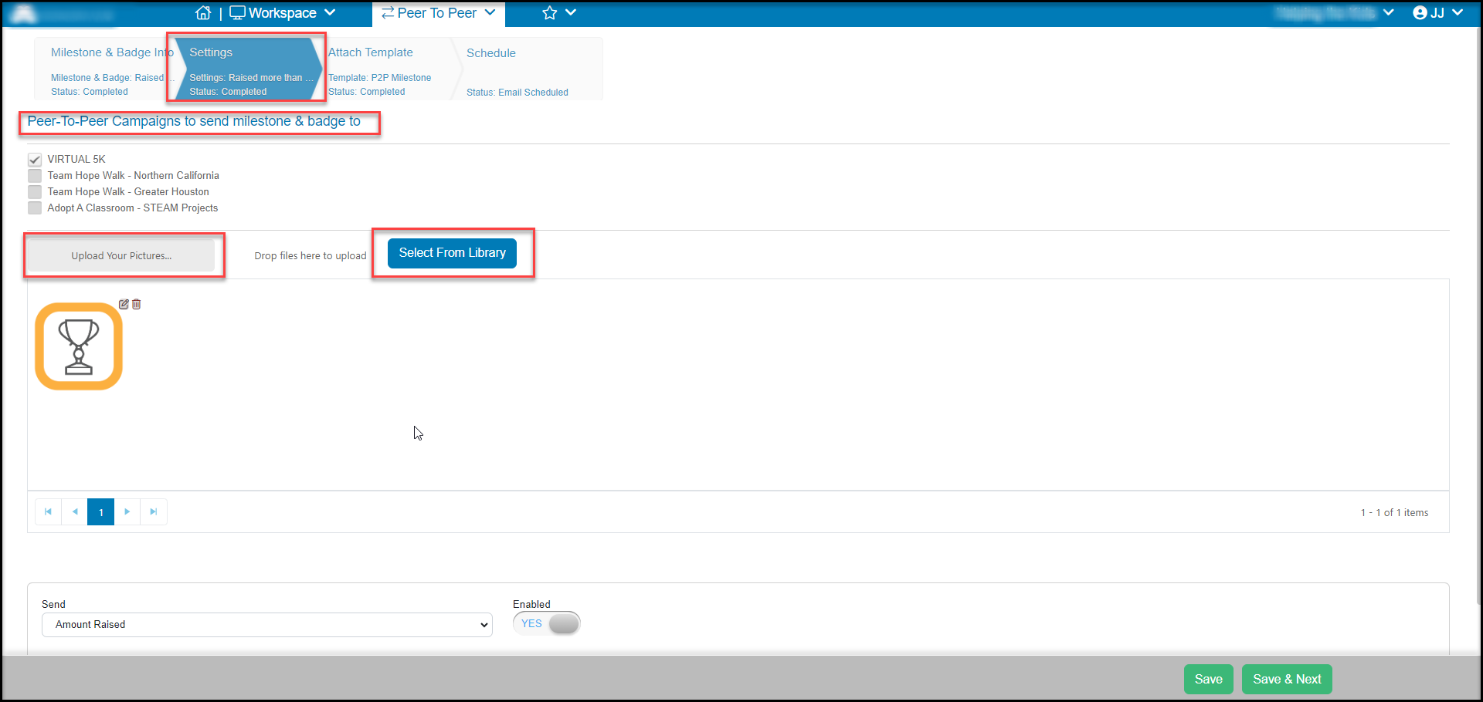
 5. After completing the Acknowledgement tab information, on the Settings tab you will select which P2P campaigns this milestone will apply to.
6. You can import your own image for the badge (file size <1 MB and image size 120 x 120 pixels) or click on **Select from Library**to choose one that is already created.
5. After completing the Acknowledgement tab information, on the Settings tab you will select which P2P campaigns this milestone will apply to.
6. You can import your own image for the badge (file size <1 MB and image size 120 x 120 pixels) or click on **Select from Library**to choose one that is already created.
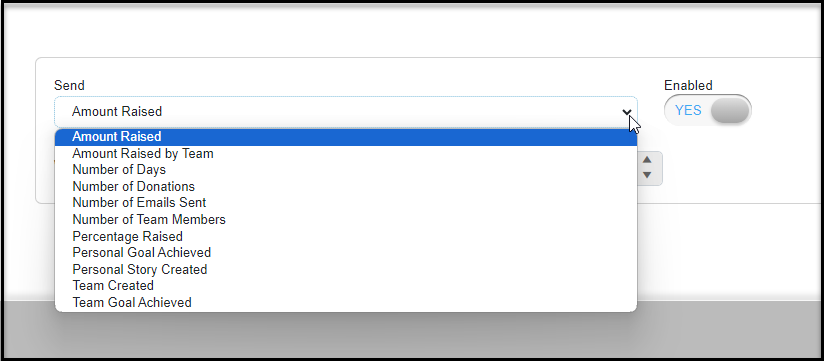
 7. With your badge image identified, you can select the milestone trigger to generate the message and badge.
a. **Amount Raised** is the amount of donations raised by an individual participant fundraiser.
b. **Amount Raised by Team** is the amount of donations raised by the Team and everyone on the team.
c. **Number of Days** is a trigger to send a notice if the participant has NOT reached their goals.
d. **Number of Donations** is the total number of transactions that have been recorded for that individual participant's page.
e. **Number of Email****s Sent** is the total number of emails that the participant fundraiser has sent using the portal's **Send Email** feature.
f. **Number of Team Members** is the number of individual fundraising participants who have joined the team. They do not have to have any donations yet.
g. **Percentage Raised**is the percentage they have raised towards their fundraising goal as shown on their page.
h. **Personal Goal Achieved** will recognize when the individual fundraiser reached their fundraising goal.
i. **Personal Story Created** will recognize entering and saving text in the Personal Story area of the fundraiser's page.
j. **Team Created**will recognize the creation of a team page.
k. **Team Goal Achieved** will go to all the team members and the team page to recognize achieving the team fundraising goal.
7. With your badge image identified, you can select the milestone trigger to generate the message and badge.
a. **Amount Raised** is the amount of donations raised by an individual participant fundraiser.
b. **Amount Raised by Team** is the amount of donations raised by the Team and everyone on the team.
c. **Number of Days** is a trigger to send a notice if the participant has NOT reached their goals.
d. **Number of Donations** is the total number of transactions that have been recorded for that individual participant's page.
e. **Number of Email****s Sent** is the total number of emails that the participant fundraiser has sent using the portal's **Send Email** feature.
f. **Number of Team Members** is the number of individual fundraising participants who have joined the team. They do not have to have any donations yet.
g. **Percentage Raised**is the percentage they have raised towards their fundraising goal as shown on their page.
h. **Personal Goal Achieved** will recognize when the individual fundraiser reached their fundraising goal.
i. **Personal Story Created** will recognize entering and saving text in the Personal Story area of the fundraiser's page.
j. **Team Created**will recognize the creation of a team page.
k. **Team Goal Achieved** will go to all the team members and the team page to recognize achieving the team fundraising goal.
 8. Be sure to mark the milestone as **Enabled YES**to activate it.
9. You can continue on to the Attach Template tab to create the email template that will be sent when that milestone is achieved or when the reminder is sent that they have not yet reached their goal.
10. On the final tab, Schedule, you can send a test email if you would like to check the email template.
8. Be sure to mark the milestone as **Enabled YES**to activate it.
9. You can continue on to the Attach Template tab to create the email template that will be sent when that milestone is achieved or when the reminder is sent that they have not yet reached their goal.
10. On the final tab, Schedule, you can send a test email if you would like to check the email template.