
What are the steps to set up an Simple online donation page?
Updated Sep 8, 2026·2 min read
When you create a new online donation page, you first must choose the Simple or Advanced designer. The simple designer has a standard layout built for you, the Advanced designer allows more flexibility in the order of the items on the page and the overall color scheme and design of the page. Whichever option you choose, the software will walk you through the steps for the setup, divided into tabs at the top of the page.
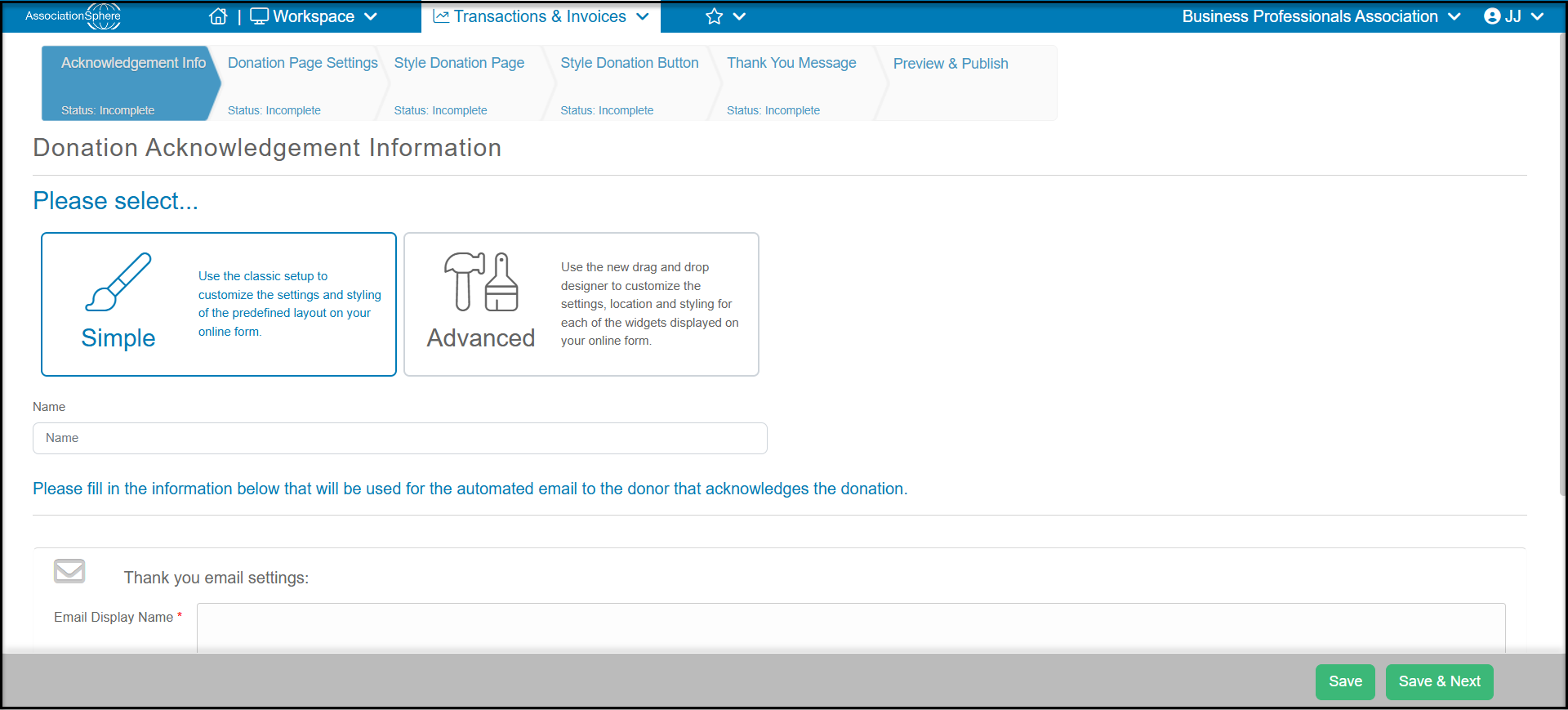
If the Simple option is selected, you will use these steps to complete the page (links to more details provided in the headers):
- Acknowledgment Info
- This information will be used for the email that the donor will receive that acknowledges their online donation
- Donation Page Settings
- This page allows you to select the many different settings you would like to include
- Add a description, image gallery or YouTube video
- Include predefined amounts to donate from
- Include Tribute and memo fields
- Assign a For, Fund, Appeal or Event to each donation made or allow the donor to select one from a picklist
- Style Donation Page
- This page allows you to customize the way that your donation form looks
- Change the colors & fonts used
- Insert optional fields such as, in tribute and matching
- Enter an email address to send a notification email to when a donation is made
- Style Donation Button
- This page allows you to customize the way that your donation button looks
- Change the colors & fonts used
- Select the shape of the button
- Use custom text for the name of the button
- Thank You Message
- This page allows you to customize the message that the donor receives both on-screen and through email after making an online donation
- Preview and Publish
- This page allows you to preview the donation form and gives you the tools to direct donors to the donation form
- Preview you the donation form
- Get the code to embed your Donate Button on your website
- Get the link to your Donation Form
Was this article helpful?