
Facility Shares Overview
Navigate To: Workspace > Membership > Facility Shares
The Facility Shares module allows organizations to manage member-owned facility shares, track purchases and transfers, process share buybacks, and generate invoices for members who have not met their annual share purchase requirements.
The module also includes the ability to establish Share Cycles, defines share pricing and minimum ownership requirements, and monitor each member's share activity through Summary and Detail views.
Facility Shares Setup
After navigating to the Facility Shares – Summary grid, click the Switch to Setup button to configure your organization's share requirements.
On the Facility Shares Setup grid, click the +Add button to create a new Share Cycle.
Each Share Cycle can reflect changes in share pricing, minimum ownership thresholds, or annual purchase requirements. The values entered during setup are used to automatically calculate share purchase prices and identify which members have or have not met the minimum requirements for share ownership and annual purchases.
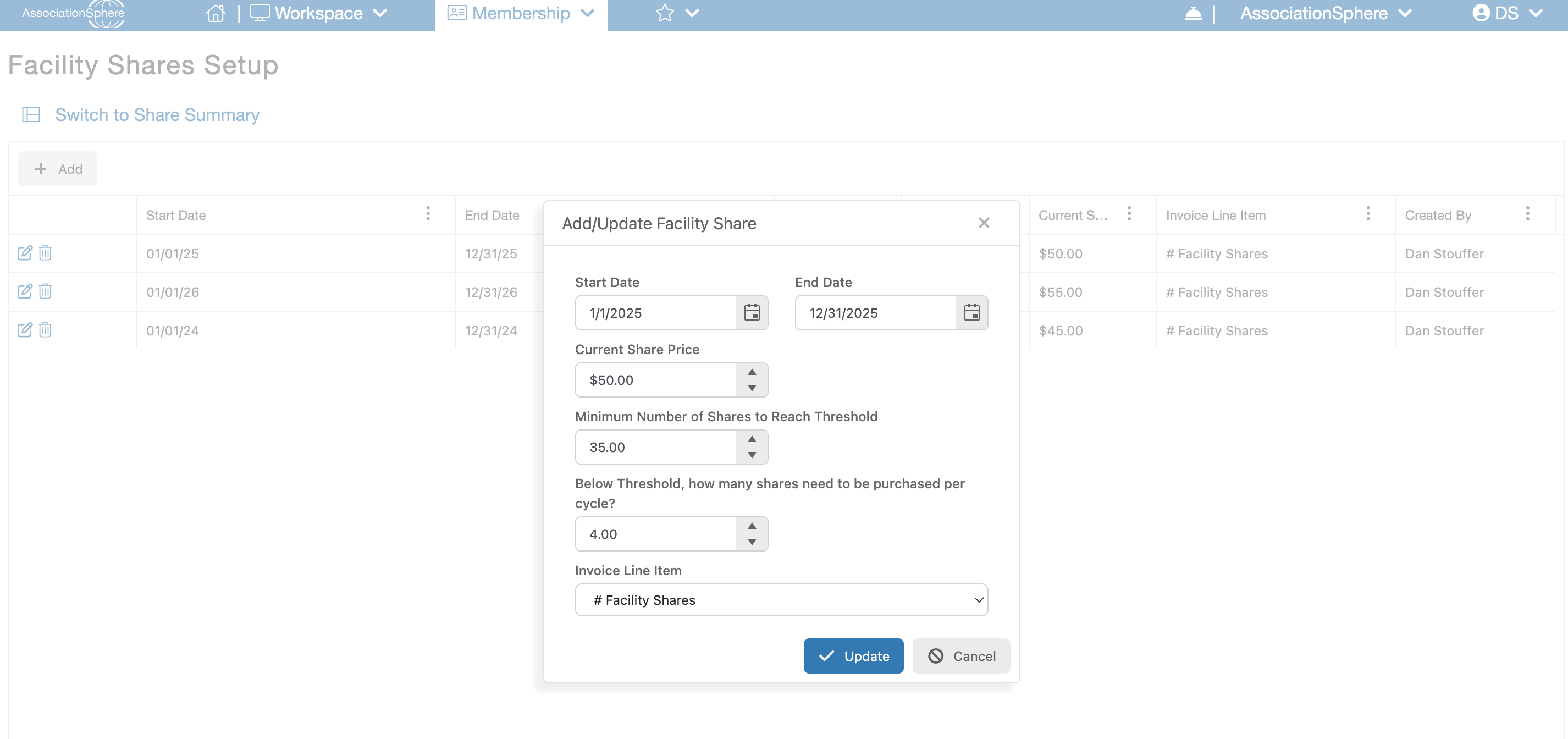
When creating a new Share Cycle or editing an existing one, the following fields are available:
- Start Date – Select the starting date for the Share Cycle.
- End Date – Select the ending date for the Share Cycle.
- Current Share Price – Enter the price of a single share during this Share Cycle.
- Minimum Number of Shares to Reach Threshold – Enter the minimum number of shares a member must own before they are no longer required to purchase additional shares.
- Below Threshold, How Many Shares Need to Be Purchased Per Cycle? – Enter the minimum number of shares that members below the ownership threshold must purchase during each annual cycle.
- Invoice Line Item – Select the description that will appear on invoices generated for share purchases. You can also create a custom description.
Once created, Share Cycles will appear on the Facility Shares Setup grid.
To modify an existing Share Cycle, click the Edit (pencil and paper) icon. All fields listed above can be updated. To remove an existing Share Cycle, click the Delete (trash can) icon.
After completing the Share Cycle setup, click Switch to Share Summary to return to the main Facility Shares grid and begin recording share transactions.
Facility Shares – Summary and Detail Views
The Facility Shares grid is divided into two views: Summary and Detail.
Summary View
The Summary View is the default display and provides a single row for each Constituent. This view summarizes the number of shares owned, shares purchased, and whether the Constituent has met the ownership and annual purchase requirements established by the current Share Cycle.
The Summary View is also used to identify members who need to purchase additional shares and to generate invoices for those purchases.
Detail View
The Detail View displays individual share transactions, with each transaction appearing as a separate row. These transactions include:
- Share Purchases
- Share Transfers
- Share Buybacks
All new share purchases, transfers, and buybacks are recorded and managed through the Detail View.
To switch between views, click the Switch to Summary or Switch to Detail button located above the grid.
Recording a New Share Purchase
To record a new share purchase, navigate to the Facility Shares – Detail grid and click the +New button above the grid.
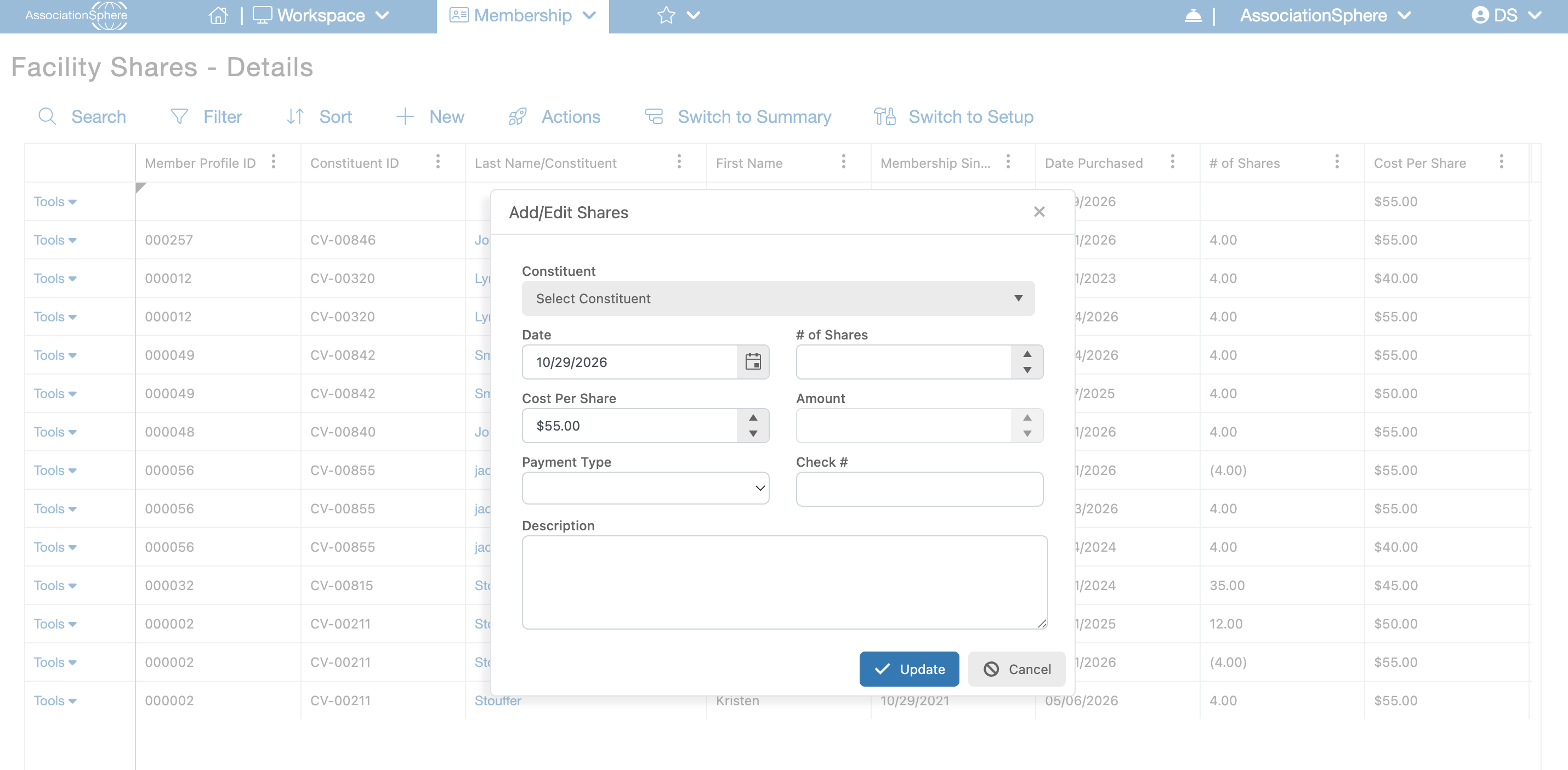
A dialog window will open with the following fields:
- Constituent – Search for and select the Constituent associated with the share purchase.
- Date – Select the date of the transaction.
- # of Shares – Enter the total number of shares being purchased.
- Cost Per Share – Automatically displays the share price established by the current Share Cycle. This amount can be manually adjusted if needed.
- Amount – Automatically calculates the total transaction amount based on the number of shares and cost per share. This field cannot be edited.
- Payment Type – Select the payment method used for the transaction. Note: No payment is processed through this dialog.
- Check # – If the payment was made by check, enter the check number.
- Description – Enter any additional notes or details related to the transaction.
After entering the required information, click Update to save the purchase and add the transaction to the Detail grid.
Once created, each Purchase transaction can be managed through the Tools menu on its corresponding grid row. Available actions include Edit, Delete, Transfer, and Buy Back.
Editing or Deleting a Purchase
Edit: Selecting Edit opens the original transaction dialog, allowing you to modify the purchase details. Click Update to save your changes.
Delete: Selecting Delete removes the purchase transaction from the grid.
Transferring Facility Shares
The Transfer feature allows you to move shares from one Constituent to another while maintaining a record of the transaction.
To initiate a transfer, locate the original Purchase transaction on the Facility Shares – Detail grid. Open the Tools menu and select Transfer.
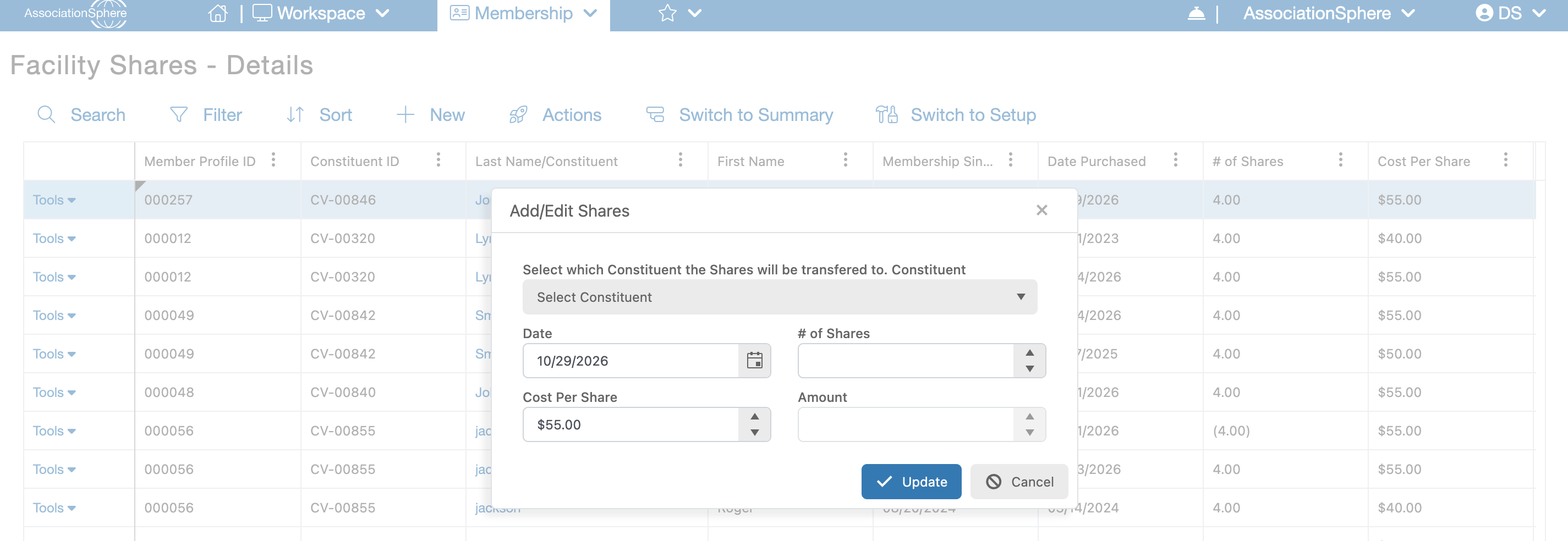
A dialog window will open with the following fields:
- Constituent – Search for and select the Constituent who will receive the transferred shares.
- Date – Select the date of the transfer.
- # of Shares – Enter the total number of shares being transferred.
- Cost Per Share – Automatically displays the price established by the current Share Cycle. This amount can be manually adjusted if needed.
- Amount – Automatically calculates the transaction amount based on the number of shares and cost per share. This field cannot be edited.
After entering the transfer details, click Update to save the transaction.
Once completed, two corresponding transaction rows will appear on the Detail grid:
- Transfer From – Records the shares transferred out of the original Constituent's ownership.
- Transfer To – Records the shares transferred into the receiving Constituent's ownership.
These entries provide a record of the transfer and allow the system to maintain accurate share ownership totals for both Constituents.
Once generated, Transfer transactions can be edited or deleted through the Tools menu on the corresponding grid row.
Processing Share Buybacks
The Buy Back feature allows an organization to repurchase shares from a Constituent, reducing the number of shares they own without transferring ownership to another Constituent.
To process a buyback, locate the original Purchase transaction on the Facility Shares – Detail grid. Open the Tools menu and select Buy Back.
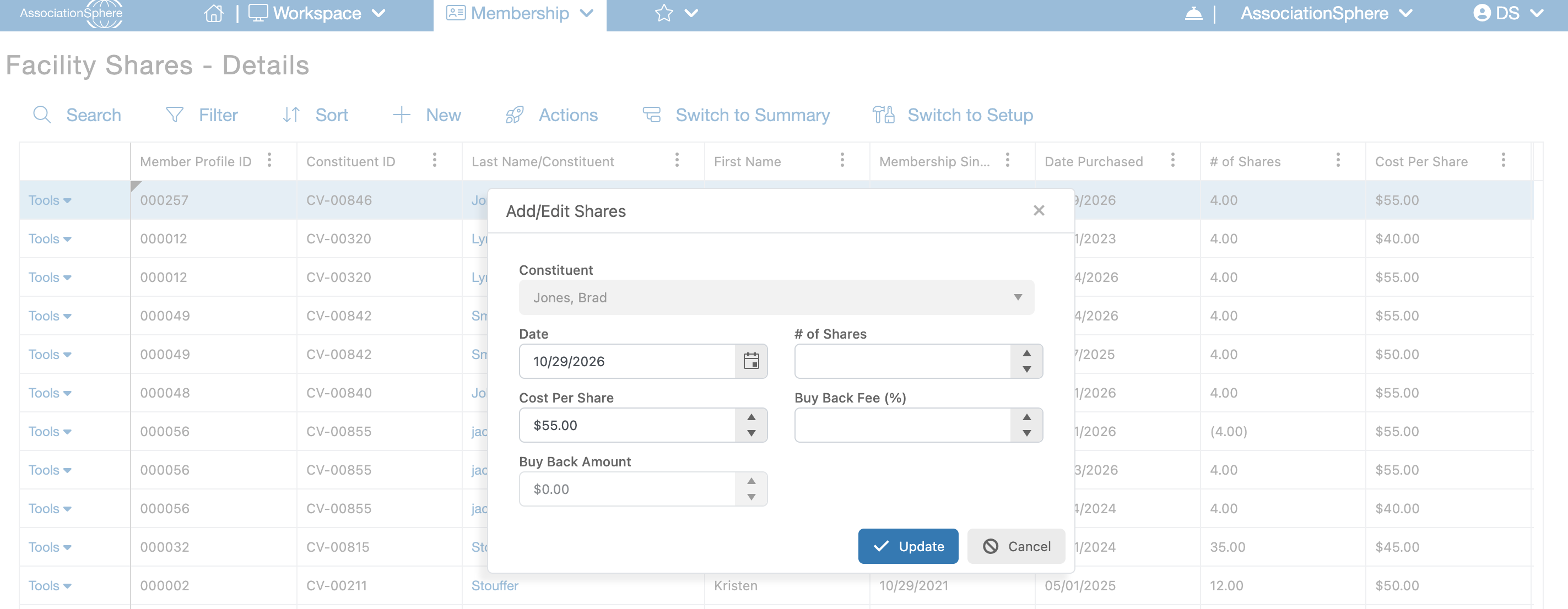
A dialog window will open with the following fields:
- Constituent – Displays the current owner of the selected Purchase transaction. This field is read-only and cannot be changed.
- Date – Select the date of the buyback.
- # of Shares – Enter the total number of shares being bought back.
- Cost Per Share – Automatically displays the price established by the current Share Cycle. This amount can be manually adjusted if needed.
- Buy Back Fee (%) – Enter the percentage that will be deducted from the share value as a buyback fee.
- Buy Back Amount – Automatically calculates the total buyback amount based on the number of shares, cost per share, and buyback fee percentage. This field cannot be edited.
After entering the required information, click Update to save the buyback transaction.
The new Buy Back transaction will appear on the Detail grid and will be reflected in the Constituent's share ownership totals.
Once generated, Buy Back transactions can be edited or deleted through the Tools menu on the corresponding grid row.
Generating Annual Share Purchase Invoices
The Facility Shares module allows organizations to automatically generate invoices for Constituents who have not met their annual share purchase requirements.
Invoice eligibility is determined by the current Share Cycle settings and the Constituent's existing share ownership and purchase history.
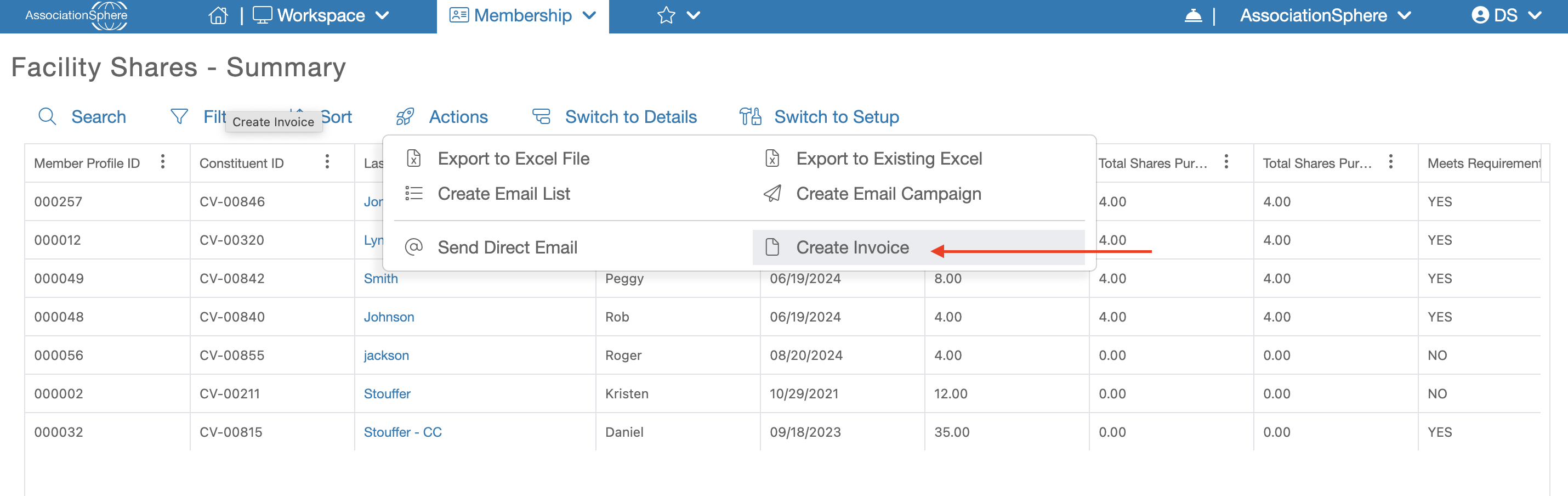
On the Facility Shares – Summary grid, Constituents who have not satisfied their annual purchase requirements will display No in the Meets Requirement Current Year column.
These Constituents are eligible to have invoices generated for the additional shares required to meet their annual purchase obligation.
Scheduling Invoice Generation
To generate invoices, navigate to the Facility Shares – Summary grid, open the Actions menu above the grid, and select Create Invoice.
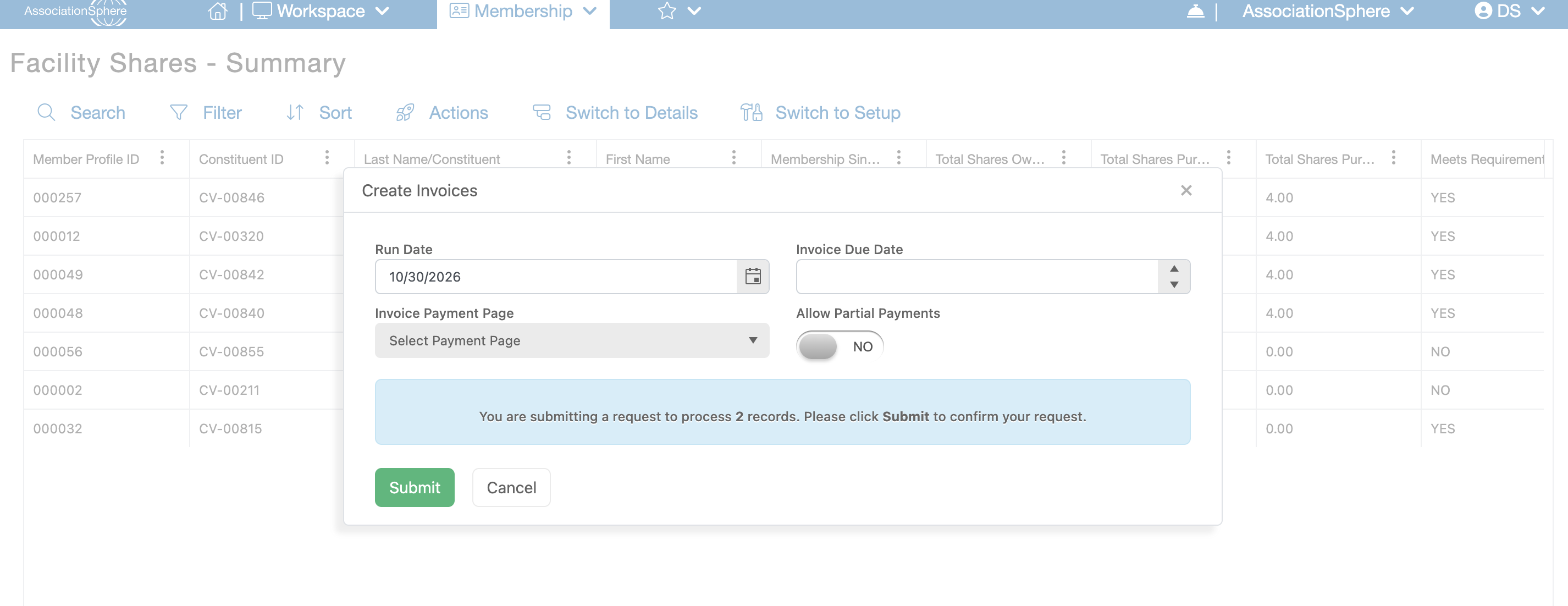
A dialog window will open with the following fields:
- Run Date – Select the date on which the invoices should be automatically generated.
- Invoice Due Date – Enter the number of days after the Run Date that the invoices will be due.
- Invoice Payment Page – Select the payment page that will be linked to the invoices, allowing Constituents to make online payments using a credit card.
- Allow Partial Payments – Set to YES if Constituents should be allowed to make partial payments or pay their invoice through multiple transactions.
After entering the required information, click Update to schedule invoice generation.
The system will automatically generate the invoices on the specified Run Date based on the applicable share purchase requirements.
Managing and Distributing Invoices
Once generated, invoices can be accessed through the main Invoices grid under the Transactions & Invoices module.
From this grid, invoices can be managed and distributed individually or in batches.
Available distribution options include:
- Email Invoices – Send digital invoices directly to Constituents through the software.
- Print Invoices – Generate printable copies for distribution by mail or in person.
- Batch Distribution – Distribute multiple invoices at once instead of processing each invoice individually.
Constituents who receive digital invoices can use the linked Invoice Payment Page to submit their payments online, provided a payment page was selected during invoice setup.
This process allows organizations to efficiently manage annual share purchase requirements, identify outstanding obligations, and collect payments while maintaining an accurate record of facility share ownership and transactions.