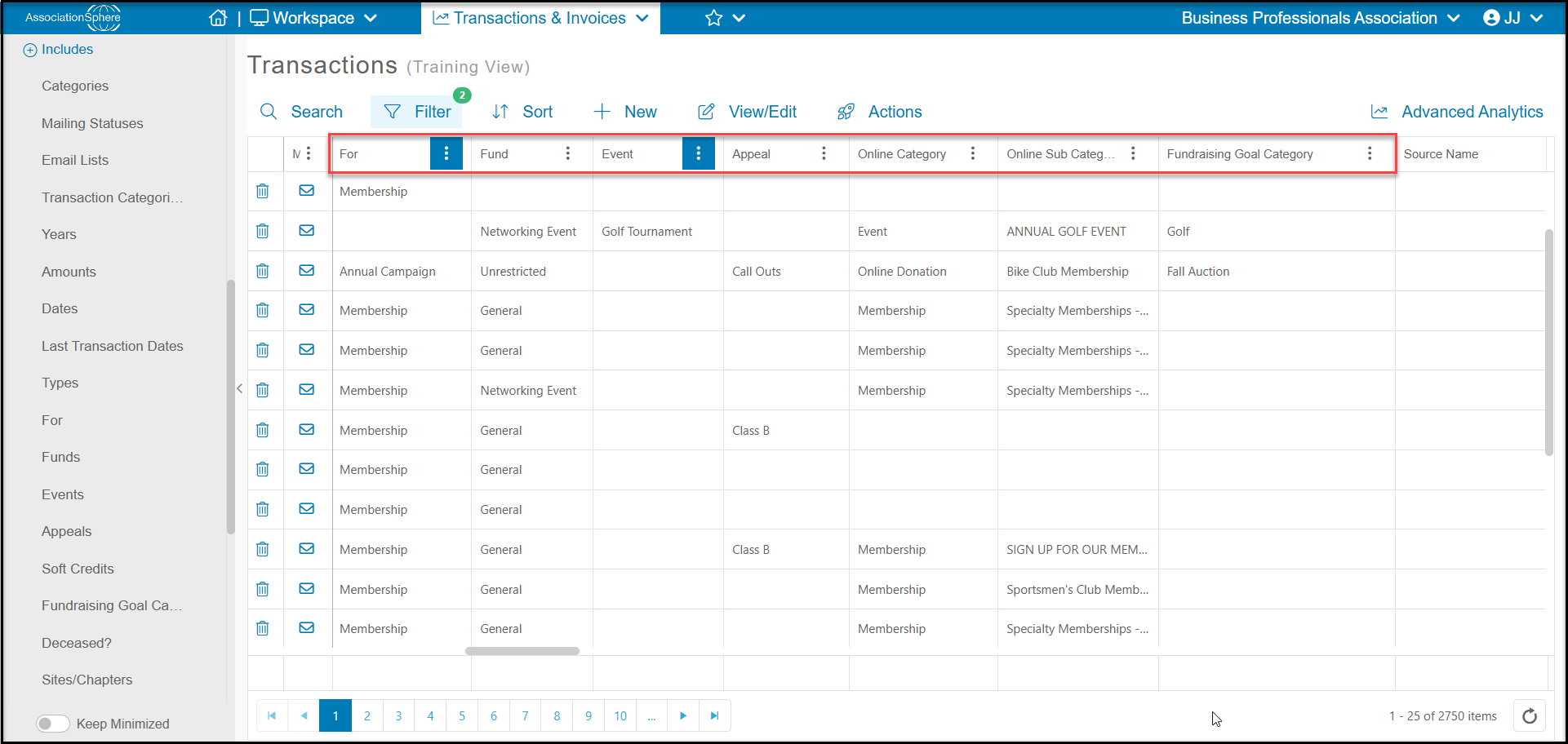
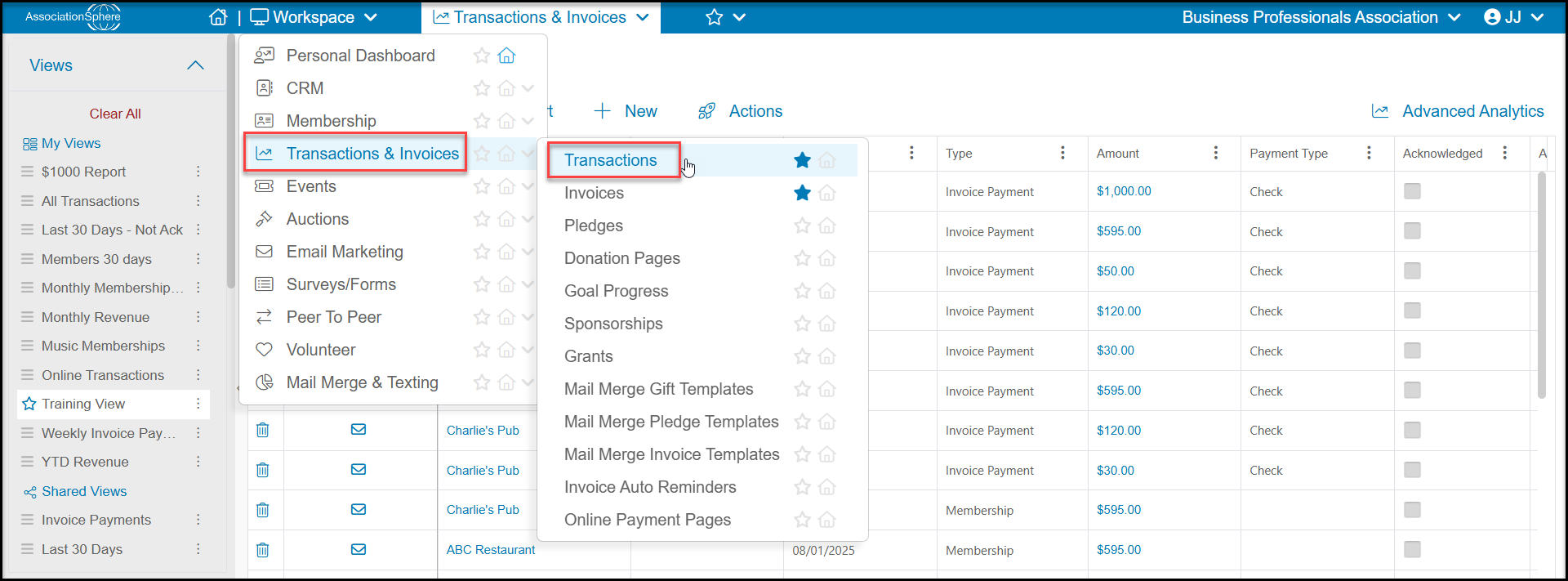
The Transactions Grid will show all transactions that have been recorded in the software. The grid can be found in the Transactions & Invoicing Module by clicking on Transactions.
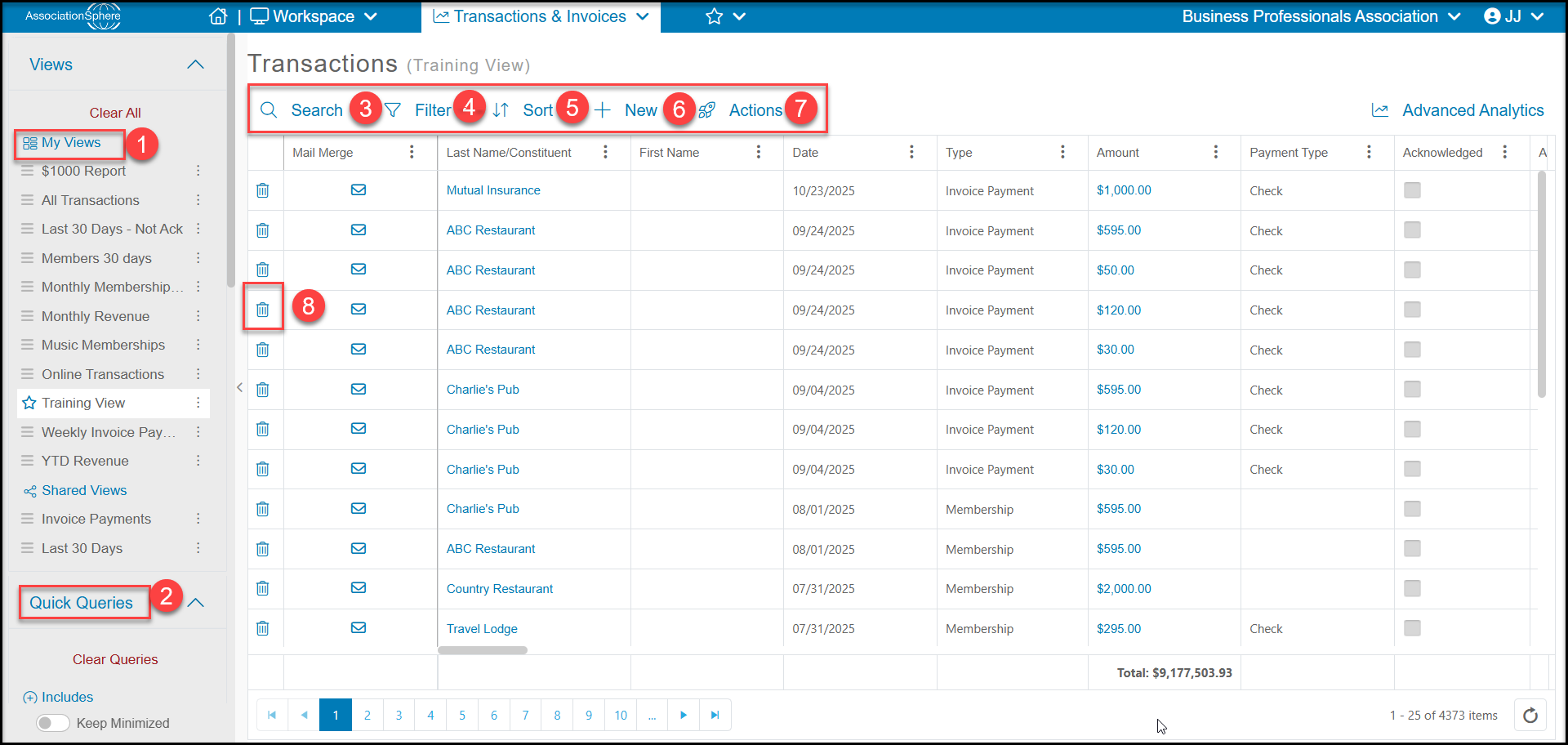
The Transactions grid operates like other grids. The first time you visit this grid, the software create a default view for you and this can be edited using the View Builder. You can use the various tools and menus available on the grid including:
- You list of views.
- Apply Quick Queries to your data.
- Use the Search feature to locate specific records.
- Apply Filters to your data.
- Apply Sorts to your data.
- Add new constituents, transactions, invoices and more.
- Access the Actions menu to communicate with the constituents shown in your view and perform batch updates on the data shown.
- The trash can icon allows you to delete any transaction. Please be sure to make any notes you need about the transaction prior to deleting, as this process cannot be undone.
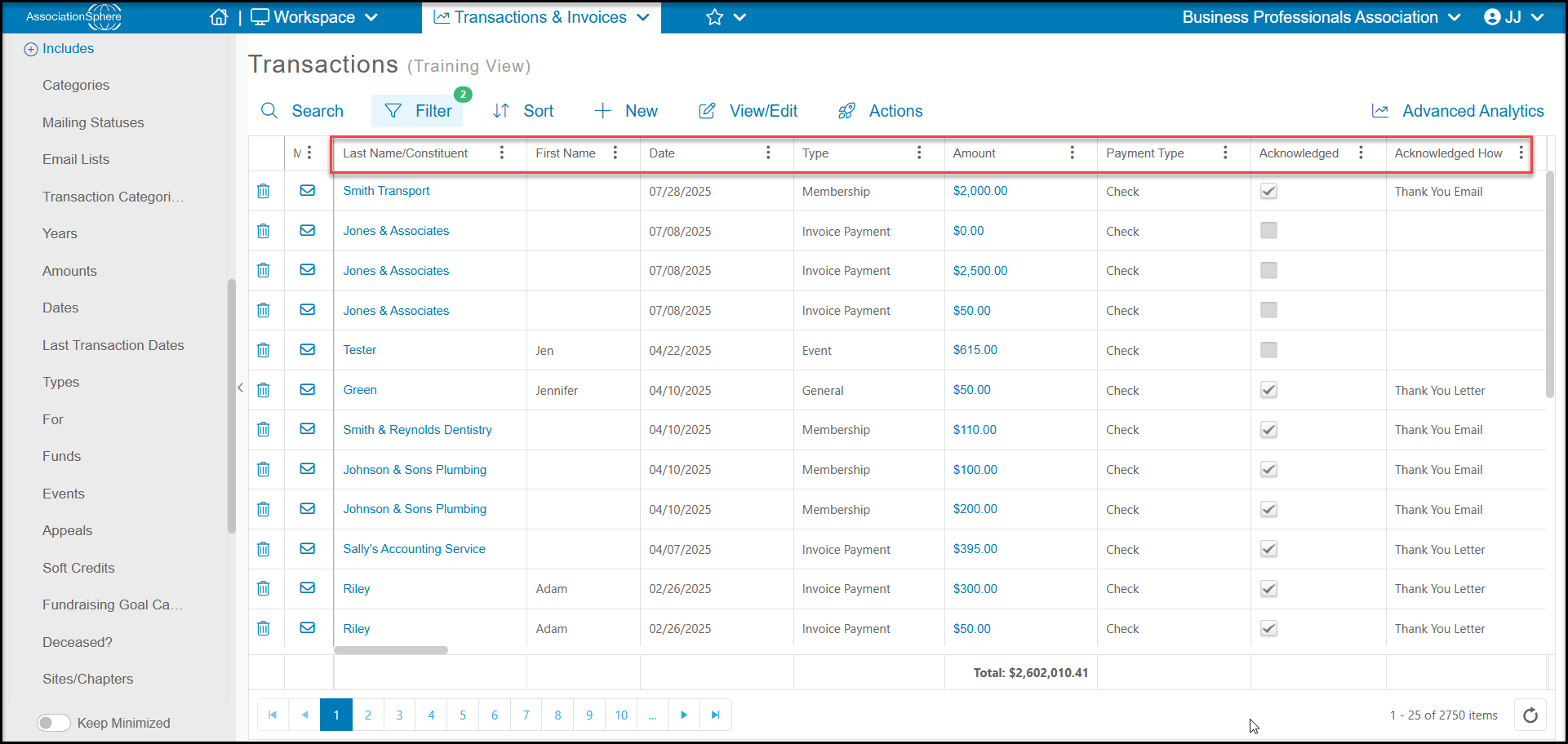
Each row on the grid represents a single transaction. For each transaction you can see information like:
- The Last Name/Constituent and First Name (as applicable) of the constituent associated with the transaction.
- The Date the transaction was recorded.
- The Typeof transaction. Types include:
- Membership - for any memberships, membership add-ons or fees
- General - for transactions are donations or other payments not associated with memberships, events, or auctions.
- Event - for any ticket levels or event add-ons
- Auction - for any auction purchases, paddle raises or auction add-ons
- Invoice Payment - for payments associated with invoices
- Pledge - for future contribution commitments
- Pledge Payment - payment of future commitments
- In-Kind - for donations which are not cash such as donations of materials, equipment or services
- Amount of the transaction this represents the amount of money actually received. Note that pay later memberships, as shown at the bottom of the list below, show a $0 transaction. Once the payment is received it will be recorded an Invoice Payment or Membership (if invoicing is not used.)
- Payment Type which shows how the payment was made, typically check, online credit card, or other method.
- Acknowledged is a check box that will show whether that transaction has been acknowledged yet or not and Acknowledged How and Acknowledged Date will provide more details about the acknowledgement. Transactions made through membership, event, and auction pages are set up to send an automatic thank you message and you can use the page Settings tab to automatically check this box.
The grid also contains fields that are helpful for reporting including the revenue category fields For, Fund, Event and Appeal. This revenue categories can be assigned to your membership, event, auction, and invoice transactions to help identify the different sources of revenue for your organization. They are also used when integrating with QuickBooks to map where transactions should be assigned in your accounting.
For any transactions made using a page, you can see what kind of page was used in the Online Category field as well as what specific page it was in the Online Sub Category field. The Fundraising Goal Category is used when you want to track funds raised from specific activities like a Golf Tournament to raise money for scholarships.
The grid contains many more columns that provide additional details about the constituent who made the transaction and the transaction itself.