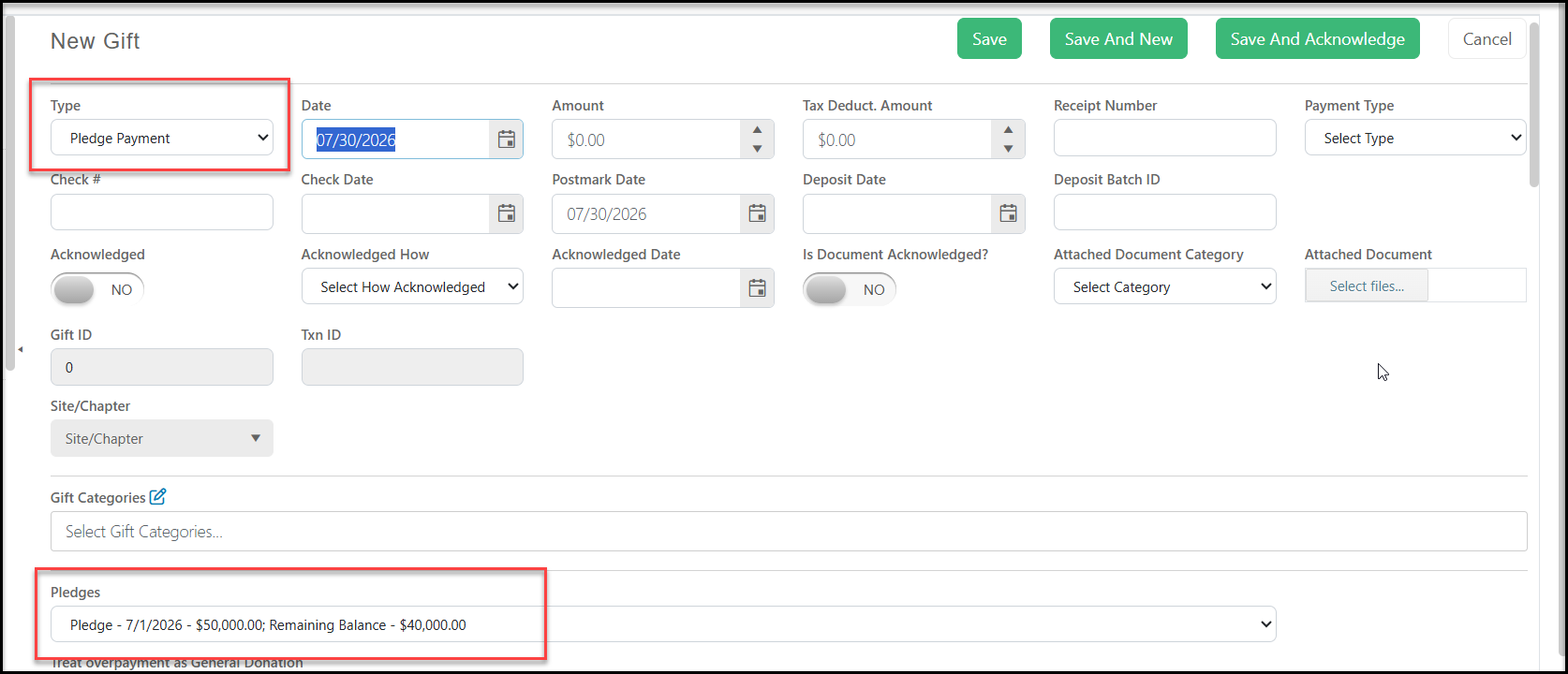
How do I enter a pledge payment?
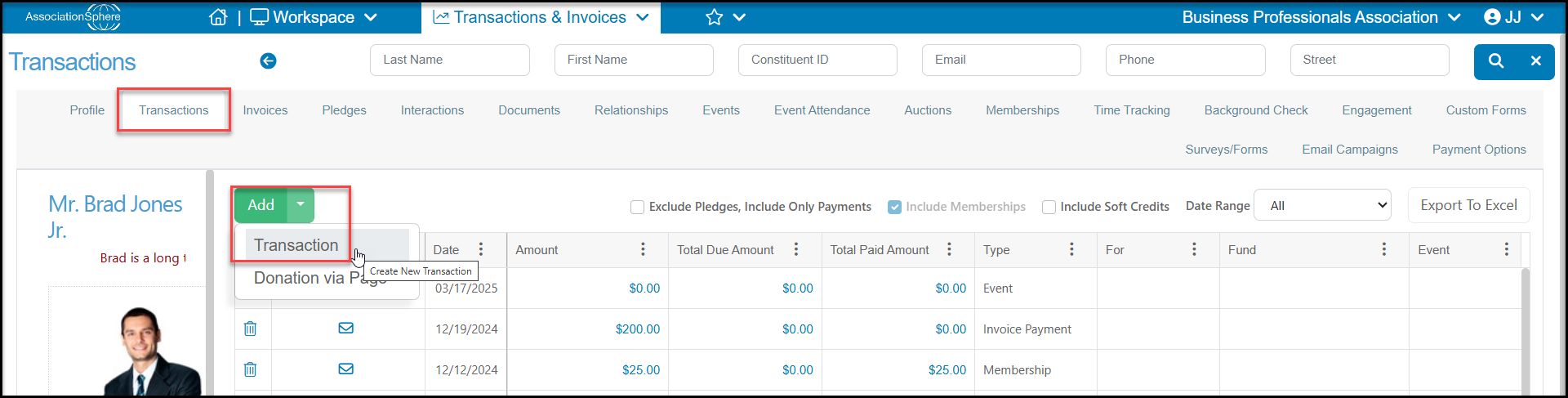
To enter a pledge payment, you can add a new transaction from the Constituents Grid in the CRM Module or the Transactions Grid in the Transactions & Invoicing Module by selecting the +Newmenu and choosing Transaction, or from the constituent's record under their Transactions tab by clicking on Addthen Transaction.
From the New Transaction page, select Pledge Payment as the transaction Type. Once Pledge Payment is selected, the screen will update and show the pledges in the drop down menu under Pledges. Be sure to select the correct pledge to pay, then enter the Date, Payment Amount, and other information as needed. Note that the revenue categories, For-Fund-Event-Appeal-Fundraising Goal Category will auto-populate with what was assigned for the original pledge.
When finished entering the information, click on the green Saveor Save and Acknowledge buttons at the top or bottom of the page to complete the transaction.