Self Checkout Using the Constituent Portal
The Constituent Portal's auction feature allows your auction participants to do self-checkout. For online auctions, participants must have created a portal account in order to place a bid. For those auctions which were not online, participants can still use the self-checkout feature, but they will need to have created a constituent portal account using the same name and email as you used for your manual auction bids.
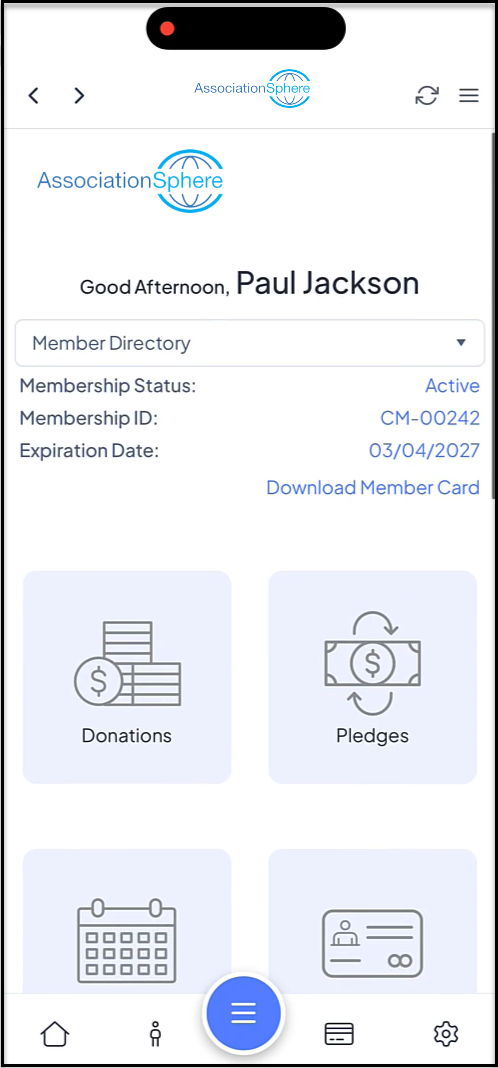
The example below will show the mobile app, but the same features are also available for the desktop version of the Constituent Portal. The logos shown will display your organization's logos. Once logged into the Constituent Portal, they can scroll down to launch the Auctions module.
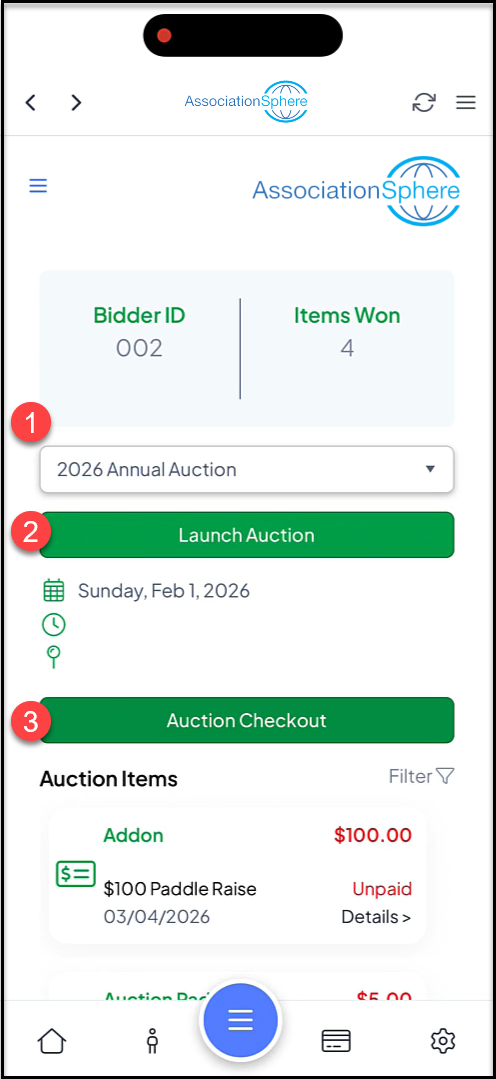
Once inside the module, the most current auction will display first. Other auction pages can be selected from the dropdown menu (1).
The auction page can be launched (2) to view the auction items or bid on items if online bidding has been actived.
The Auction Checkout (3) button will launch the checkout window.
All of this bidders add-ons, paddle raises, and auction items will be listed below the checkout button. Those that are unpaid will show the amount due in red and those that have been paid will be marked paid and the amount shown as green.
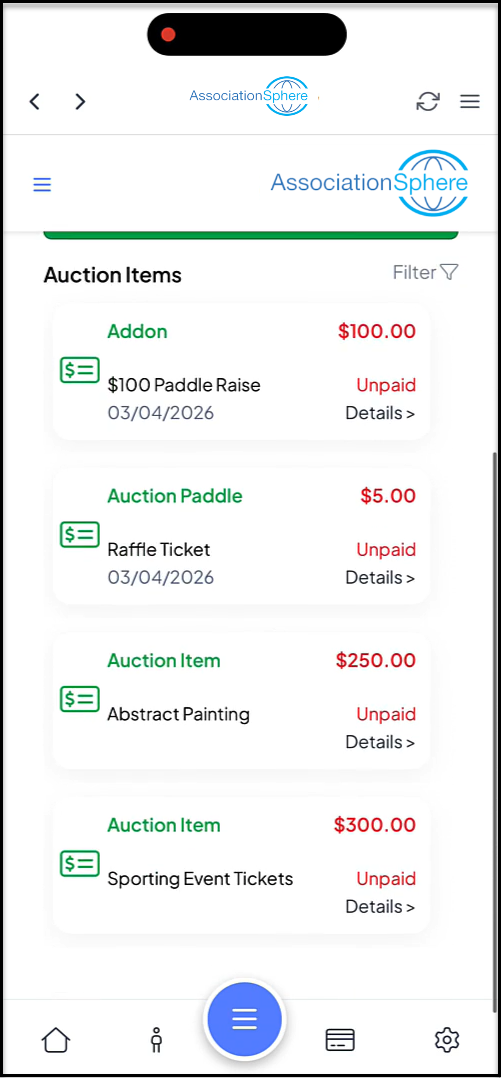
Clicking on Details below the dollar amount for a paid item will allow the participant to generate a receipt if desired.
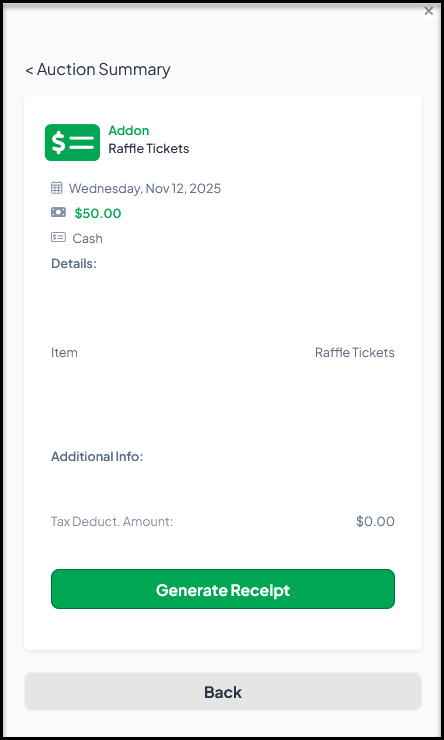
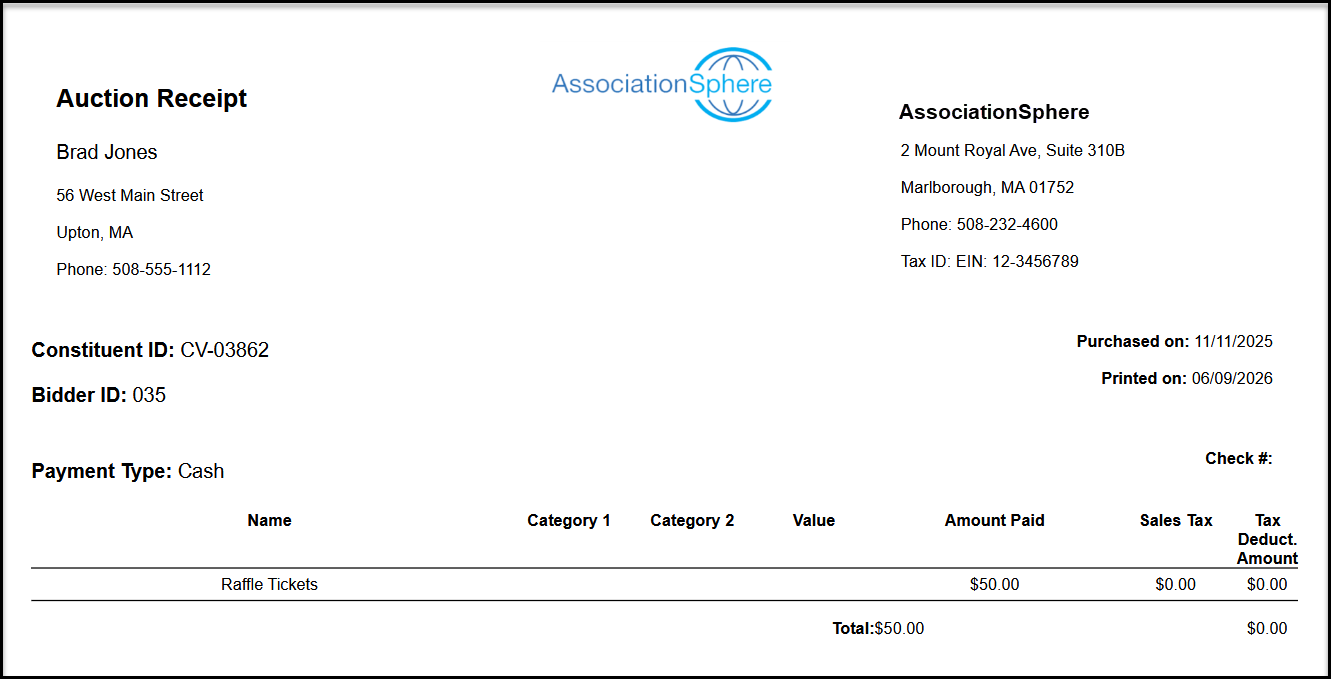
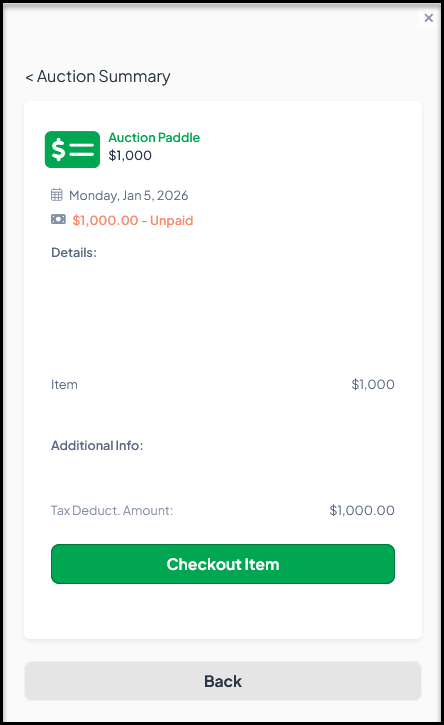
For unpaid items, clicking onDetailswill open the information about the item. If the auction is still in progress, auction items cannot be checked out until the auction bidding has closed. Paddle raises and add-ons can be checked out anytime and are not tied to the bid closing for the auction.
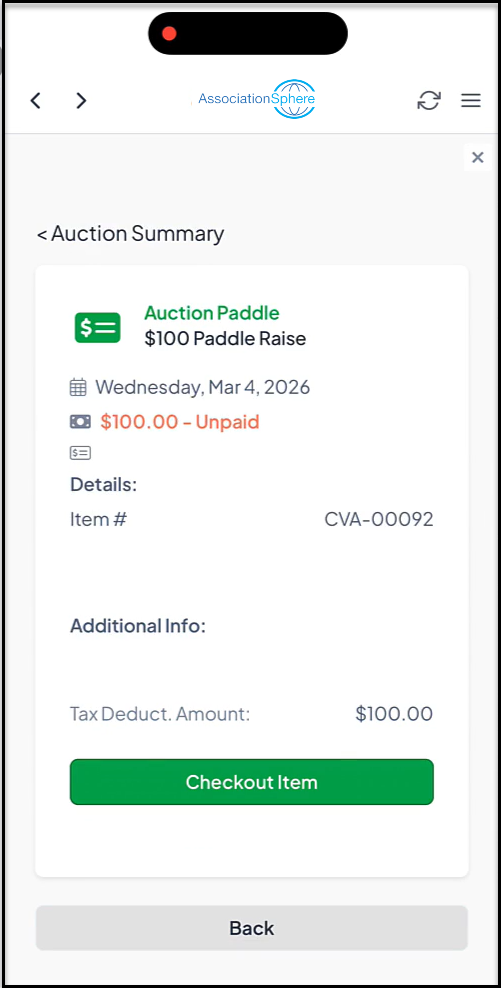
When Checkout Item is clicked it will open a new window for checkout (the same window as clickingAuction Checkout on the home page for the auction.
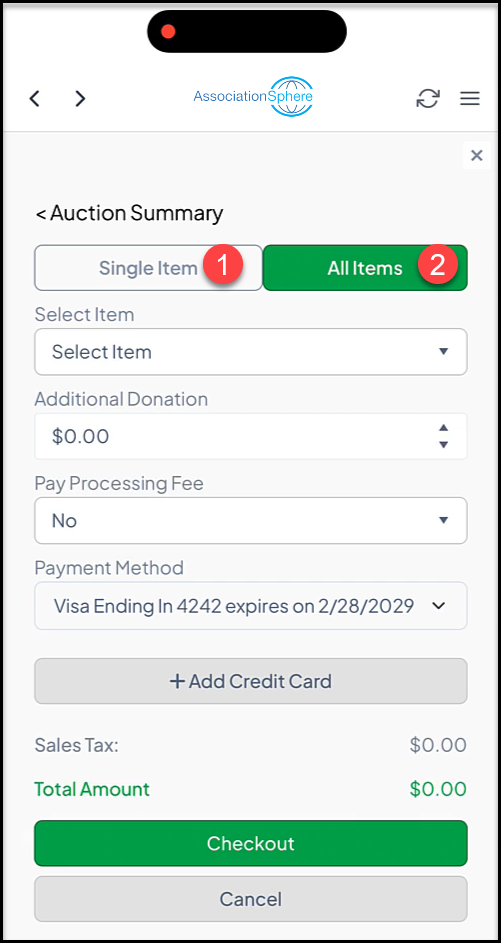
If the auction has closed, they can choose to check out a Single Item (1) or All Items(2) for their checkout. If the auction is not closed yet, they will only be able to check out paddle raise and add-ons items.
If they have a credit card on file, the options will be shown under Payment Method. They also can**+Add Credit Card** if there is no card number on file or they wish to use a different card.
After selecting the credit card, they can choose Checkout to process the payment or Cancel to close the window and defer the checkout. They will receive the automatic thank you message that you created on your auction page.