
Job Board Settings
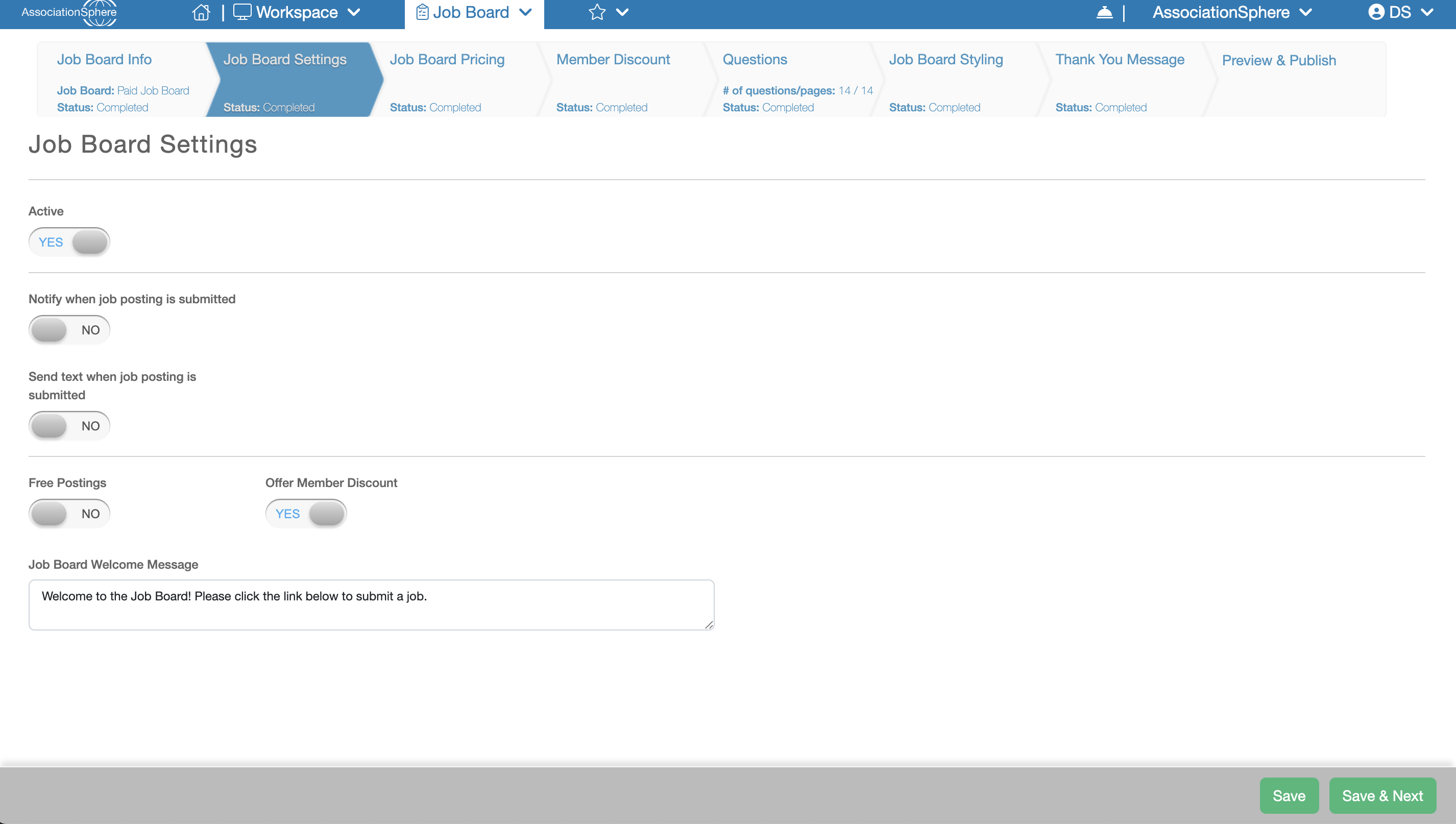
The next step in the setup of a Job Board after Job Board Info is Job Board Settings. Here you can configure the following options:
Active – When set to Yes, this Job Board will be available in the Constituent Portal, allowing users to purchase (if applicable) and submit Job Postings for display on this Job Board.
Notify When Job Posting Is Submitted – When set to Yes, you can enter up to five email addresses, separated by semicolons, to receive an email notification each time a Job Posting is purchased or submitted.
Send Text When Job Posting Is Submitted – When set to Yes, and if text messaging is enabled for your organization, you can enter one or more mobile phone numbers to receive text message notifications whenever a Job Posting is purchased or submitted. Enter a phone number in the Add a Mobile Phone Number field and click Add to include it in the notification list. To remove a phone number, click the X next to the number in the Phones list.
Free Postings – When set to Yes, constituents can submit Job Postings without first purchasing a posting. Job postings will be free and available without any purchase requirements.
Offer Member Discounts – This setting is available only when Free Postings is set to No. When enabled, you can create percentage-based discounts based on both the selected Job Posting purchase level and the constituent's active membership level.
Job Board Welcome Message – Customize the message displayed in the Constituent Portal above the Purchase Job Posts or Post Jobs button. This is a great place to provide instructions or additional information about your Job Board.
Be sure to click Save to save your changes, or Save & Next to save your changes and continue to the next step of the setup process.