
Job Board Pricing
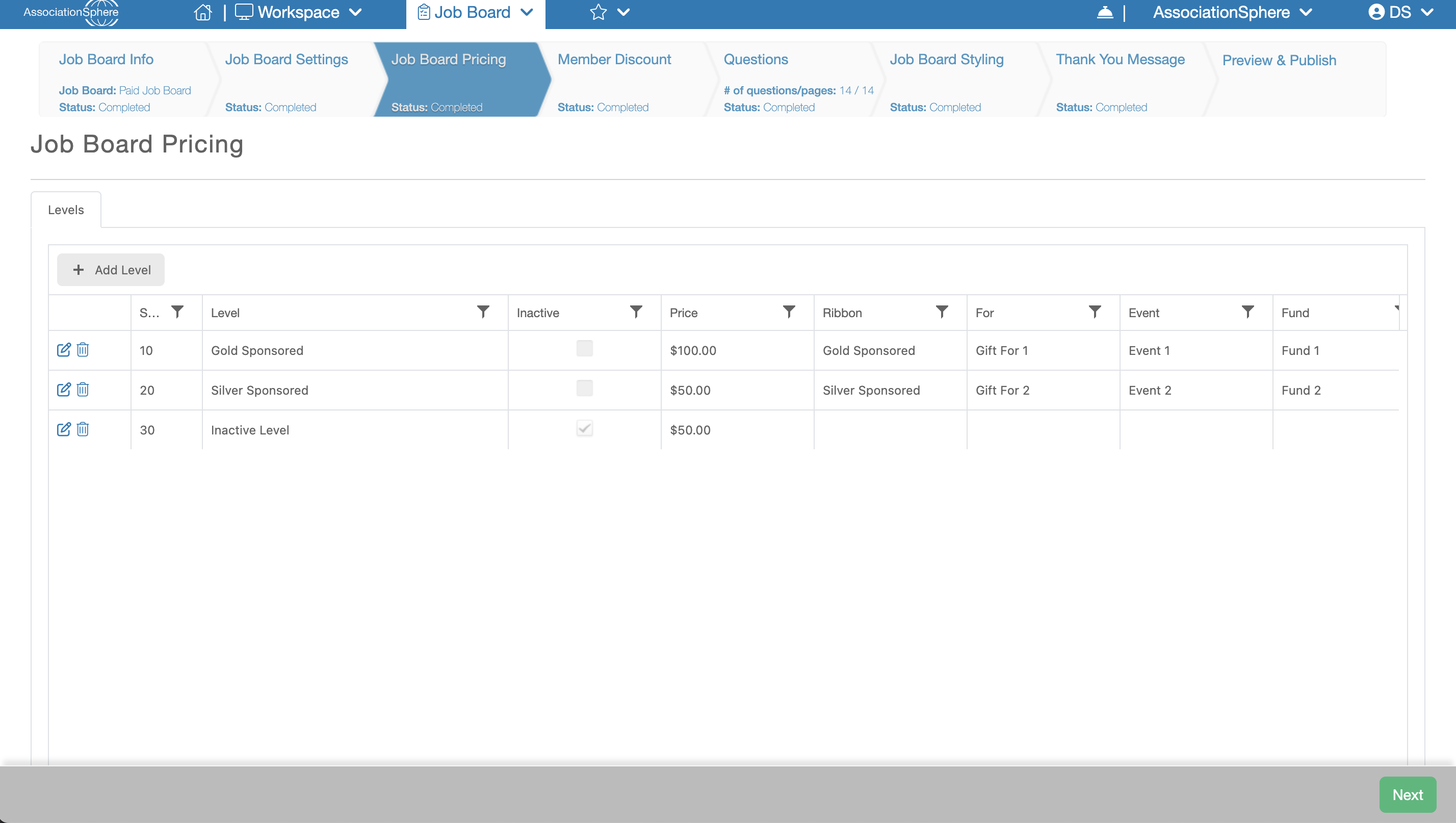
The next step in the setup of a Job Board after Job Board Settings is Job Board Pricing, unless you enabled the Free Postings option on the previous step. The Job Board Pricing tab allows you to create the different purchase levels available to constituents who want to submit Job Postings through your Job Board.
When paid postings are enabled, a constituent must first purchase a Job Posting before they can submit one. To create a new purchase level, click the + Add Level button.
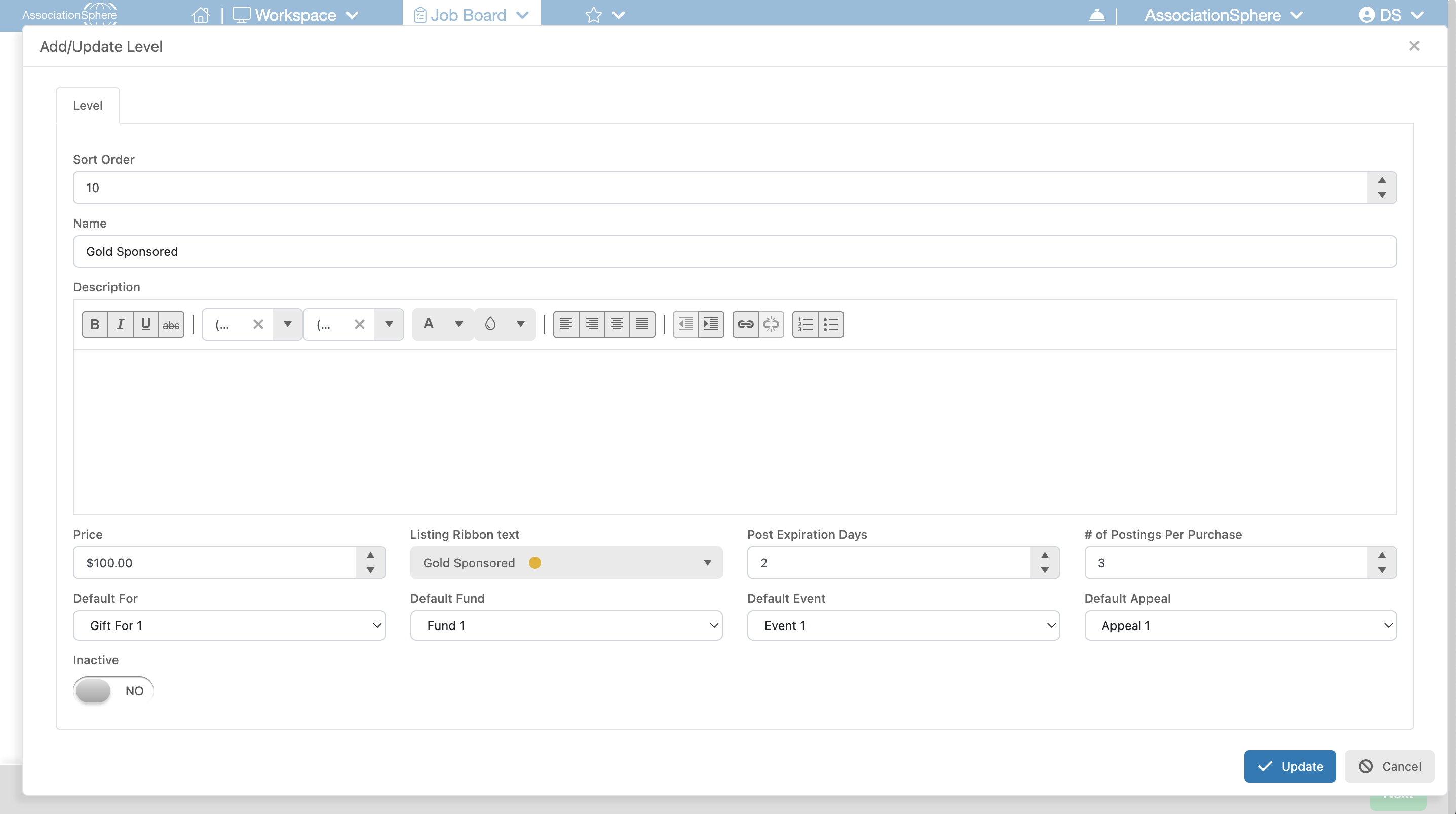
Each purchase level includes the following settings:
Sort Order – Determines the order in which purchase levels are displayed. The lower the number, the higher the level will appear on the purchase form. This order also determines the display order of Job Postings on the Job Board.
Name – Enter a name for the purchase level.
Description – Enter a description explaining what is included with this purchase level.
Price – Enter the price for the purchase level.
Listing Ribbon Text – Add a ribbon to highlight this purchase level and its associated Job Postings. You can customize both the ribbon text and its color to draw attention to featured or premium listings.
Post Expiration (Days) – Enter the number of days a Job Posting purchased under this level will remain active on the Job Board before it expires.
Number of Postings per Purchase – Specify how many Job Postings are included with the purchase of this level.
Default Gift For, Fund, Event, and Appeal – Select the default Gift For, Fund, Event, and Appeal values that will be assigned to the transaction created when this purchase level is purchased.
Inactive – If you no longer want this purchase level to be available for purchase, set this option to Yes. Inactive purchase levels will no longer appear on the online purchase form.
After you have finished configuring your purchase levels, click Save & Next to save your changes and continue to the next step of the setup process.