
Membership Process and Modules Overview
Within AssociationSphere, memberships are transactions that are purchased to join a group or receive membership benefits. Memberships typically have a cost and an expiration date, however Lifetime Memberships can be created that do not have an expiration date. Benefits include things like subscriptions to newsletters or magazines, discounts on event purchases, educational opportunities, advocacy, admission to venues or clubs, or the ability to participate in group activities. AssociationSphere allows you to create and customize multiple membership pages and levels to suit the needs of your organization.
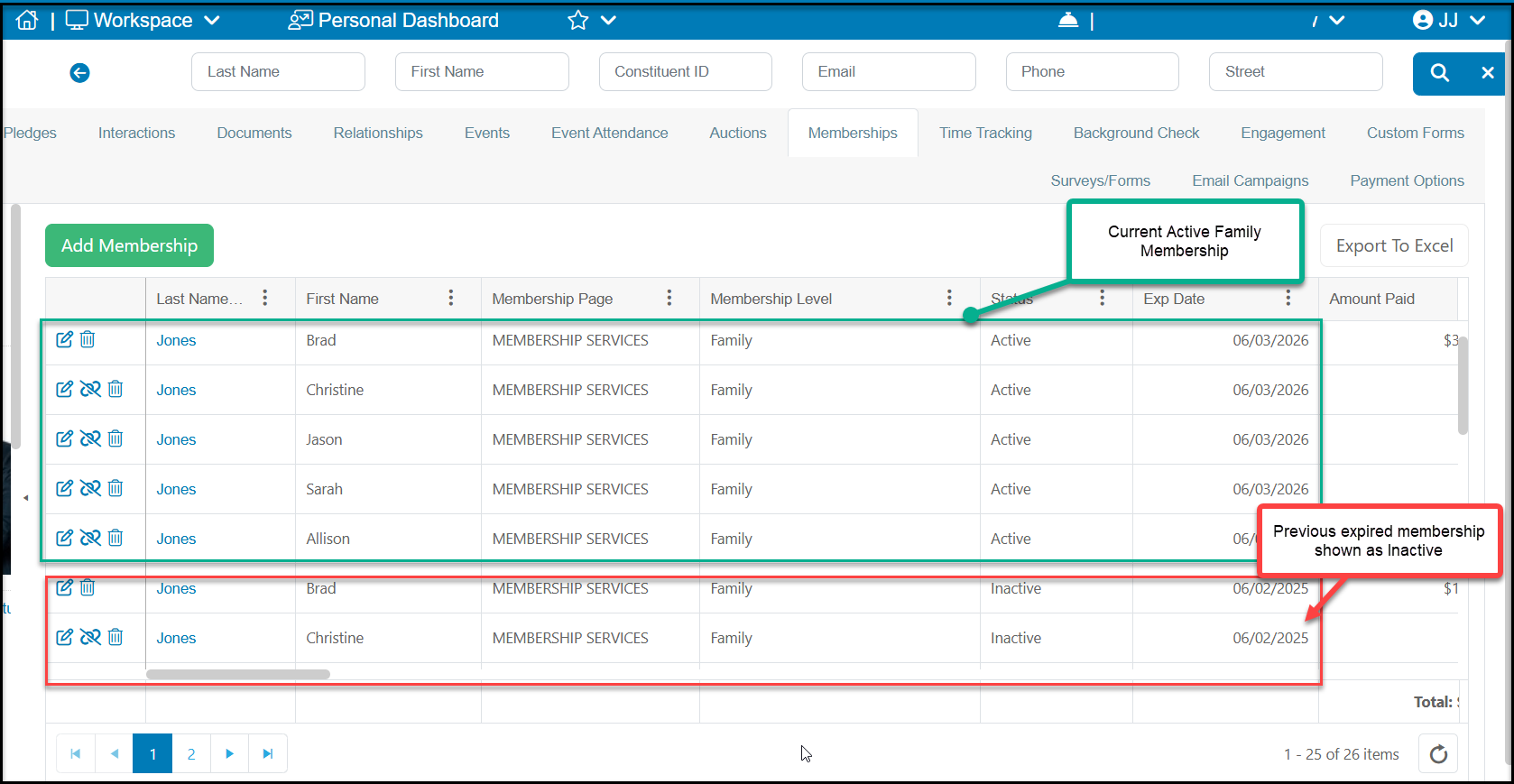
Each membership purchase and renewal will be recorded as a unique transaction. So a member that has had a membership for many years will have multiple membership records with the most current transaction being identified as the Active membership. For group memberships, on the membership owner's grid, you will also see all the group members names.
What is the Difference Between a Constituent and a Member?
All contacts in your database are constituents, so any person or organization that you communicate with or record transactions for will be a constituent. All constituents can be found on the Constituents grid and have a constituent profile record.
Members are a subset of constituents. All members are also constituents, but not all constituents are members. You may have prospective members, event attendees, sponsors, vendors, email newsletter subscribers, and other contacts who you have a constituent record for, but they have never purchased or been part of a membership transaction. In order to be shown on the Membership - Summary or Details grid, there must be a membership transaction associated with the record.
Membership Owner/Purchaser/Head of Household
The membership owner, also known as "purchaser" or “Head of Household,” is the constituent that is paying for the membership. The membership owner will also be the only one to receive renewal notices for the membership. The membership owner does not have to be listed as a Primary or Secondary member if you have group memberships, but is still considered a “member.”
For example, if Brad Jones purchases a Family Membership, Brad is considered the membership owner. His family members can also be listed as primary or secondary members, and they will enjoy all the same membership benefits that Brad has including event purchase discounts, names included on the directory, and access to the members-only areas of the constituent portal. However, Brad will be the person who receives the renewal notices and has the transaction attributed to his record.
For company-type constituents, if ABC Bank purchases a Business Membership and this membership includes one primary member and three secondary members, the bank's employees can be listed as primary and secondary members. ABC Bank is still considered the membership owner, however their employees enjoy all the benefits of membership as well. The transaction is attributed to ABC Bank and ABC Bank would receive a notice when the renewal is due. Company-type constituents, like ABC Bank, are also required to provide a contact person for their transaction so there will be a person with an email address to send communications about the membership. That contact person is considered an employee of ABC Bank, but they do not have to be identified as a member. So the accounting office manager can be the contact for the bank, but that person does not have to participate in any membership activities.
Note the term “Head of Household” used on the membership grid is independent of the Household feature on the Constituents grid. This term is being phased out on the memberships grid but you may still see it referenced in some places.
The Membership Module
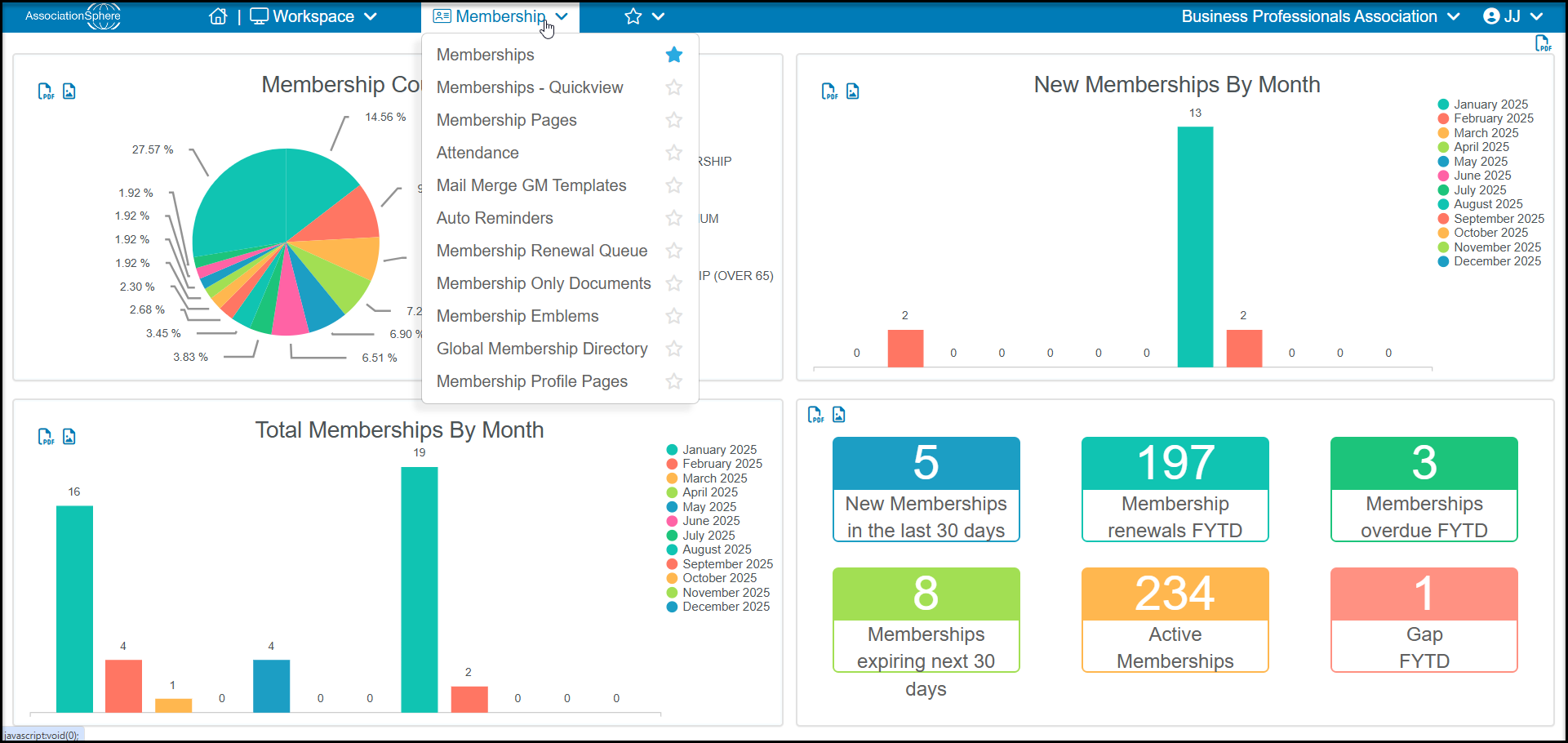
Under the Membership module, you will find 9 menu options. Below is a description of each.
- Memberships – Main membership grid having both a Summary and Detail option so you can see all the specifics related to any membership transactions.
- Memberships QuickView- An alternate view of the Summary and Detail Memberships grid that does not include any financial information, which makes the page load quicker. You can still see the membership level and expiration date information, but you will not see balance due or revenue category fields.
- Membership Pages – Build or edit your online membership registration pages.
- Attendance – Track attendance for member gatherings that are not linked to an event page.
- Mail Merge GM Templates – Generate and edit letter templates that can be used in a mail merge produced from the Actions menu on the Memberships grid.
- Auto Reminders – Create email campaigns that can be automatically sent out to members to remind them to renew before and after their memberships expire.
- Membership Renewal Queue - This grid will show all membership renewals that were processed using the Batch Renewal option.
- Membership Only Documents – Upload documents that will only be visible to members only within their member portal account. The Advanced Portal must be activated for this feature.
- Membership Emblems - Create special emblems to appear on the global membership directory based on the constituent's category or membership level.
- Global Membership Directory - Combine the directories from some or all of your membership pages. This can be especially helpful for organizations that have seperate new and renewing member registration pages, use hard expiration dates, as well as organizations that have multiple membership types on different membership pages.
- Membership Profile Pages- Allows your members to create specific pages with more information about them that can be access from the directory.
Membership Process
See the steps below with hyperlinks provided to additional articles for more details.
Step 1 - Build the Membership Page
Note that this step is often performed by your implementation manager so that your membership data can be imported properly into the software.
In order to host a membership program within AssociationSphere, you must first have a membership page. The membership page establishes the structure of your membership including important details like:
- What type of memberships you offer - individual, business, group, or combination of types
- What information you need to collect from the member, including requiring applications
- Send digital membership cards
- What the expiration date structure will be
- Rolling Anniversary - Membership expires a year after purchase
- Hard Expiration - All memberships expires on the same day, for example 12/31/2027
- Monthly - Membership expires at the end of each month and auto-renews
- Lifetime - no expiration date, active forever
- Pricing and how the member can pay for the membership, for example pay total with a credit card, make installment payments, or request an invoice
- What coupons, fees, or discounts can be applied
- How the membership directory will be organized and shared
Step 2 - Share the Membership Page
Once your page is built, you can share the page on your website, via social media, with links in emails, and via the Constituent Portal.
Step 3 - Managing Your Memberships
Your memberships are managed using the Memberships grid. Here you can:
- Edit memberships
- Transfer memberships
- Add new members to group memberships
- Send communications to your members
- View the status of memberships
- Resend membership cards
- Record payments for pay later memberships
- Record internal memberships
- Create Batch Renewals
- Manage auto-renewals
- Create membership reports
There are several options for membership renewals. You can use the:
- Auto renewal feature available when you set up the membership page which will automatically renew the member and charge their credit card on file.
- Membership Auto-Reminders to send a link automatically to members based on their membership expiration date to renew their memberships themselves using your membership page.
- Membership GM Mail Merge Templates to create letters to mail or email members to renew.
- Email Marketing and Direct Emails to send members links to renew their memberships.
- Batch Renewal feature to renew the membership and generate an invoice. You can then mail or email the invoice that the member can pay with a credit card or send you a check or other payment method to record manually.
- Advanced Constituent Portal renewal link feature which becomes at a set interval from their expiration date so they can renew themselves using your membership page.
- Renew button on a constituent's Memberships tab to manually renew a member.