What is a Gift Membership?
Allow Gift Memberships is a setting that can be turned on during the setup of your Membership page to allow a Constituent to purchase a membership on behalf of another Constituent.
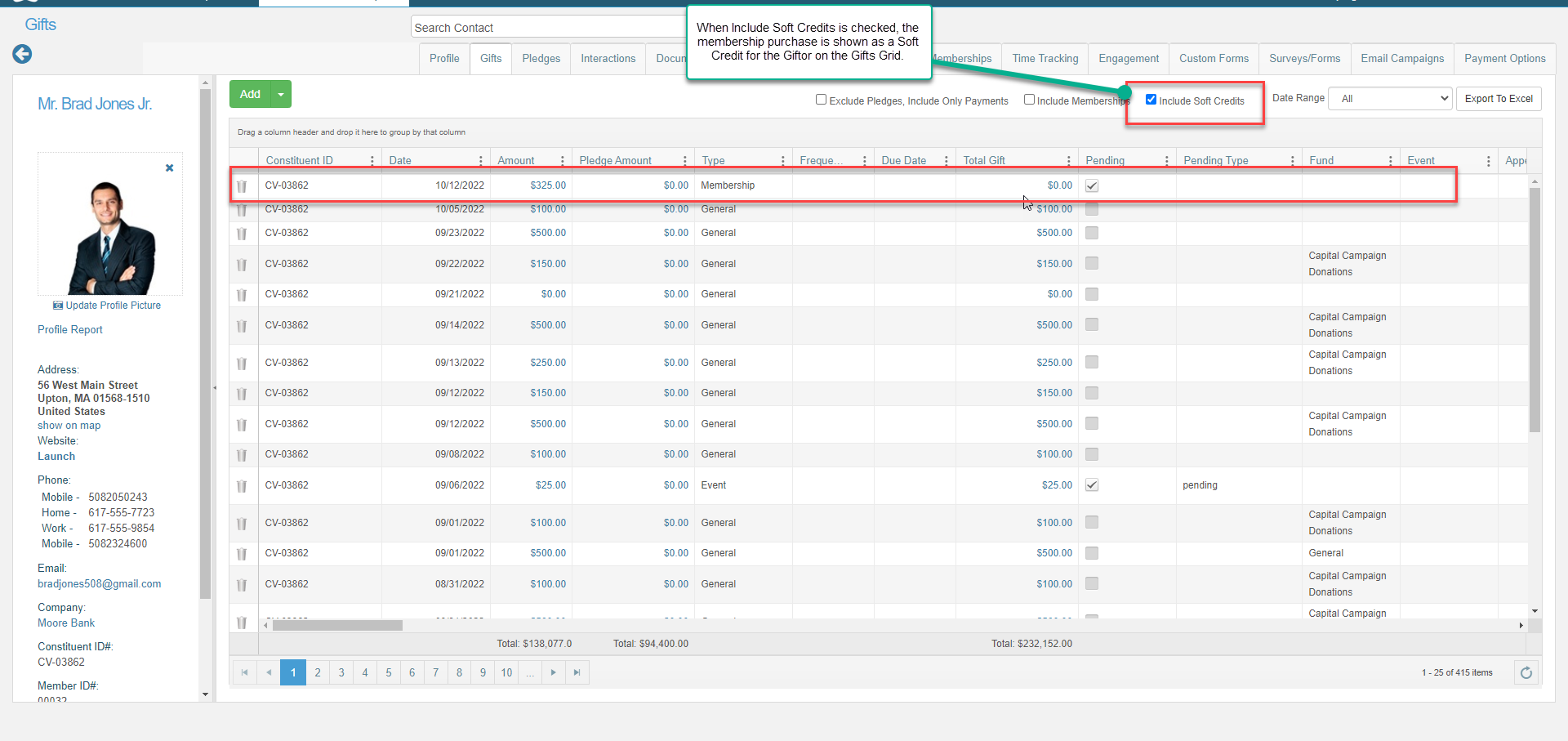
- The Purchaser, or Giftor, pays for the membership and provide contact information for the recipient, or Giftee. The Purchaser will have a soft-credit listed on their record.
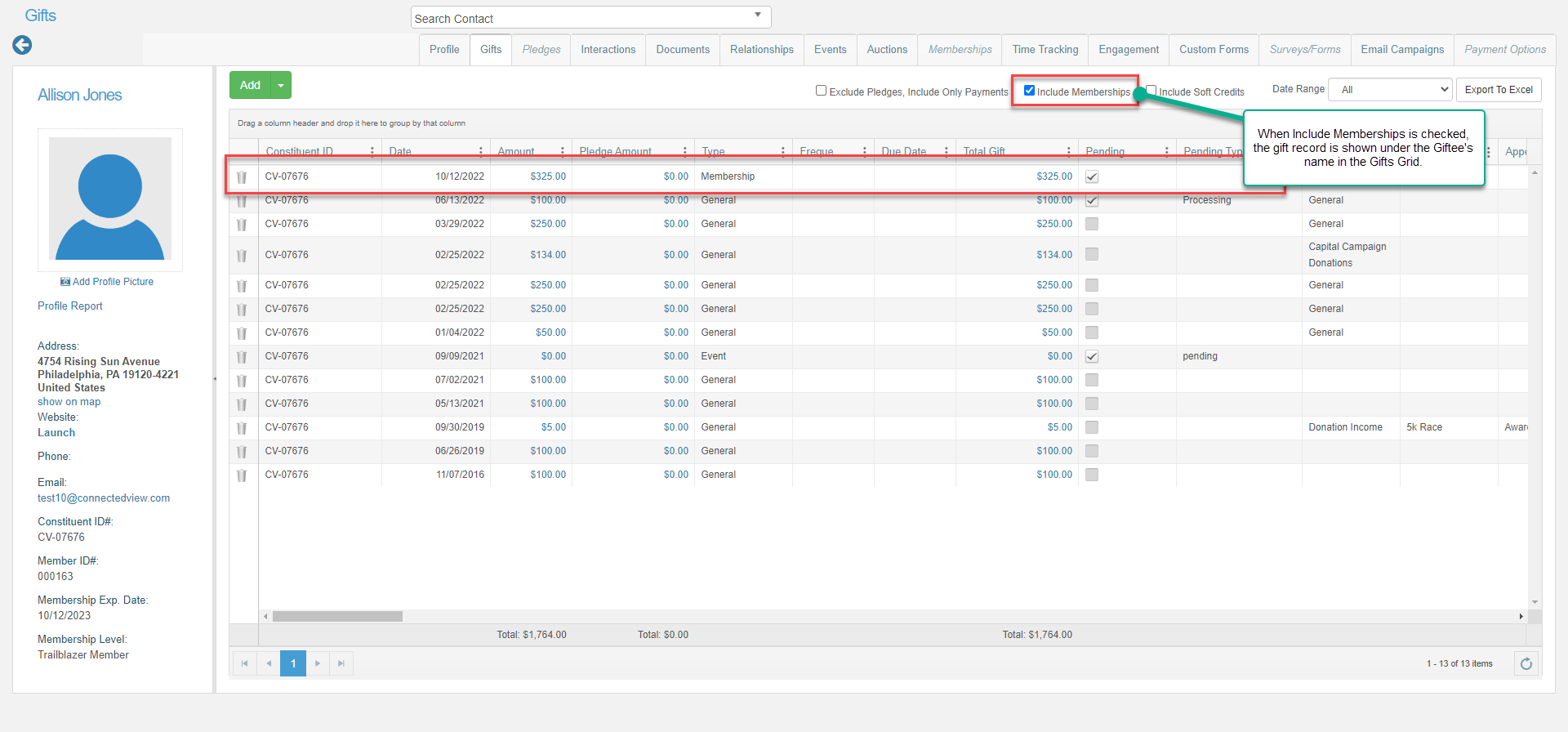
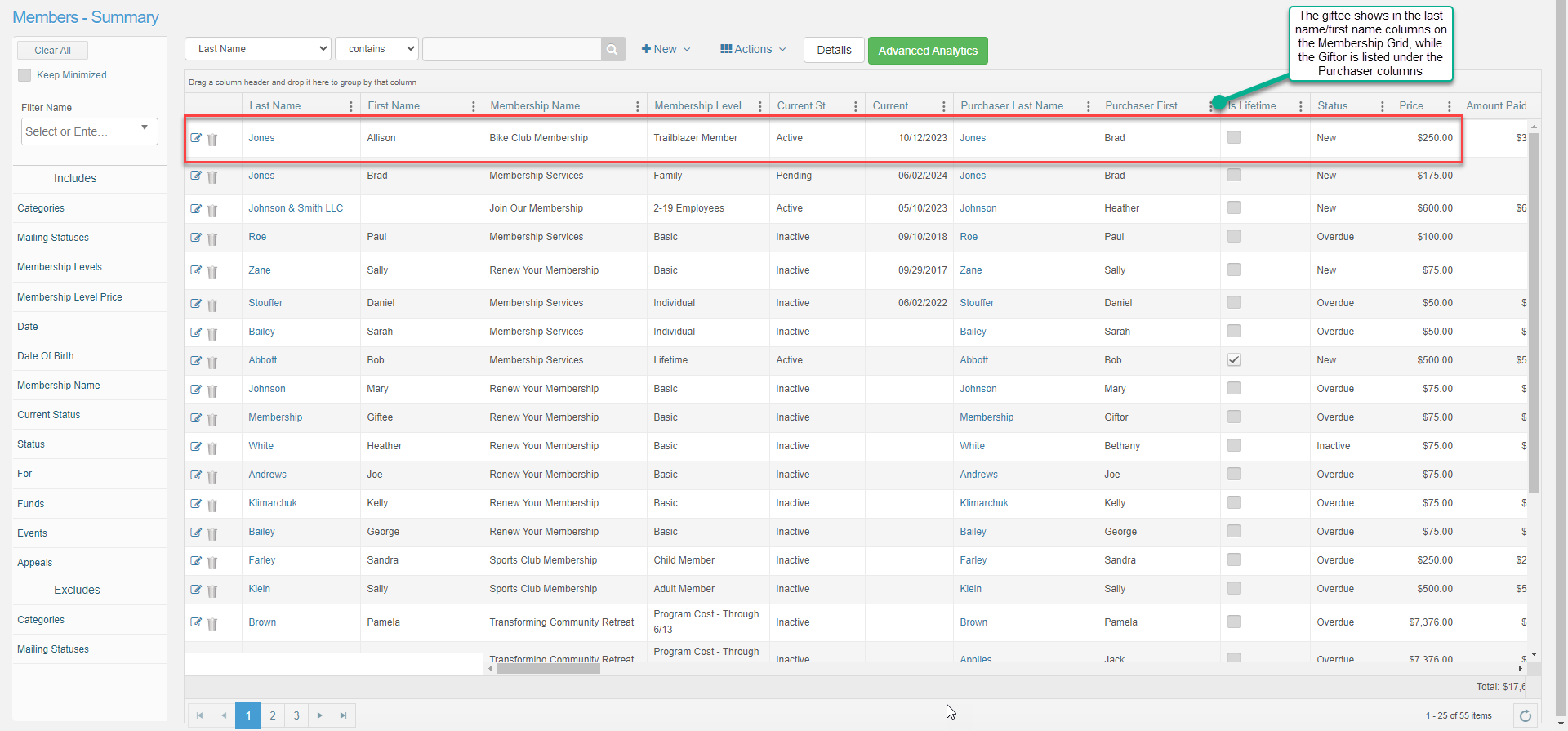
- The Giftee is the constituent who receives the membership benefits. The membership purchase appears on the Giftee's record and in the Memberships Grid.
Tip: The automated Thank You emails have the same Subject Line for both the Purchaser and Giftee. When allowing gift memberships, be sure to use a generic Subject Line such as "Organization XYZ Membership" in the Acknowledgement Info tab so it makes sense for both emails. See below for how to customize the body of the emails to the Purchaser and Giftee.
Turn on Gift Memberships
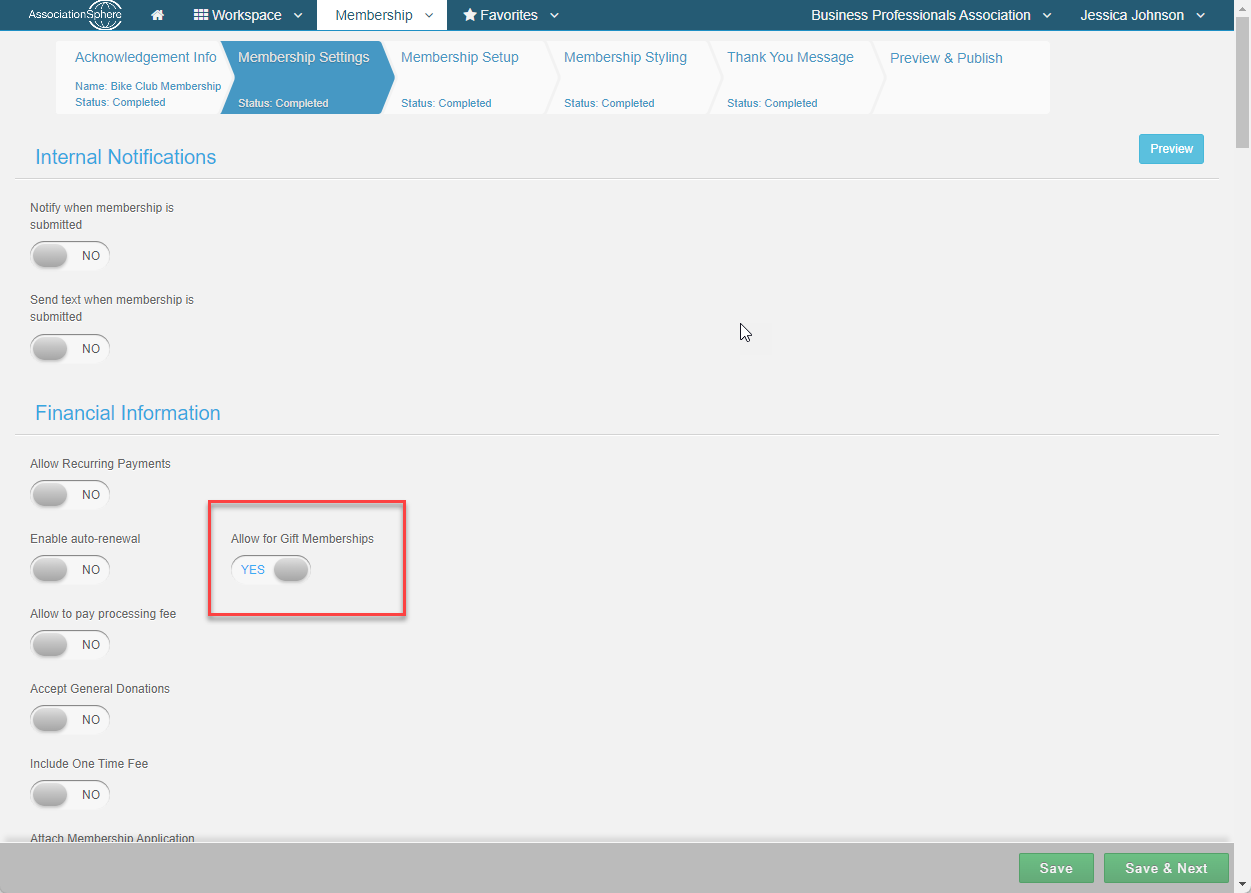
On the Membership Settings tab in the Financial Information section set Allow Gift Memberships to YES to accept gift memberships.
Optional: set Do Not Send Automated Email to Gift Recipient to YES to suppress the automatic Thank you Email for the Giftee/recipient. This option appears only after Allow for Gift Memberships is set to YES and will suppress the thank you email to the Giftee for all memberships processed through this membership page.
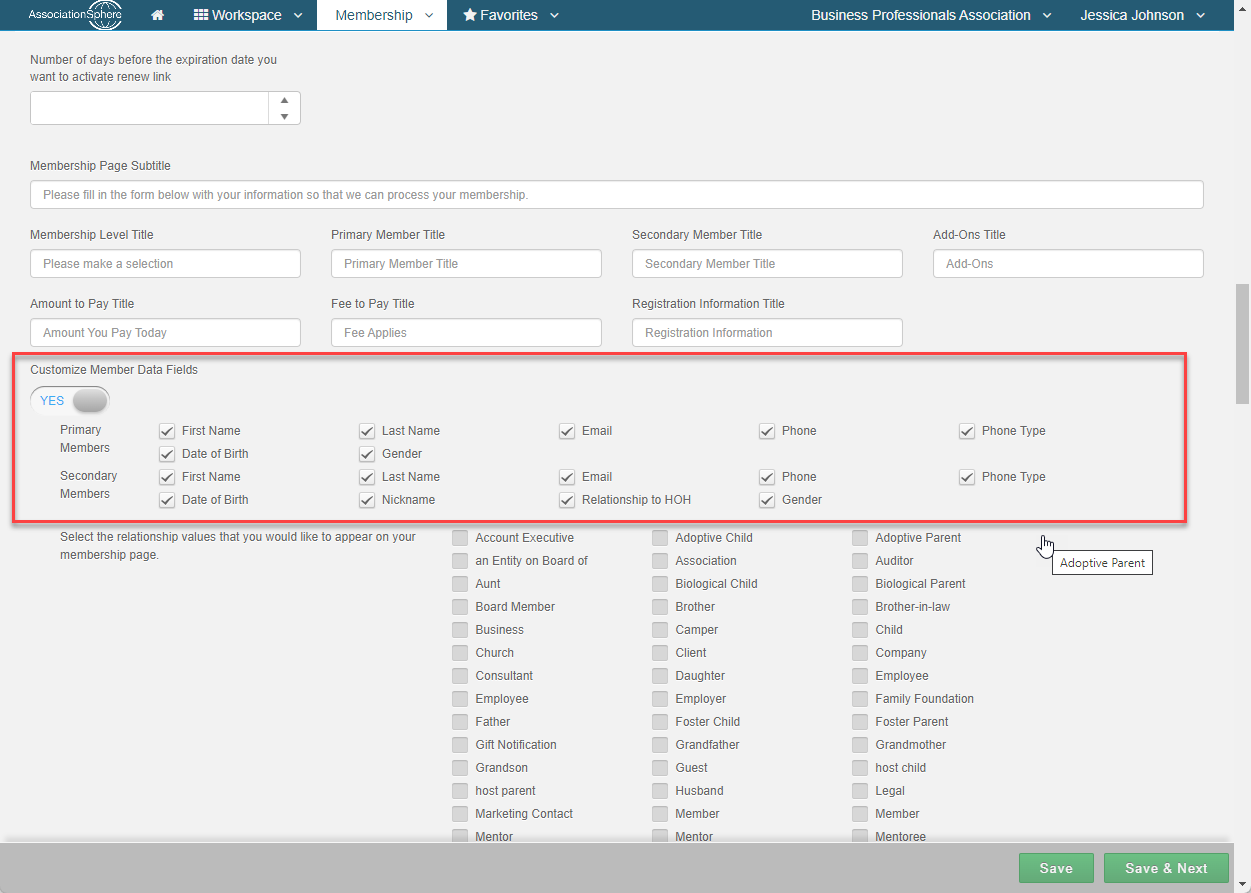
You can also determine what information is captured for the member (including gift memberships) under the Advanced Content & Display Options in the Membership Settings tab.
Thank You Email Setup
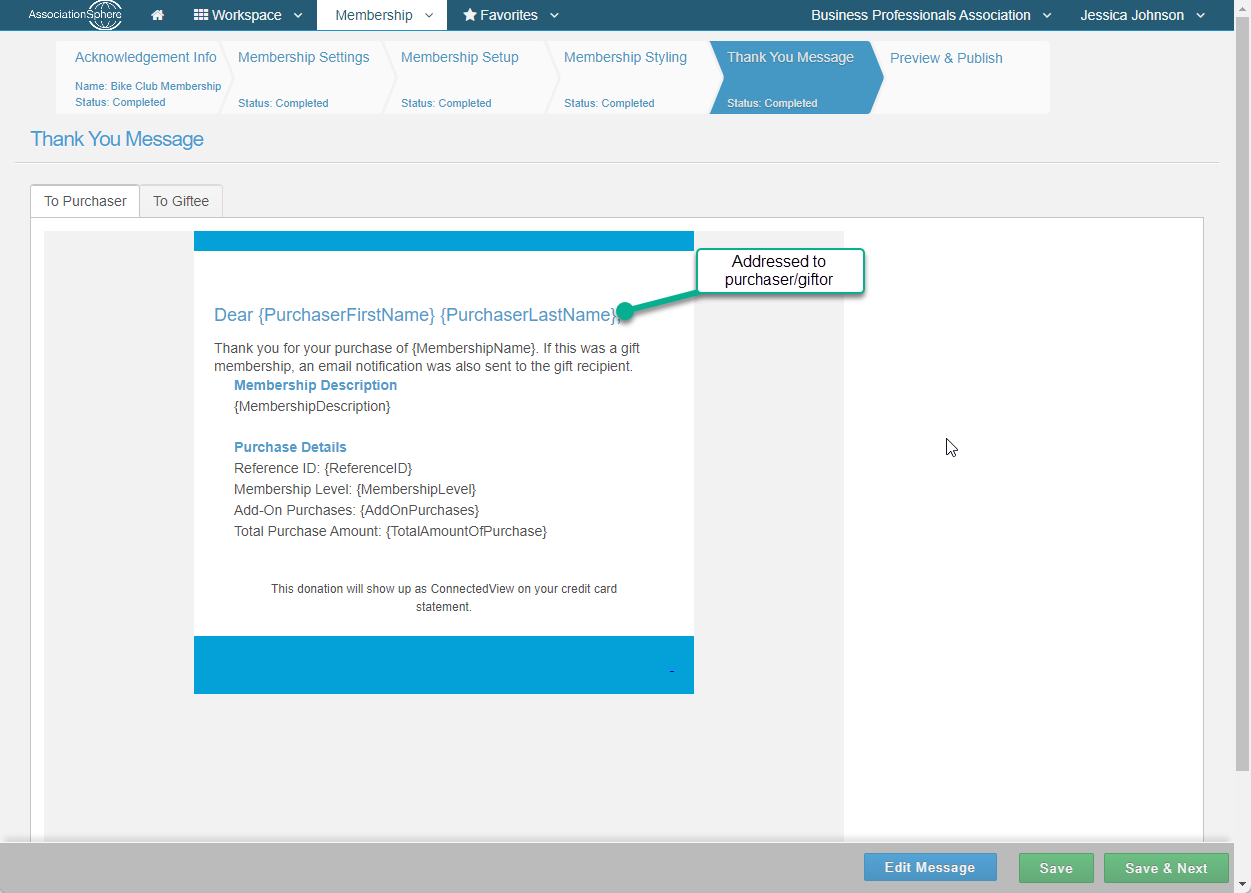
Once allow gift memberships has been activated, an additional thank you email tab To Giftee will appear in the Thank You Message tab and the primary thank you email will be labled To Purchaser.
To Purchaser Email
If you created a thank you email for your membership page before allow gift memberships was activated, you may need to update the To Purchaser Thank you email to include the mail merge fields {PurchaserFirstName} and {PurchaserLastName}.
Tip: Be sure to include generic language for this thank you email since the same text is used for both regular membership purchases and gift membership purchases processed through this page.
A copy of the To Purchaser email can be found in the Reports Module under Thank You Emails.
To Giftee Email
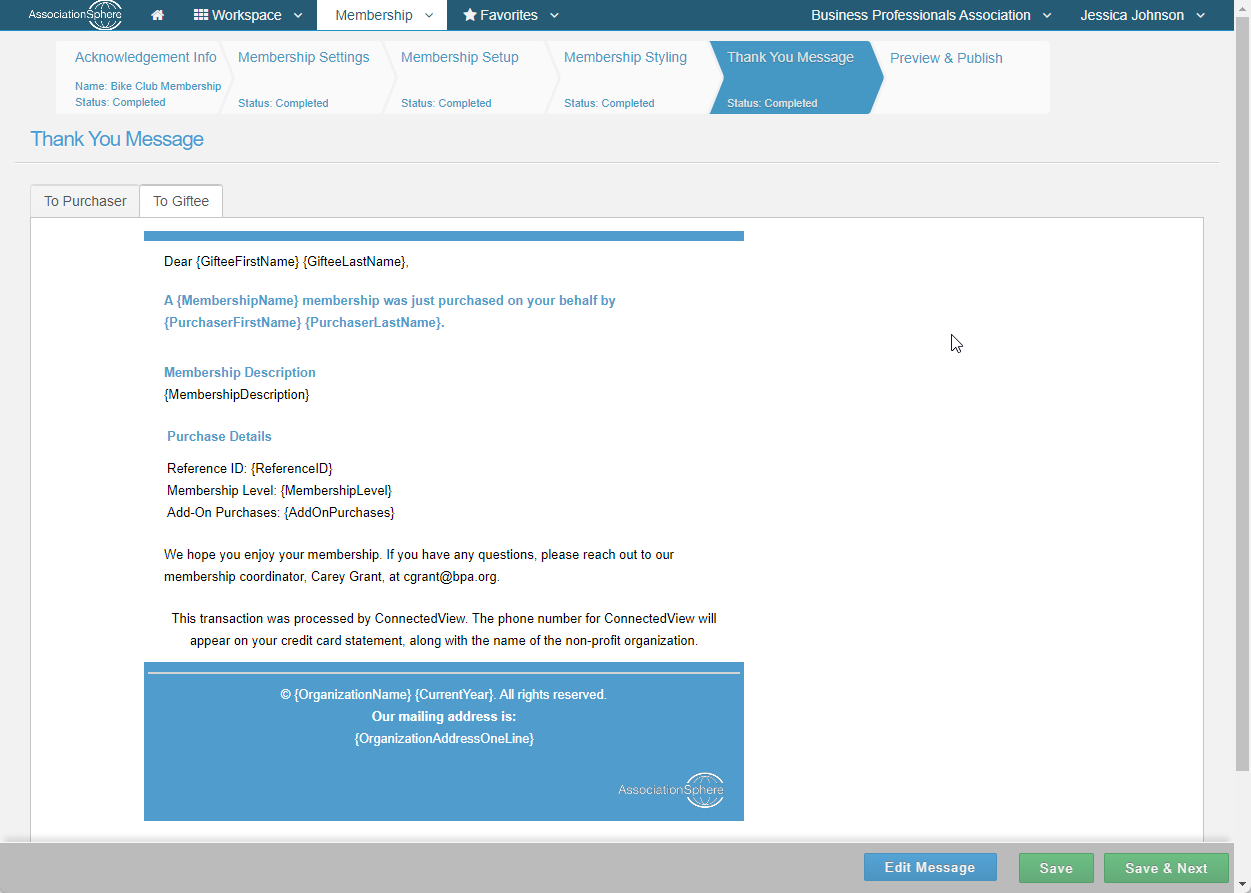
The Giftee will also receive an email which can be customized as needed. It will have the same subject line as the Purchaser's email. The Giftee's email will not be available in the Reports Module; only the Purchaser's email is saved.
If the Do Not Send Automated Email to Gift Recipient option is activated in the Membership Settings tab, NO Giftee email will be sent, even though the To Giftee email is shown in the Thank you Message Tab. This applies to all gift memberships processed through pages with this setting enabled.
Purchasing Gift Memberships
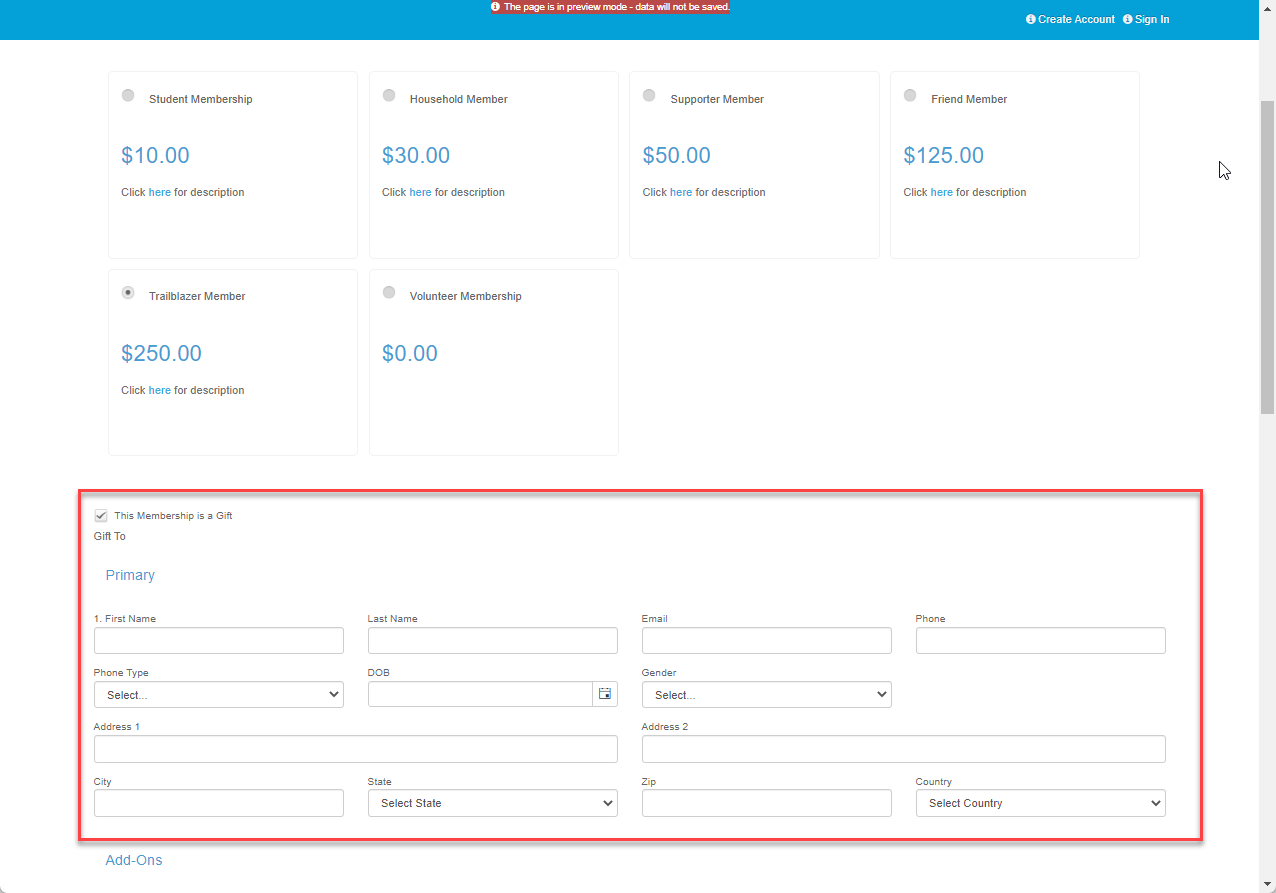
To purchase a gift membership, the Purchaser will select the check box next to "This Membership is a Gift" and enter the contact information for the Giftee in fields that appear below Gift To on the membership page. If the membership includes multiple primary and/or secondary members, such as a family membership, additional contact information boxes will appear for each primary and secondary member. The Purchaser then completes the transaction by entering their name, contact information, and payment information at the bottom of the page.
Gift Memberships are not available with Recurring Payments. If the "Recurring" option is selected the Gift Membership information will be cleared.
Gift Memberships cannot be purchased when signed into the Constituent Portal. The checkbox for "This membership is a gift" will be hidden.
Viewing Gift Memberships in the Software
Once the Purchaser has completed the transaction, a soft credit transaction will be added to the Purchaser's constituent record. To view soft credits, select Include Soft Credits above the grid.
The membership transaction will appear under the Giftee’s Constituent record in both the Gifts tab, when Include memberships is selected, and in the Memberships tab. The Purchaser fields will show the purchaser's name and email on the membership transaction in the Giftee's record and on the Membership Grid. In the example below, Brad Jones bought a gift membership for his sister, Allison.