Can I add, edit or delete a relationship type or category?
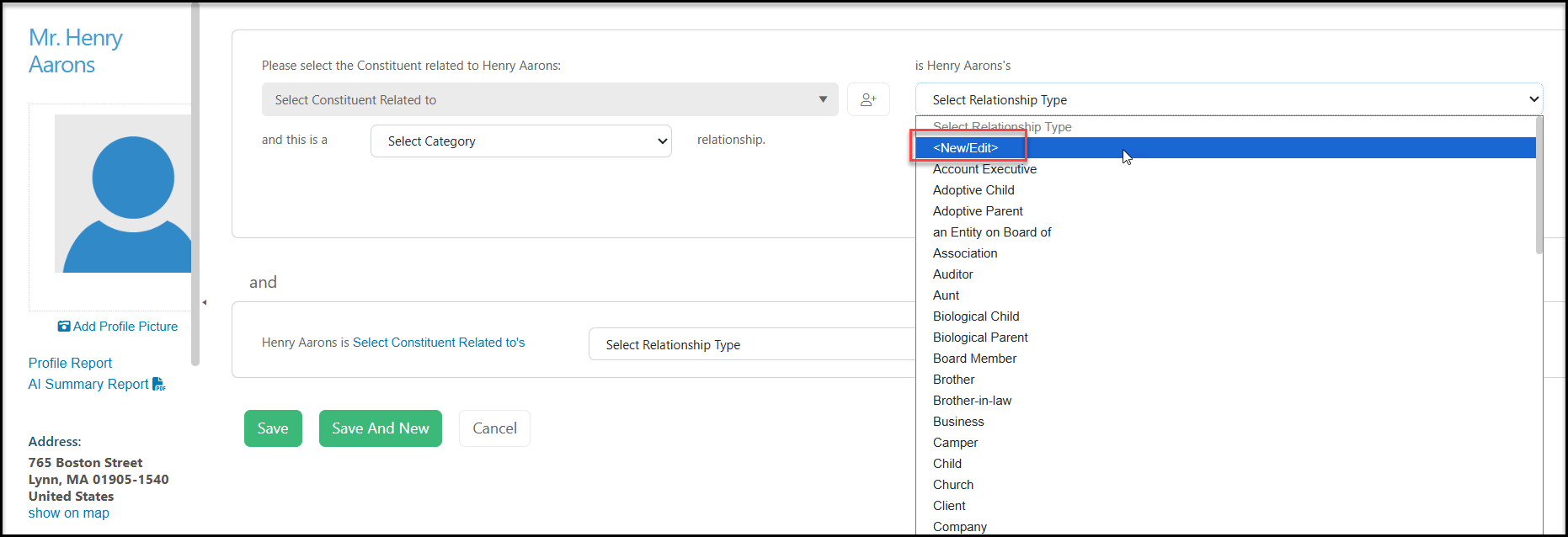
When adding or editing a relationship, you can access the choices for the relationship type or category by clicking on <New/Edit> from the dropdown menu.
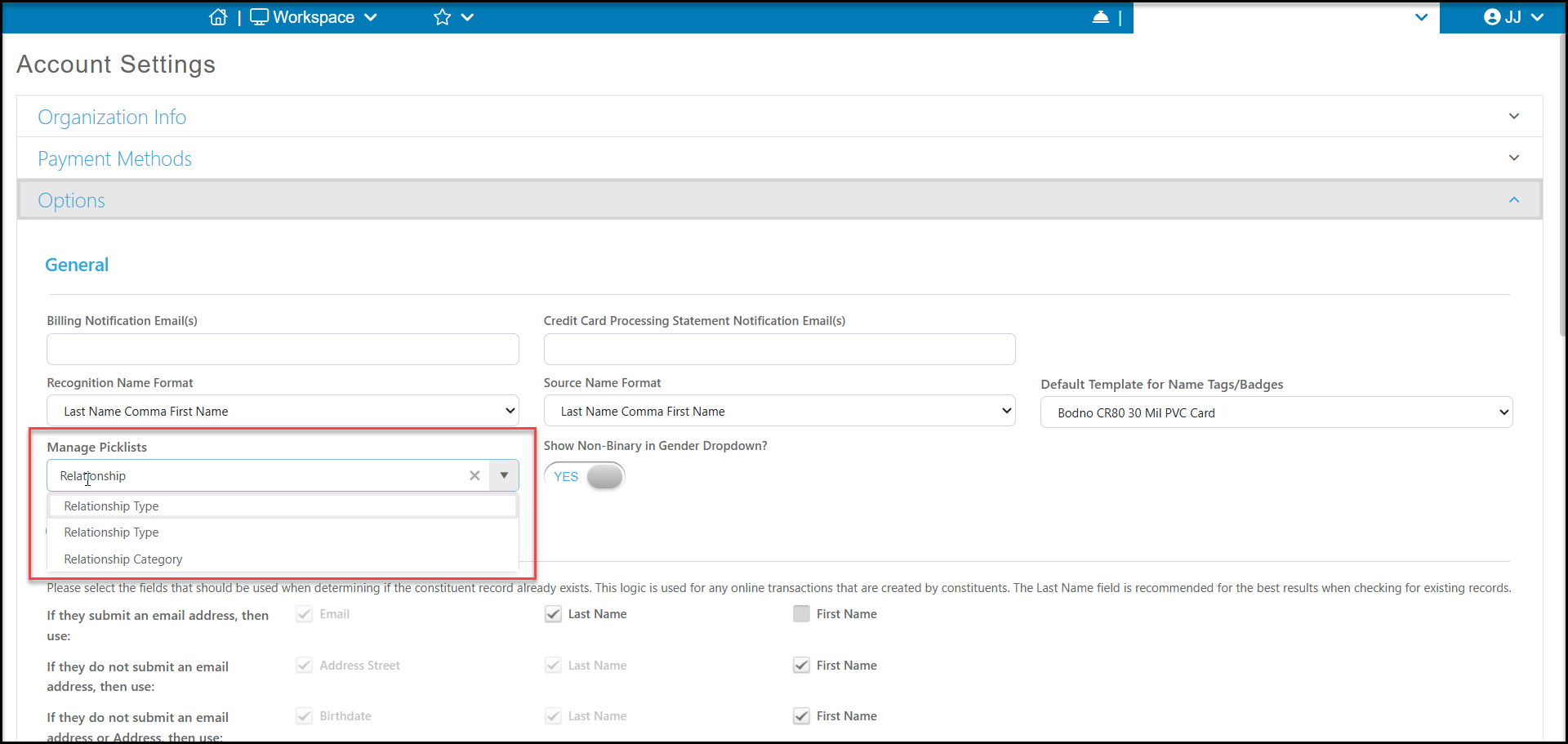
You can also access the Relationship Types or Relationship Categories from the Manage Picklist feature in your organization's Account Settings under the Options tab.
Adding New Types or Categories
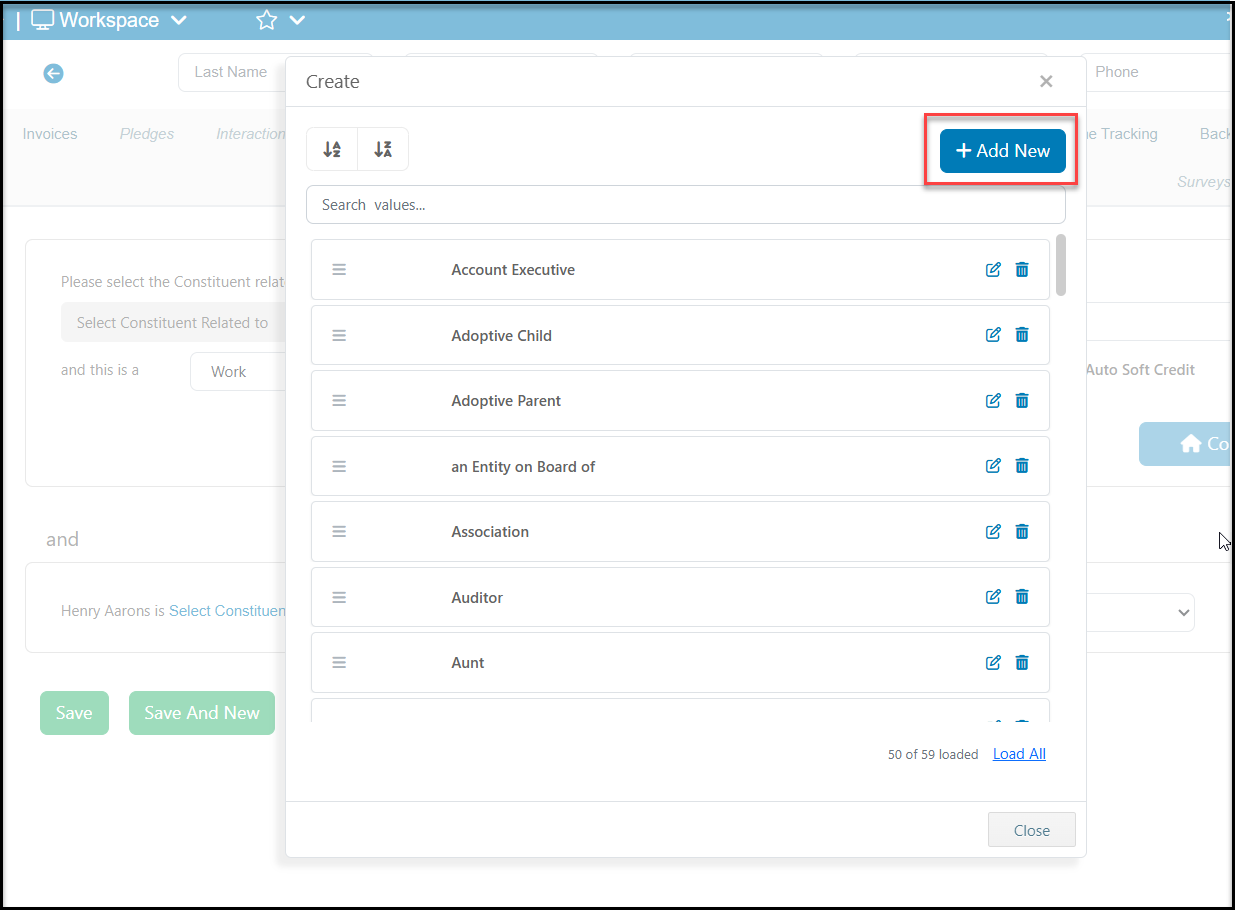
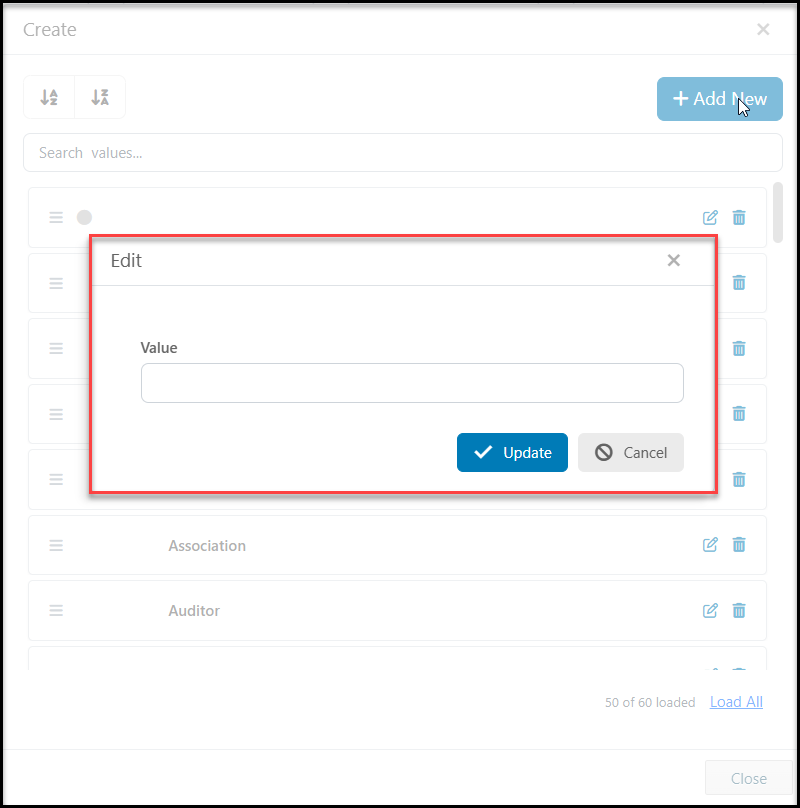
In the pop up window, click on +Add New.
In the dialog box enter the new Value. Click Update to save the new value or Cancel to close the window without adding the new value. When finished making changes, click Close at the bottom of the Create/Edit Document Category window to return to the previous page.
Editing Existing Types or Categories
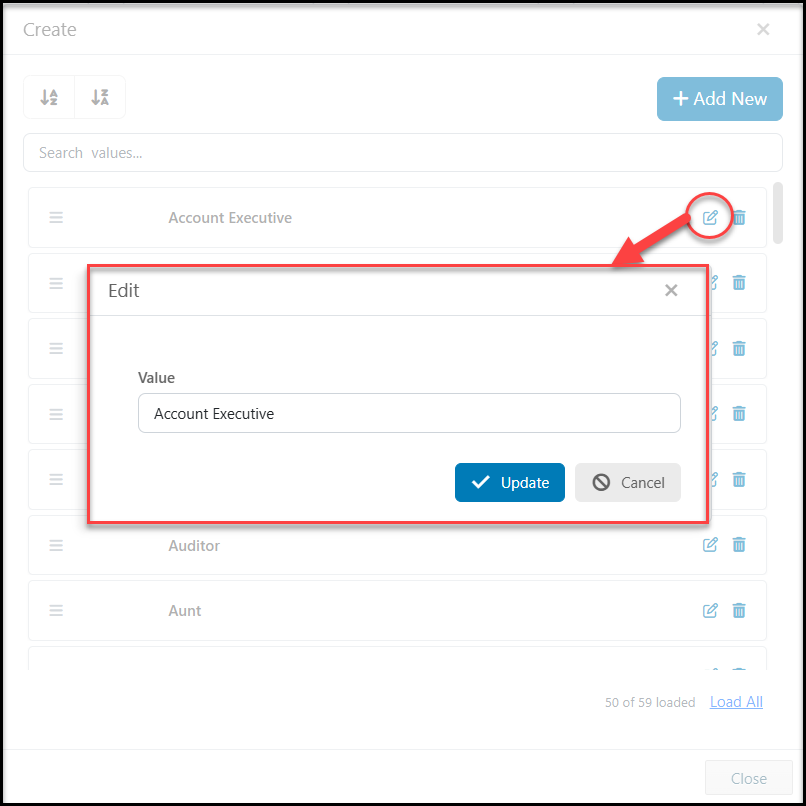
To edit an existing value, click on the edit icon (pencil and paper) on it's row. Edit the Value as needed and click Update to save the new value or Cancel to close the window without adding the new value. When finished making changes, click Close at the bottom of the Create/Edit Document Category window to return to the previous page.
Deleting a Type or Category
Before you can delete a value, ensure that it is not currently in use for any constituents. You can create a view on the Relationships grid that includes a query or filter for the item to search for any records that have been assigned that value. If you do find any constituents with this value assigned, you will need to remove it from their records prior to deleting the value.
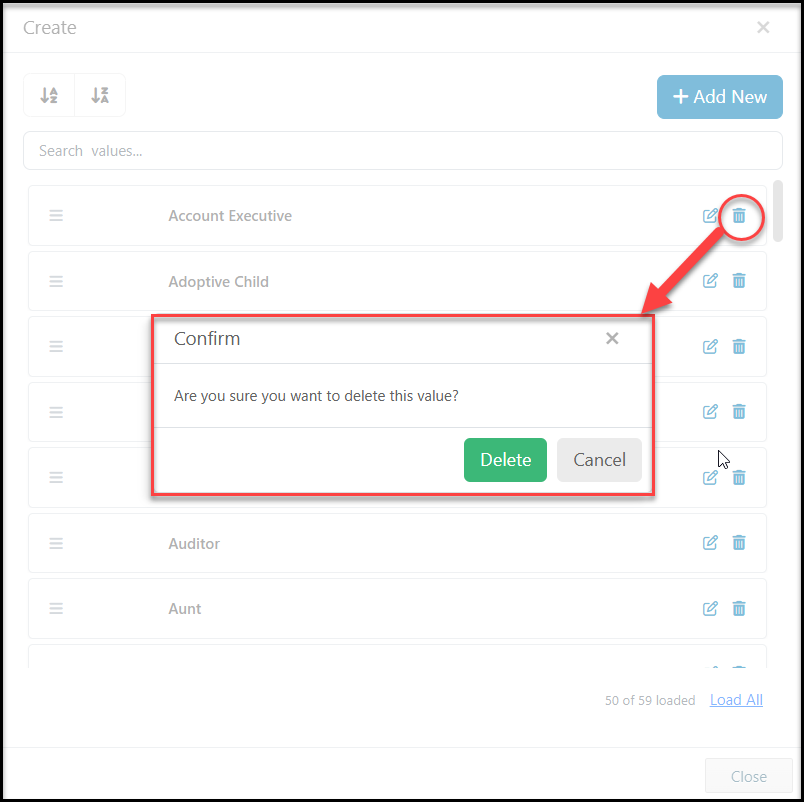
Once you have ensured that the value is not in use, you can click on the trash can icon to open the confirmation window. Click Delete to remove the unused value or click Cancel to return to the list without making any changes.
When finished making your changes, click Close at the bottom of the window to return to the previous page.