How do I see time tracking information?
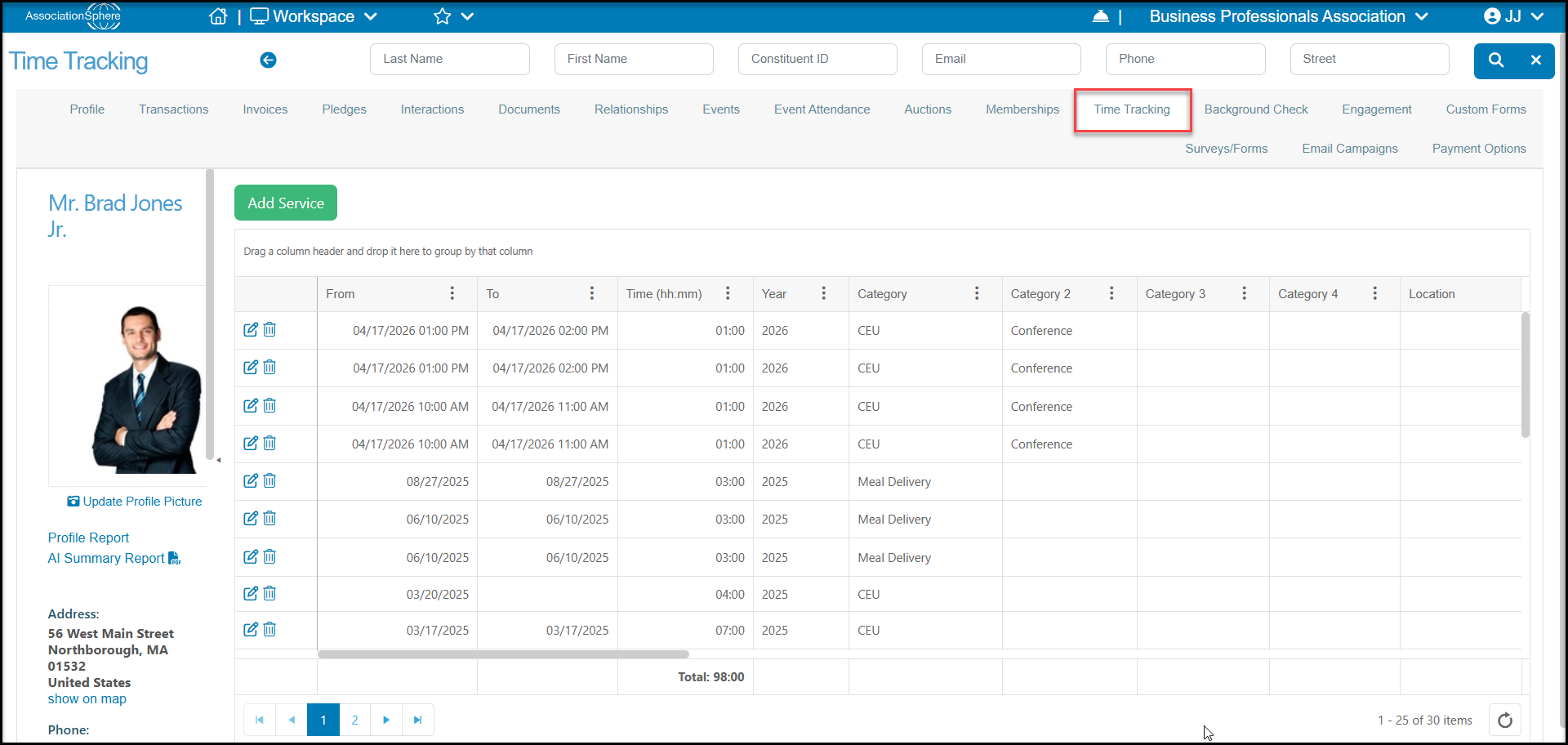
Time tracking can be seen in an individual constituent's Time Tracking tab. This will show all time tracking records for the specific constituent.
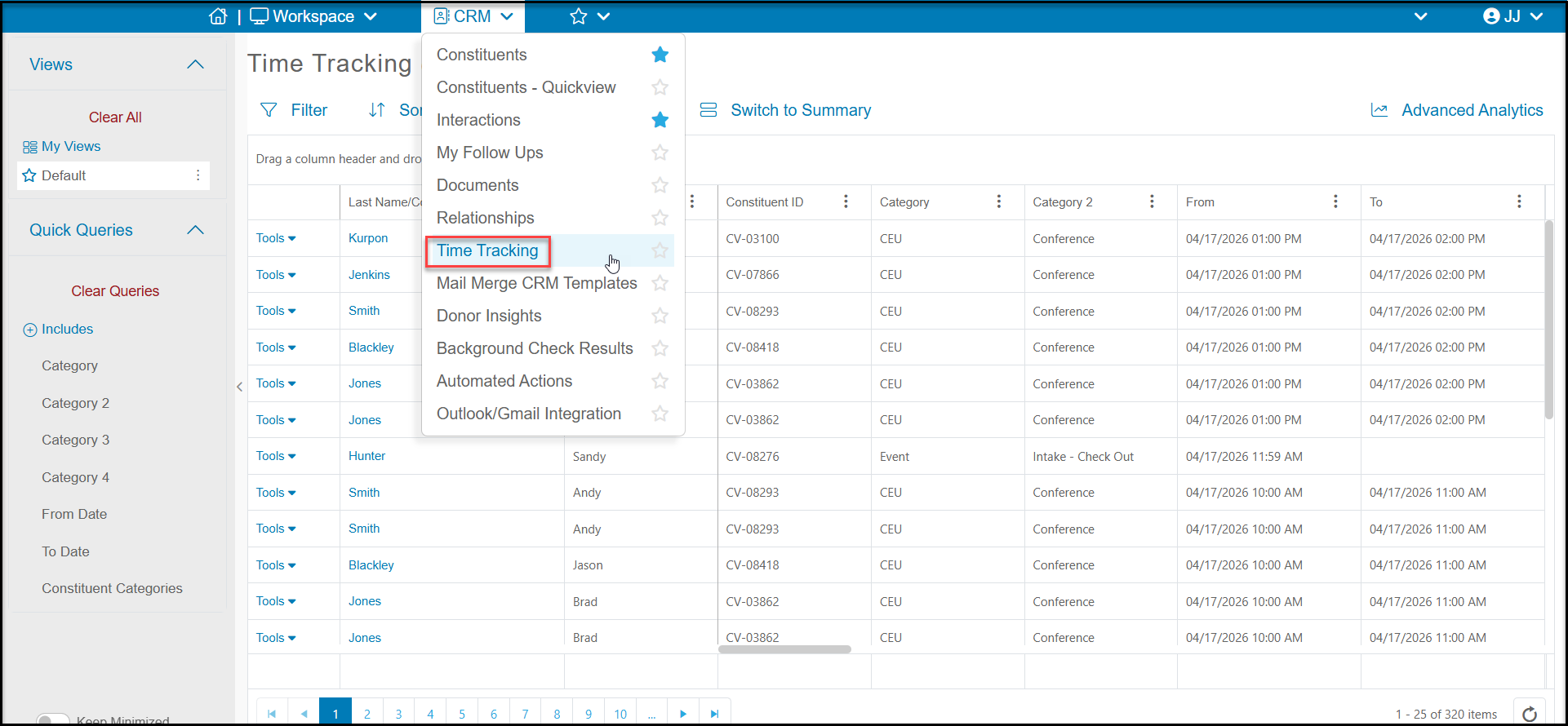
You can also see all time tracking records for all constituents on the CRM Module's Time Tracking grid.
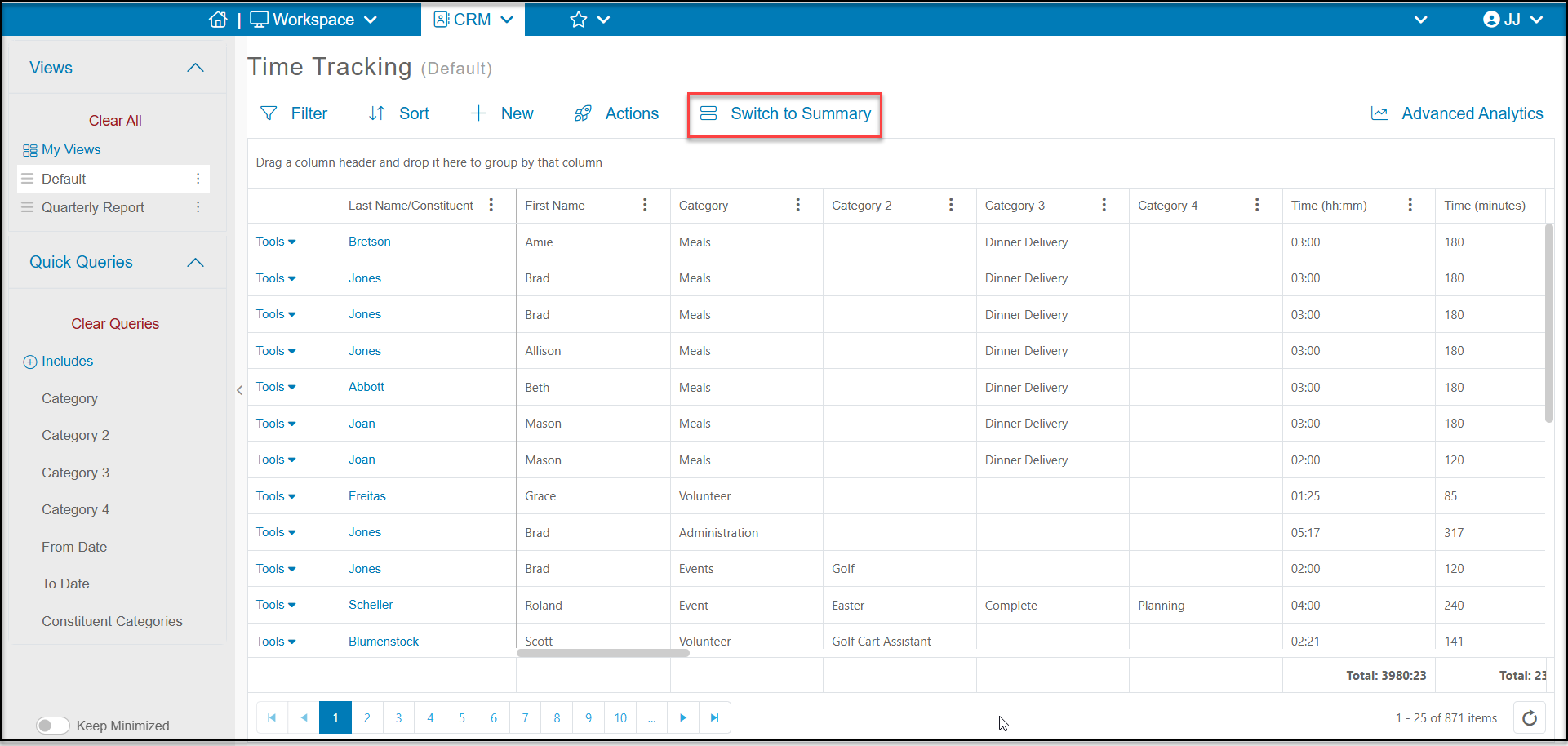
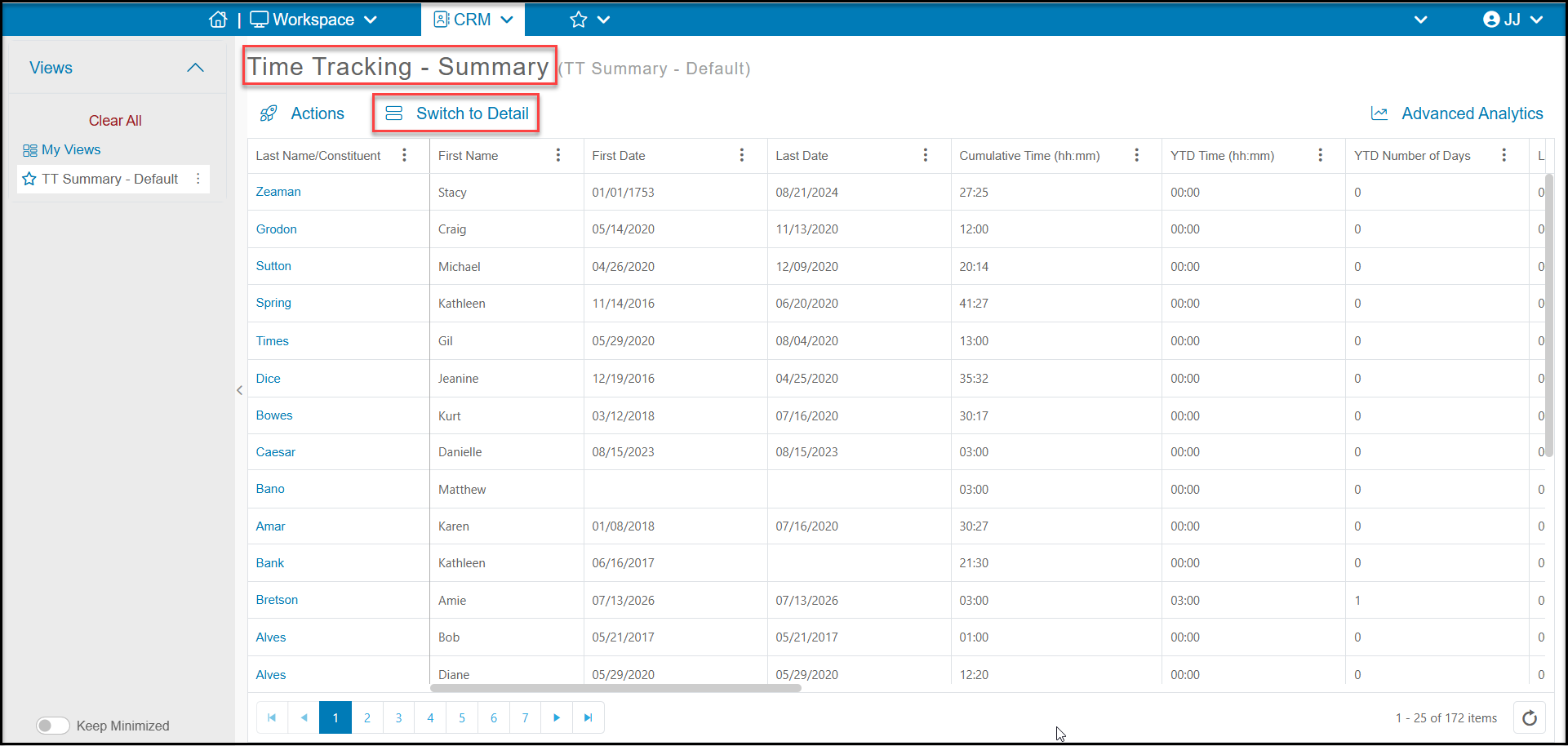
This grid has two options to view the data. The default view that loads first is the Time Tracking - Details grid. This shows each individual time tracking record on its own row. This grid will be used for creating reports for service in specific categories and date ranges. Clicking on Switch to Summary will load a new grid with the summary information for each constituent.
The Time Tracking - Summary grid shows data for each constituent like First Date and Last Date to show the date of their first time tracking record and the date of the most recent time tracking record. It shows Cumulative Time, Cumulative Number of Days, Cumulative Credit Units, Year to Date (YTD) Time, YTD Number of Days, Last Year Time, Last Year Number of Days, Five Year Time, and Five Year Number of Days. You can switch back to the Detail grid by clicking Switch to Detail.
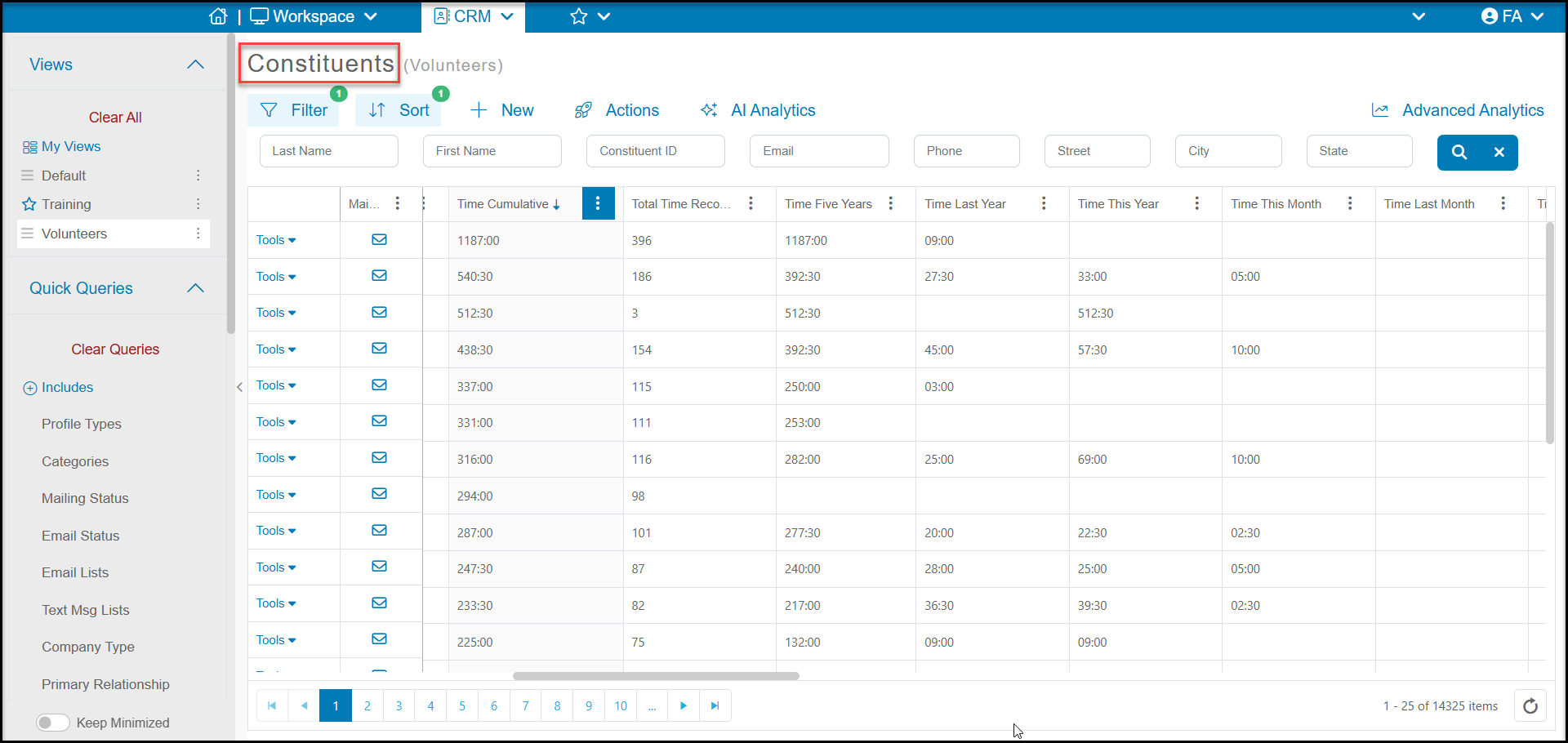
Time Tracking information is also shown on the Constituents grid and includes fields like Time Tracking This Year, This Month, This Week, Last Year, Last Month, Last Week, Five Years, Time Cumulative and Total Number of Time Tracking Records. There is also data for Fiscal Years.