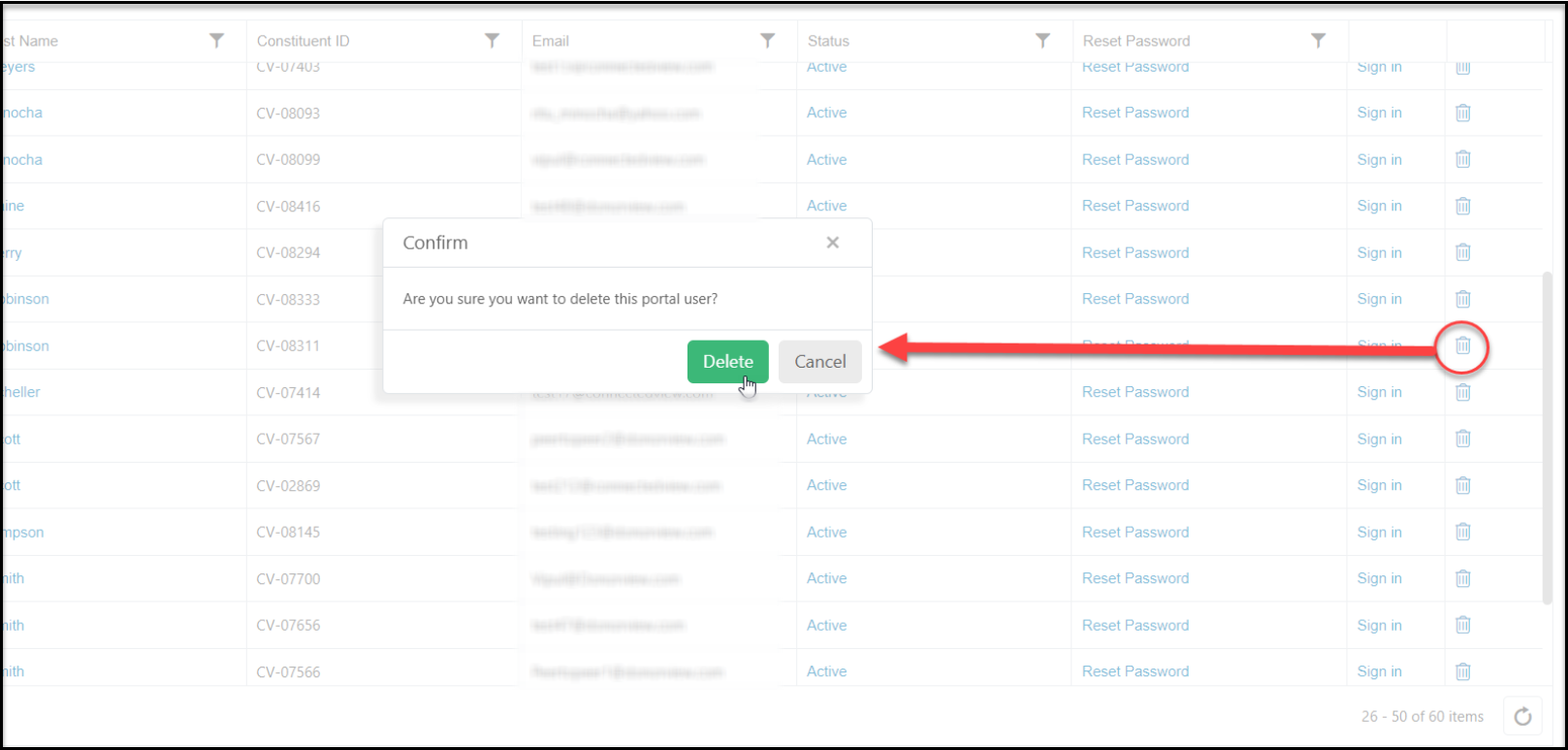
How do I Manage Portal Users?
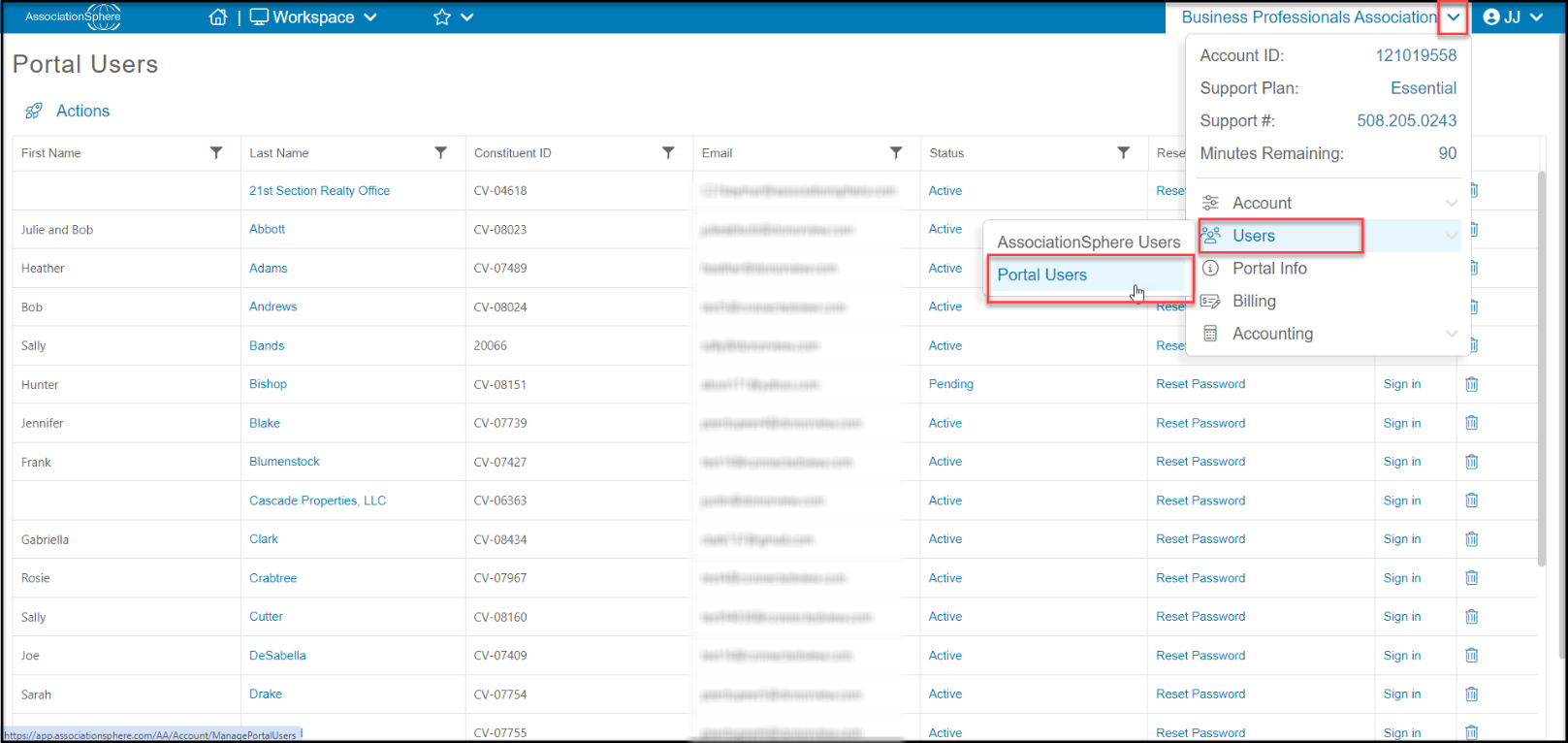
From the Portal Users page you can update a user's status, change their password, sign in as them, and delete their portal account. You can access the Portal Users page by hovering over your organization's name, navigating to Users, then clicking on Portal Users.
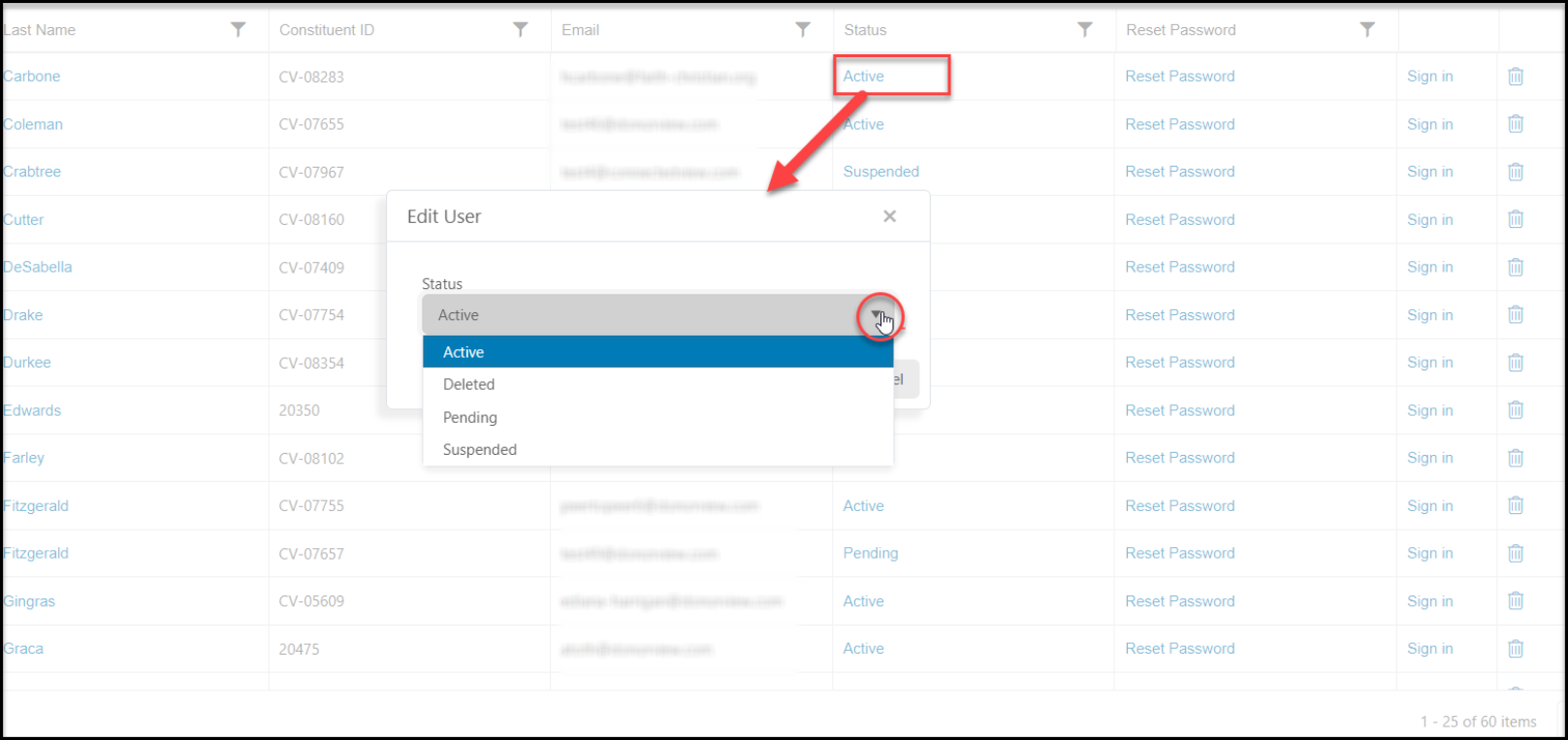
To change their status, on the row of the user you would like to update, click on the blue word in the Status column. A new window will open allowing you to select the new status. Click Update to save the change or Cancel to return to the grid without changing the status.
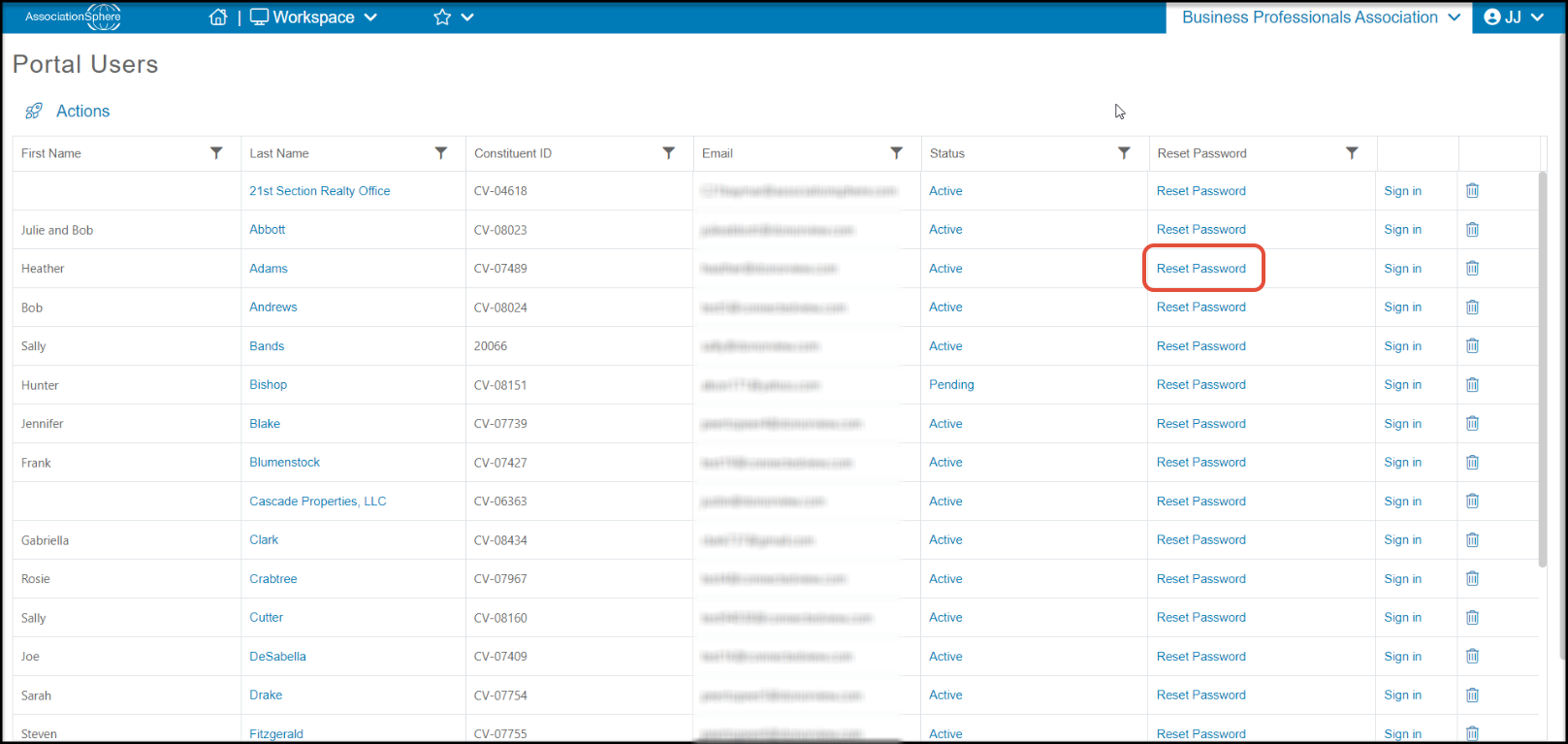
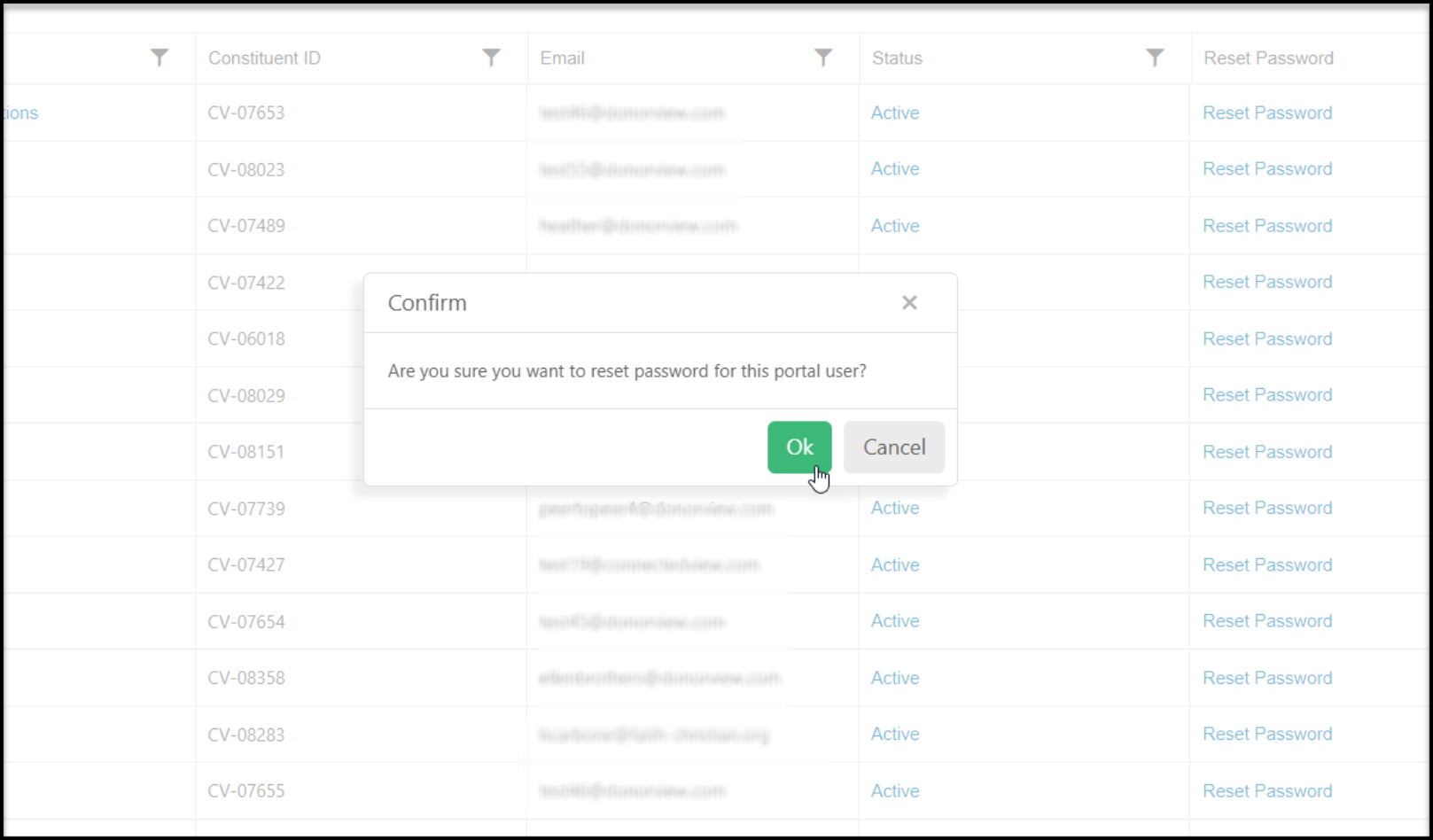
To reset their password, find the row with the constituent and click on Reset Password.
A new window will open to confirm that you want to rest the password. Click OK to continue or Cancel to return to the grid without changing the password.
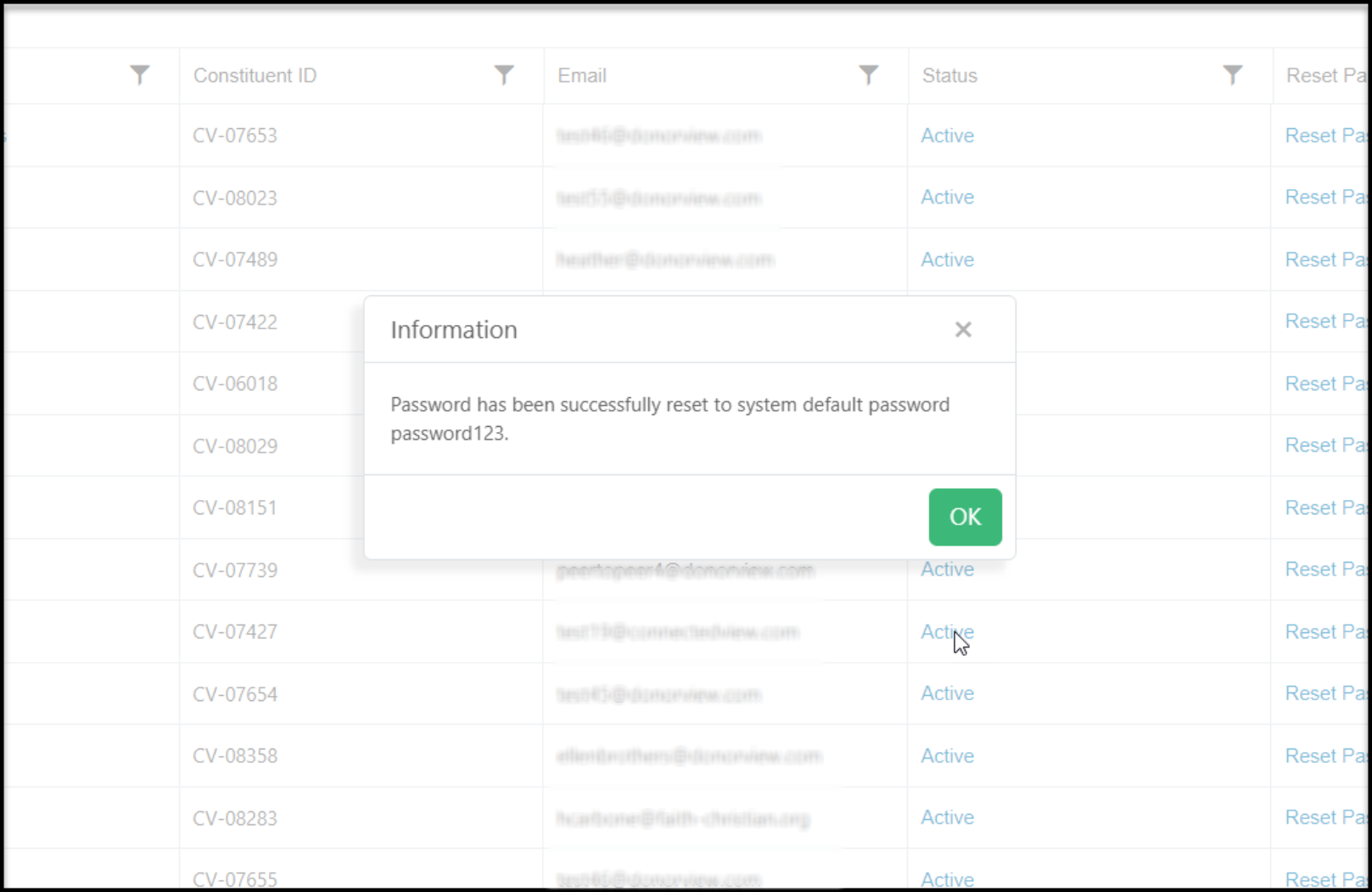
The password will be changed to "password123" which you can share with the constituent. Click OK to return to the grid.
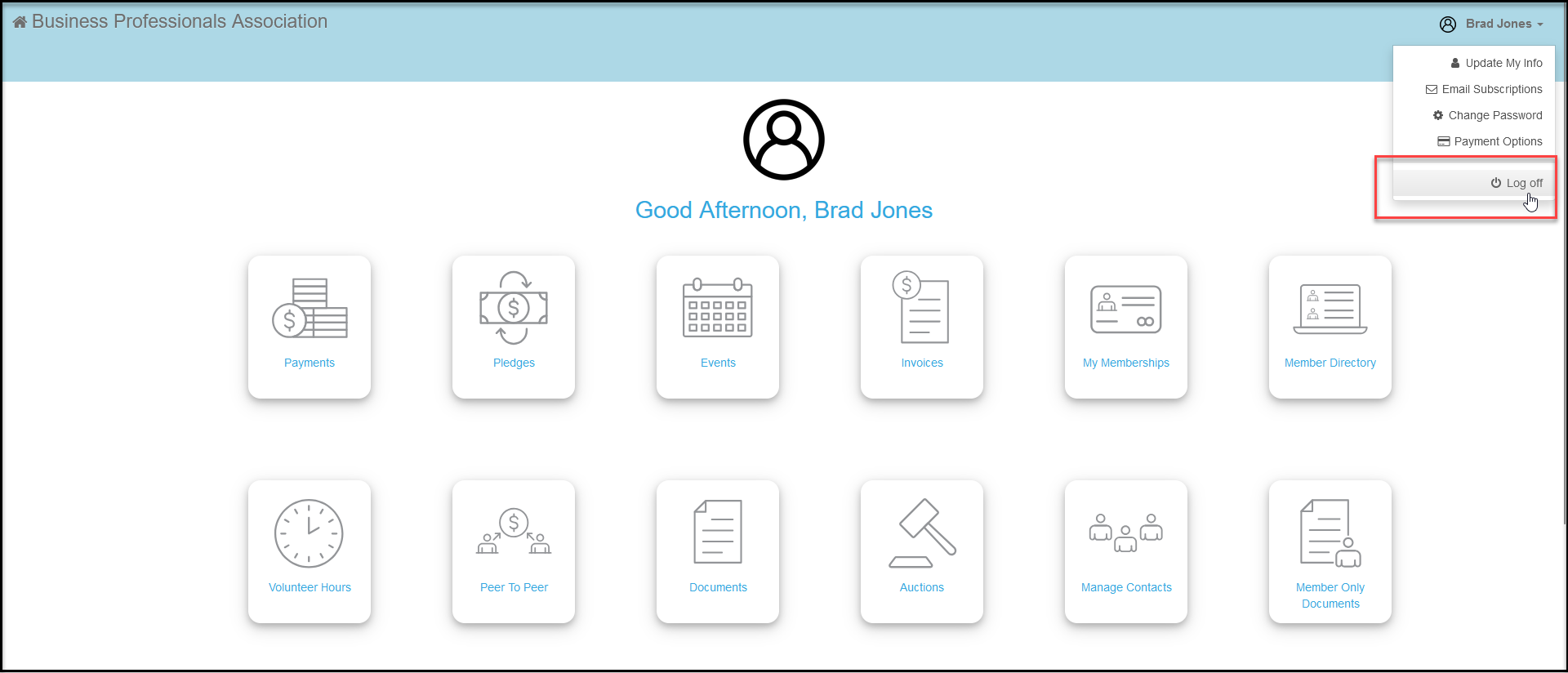
To sign in as the constituent, click on the Sign In link on their row. This will log you out of the back end of AssociationSphere and into the portal as that constituent. Be sure to log out of the portal prior to logging back into AssociationSphere.
You can delete a constituent's portal account by clicking on the Trash Can icon on the right side of the row. In the pop up window click Delete to complete the action or Cancel to return to the grid without deleting the portal account.