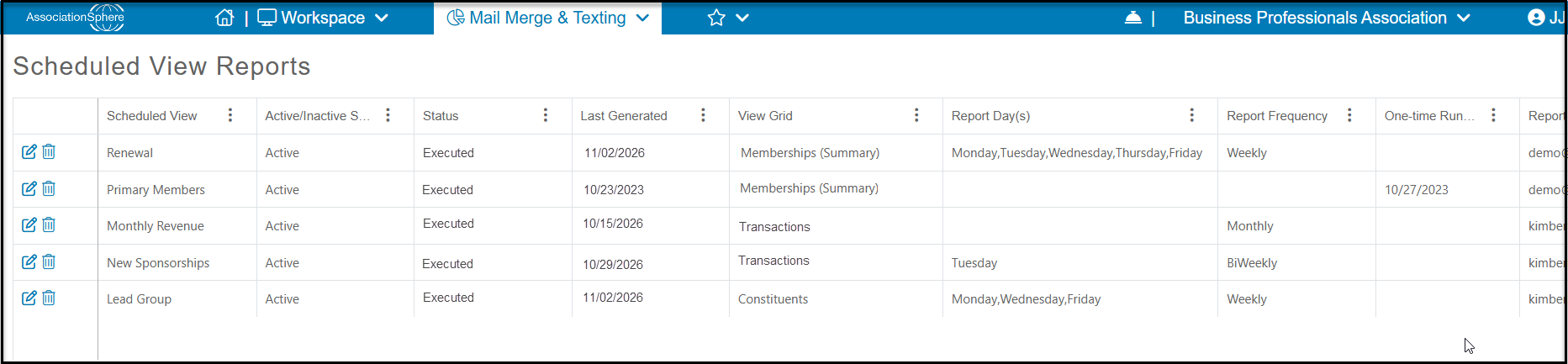
Scheduled View Reports Grid
Where to view a list of all Scheduled View Reports and when they were last executed.
If you have Advanced Analytics and you use the Scheduled View feature, you can find a list of all the reports you have scheduled on the Scheduled View Reports grid. You can also see other details including:
- Name of the Scheduled View
- Active/Inactive Status - Inactive will be displayed for views that were marked to Inactivate.
- Status - either Not Stated or Executed
- Last Generated - Last date the report was generated
- View Grid - Which grid the view is scheduled from
- Report Day(s) - For reports which are recurring, you can see what day they will be produced
- Report Frequency - How often the report is scheduled to run
- One Time Run Date - If the report was only scheduled to be sent once, the date it was sent will show here
- Report Recipient - who will receive the report
- Date Created - the date the report was created
- Date Modified - the date the report was modified
- Next Report Date - the next date the report is scheduled to be generated
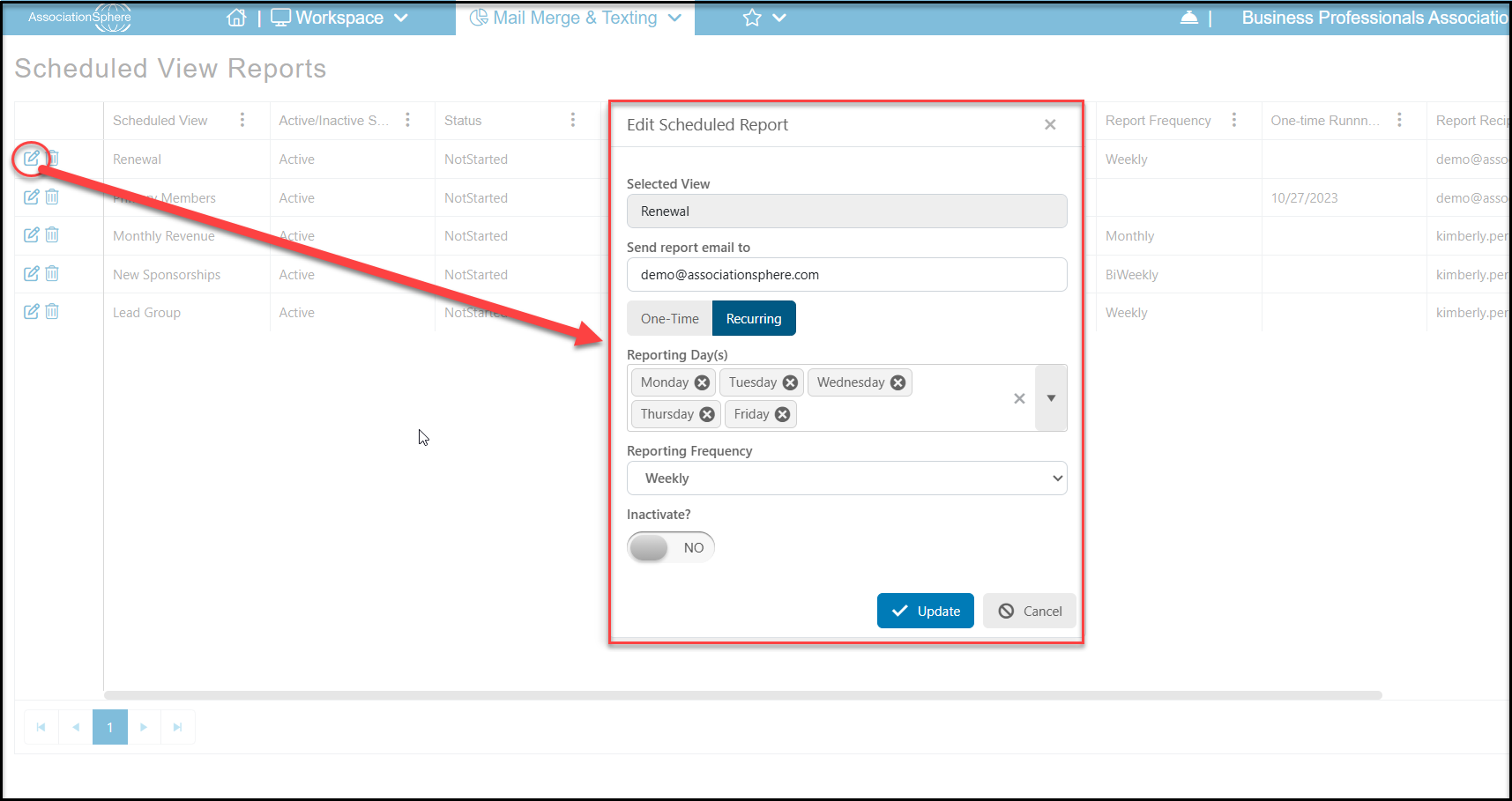
On the left side of each row is an option to edit or delete the scheduled report. Click the edit icon (pencil and paper) to open the edit window. You can change who the recipients are, the frequency and reporting days, and make the report Inactive by setting Inactivate to YES. Click Update to save the changes or Cancel to return to the grid without making any changes.
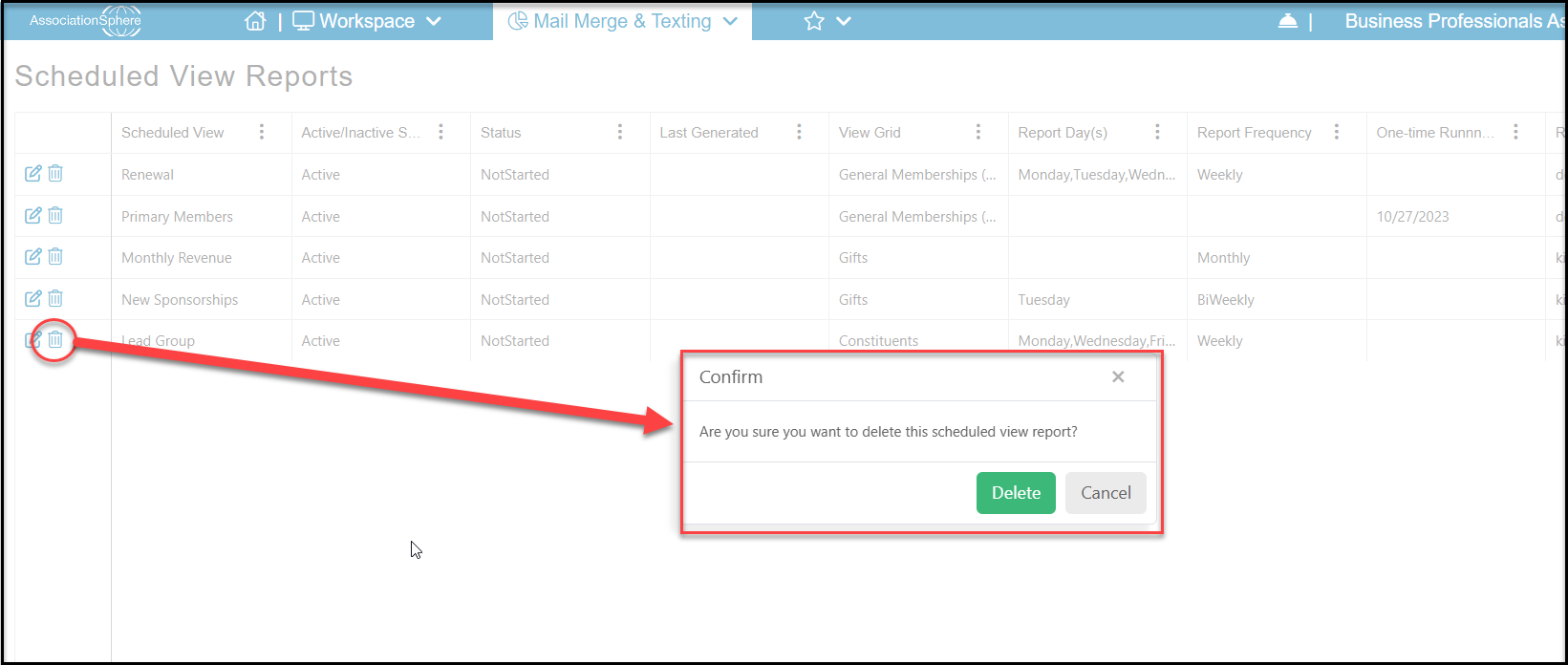
Clicking on the trash can icon will open a pop up to confirm that you wish to delete the report and all history related to the reports. If you wish to maintain the history, mark the report as Inactive instead as described above. Click Delete to confirm deleting the report or Cancel to return to the grid without deleting the report.