
How do I add a PDF file to the email template?
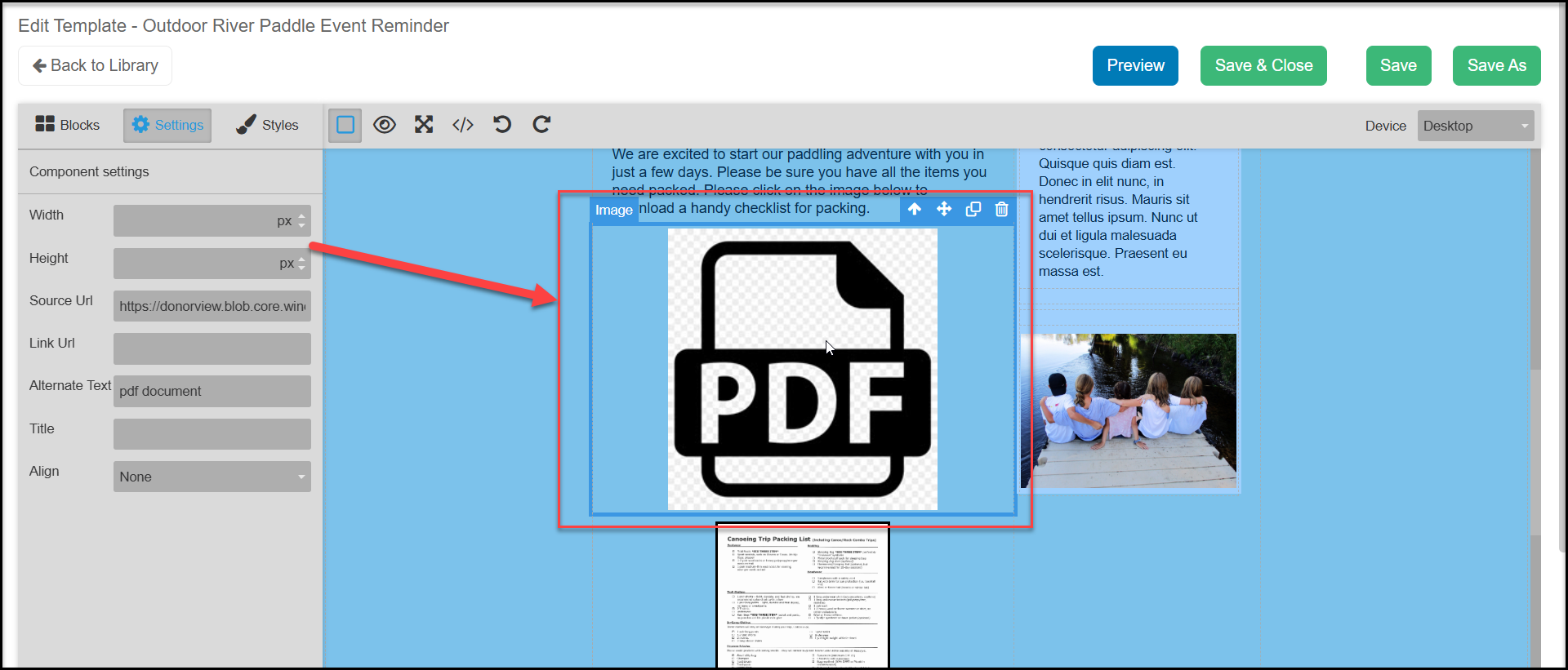
You can also add a link to a PDF file in the body of your email. The pdf is not attached to the email, instead the link is to your media library. From the Blocks >Content, select PDF and drag and drop it in the desired location on your templates.
Double click on the the PDF box to open the media library.
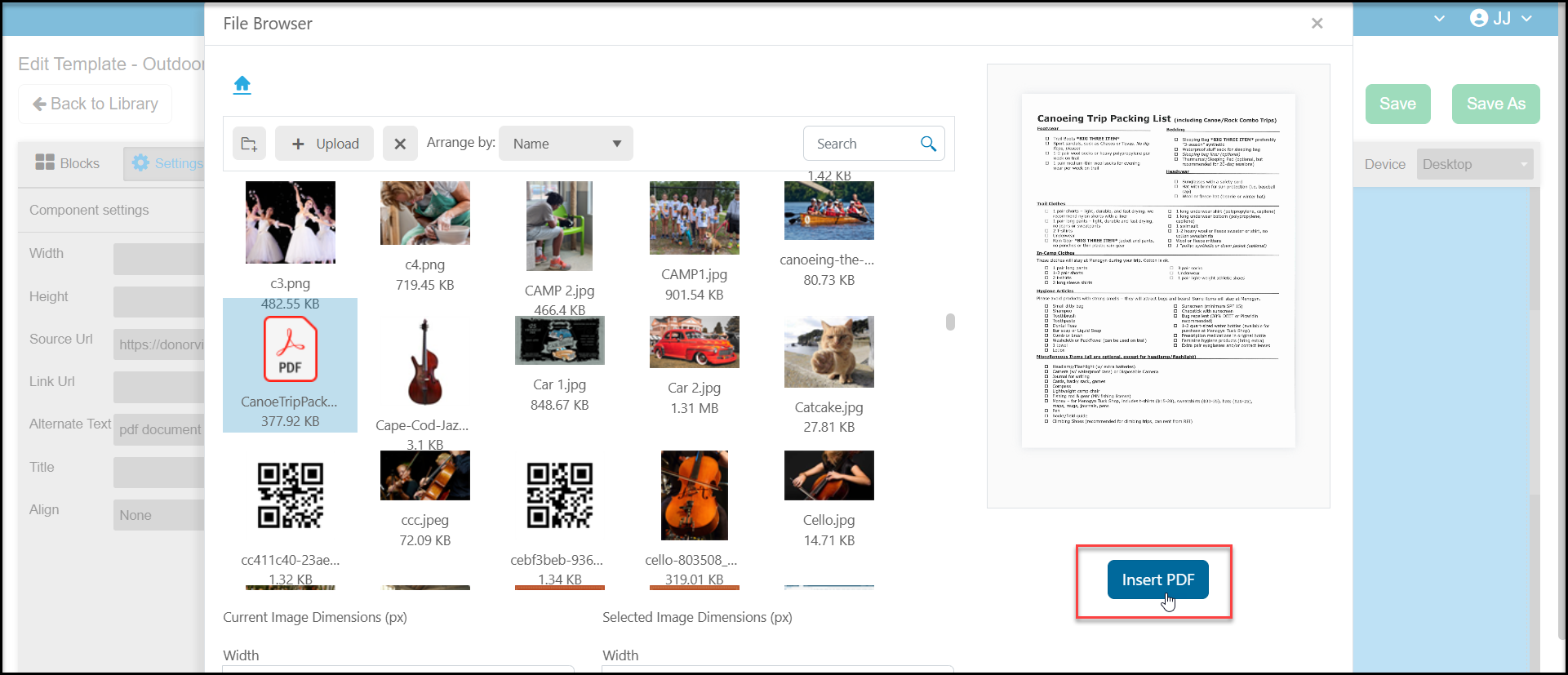
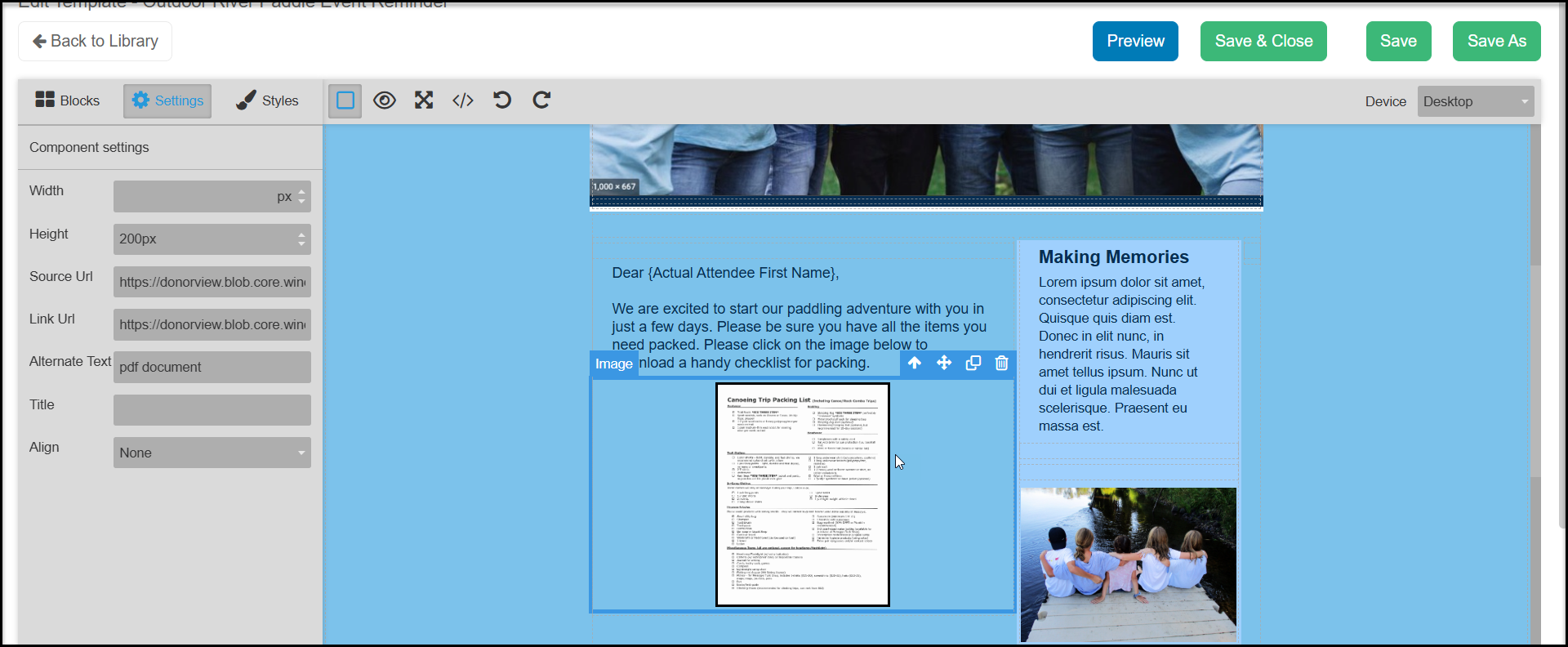
From your media library, you can upload a new file or select one from your library. The software will create an image of the first page of the document. Click on Insert PDF to add the image of your document and link to your email.
When your recipient clicks on the image of the PDF file, it will open the entire PDF document in a new browser window. Like other image elements, you can use the Settings and Styles tabs as described above to customize the way the PDF image is displayed.
When you are finished adding and editing your content, you can click Save to save the changes and continue working. Click Save & Close to save your work and return to the template library. Or click Save As to save this template under another name.