
How can I sell tickets at the door?
Tickets can be sold at the door using the event page and a laptop, using the QR code so that attendees can self pay with a credit card, or using the mobile app with a credit card swiper.
Using a Laptop
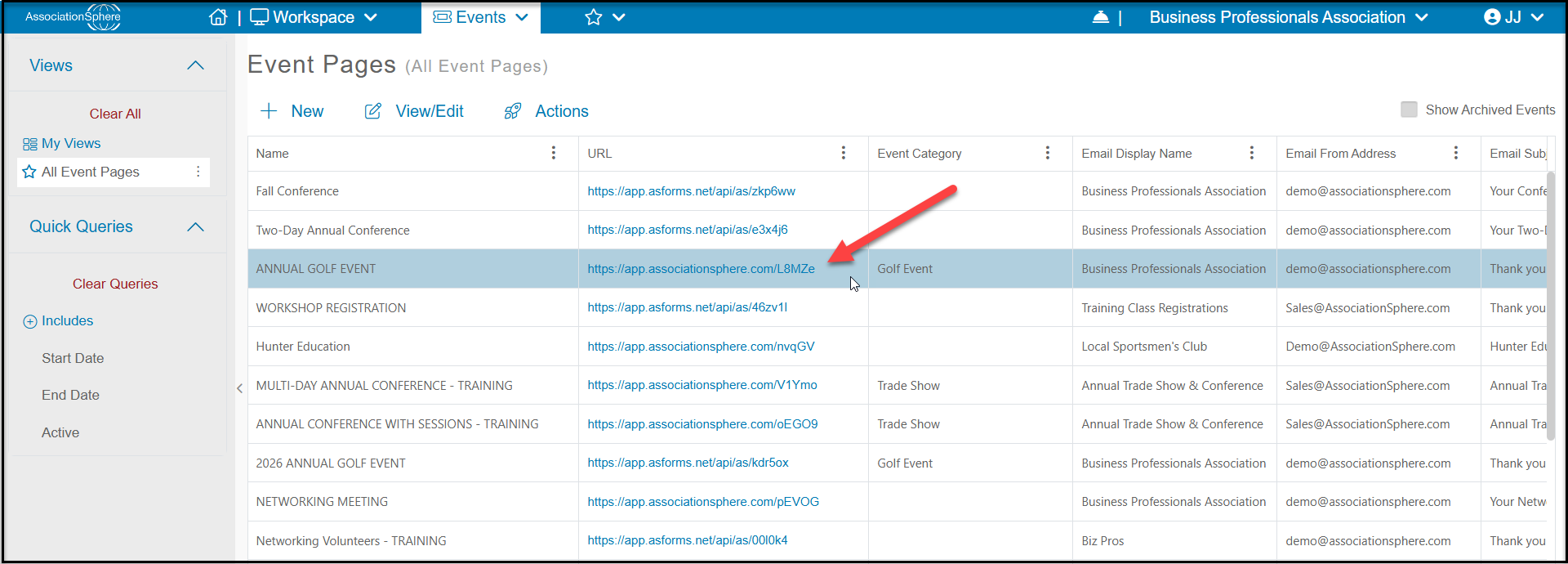
- Go to your Event Pages grid and click on the URL link for the event.
-
You can search for the constituent at the top of the page. If they are not in your database, you will enter their contact information at the bottom of the page.
-
Select the appropriate ticket levels, add-ons, and any other necessary information.
-
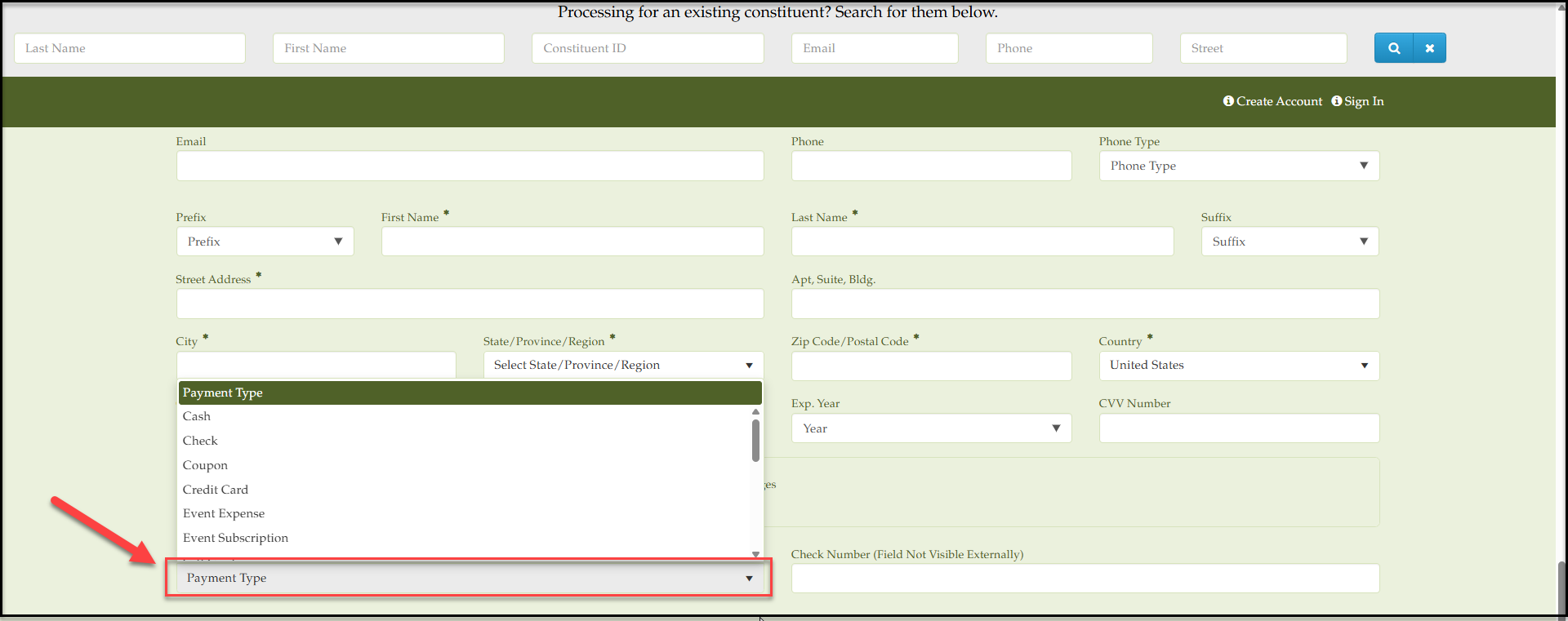
Below the contact information, you can record the type of payment including credit card, checks, and cash, if applicable. If you have the S700 credit card terminal, you can also select the terminal. For pricing information on purchasing or renting the terminals, please send a request to support@associationsphere.com. To learn more about the terminal features, please see these articles:
- S700 Terminal Setup and Assignments
- https://support.donorview.com/en/support/solutions/articles/9000271438-s700-terminal-event-processingS700 Terminal Event Processing
-
If you are not using the terminal and wish to process a credit card payment, select credit card as the payment type and manually type in the card number, expiration date and CCV.
-
Click submit to process the payment.
-
If you wish to check in the guest on the Event Attendance grid, you may also need to refresh the grid to see the new purchase.
Using the QR Code
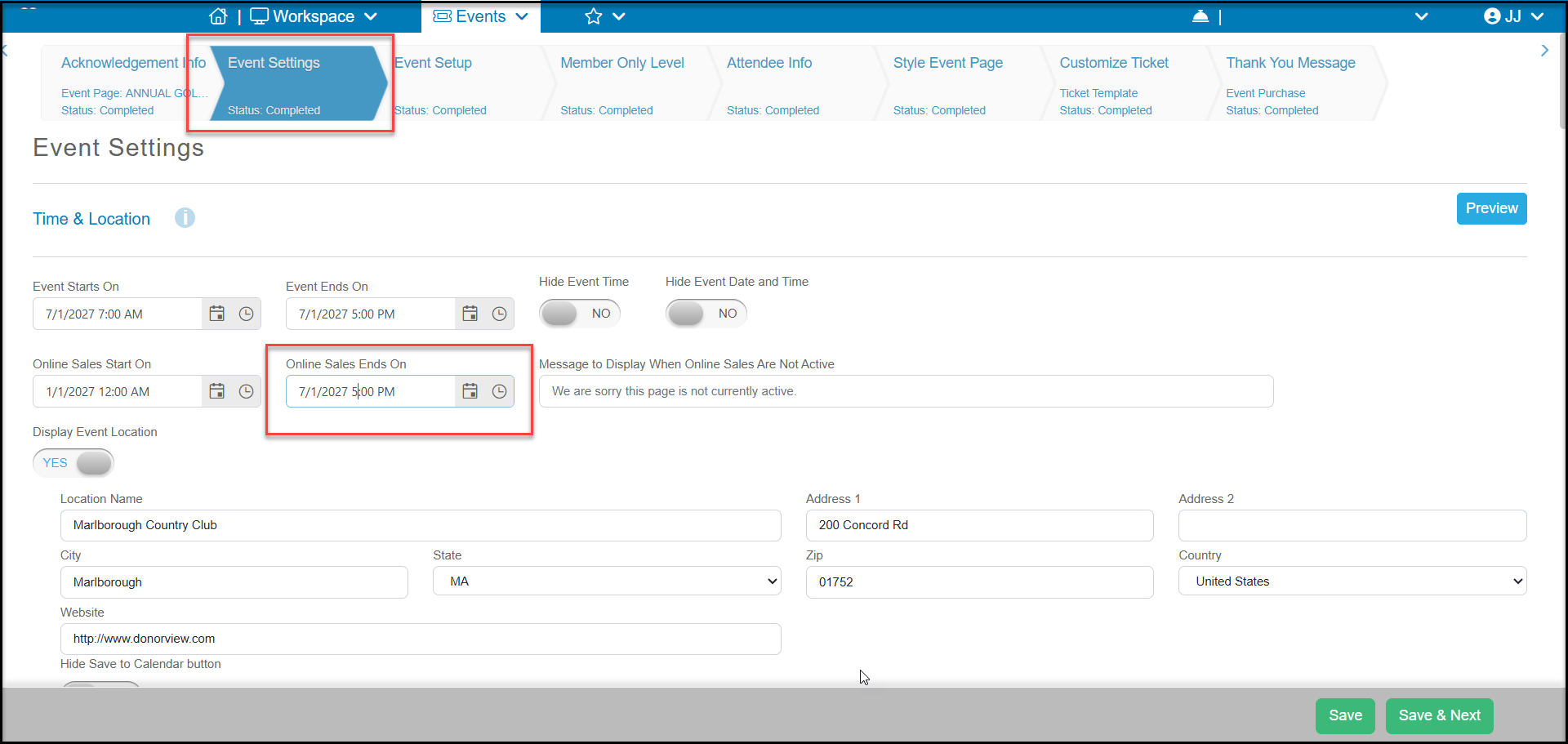
- You will need to re-open the online sales if you had shut them off prior to the event.
- Be sure yourOnline Sales Enddate includes the date and time you plan to sell at the door.
- This date is found at the top of the Event Settings tab on your event page.
- Place your cursor inside the field to edit the date and time as needed.
- Then click Save at the bottom of the page to save the changes.
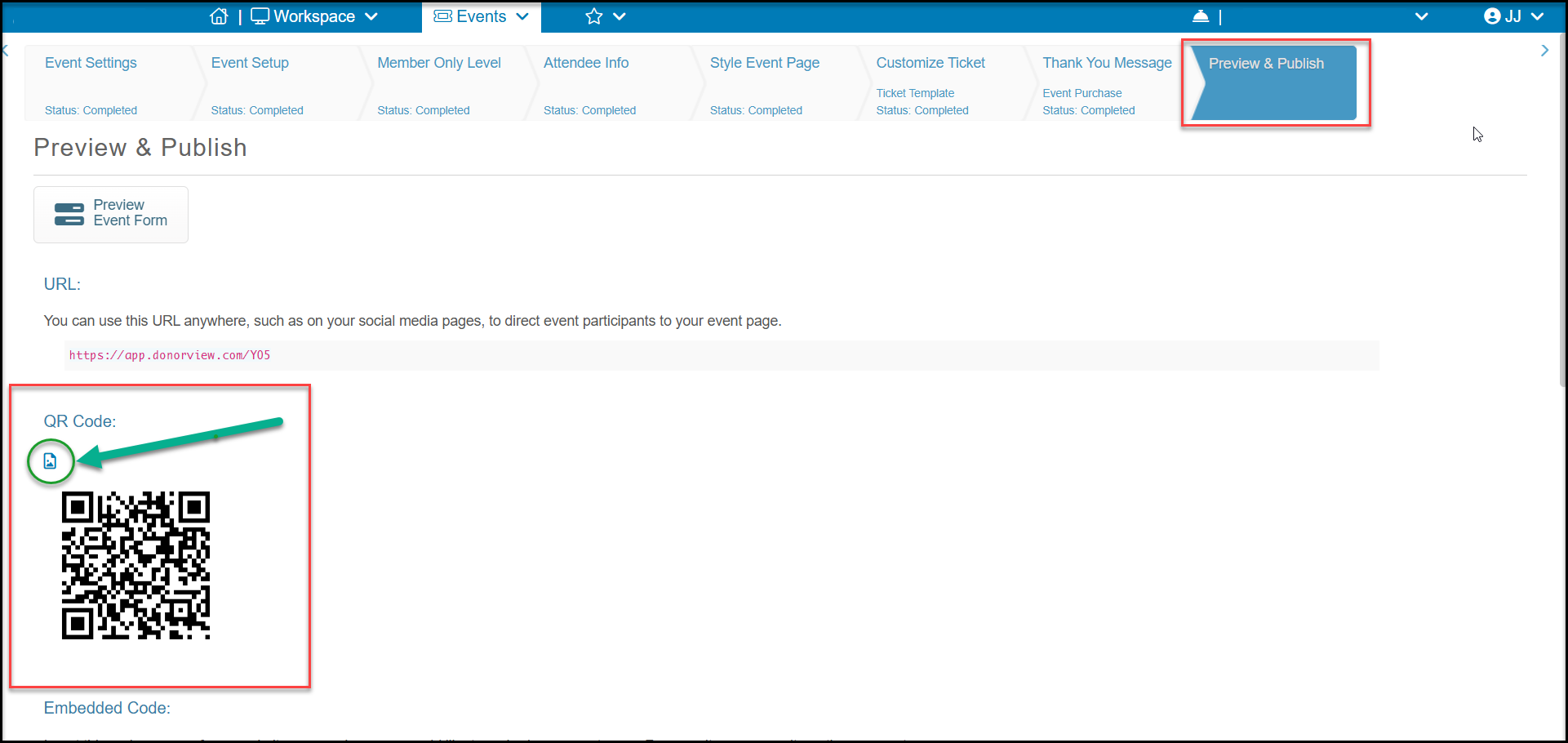
- You can also invite your guests to self register using the QR code available on the Preview & Publish page.
- You can share the QR code on a display for your attendees to scan.
- Use the small image icon to the top left of the QR code to download it as a png file for printing or sharing.
-
By scanning the QR code with their smartphone, the attendee can complete the form themselves and then show you the receipt that will display after they successfully complete the purchase.
-
You will also be able to see the purchase on the Events - Quickview grid, however you may need to refresh the page to see recent purchases.
- The Events - Quickview grid loads more quickly than the standard events grid.
- It is recommended that you created a view with your event selected from the Quick Queries menu, any necessary filters applied, and set it to your default view. That way when you refresh the grid, you will not need to reapply queries or filters each time.
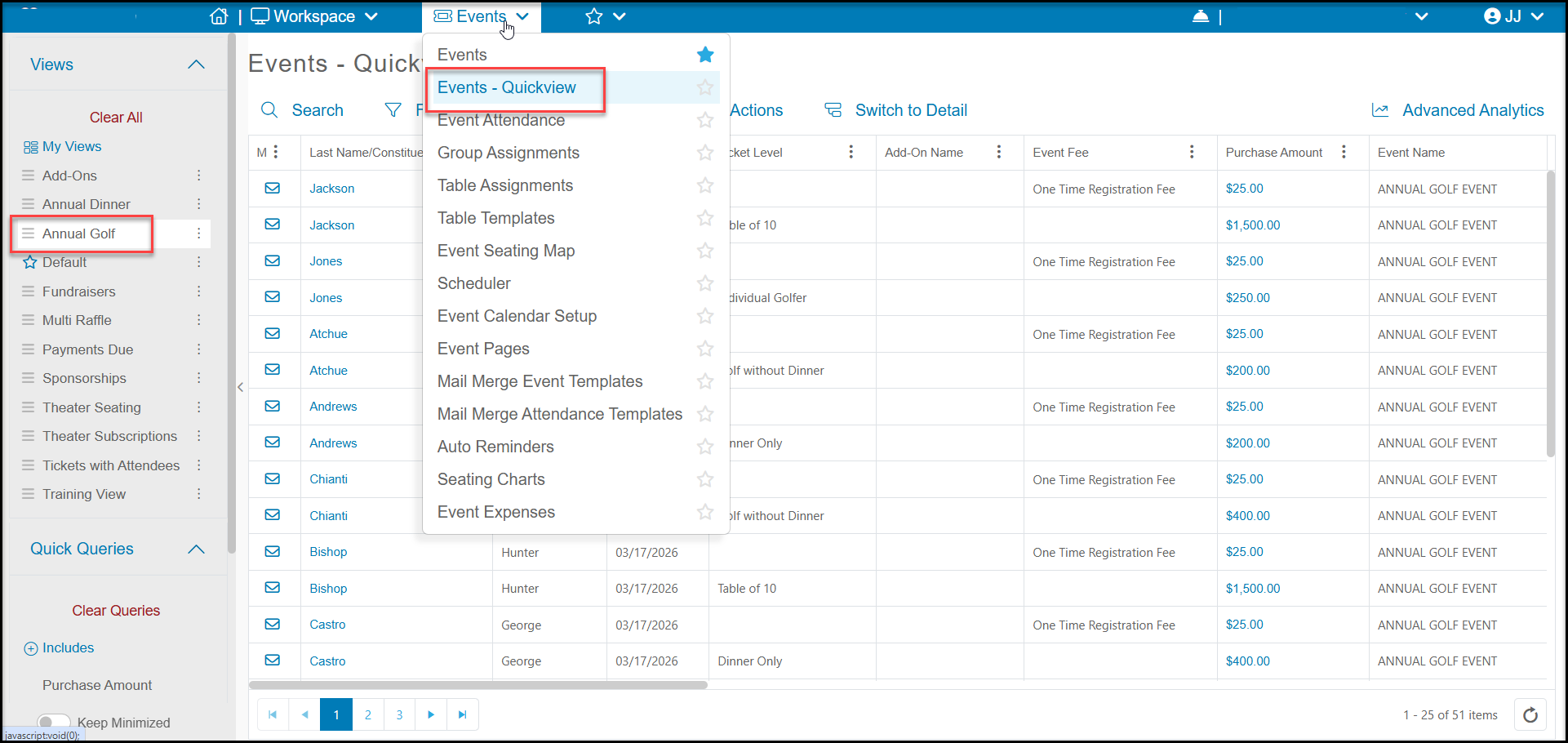
- If the purchase included tickets for admission and you wish to check in the guest on the Event Attendance grid, you may also need to refresh the grid to see the new purchase.
Using the Mobile App
-
The AssociationSphere app is available only on iTunes for Apple iPads or iPhones. It is not available for Android at this time.
-
With the mobile app, you can connect an AssociationSphere supplied swiper to process credit card purchases for your event. The mobile app does not record check or cash purchases, only credit cards.
-
To learn more about the mobile app, please see this video - AS Mobile App - M2 Stripe Swiper - https://vimeo.com/1024071965/8602e0b115
-
To request a credit card swiper to use with the mobile app (it is different than the terminal) please send your request to support@associationsphere.com.