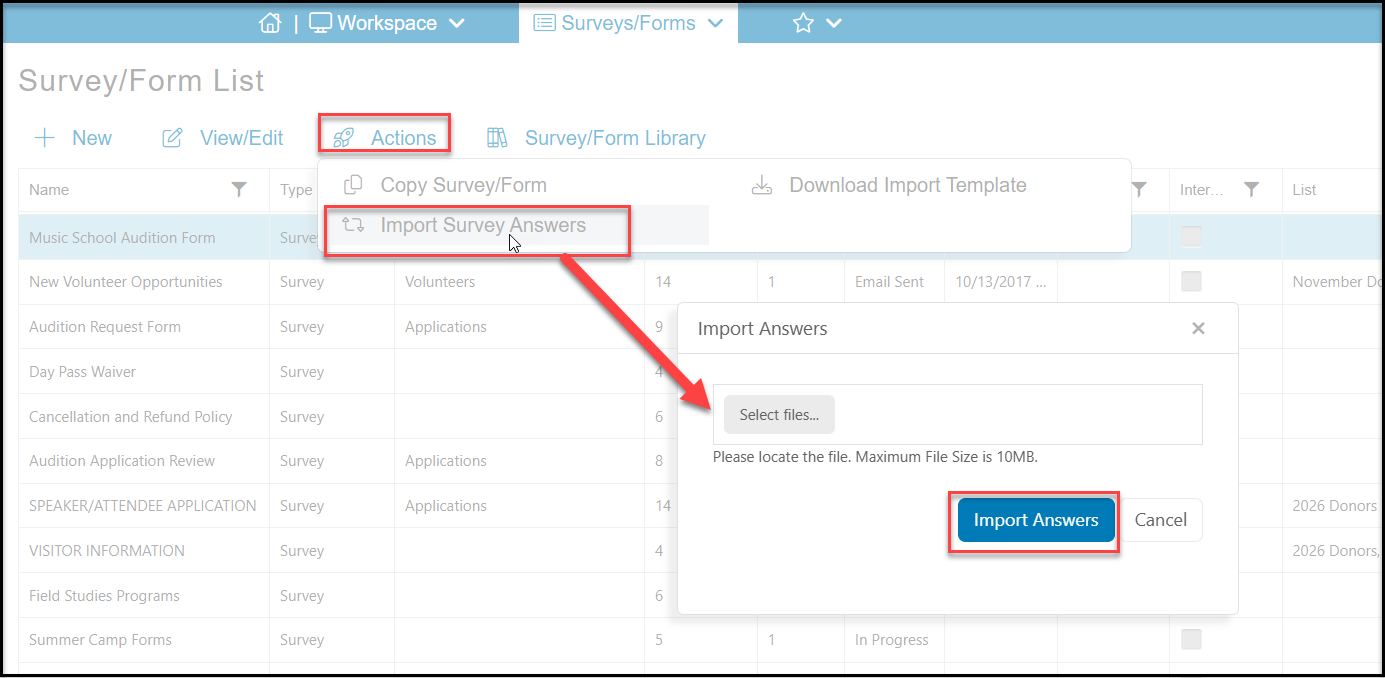
The Actions menu will also allow you to import survey responses, but it will only import for existing constituents. To import, you must create the survey. The import feature will not import all types of questions. It is limited to multiple choice, single line, and multi-line, and specific dates. It cannot import constituent fields, document uploads, electronic signatures, tables or numeric scales or star ratings.
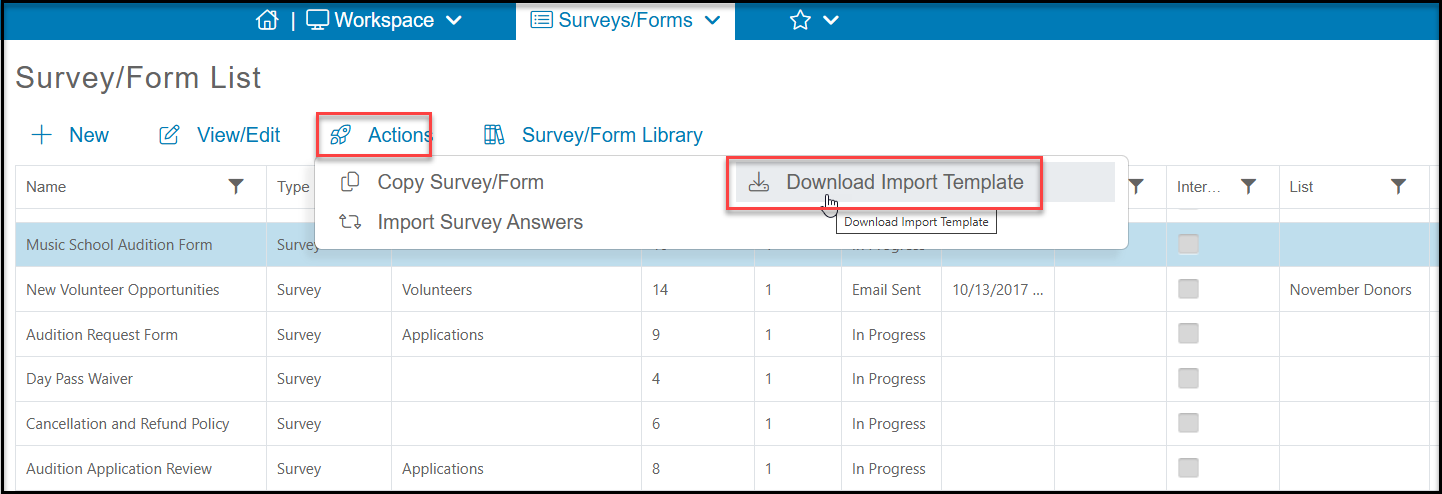
Once you have created it, you can used the Actions menu and select Download Import Template. This will download an Excel file where you can copy and paste your responses into for importing.
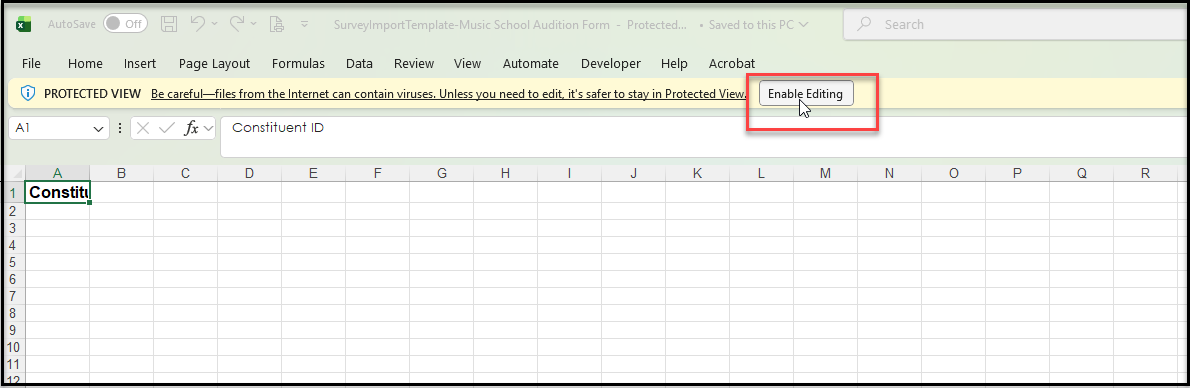
The downloaded Excel file will require you to click on Enable Editing to populate the fields.
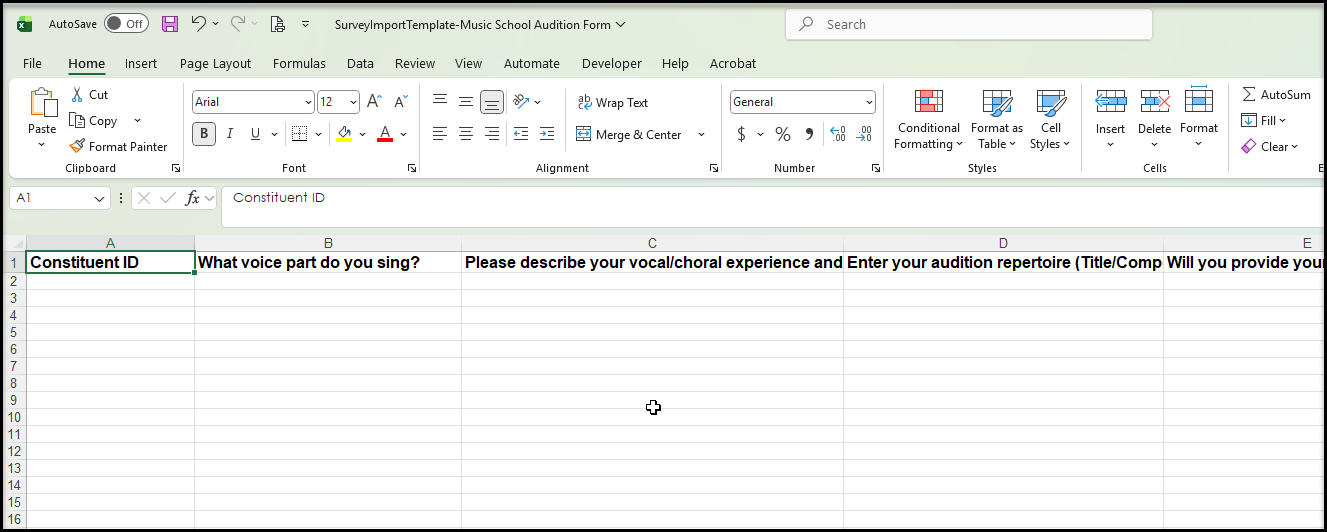
The fields that can be imported will then show as headers on your Excel spreadsheet. In order to import, you must assign a Constituent ID for each response. If no Constituent ID is provided, the responses will not be imported. Be sure that if you are importing multiple choice responses, you only import responses available in your survey. Responses not available in your survey will import as a blank response.
Once you have added the information to your spreadsheet and saved it, you can use the Actions menu's Import Survey Answers feature. Click on Select files to choose the Excel file and then click Import Answers. You will receive a confirmation for the number of surveys imported and any that were not imported due to Constituent ID errors.