If you wish to collect details about a constituent’s in kind donation, you will find an In Kind question type that can be inserted into your Survey/Form.
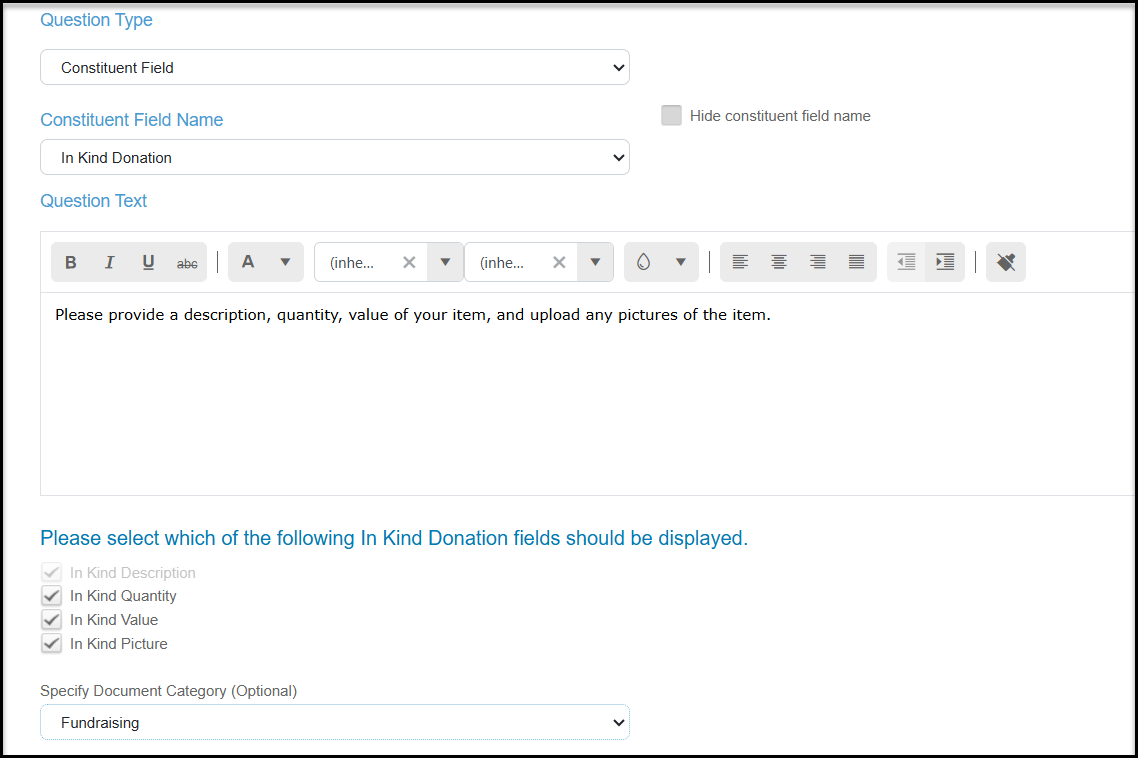
On the Questions step of your Survey/Form setup, click the “+Question” button in the lower right of your screen. Once on the new question setup page, select “Constituent Field” from the “Question Type” dropdown field. Next, select “In Kind Donation” from the “Constituent Field Name” dropdown.
With this question type you can provide the instructions in the Question Text field, then select what information you need about the item including:
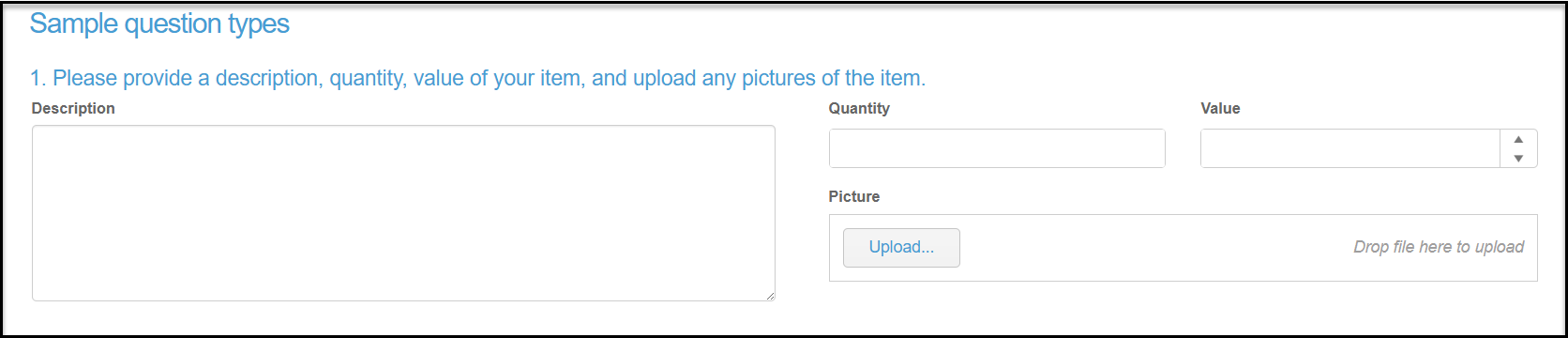
- In-Kind Description: This field is included by default and will allow the donor to input a written description of what they are donating. The description provided will then appear in the “Item” field within the gift record.
- In-Kind Quantity: This field will allow the donor to input how many of the In-Kind donation they will be donating. The quantity provided with then appear in the “Quantity” field within the gift record.
- In-Kind Value: This field will allow the donor to input the value or worth of their In-Kind donation. The value provided with then appear in the “Value” field within the gift record.
- In-Kind Picture: This field will allow the donor to upload an image of their In-Kind donation. The image that is uploaded will be added to the donating Constituent’s document tab.
- Specify Document Category (Optional): This field will allow you to select which category will be assigned to the image that is uploaded by the In-Kind donor.
At the very bottom of the page, you will also be able to select which For, Fund, Event and Appeal will be assigned within the In-Kind Donation record.
Note: Along with the “In-Kind Donation” Question we also recommend that you collect “Name and Email” so the In-Kind Donation can be placed within the correct Constituent’s record.
On the survey the respondent will see the fields you have included.
Once the survey is submitted, the transaction will be recorded as transaction type of in kind. There will be no amount for in kind items, however the value assigned by the respondent will be entered in the Sale Value field for that transaction.
A manual thank you letter will be required for these donations as these merge fields are not available in the automated thank you message for the survey submission.