Images and PDF files are stored in your media library. Any file you upload as a logo, into an AssociationSphere page, or email template will be stored in your media library.
The media library is only accessible by clicking on an image or PDF element in an email template.
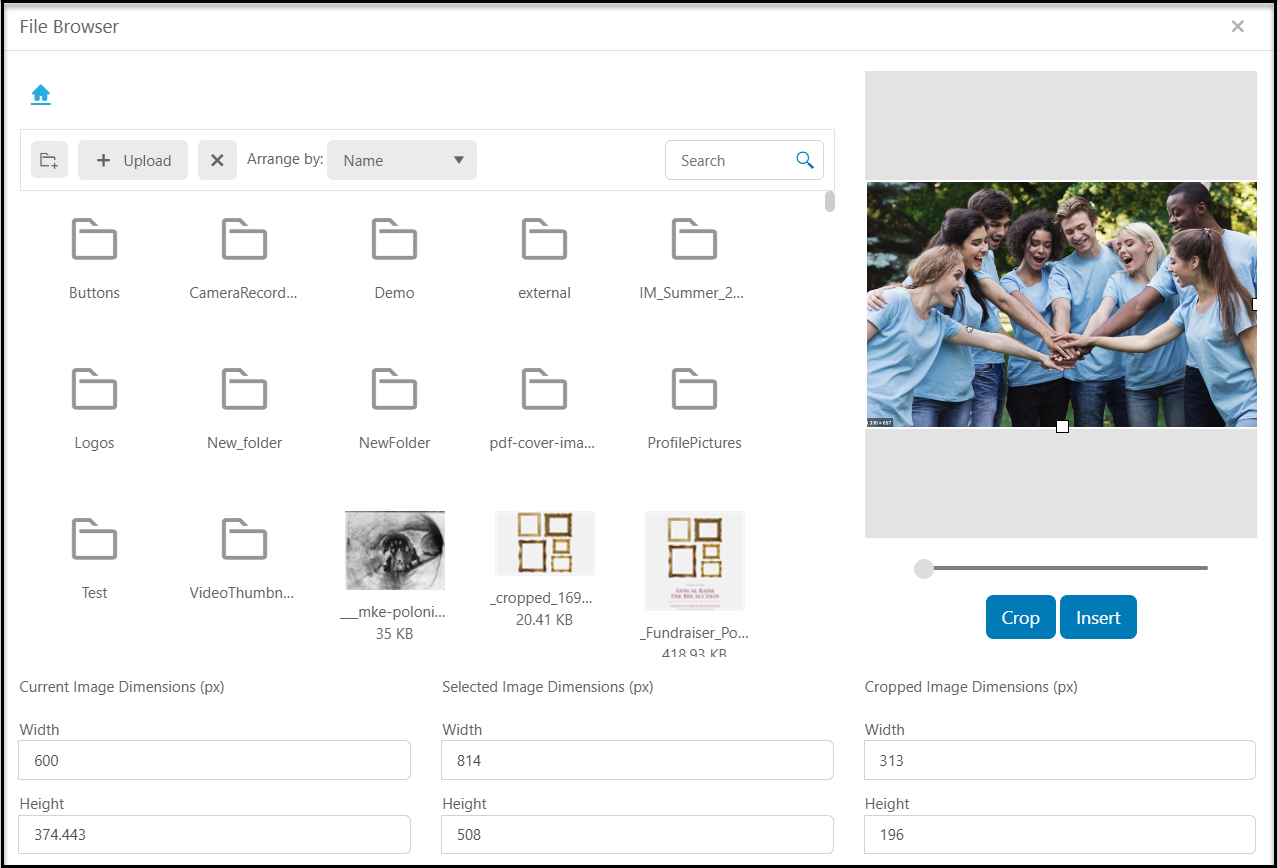
- In the library window, the blue Home icon in the top left corner will take you back to your home view.
- Below the Home icon is the Add Folder icon. This allows you to create new folders to manage your files. Moving your images from their current location into a folder can affect whether they are visible in a previously created email template. The images displayed are location-dependent, so if you change the location of an image, it does not automatically update previously created templates. Be sure to make changes to a files location BEFORE creating and sending your templates.
- +Upload allows you to select an image or pdf file from your computer to upload it into your media library. File sizes should be as small as possible, with less than 1 MB being the recommended size for optimal loading in your emails and pages. Larger files will slow down the rendering of your messages and pages and can cause poor deliverability with large file embedded in your emails.
- You can Arrange your images by file Name or Size and there is a Search box to find a specific file.
- When you have selected an image, you can Crop the image by clicking on the white boxes on the side frames of the image.
- Below the image under Current Image Dimensions you will see the dimensions of the image in the email.
- The Selected Image Dimensions shows the dimensions of the actual image. Note that the image will be reduced to fit inside the Current Image Dimensions.
- If you crop your image, you will also see Cropped Image Dimensions to show the dimensions of the image after cropping.