How can a member exclude themselves from the membership directory?
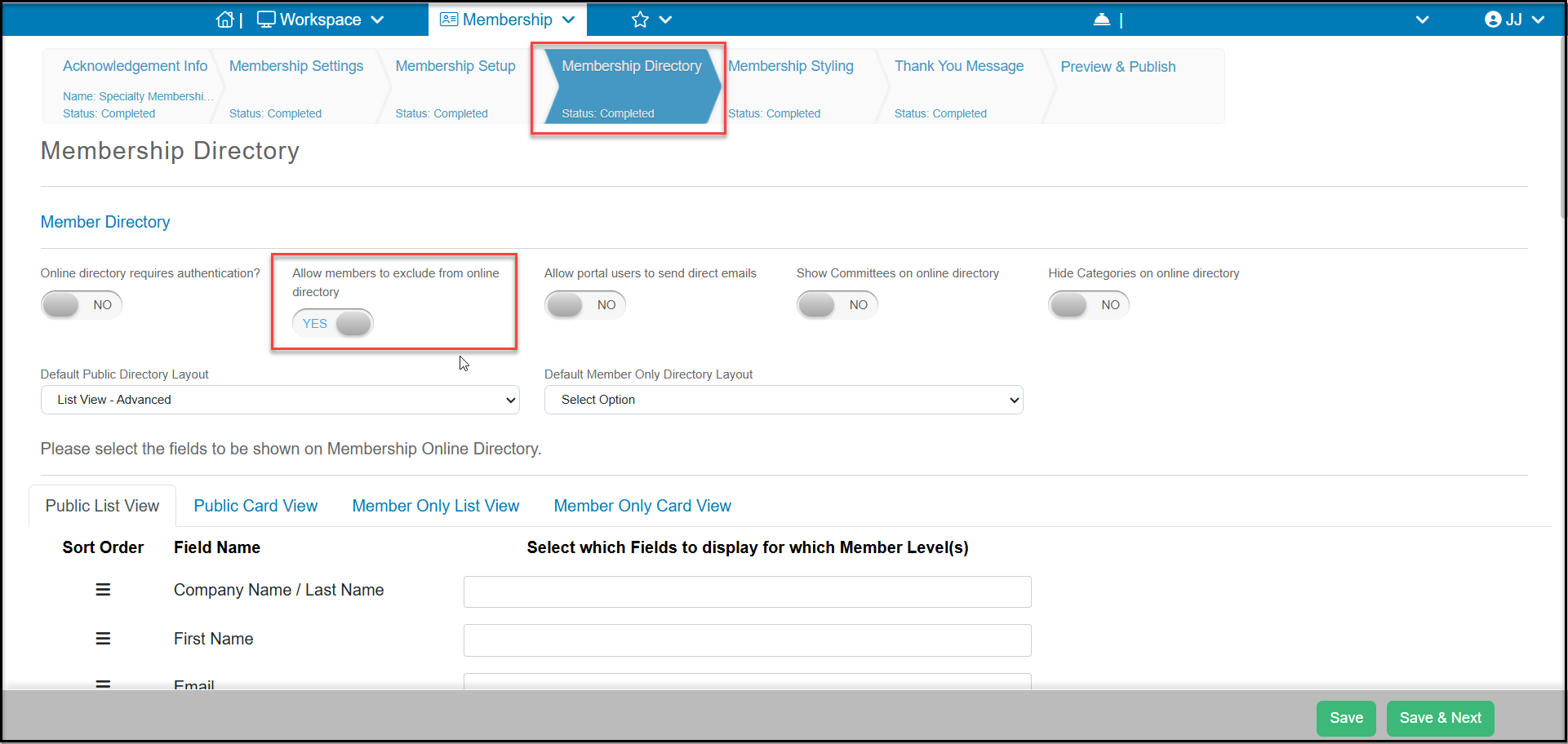
You can make this an option they can select from your membership page on the Membership Directory tab. Set Allow members to exclude from online directory to YES. Be sure to click Saveif you are updating this field.
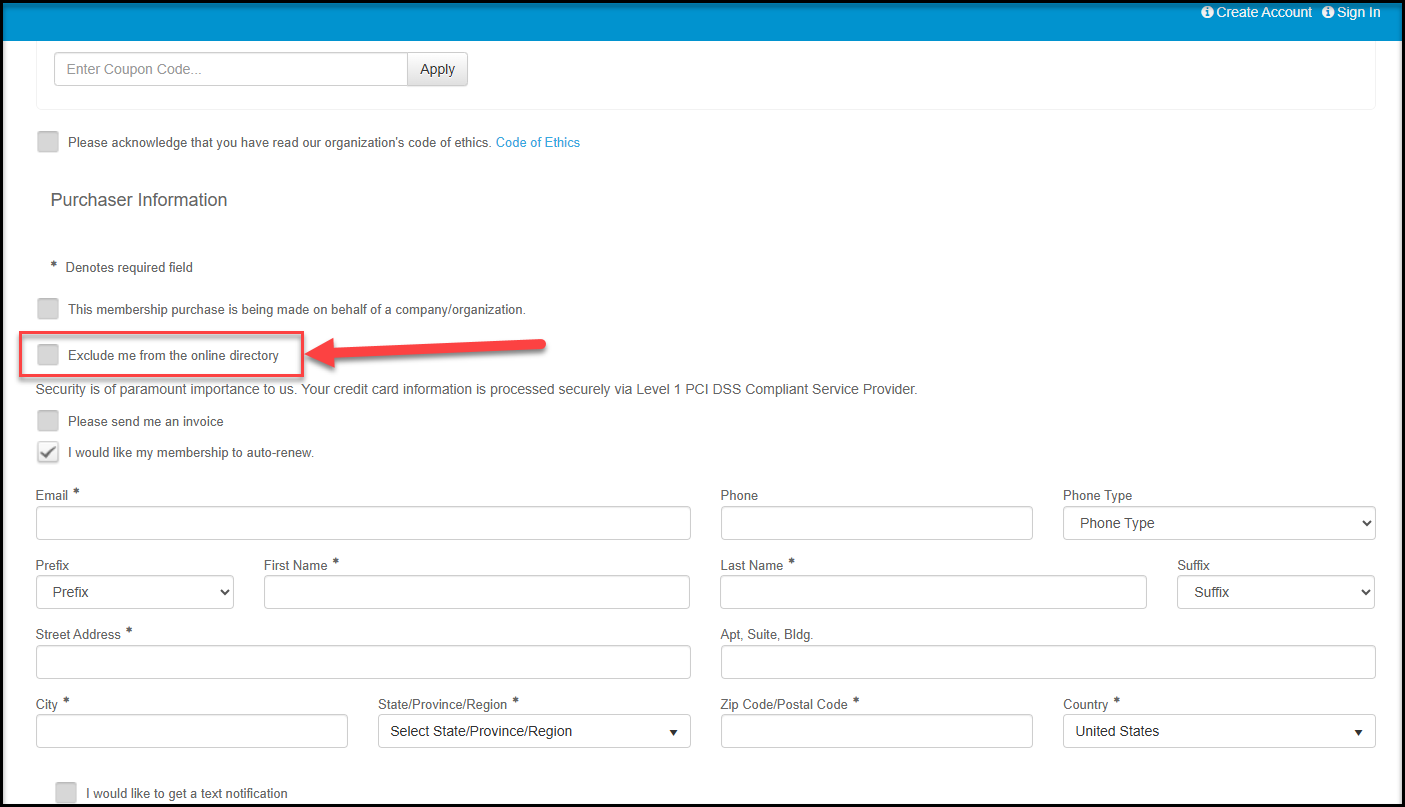
The member will see this as an option above the Registration Information area at the bottom of the membership page when purchasing or renewing a membership.
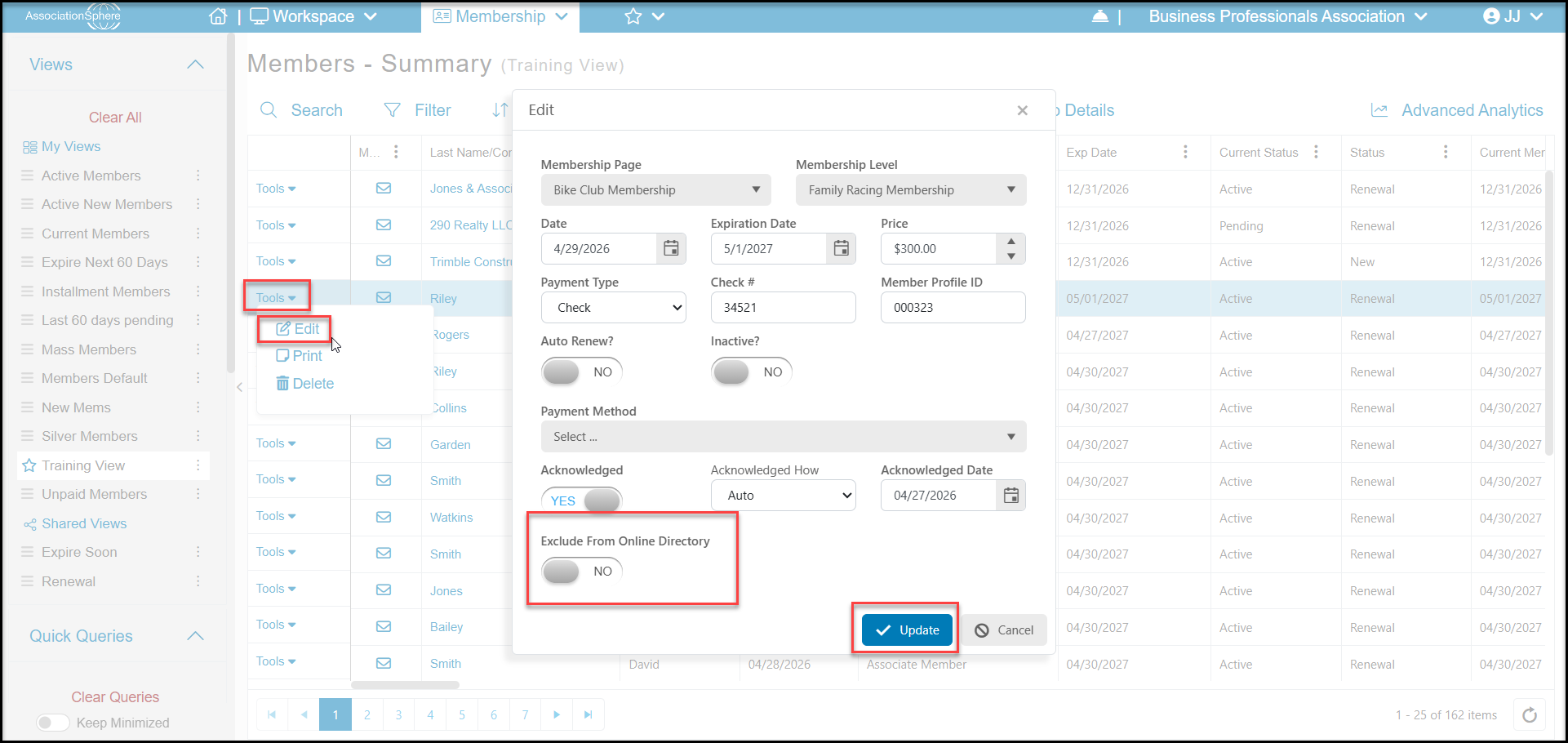
You can also manually update this information on the member's behalf from the Memberships - Summary grid. Locate the member using the Search function at the top of the grid. Click on the Tools link on the left side of the row and selectEdit. In the pop up window switchExclude From Online Directoryto YES and click Update to save the changes.
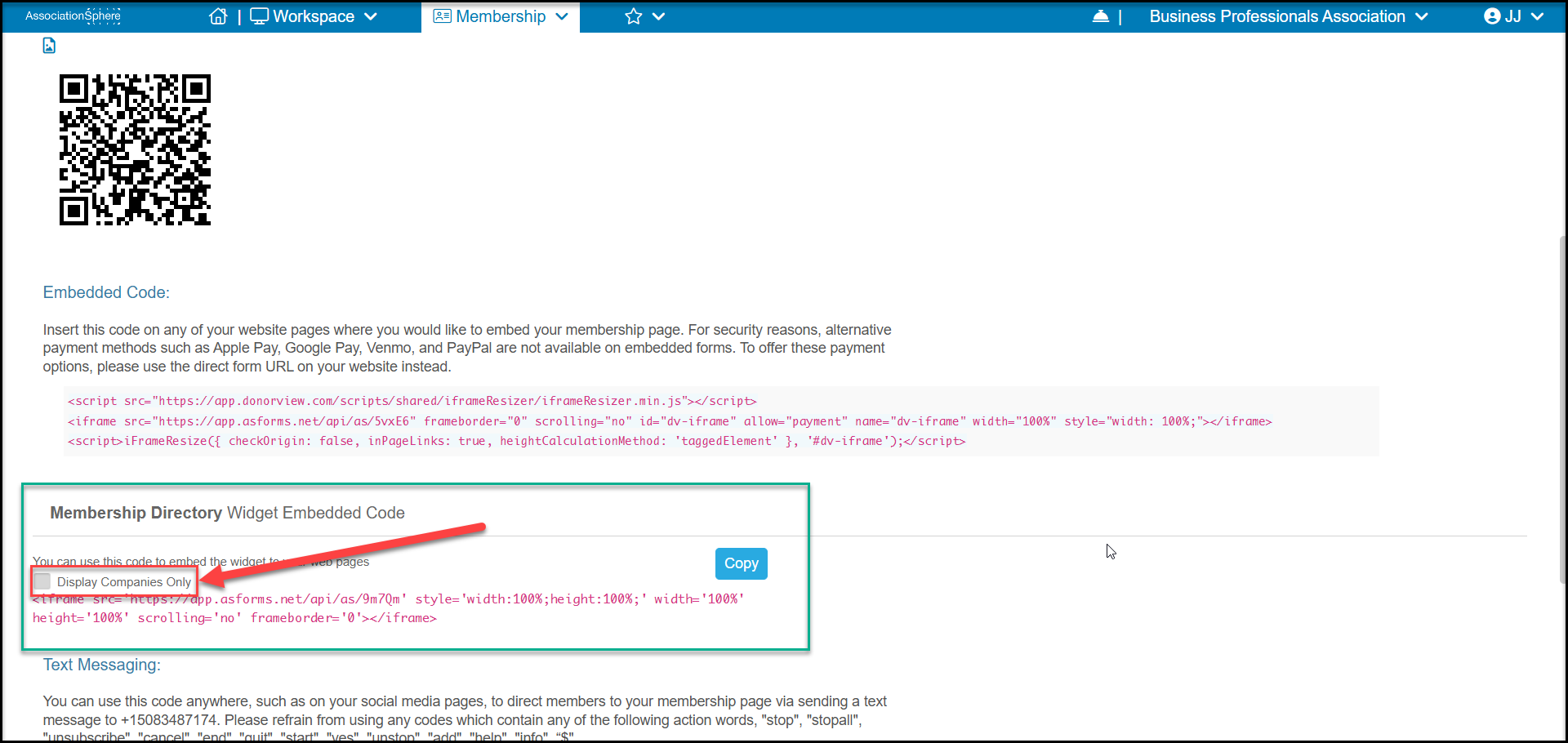
You can also exclude all individual constituents from a directory by checking the box Display Companies Only under the Embed code widget on the Preview & Publish tab of the membership page or global directory page. This will only display company-type constituent members on your directory and individual-type constituent records will be hidden.