
Coming soon AssociationSphere will integrate directly with Zoom, making it easier to create, manage, and track virtual events without leaving the platform.
With the Zoom integration, you can connect individual Event Levels directly to Zoom meetings. Meetings can be created, modified, or deleted from within the Event Level setup in AssociationSphere, eliminating the need to separately create and manage meeting details in Zoom.
Connecting Your Zoom Account
Before creating a Zoom-connected Event Level, you must first connect your organization's Zoom account to AssociationSphere.
To connect your Zoom account:
- Mouse over your organization's name and select Account > Settings.
- From the Account Settings page, select the Integrations tab.
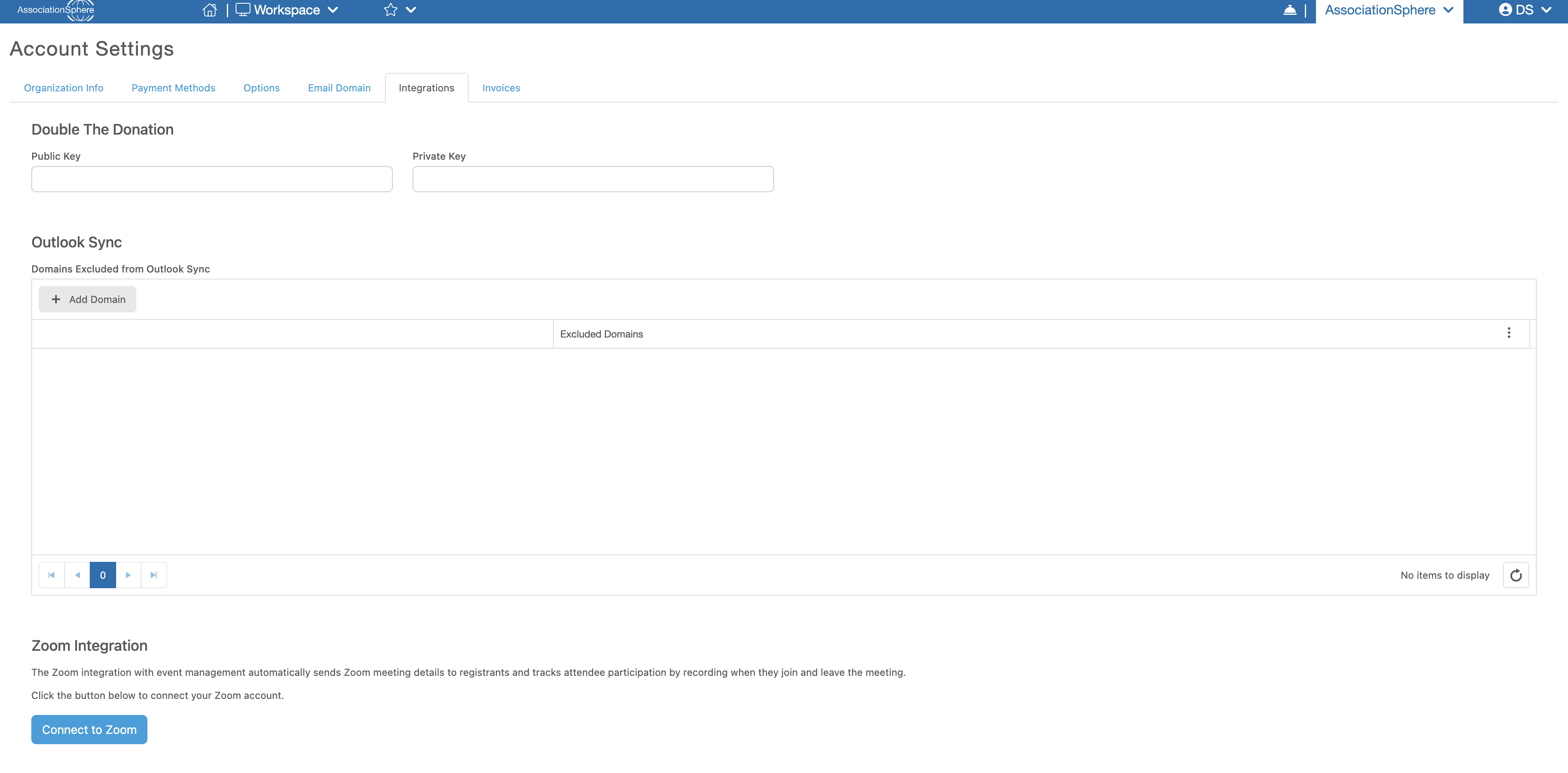
- Scroll to the Zoom Integration section at the bottom of the page.
- Click the blue Connect to Zoom button.
- A Zoom sign-in window will open. Enter your Zoom credentials and complete the authorization process.
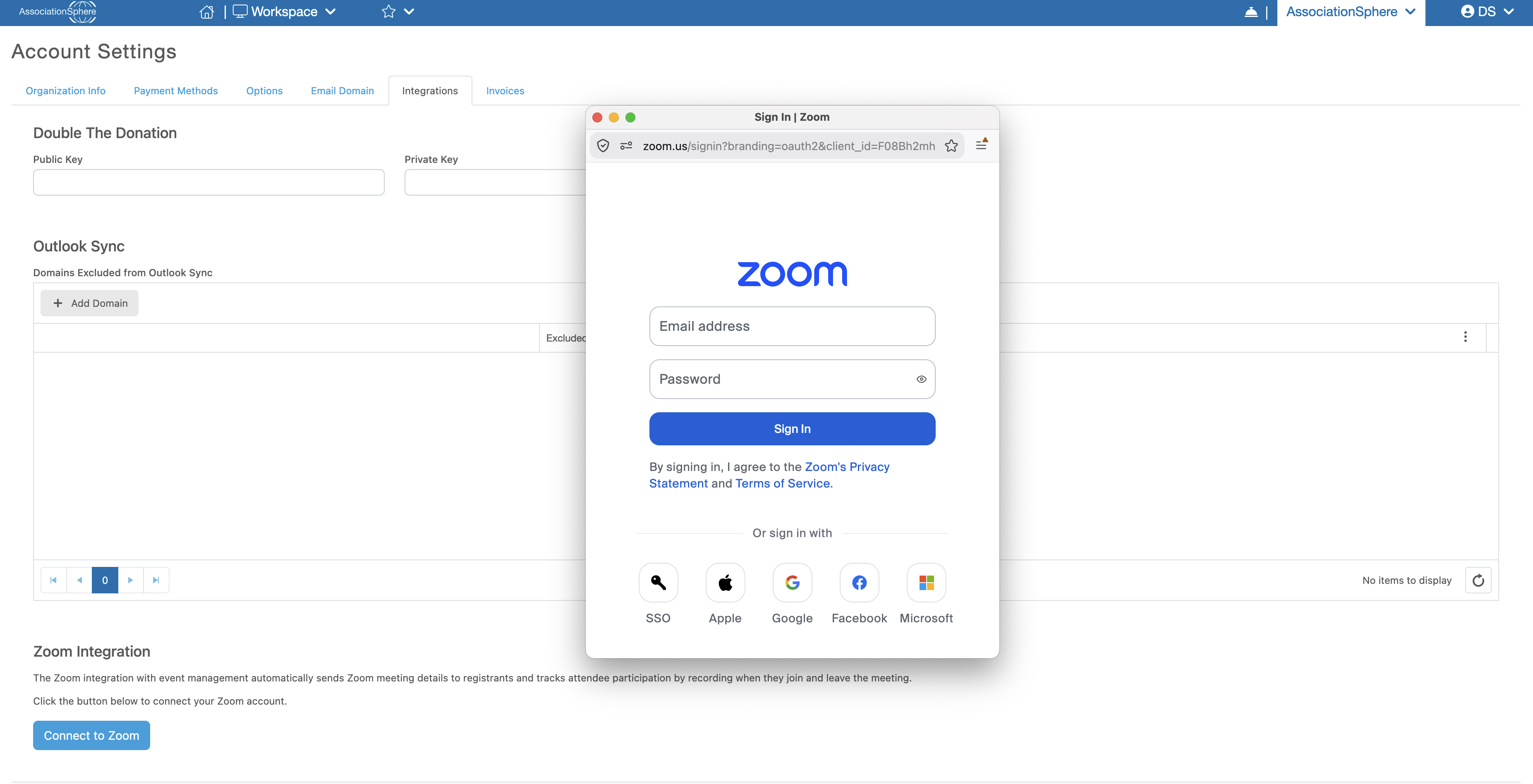
Once authorization is complete, your Zoom account will automatically be connected to AssociationSphere.
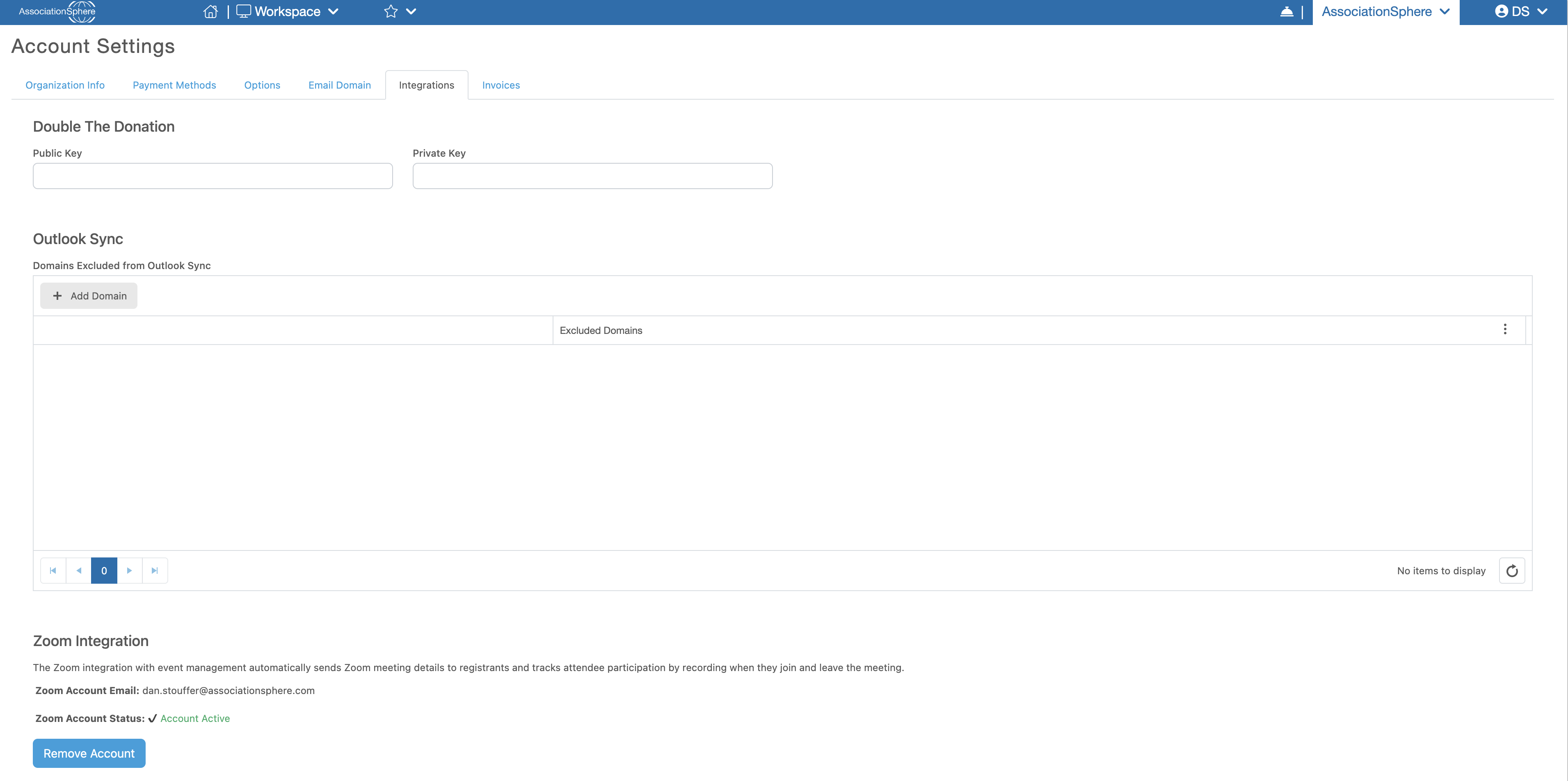
Please Note: Only one Zoom account can be connected to each AssociationSphere customer account. All users within your organization will share the connected Zoom account when creating and managing Zoom meetings.
Managing Your Connected Zoom Account
Once your Zoom account has been successfully connected, the email address associated with the Zoom account will be displayed within the Zoom Integration section. The Zoom Account Status will also display Account Active.
A blue Remove Account button will appear below the account status. If you need to disconnect your current Zoom account, click this button. Once the account has been disconnected, you can connect a different Zoom account at any time.
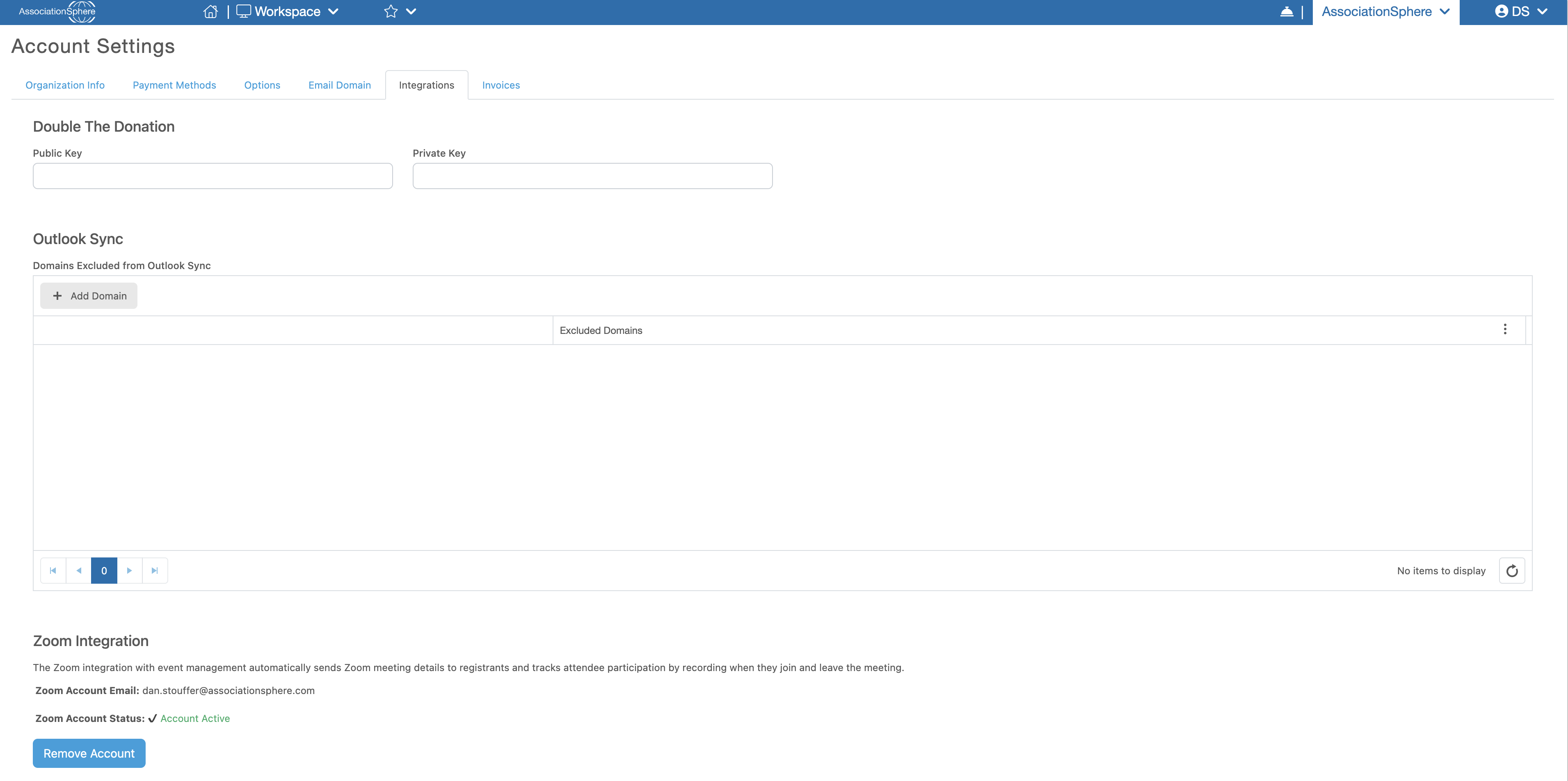
Important: Disconnecting your Zoom account will immediately stop the integration between Zoom and AssociationSphere. Any Event Levels already connected to Zoom meetings will no longer allow those meetings to be modified or deleted through AssociationSphere. New registrants for those Event Levels will also no longer receive Zoom meeting details or meeting join URLs.
Creating a Zoom-Connected Event Level
Once a Zoom account has been connected, you can begin creating Zoom-connected Event Levels within the Events module.
The initial setup process is the same as creating any other Event and Event Level in AssociationSphere.
First, create your Event Levels and complete all standard fields, including the Event Level Name, Description, and other applicable settings. Save each Event Level before continuing.
Once your Event Levels have been created:
- Locate the Event Level you want to connect to Zoom.
- Click the pencil and paper Edit icon for that Event Level.
- Select the new Zoom Integration tab within the Edit Event Level window.
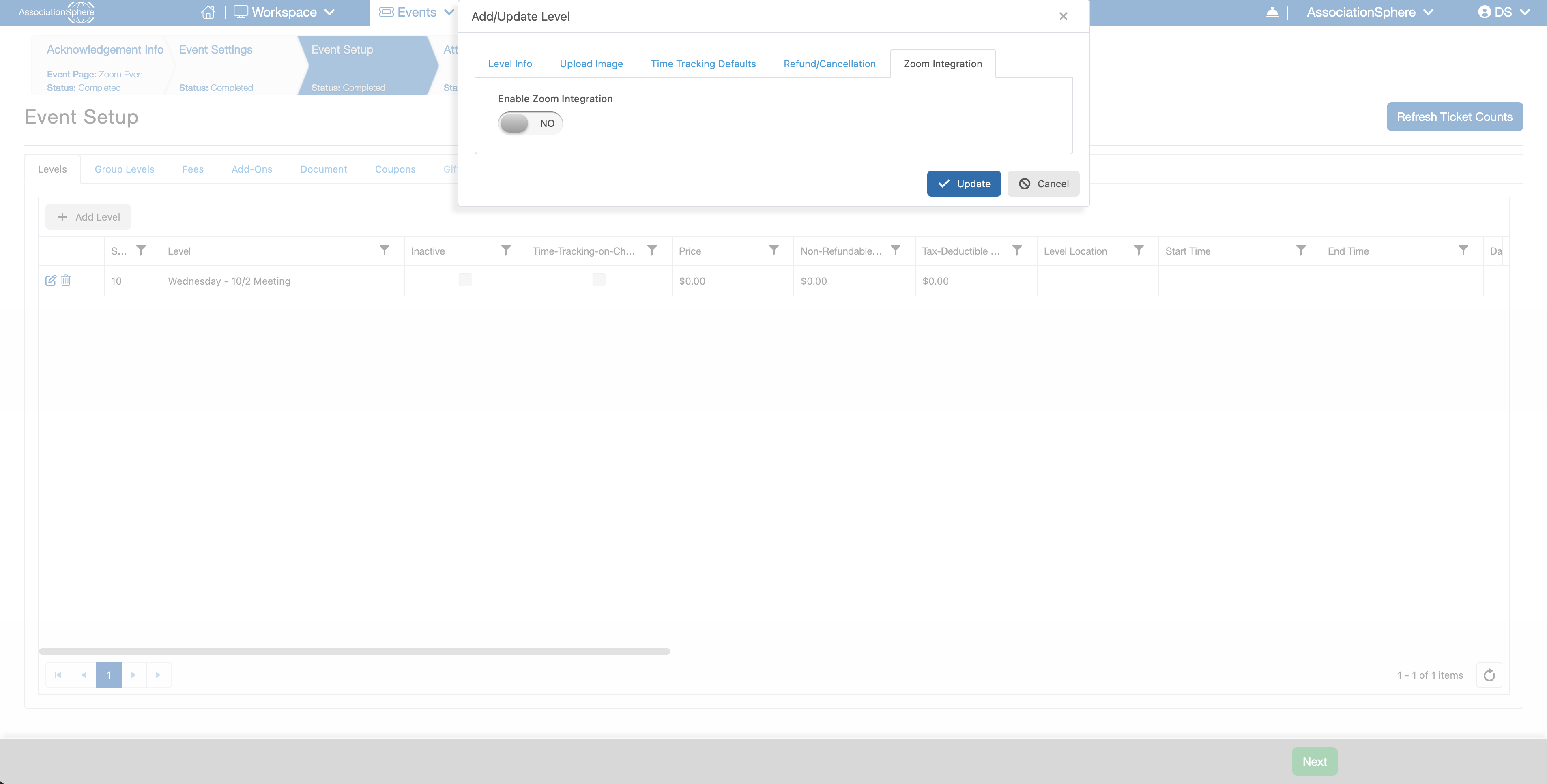
- Locate Enable Zoom Integration and switch the toggle to YES.
Once Zoom Integration has been enabled, additional fields will appear for configuring your Zoom meeting.
Zoom Meeting Settings
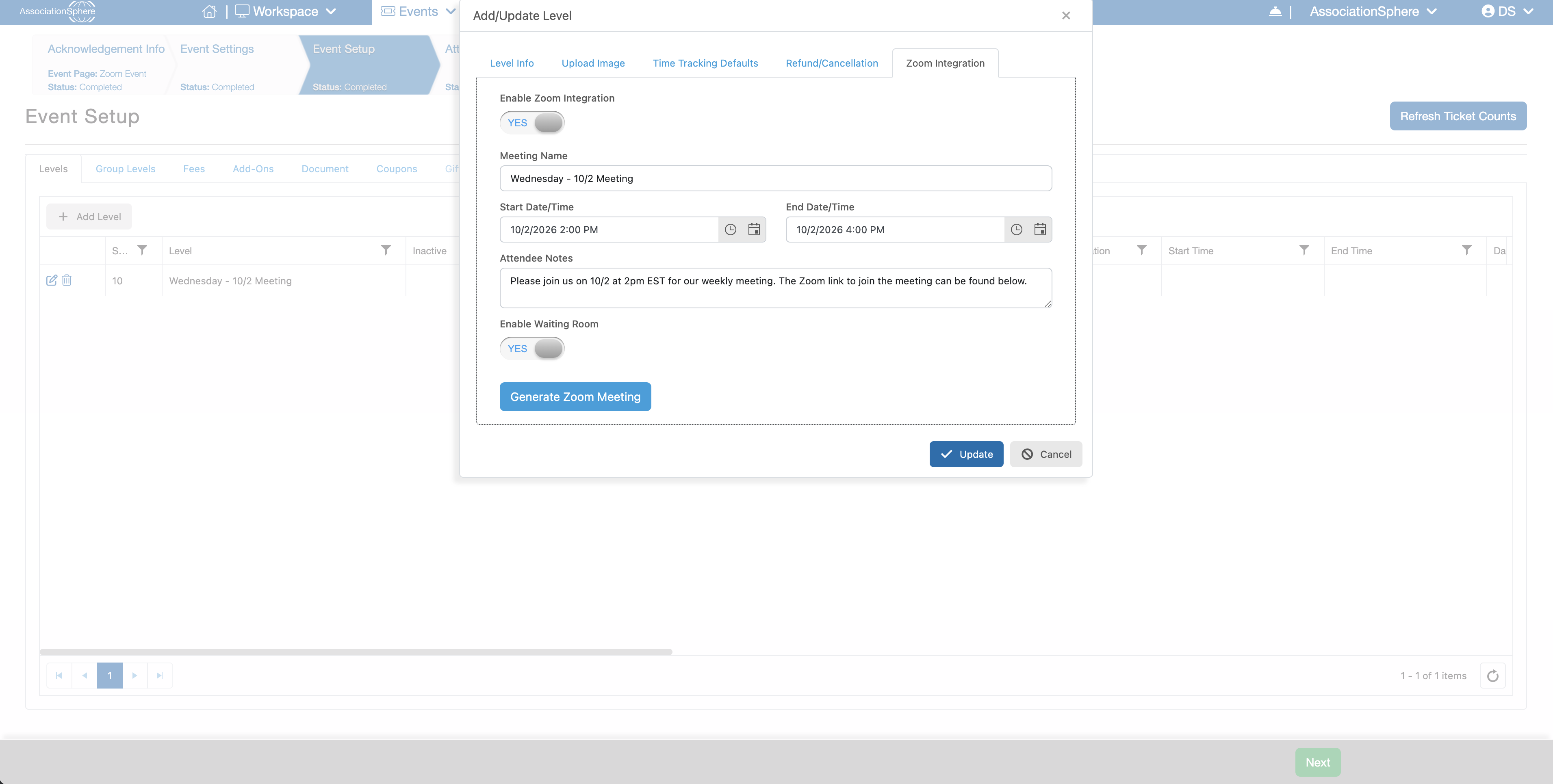
Meeting Name
The Meeting Name will automatically populate using the name of the Event and the Event Level. You can modify the Meeting Name as needed before creating the Zoom meeting.
Start Date/Time
The Start Date/Time will automatically populate based on the start date and time entered within the Event settings. This determines when the Zoom meeting is scheduled to begin.
You can modify the date and time if the Zoom meeting needs to begin at a different time than the Event.
End Date/Time
The End Date/Time will automatically populate based on the end date and time entered within the Event settings. This determines when the Zoom meeting is scheduled to end.
You can modify the date and time if needed.
Attendee Notes
Enter any additional information or instructions you would like included in the Zoom meeting email sent to registrants.
After registration, attendees will receive an email containing these notes along with their URL for joining the Zoom meeting.
Enable Waiting Room
When Enable Waiting Room is set to YES, attendees will enter the Zoom Waiting Room before joining the meeting.
The meeting administrator or host can then determine when individual attendees are admitted to the meeting.
Generating the Zoom Meeting
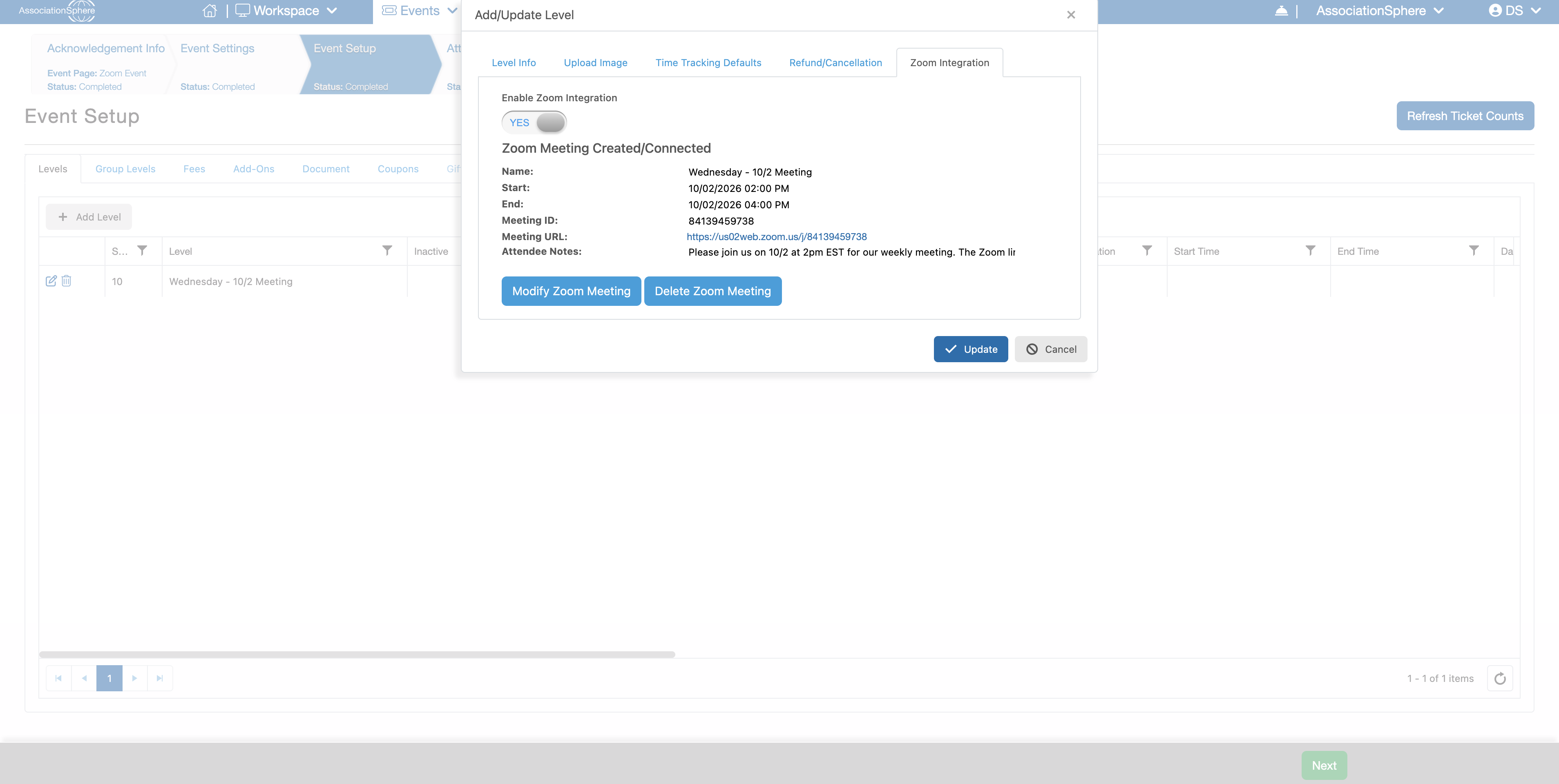
After completing the Zoom Meeting Settings, click the blue Generate Zoom Meeting button.
AssociationSphere will automatically create the meeting within the connected Zoom account and link it to the selected Event Level.
Once the meeting has been generated, the Zoom meeting details will be displayed within the Event Level. You will also have options to Modify Zoom Meeting or Delete Zoom Meeting.
Modifying a Zoom Meeting
Click Modify Zoom Meeting to make changes to the meeting settings.
You can modify the Meeting Name, Start Date/Time, End Date/Time, Attendee Notes, and Waiting Room settings.
When the meeting's date or time is changed, registrants who previously registered for the connected Event Level will automatically receive an updated email notifying them of the change and providing the updated meeting information.
Deleting a Zoom Meeting
Click Delete Zoom Meeting to remove the meeting.
The meeting will be deleted from the connected Zoom account and will no longer be associated with the Event Level in AssociationSphere.
Please Note: Deleting a Zoom meeting does not automatically send a cancellation notification to existing registrants. If attendees need to be notified that the meeting has been canceled, you will need to communicate that information separately.
Connecting Multiple Zoom Meetings to an Event
A single Event can contain multiple Zoom-connected Event Levels. This allows you to create separate Zoom meetings for different sessions, classes, webinars, or other activities within the same Event.
Simply repeat the Zoom Integration setup process for each Event Level that requires its own Zoom meeting.
If a constituent registers for multiple Zoom-connected Event Levels, they will receive a separate Zoom meeting email for each connected Event Level included in their registration.
Registrant Experience
Once your Event and Zoom-connected Event Levels have been configured, you can open the Event for registration.
When a constituent registers for a Zoom-connected Event Level, AssociationSphere will automatically send them an email containing the meeting details, Attendee Notes, and the URL they will use to join the Zoom meeting.
When the registrant uses the provided URL to join the Zoom meeting, their attendance can be captured and displayed within the Event Attendance grid in AssociationSphere, providing a centralized way to manage both registration and attendance for your virtual events.