
Each email list is saved to a specific list category. Email list categories are like "areas of interest" and allow you to group email lists into categories. You can set the category when you create a new list or when you edit an existing list. This category will be what your recipients see when they subscribe or unsubscribe to your email communications.
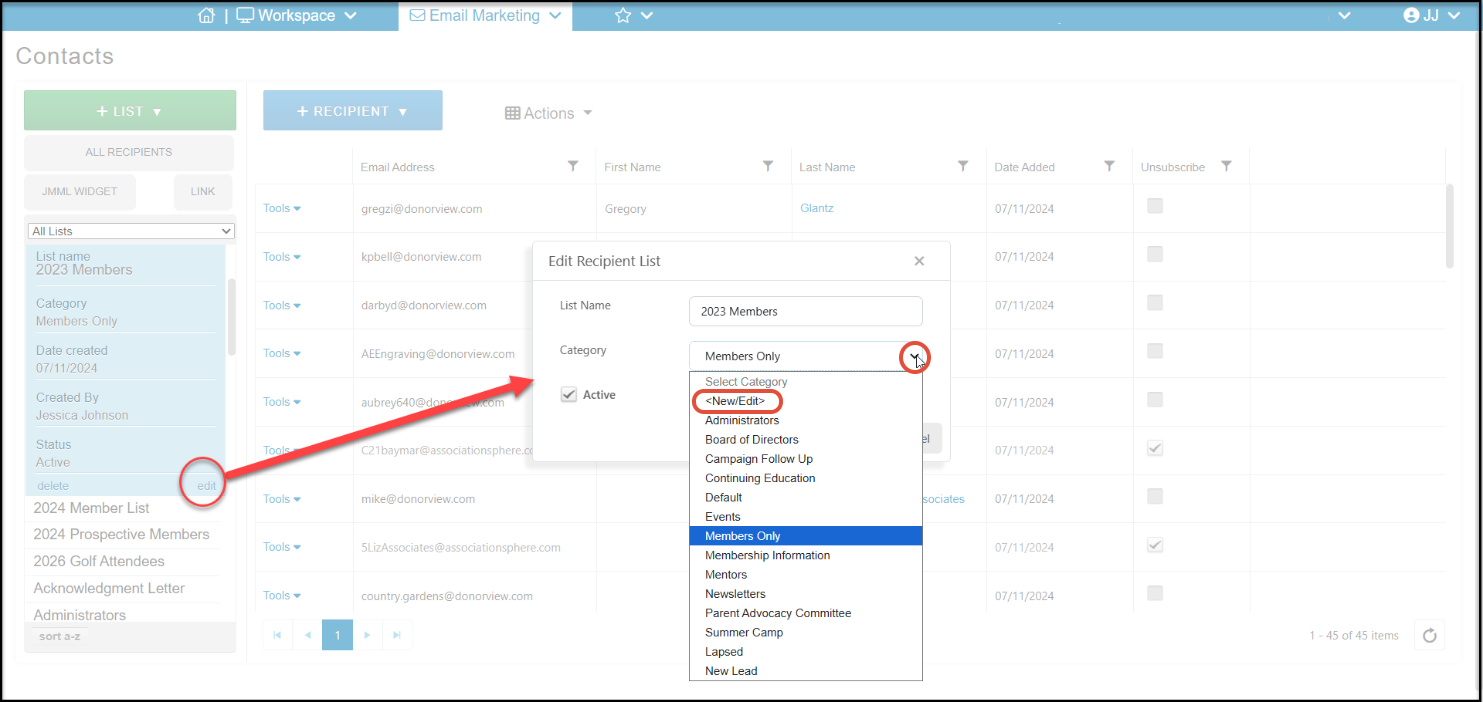
To edit the list categories, select an email list from the Contacts Page in the Email Marketing Module. Click on edit in the bottom right corner of the light blue box. This will open a new dialog box. Click the arrow in the Category box to open the list. Click on <New/Edit> to edit the category list.
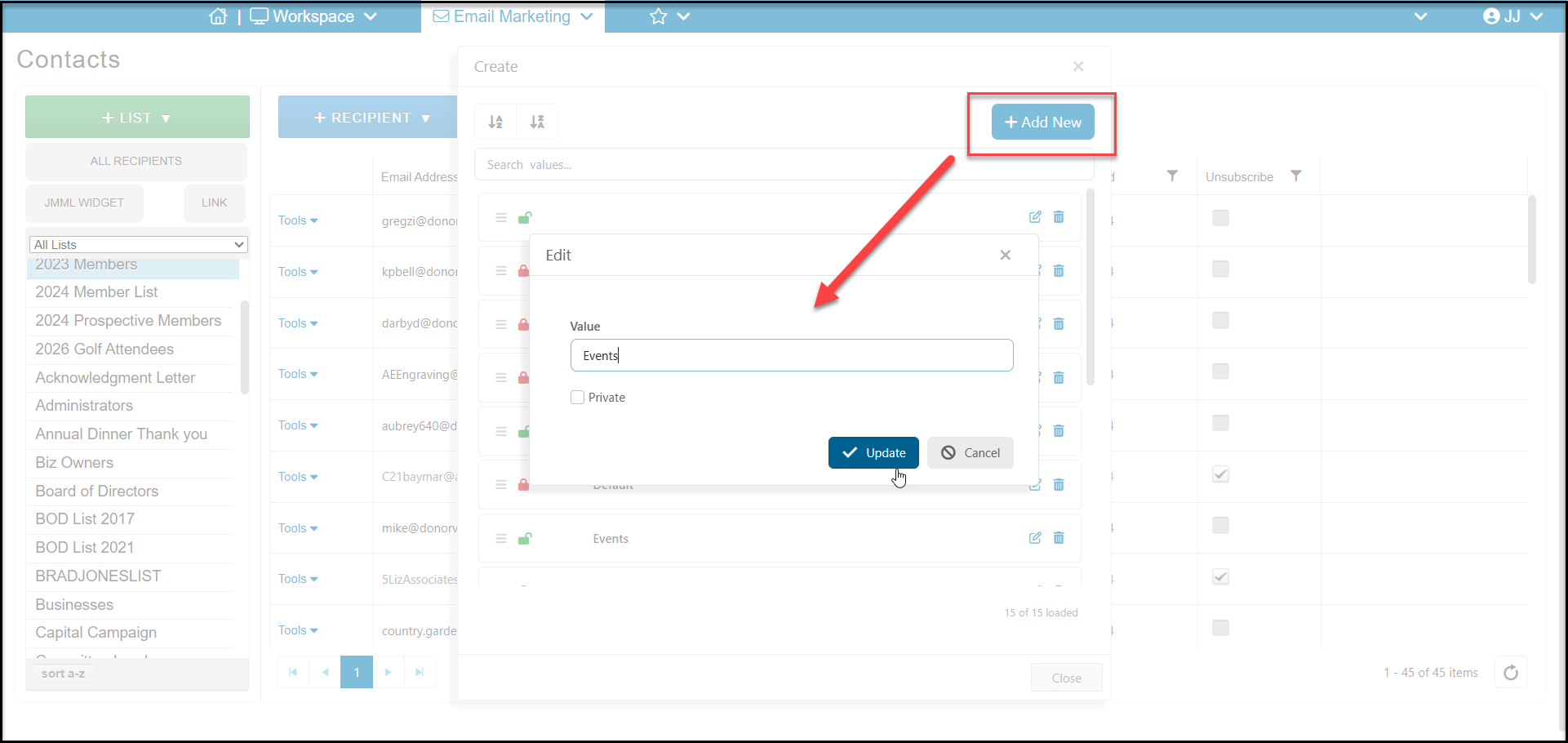
You can add new categories by clicking on +Add New at the top of the list. You can also edit a category by clicking on the edit icon on the right of the row. If a category is not assigned to any email lists, you can also click on the trash can icon to delete it.
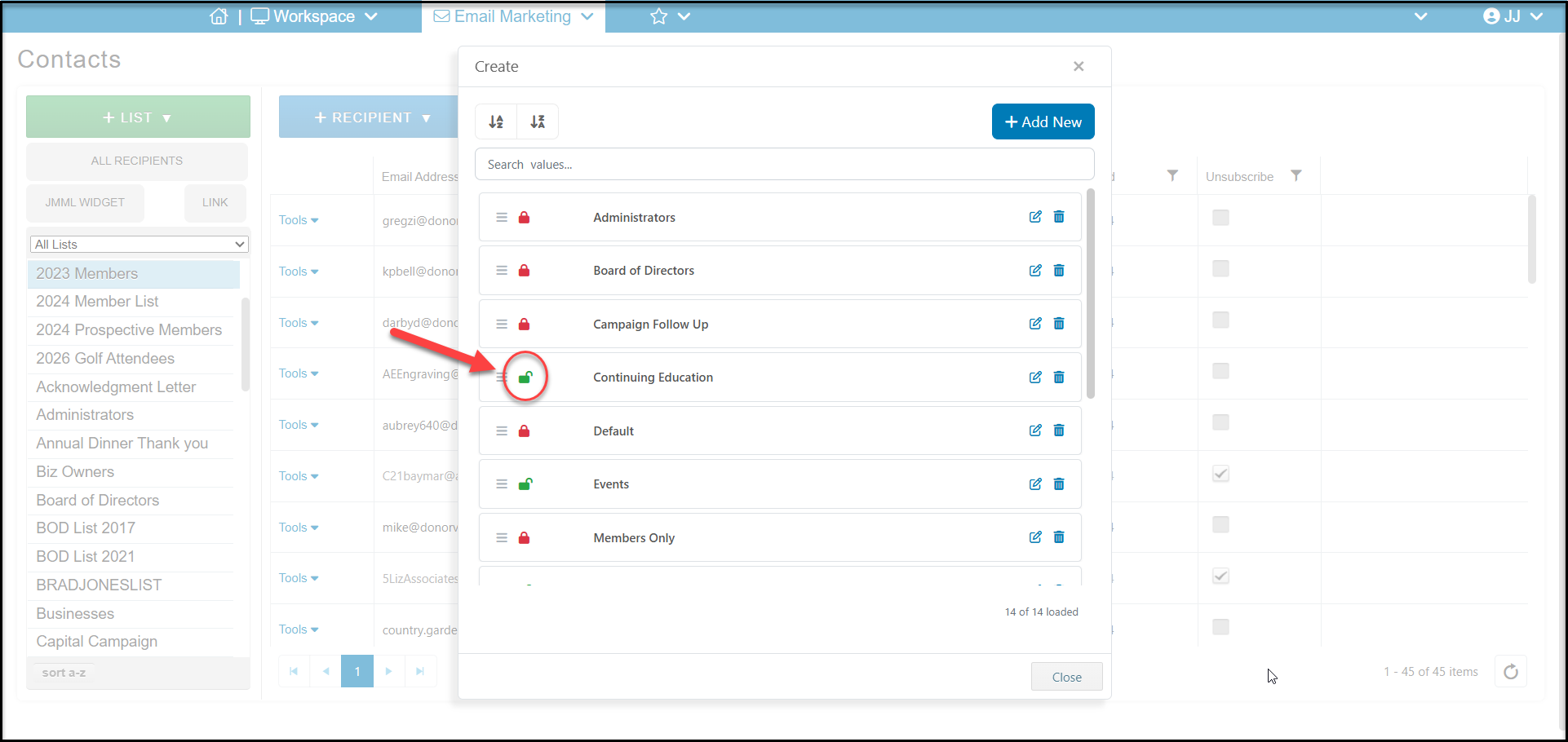
You can make a category private by clicking on the lock icon to the left. A green open lock icon indicates the email list category is publicly viewable and a red closed lock means that the list is private and not viewable to the public.
In the new widow select whether check the box Private to make the list category hidden from the public. This will apply the red lock icon next to the list category. Click Update to return to the list.
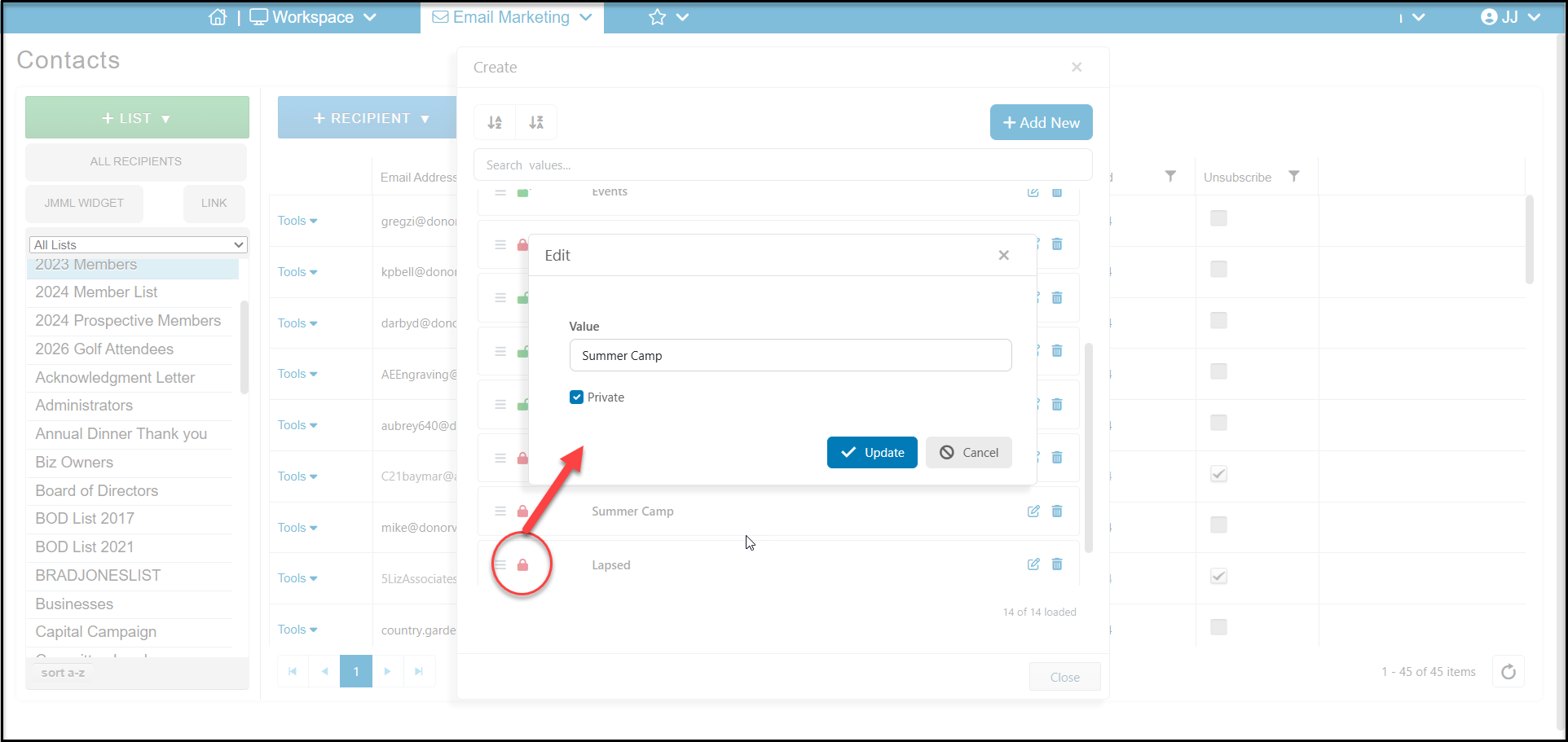
Be sure to click on Close at the bottom of the window to save your changes and return to the Contacts page.