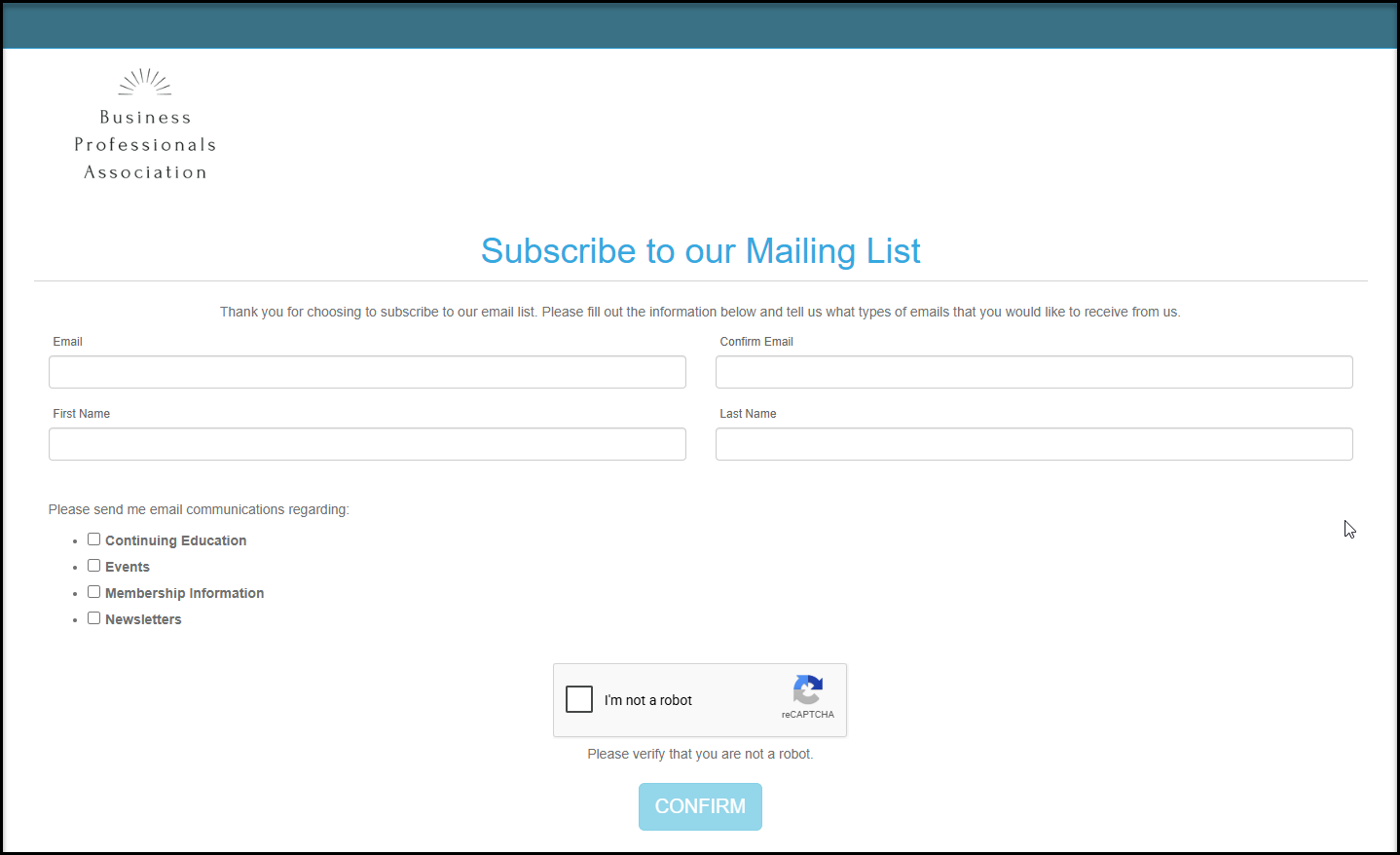
You have two options for subscribing donors to your mailing lists. One is by using the unique URL link created in the Email Marketing Module on the Contacts Page and the other is generating a Join My Mailing List (JMML) widget.
To get your URL link, go to Workspace>Email Marketing>Contacts. Click on LINK to open the dialog box. You can customize the subscription message and the description of the categories shown. You can also select to receive internal notifications when someone signs up.
Your unique URL is shown in blue on the bottom left. Click Update to save any changes.
When you click on the link, you will see your branded page with your default logo and your messaging. The categories shown are those marked as public and must have at least one email list assigned to it. For more information about managing the email list categories see the article "How do I manage my email list subscription options?"
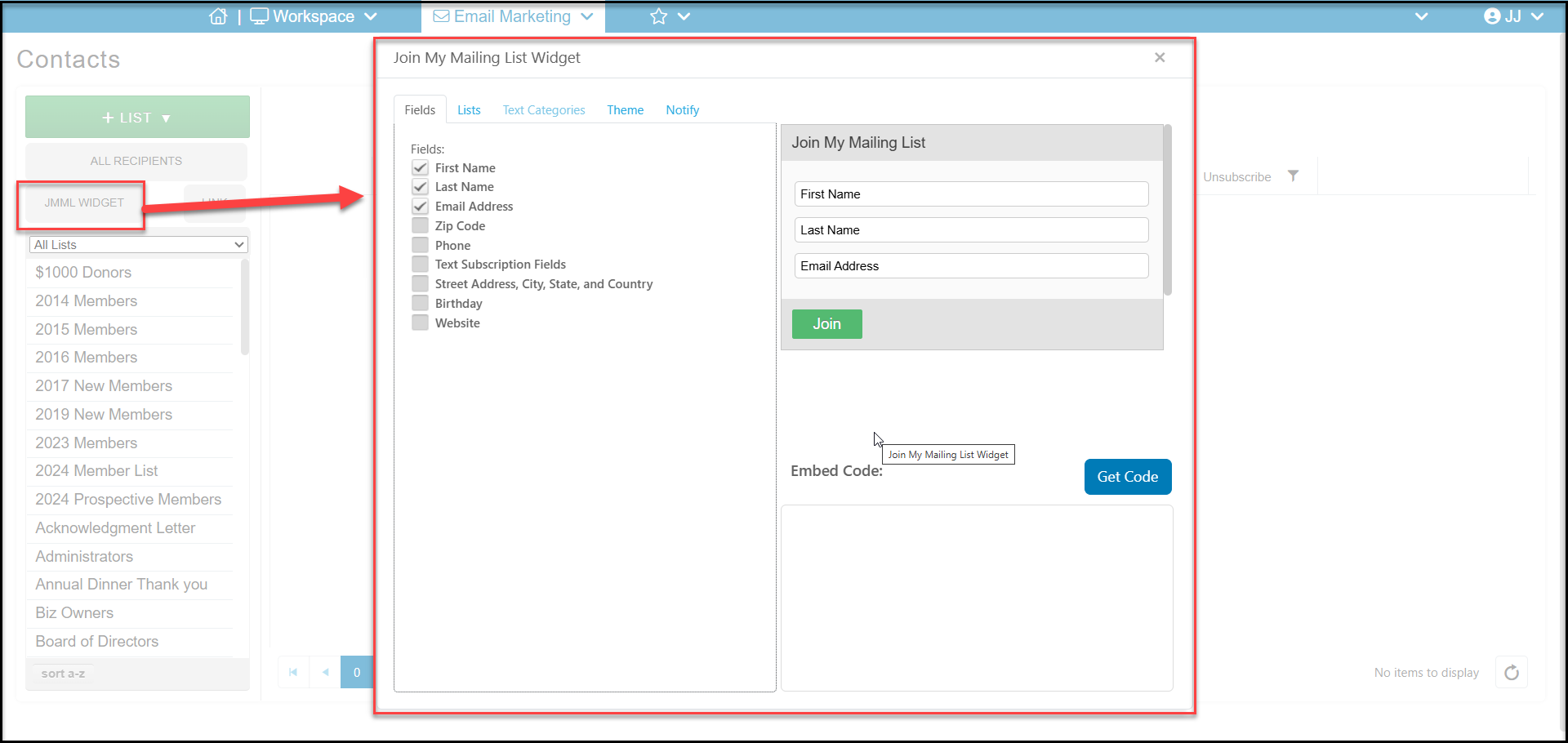
A Join My Mailing List widget creates a box that you can embed into your website that allows website visitor to subscribe to one or more of your email list categories. To create the widget, go to Workspace>Email Marketing>Contacts. Select JMML WIDGET.
- Under the Fields tab, you can choose which constituent fields you would like to collect from the person who signs up. If text messaging is activated, you can also collect a mobile phone number with the Text Subscription Fields option.
- Under the Lists tab, you can select which email list categories the person will automatically be subscribed to.
- If you have Text Messaging enabled, you can also select the Text Categories to subscribe them to.
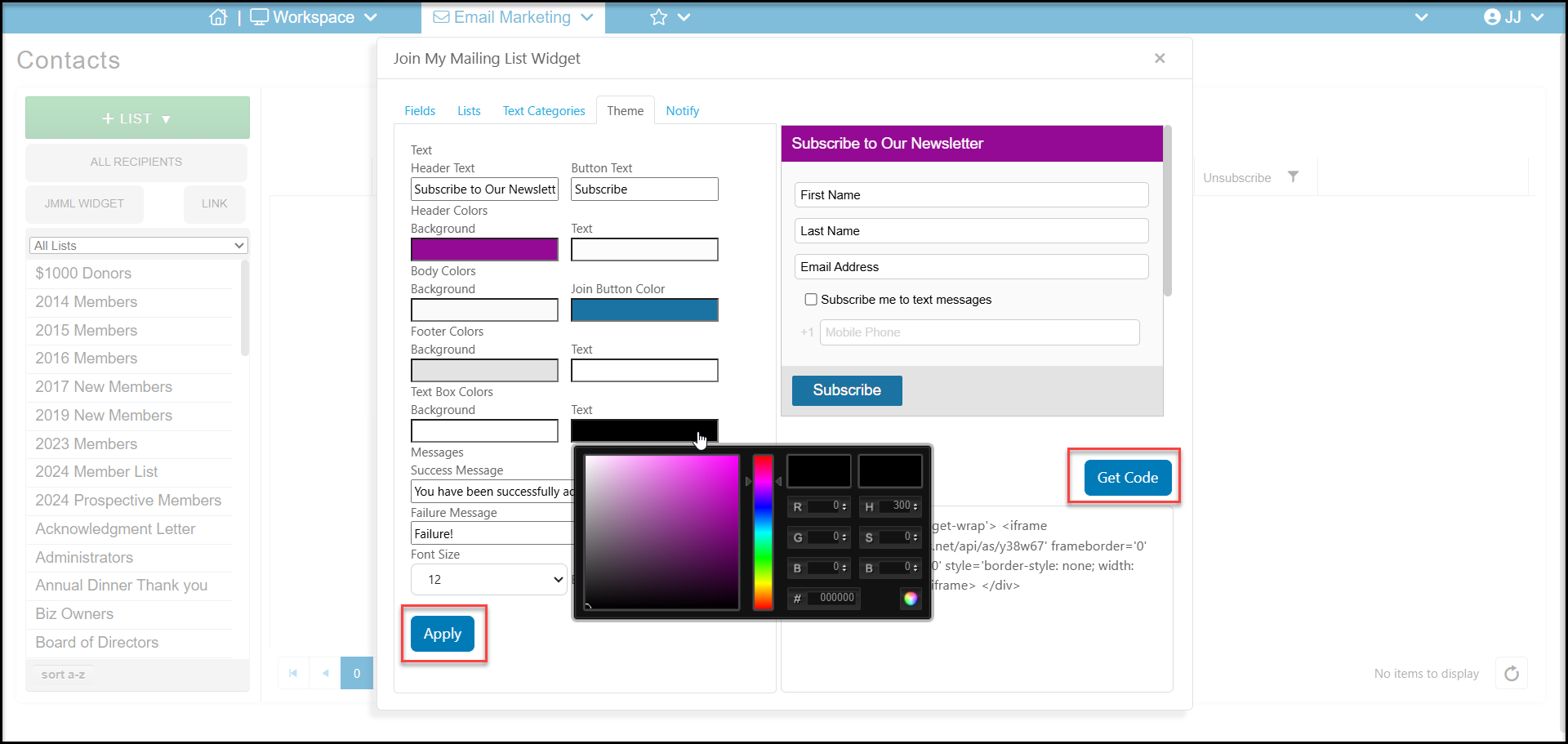
- Under the Theme tab, you are able to change to colors and font sizes on the widget. Click in the color square to reveal the color editor. After making changes, use the slide bar on the side of the window to scroll down to find the blue Apply button to save your theme changes.
- When you have finished making all your selections, click the blue Get Code button to generate the embed code to copy and paste into your website.
- The Notify tab allows you to set up internal notifications when someone subscribes. You can notify up to 5 email addresses, be sure to separate them with a semicolon.
- When someone subscribes from this widget if they are already a constituent, matched by email, the information will populate into their existing record. If they are not already in the database, a new constituent will be created.