How do I invite members to sign up for the portal?
You can invite existing or new constituents to create a portal account by sending them the URL link or QR code for your portal. You can send the link via an email marketing campaign, a direct email or a text message. Portal accounts are not automatically created by the software, even if the constituent already exists in the database and has a membership. Each constituent must register to create an account.
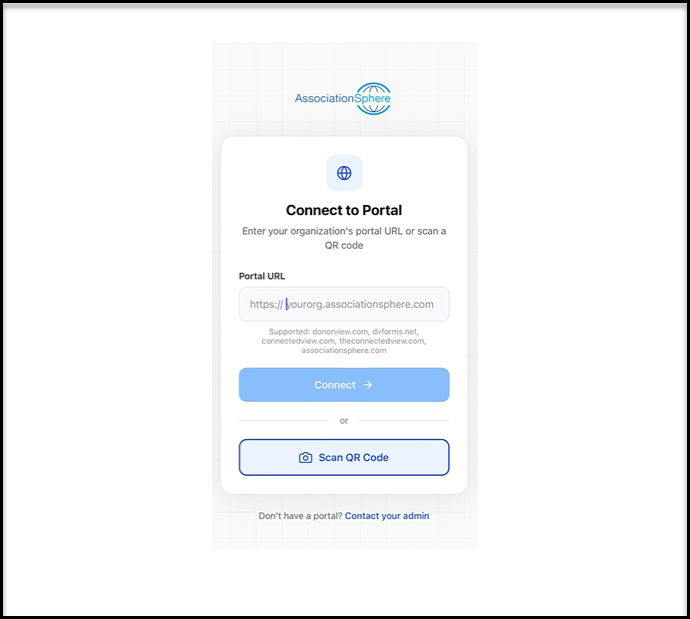
There is also a mobile app for the portal available. Constituents can download the mobile app for Apple or Google via these links:
Apple iTunes - AssociationSphere Portal App: https://apps.apple.com/us/app/associationsphere-portal/id6758163925
Google Play - AssociationSphere Portal App: https://play.google.com/store/apps/details?id=com.associationsphere.portalapp
Constituents can follow the same instructions as below for creating their account, however they will still need your organization's portal URL or portal QR code to access your portal.
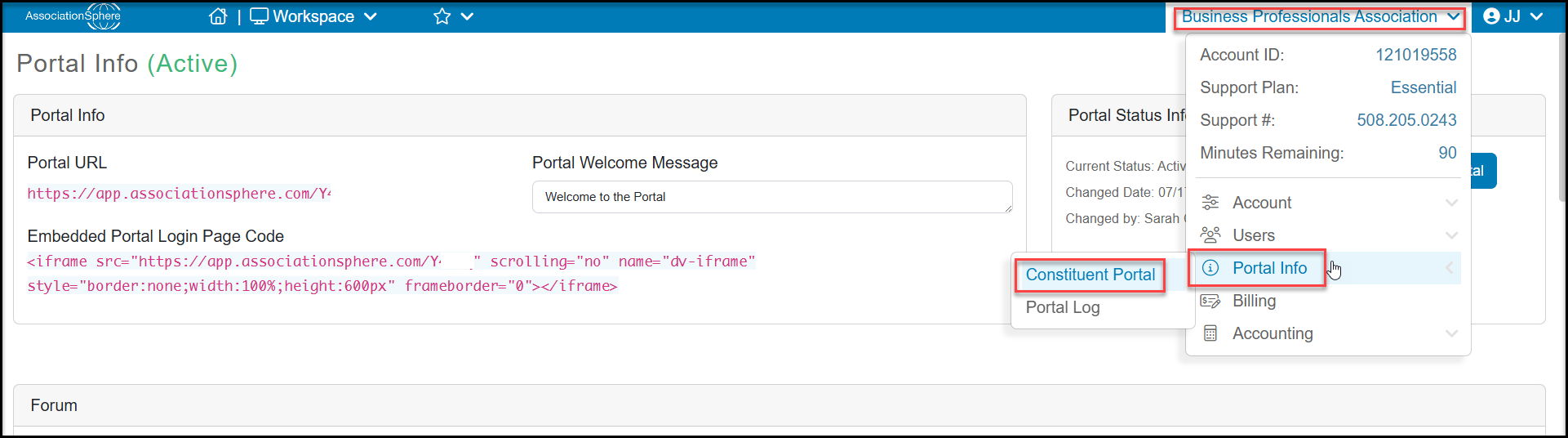
- The link is found in the administration menu under your organization’s name on the top right side of the page. Click on Portal Info, then Constituent Portal. The link to your portal and a QR Code is available in the top left side of the screen.
-
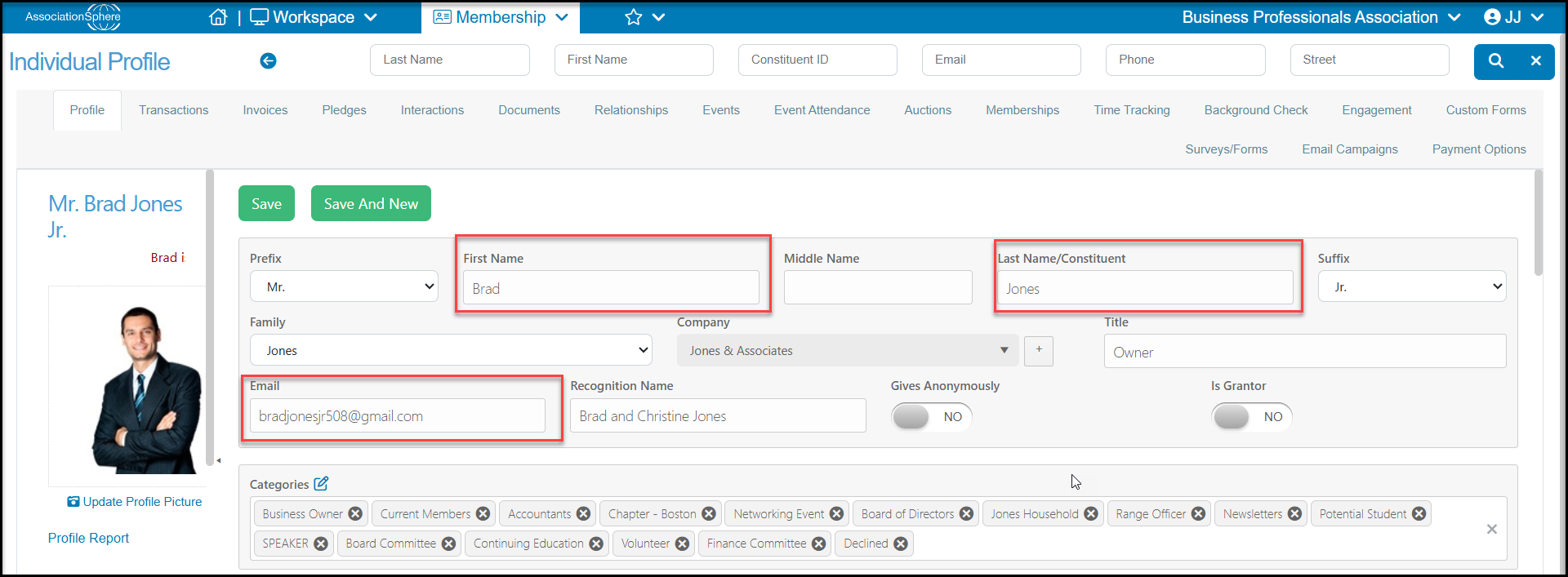
If they are an existing constituent in your database, be sure to remind them to use the exact same primary email address and exact same name listed in their record. You can include these merge fields in the invitation you send to the constituent. If they do not use the exact same primary email address and/or name as listed, the system will create a new record for the constituent. The constituent will also not see their current or expired membership information since a new record was created. If the constituent inadvertently created a duplicate record, you can merge the old record with the newly created record using the merge function in the Constituent Grid, being sure to keep the new record as the master since it is the one linked to the portal.
-
The portal only allows one account per email address. Two constituents with the same email address cannot create seperate portal accounts. If your organization has Company records that share the same email address with one of their company contacts, please see this article "How does a company or organization access the portal?" with options for companies to manage their records with their own portal account or via their primary company contact's individual account.
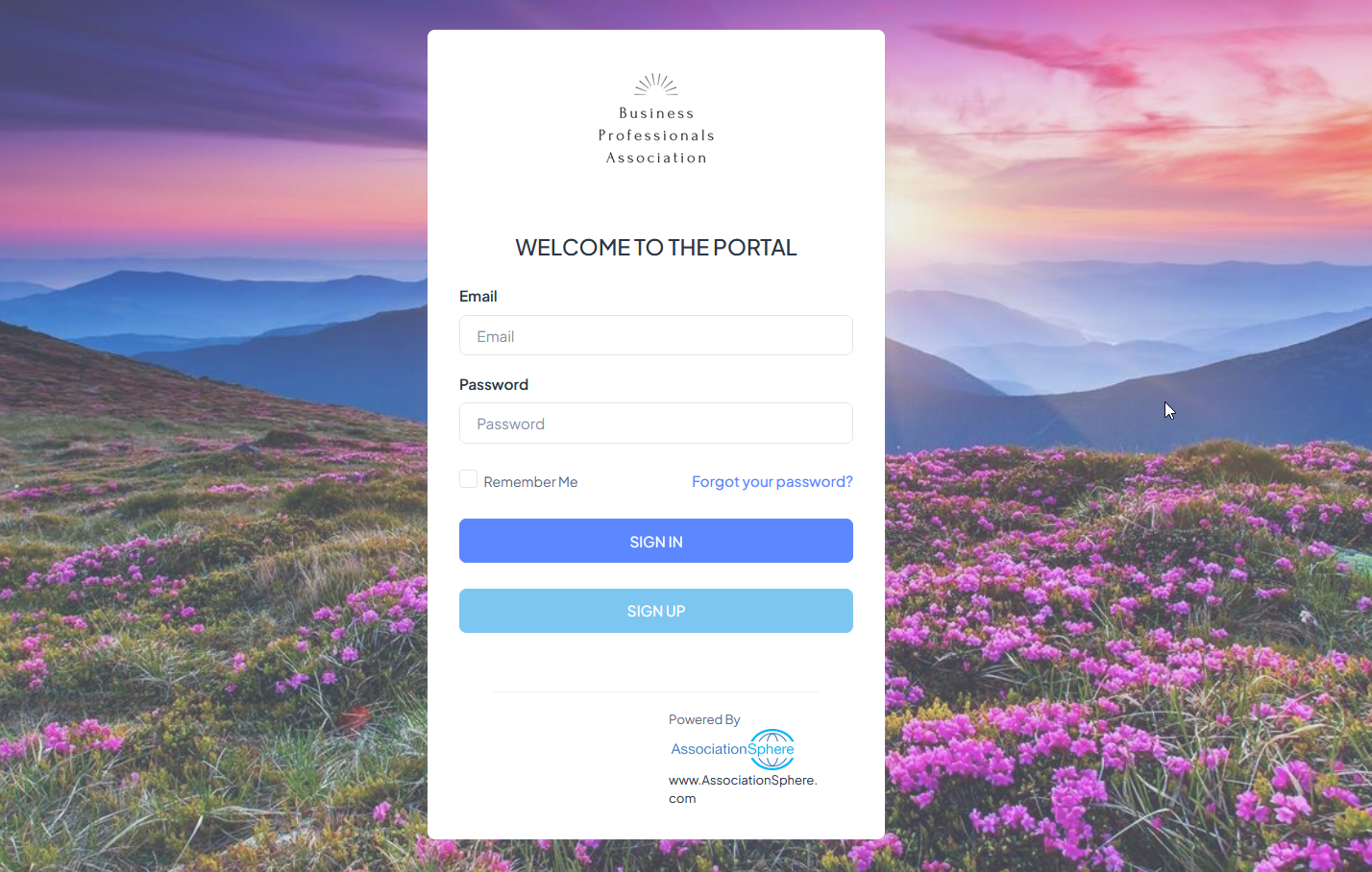
- From the portal login screen, instruct the user to click the Sign Up button, not the Sign In button.
-
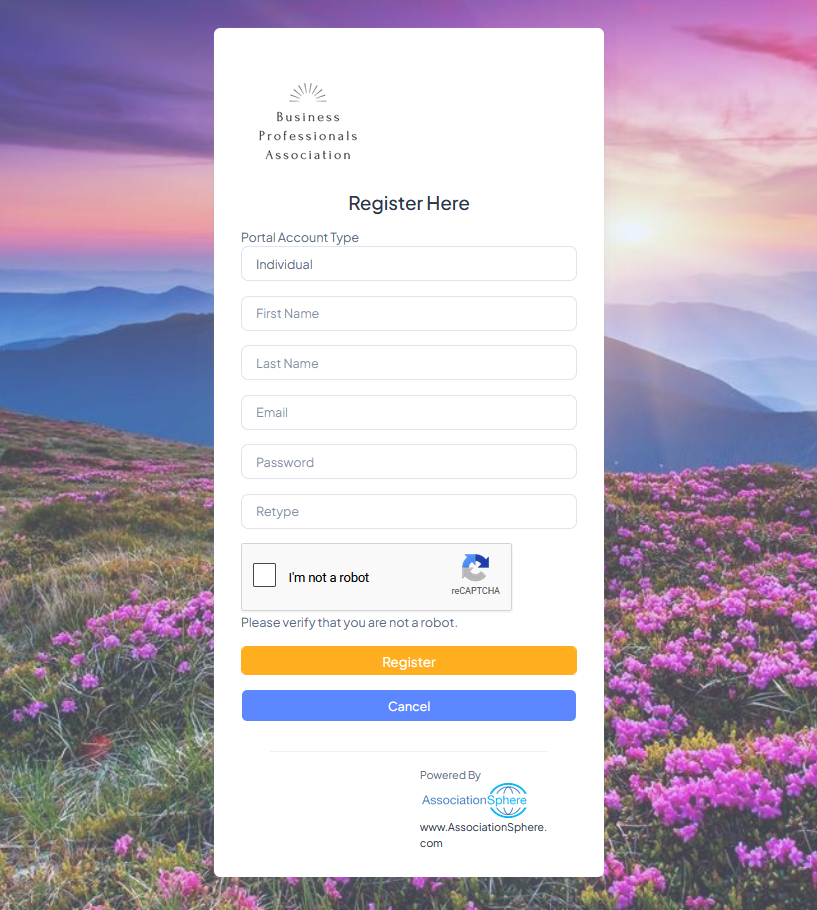
At the top of the box, the constituent will select Individual for creating an account for a person, orCompany if this is a new company profile type.If your organization has Company memberships, please be sure to review the options for company portal accounts in this article "How does a company or organization access the portal?" The Company option is generally only selected when the company has its own unique email address not shared with any company contacts (employees) or when there are no individuals or secondary members associated with a company membership.
-
An existing constituent will enter the same name and primary email already associated with their record. A new constituent may enter whatever name or email they wish to be associated with their record. The software will automatically create a record for any new constituents.
-
They can enter the password they wish to use, check the CAPTCHA box, and click Register.
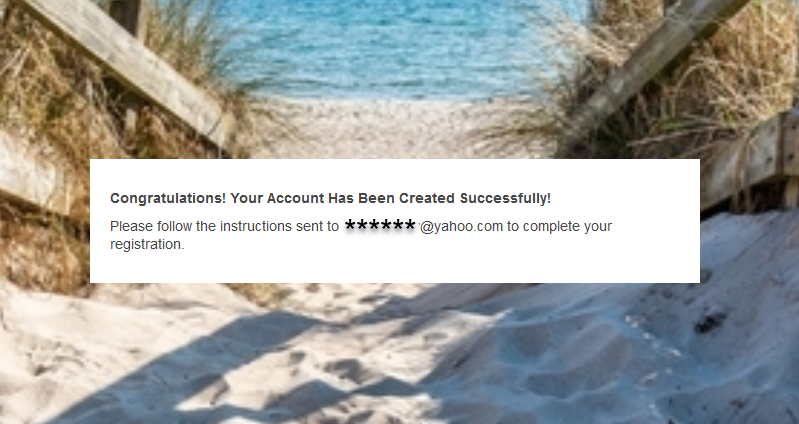
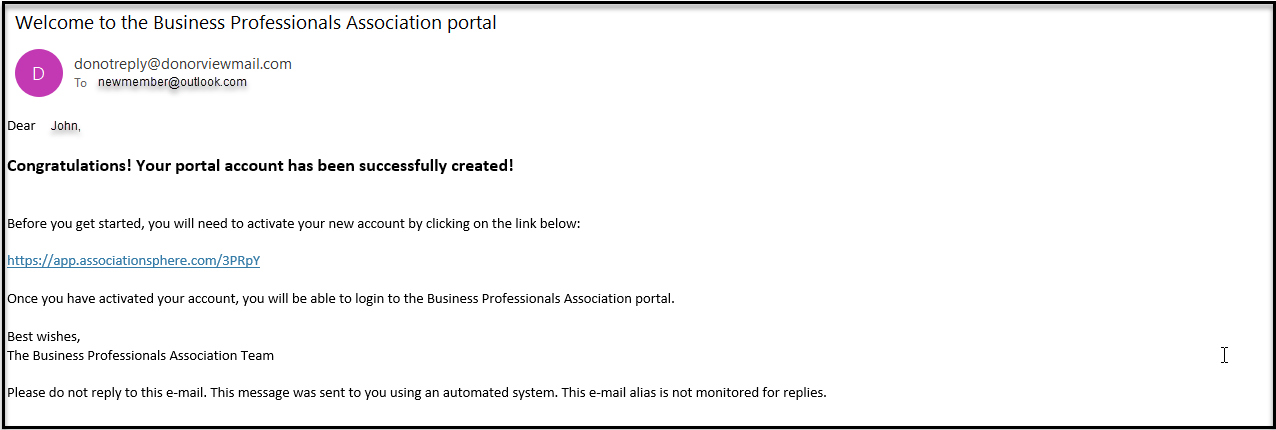
- The software will send a confirmation email to the constituent and they will need to confirm their account by clicking the link.
-
Once confirmed, if you have the Advanced Portal activated, the constituent will able to view and manage the personal information and the modules you have activated.
-
If you only have the Basic Portal, they will be able to access only their personal information and any online auctions or peer to peer campaigns you have activated.
-
All portal users will be able to log into their accounts from your donation, membership, and event pages and have their contact information populated in the purchaser information area at the bottom of the pages.
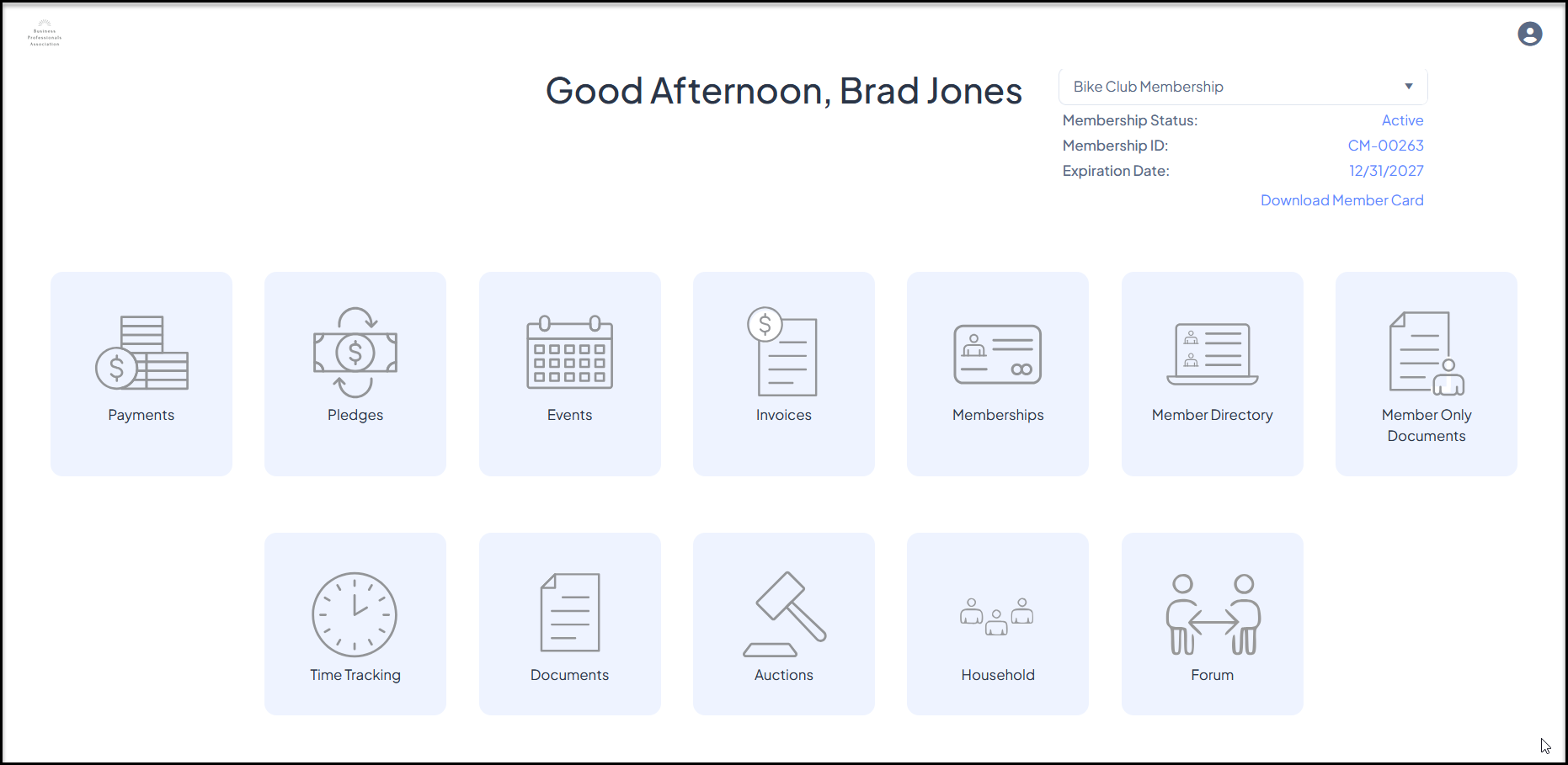
- Once confirmed, if you have the Advanced Portal activated, the constituent will able to view and manage many of the modules as described in this article. If you only have the Basic Portal, they will be able to access only their personal information and any invoices or online auctions you have activated. Below is an example of a homepage for the portal with the Advanced Portal activated.