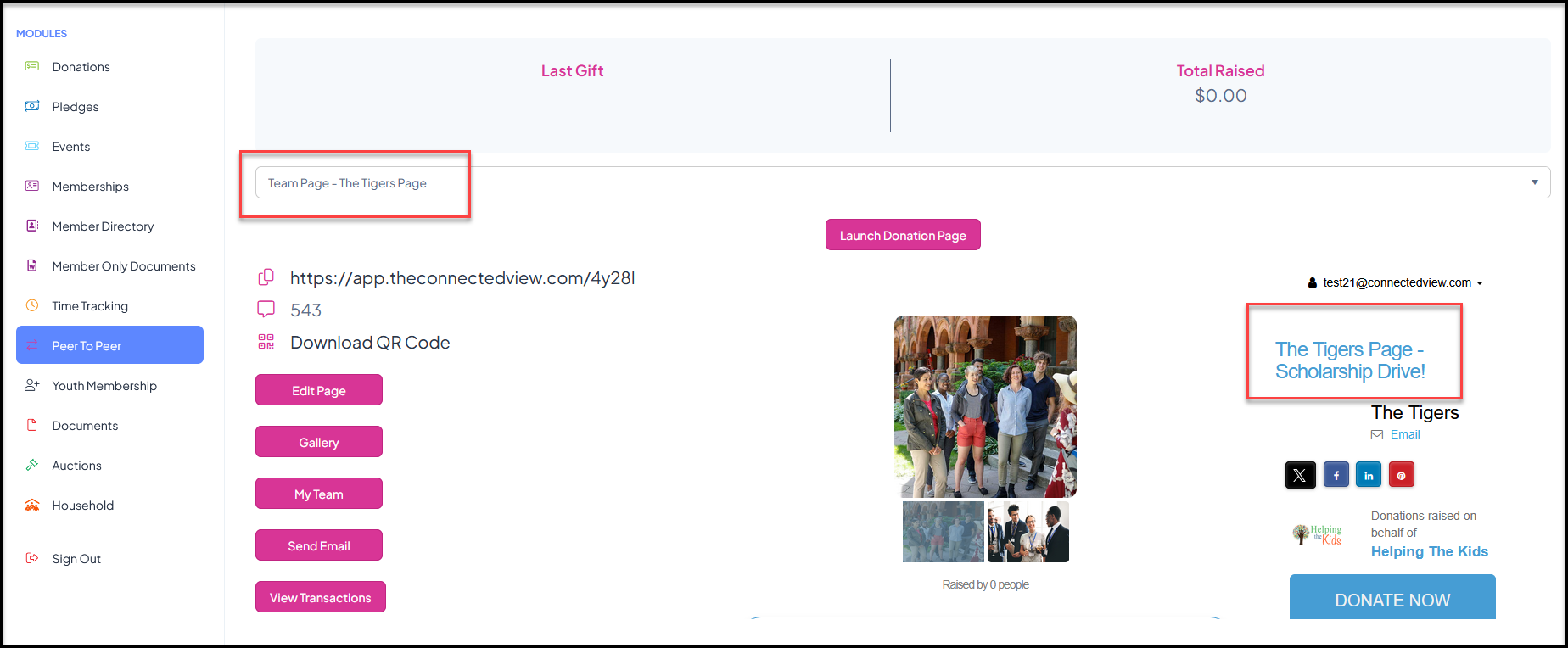
How does a P2P participant create and edit their fundraising page?
The participant creates and edits their fundraising page through the Constituent Portal. If the participant does not have a portal account yet, when they sign up for the P2P campaign, they will create their portal account first. When you share the URL or QR code to your P2P campaign, the fundraiser will be directed to a portal login.
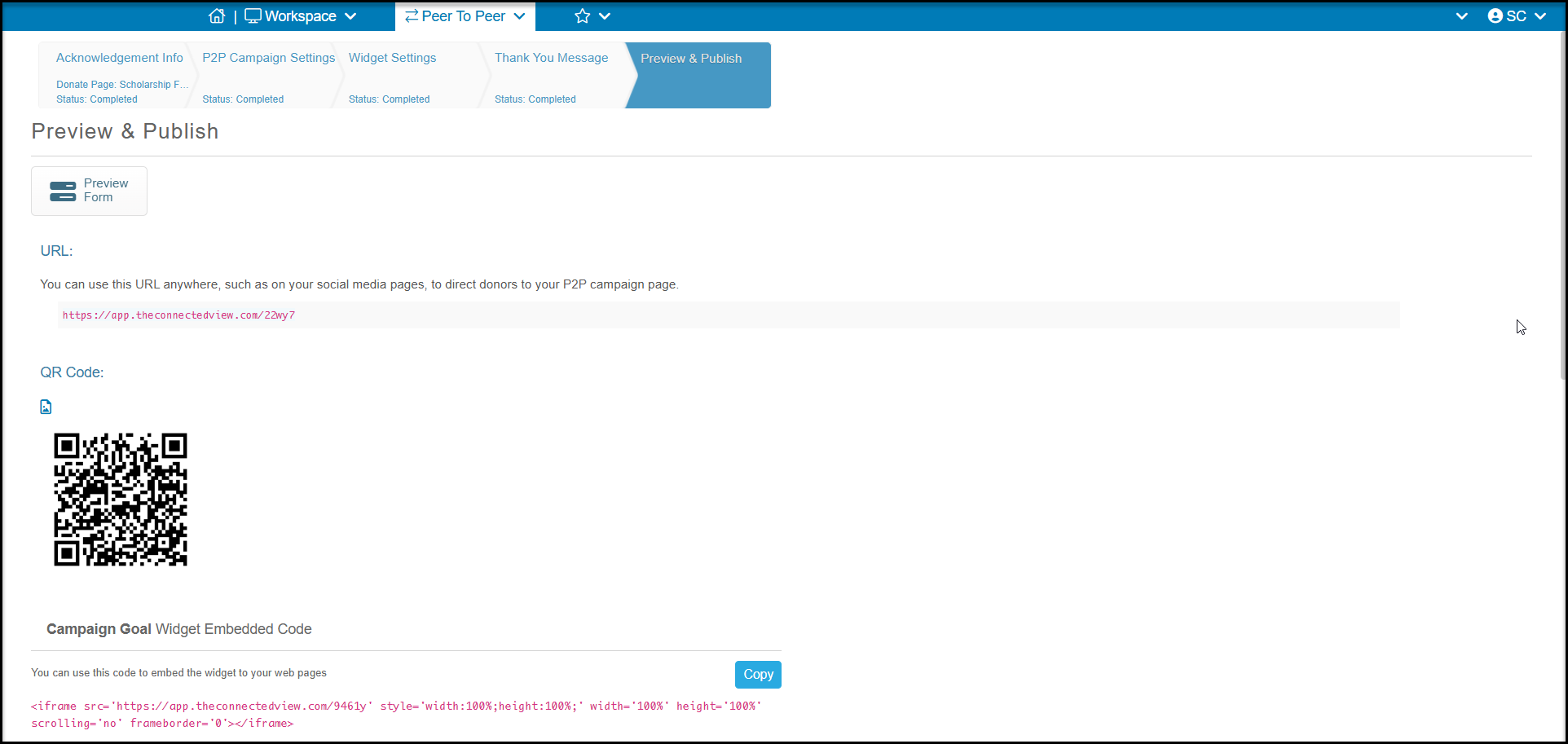
The link will include the name of your campaign, the date of the event (if applicable), the name of the organization and the location included in the P2P Campaign Settings tab.
Constituents with existing portal accounts can enter their email and password and click Sign In to go directly to their existing portal account and begin setting up their fundraising page.
Constituents who do not have a portal account yet, will click Sign Up to enter their name, email, and a password to create a new account. The software will link to existing accounts if it finds a matching email and name.

Creating a Personal Fundraising Page
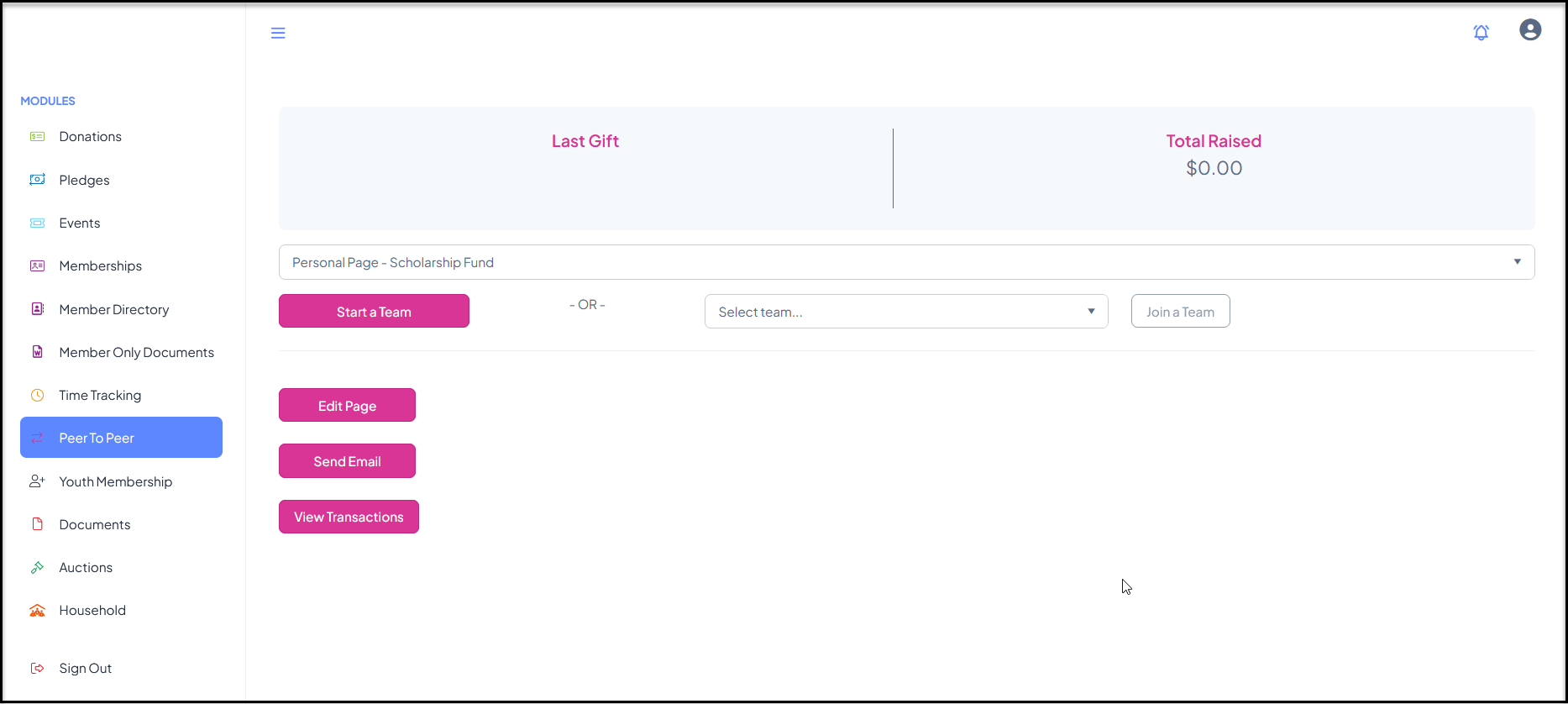
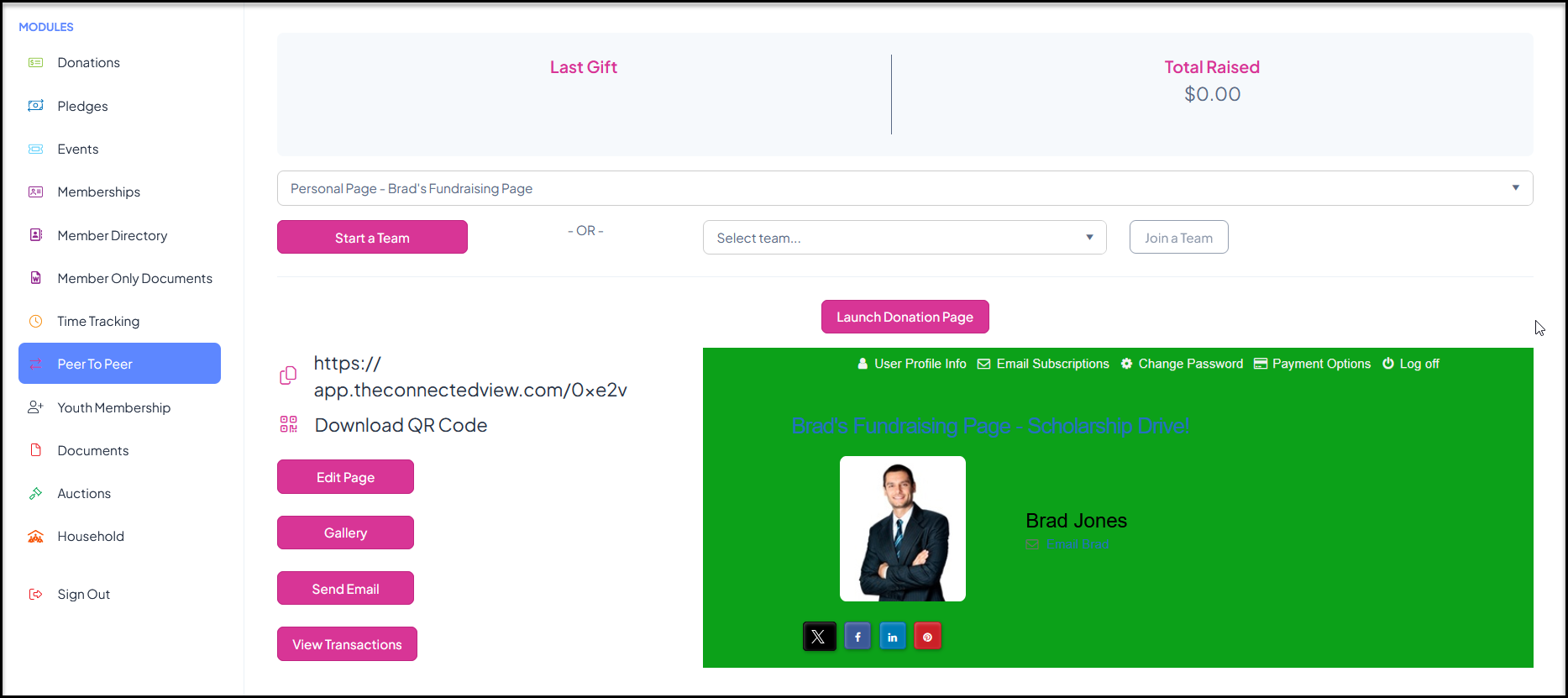
When you log in you will be directed to the P2P module in the Constituents Portal. Since no donations have been received yet, the Last Gift and Total Raised fields will be blank.
In the dropdown list, the name of the P2P campaign they registered for is shown. To begin, the fundraiser will click on Edit Page to edit their personal fundraising page.
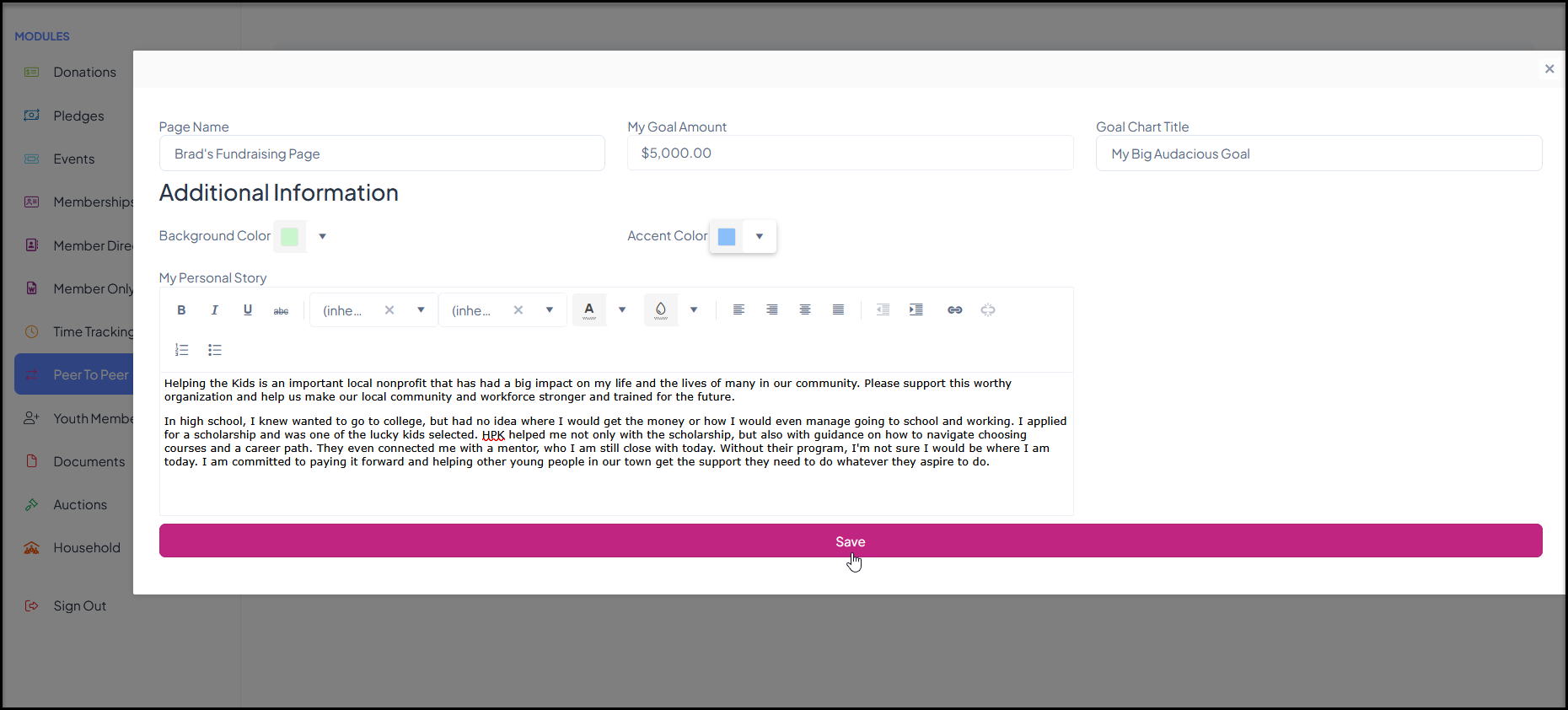
In the new window, the fundraiser will give their page a name under Page Name.
They will enter their personal goal in My Goal Amount.
If they want to add some details on the personal goal progress chart, they can enter a title under Goal Chart Title.
They can also customize the Background Color and Accent Color if desired. If they don't adjust these, the background color will be white and the accent color is a shade of teal.
If you are allowing personal stories on the pages, they can edit this information under My Personal Story.
Once they have updated these fields, click Save to generate the unique URL and QR Code for their personal page.
They will see a new link to Launch Donation Page, their personal fundraising page URL and QR code on the left side of the page. A preview of their page will also show under the Launch Donation Page button. They can share this URL and QR code with their social network to solicit the donations to their page.
Clicking on Edit Page will allow them to go back and edit the page.
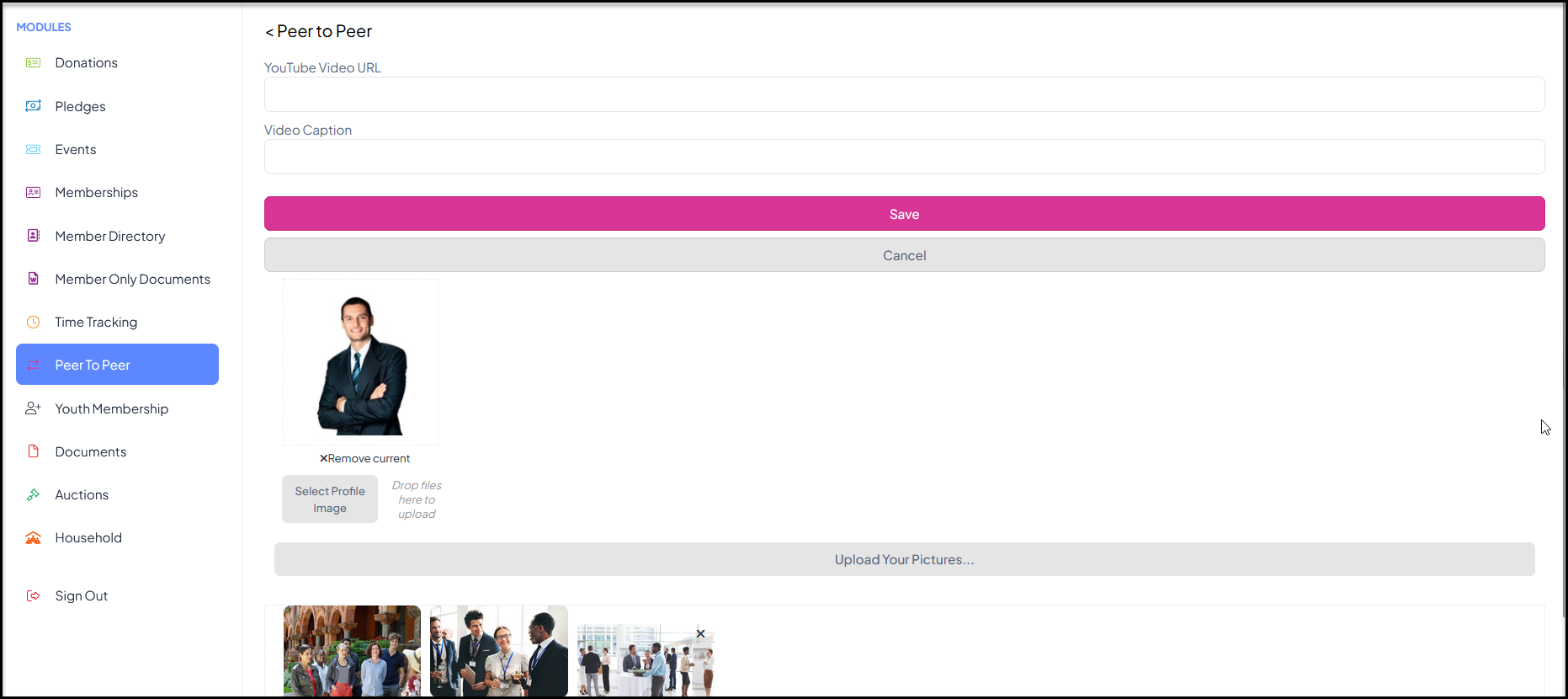
The Gallery button allows the fundraiser to add their own pictures and update their profile picture. If their constituent profile record already had a profile picture, it will be added automatically, but they can remove it if desired.
They can add a YouTube Video URL and Video Caption. If a video link is added, click Save to add the image and pay link to the page.
Clicking on Upload Your Pictures will allow them to add their own pictures, but they cannot remove any that you had added via the P2P Campaign Page Settings tab. If they wish to remove any of the images they uploaded, they can click on the small “x” in the upper right corner of the image to remove it.
Clicking on <Peer to Peer will return to the previous page.
Fundraisers can come back to their fundraising page and make edits anytime.
Joining a Team
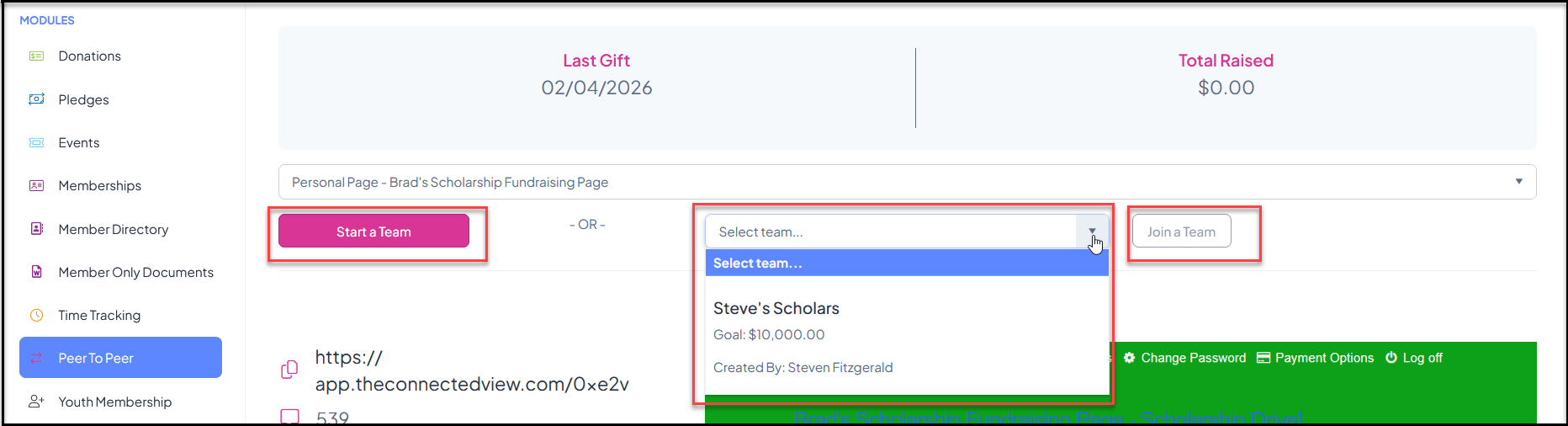
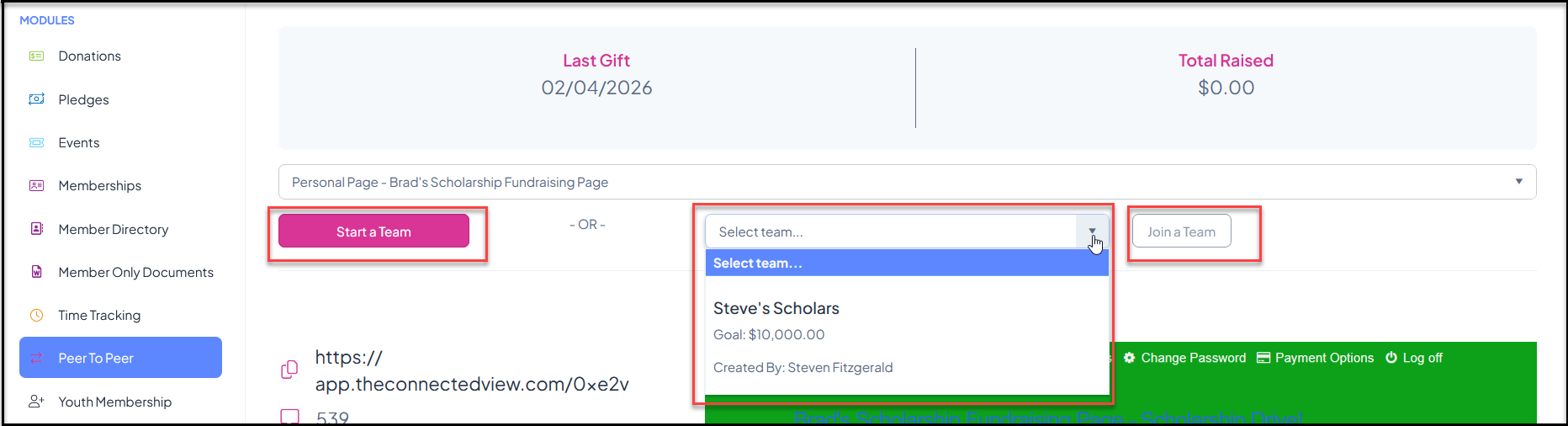
If you have allowed teams, at the top of the page you will see an option to Start a Team or Join a Team.
To join an existing team, the fundraiser will select a team from the dropdown menu. Once the team is selected, The Join a Team button will turn pink and they can click on it to become a member of that team.
Once a fundraiser has joined a team, a new menu button will appear for My Team.
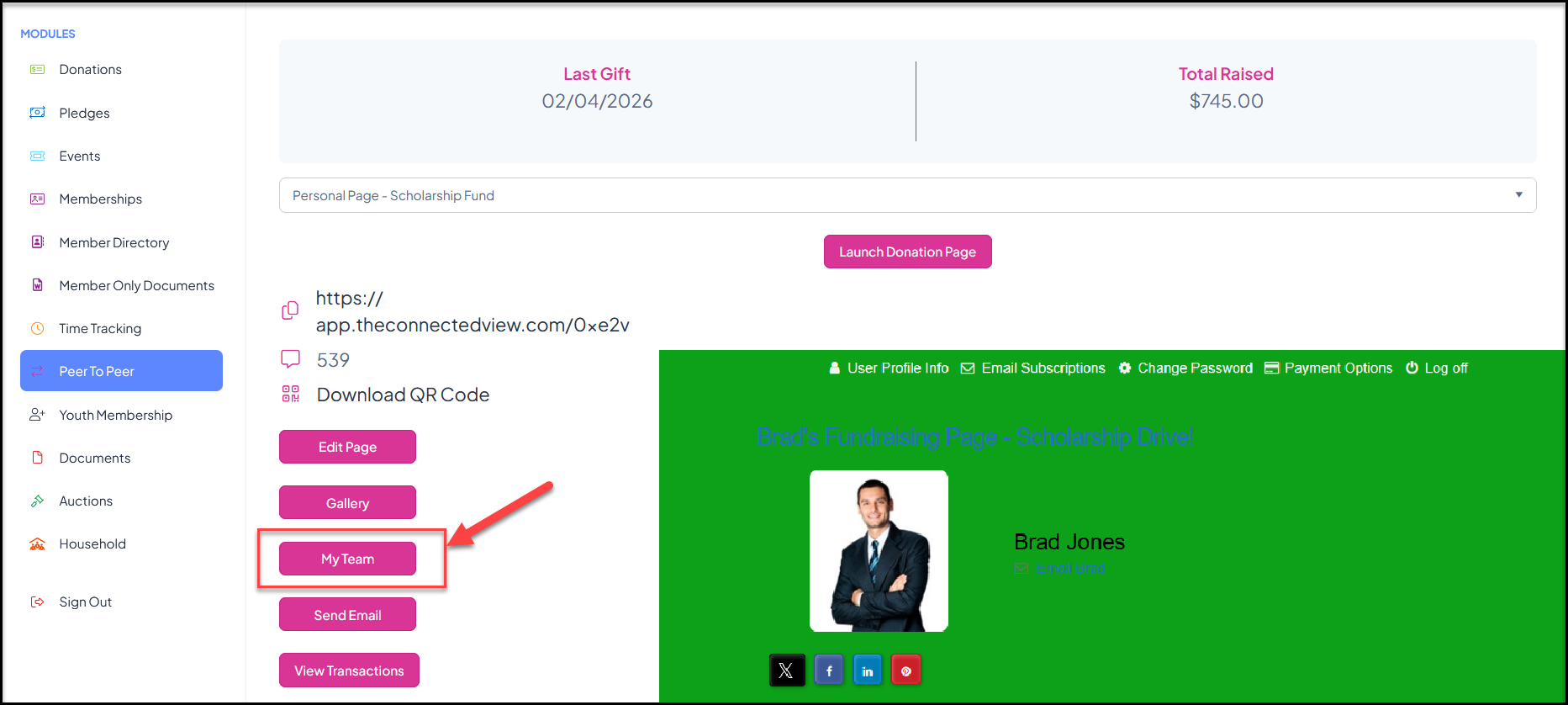
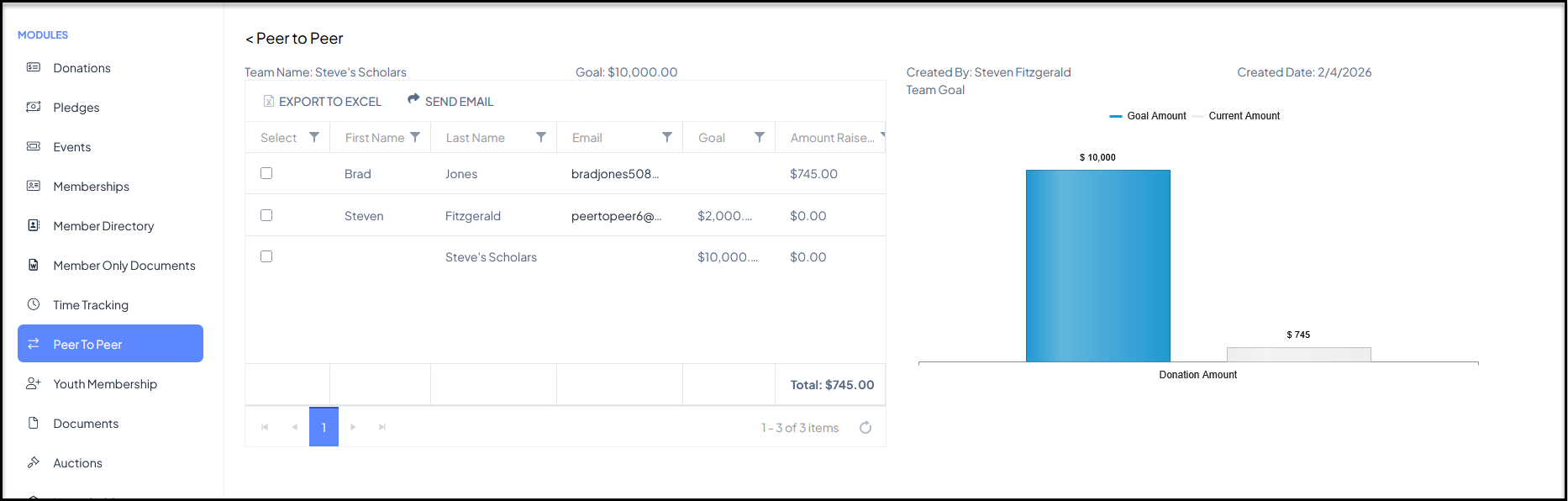
Clicking on My Team will open a new page to show all the members of the team, their goals and how much they have raised so far. You can also see the overall team goal.
Click on <Peer to Peer to return to the previous page.
Starting a New Team
If the fundraiser would like to start a new team, they click on the Start a Team button.
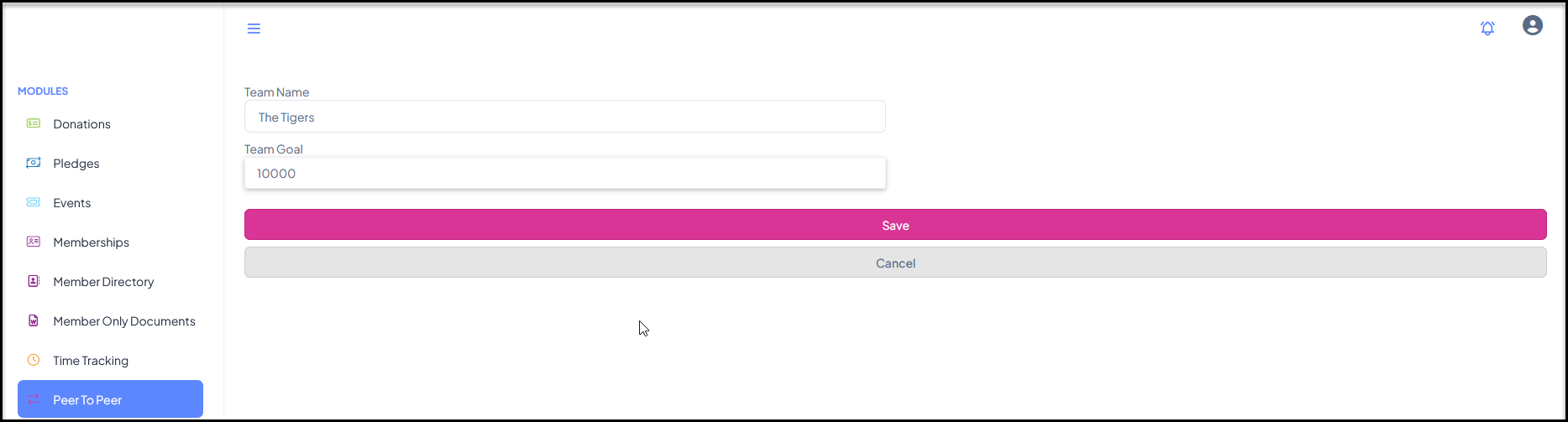
This opens a new window to enter the Team Name and Team Goal. Click Save to create the new team page.
The new team page will show in the team leader's list of pages they can edit.
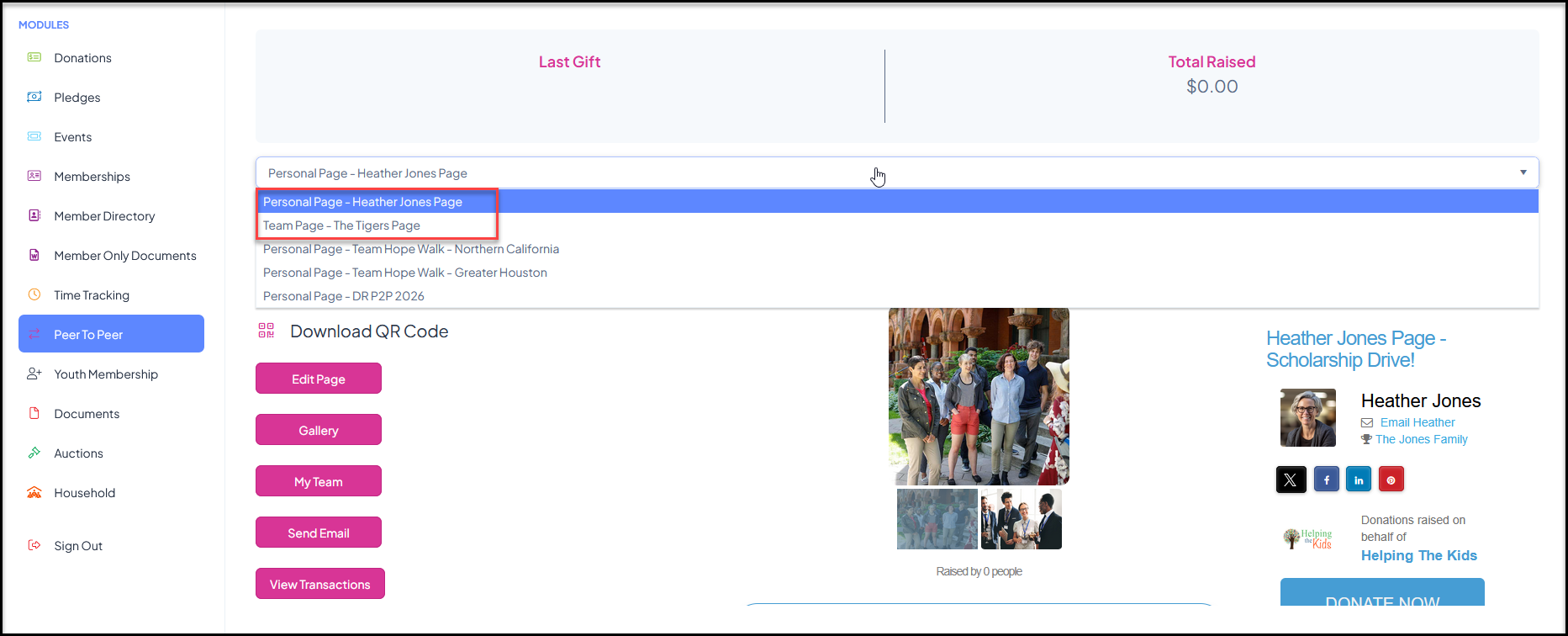
Only the team leader can edit a team page. Once it is selected from the dropdown menu, you can use the Edit Page button to edit the color scheme and other information on the page.