Survey/Forms Contacts - Editing and Managing Email Lists
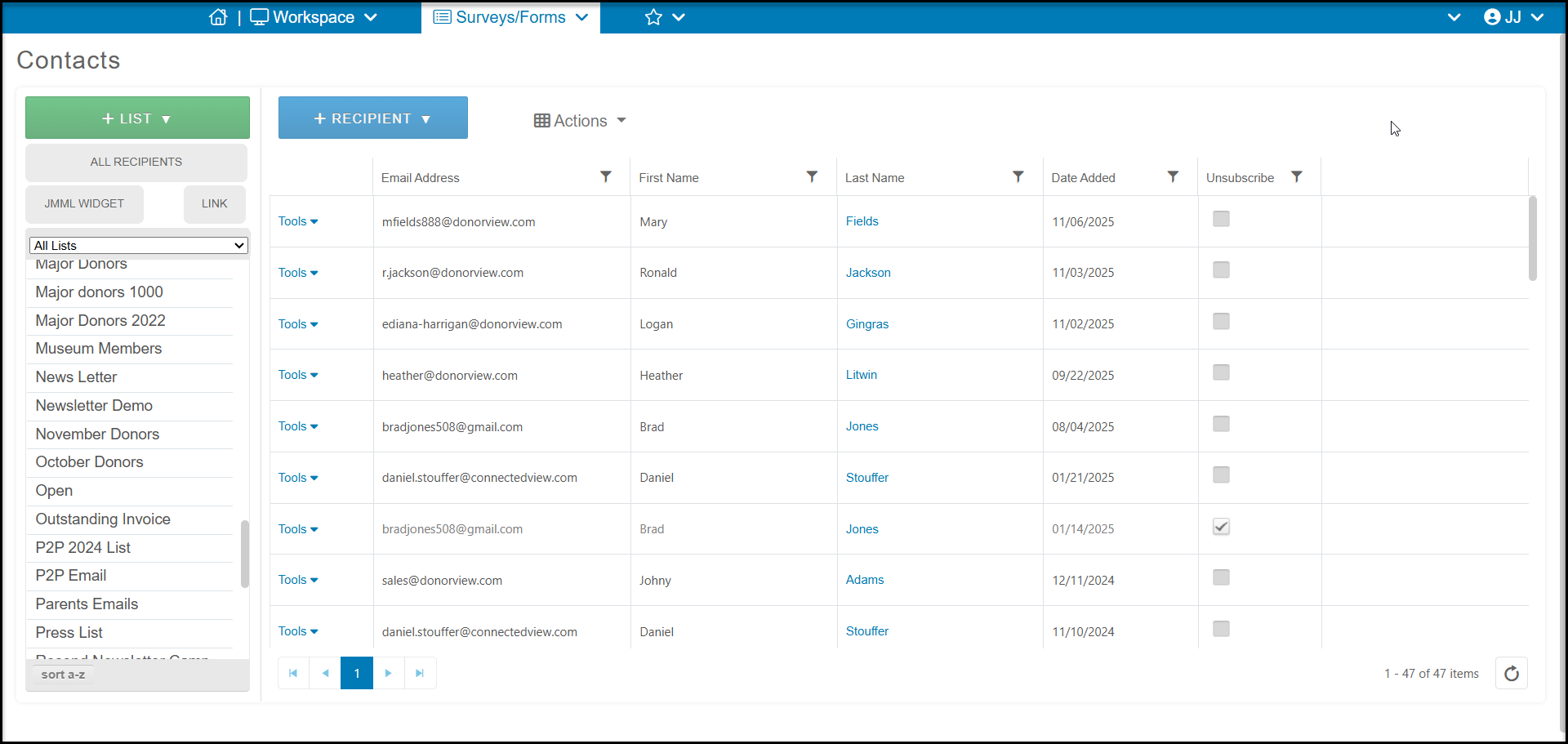
On the Contacts page in the Surveys/Forms module you can manage all of your email lists, just as you would in the Email Marketing module's Contacts page. Clicking on the name of a list will populate the grid with all the constituents who are or were part of that email list.
You can add new recipients to the list either individually or by importing a list by clicking on +Recipient at the top of the grid.
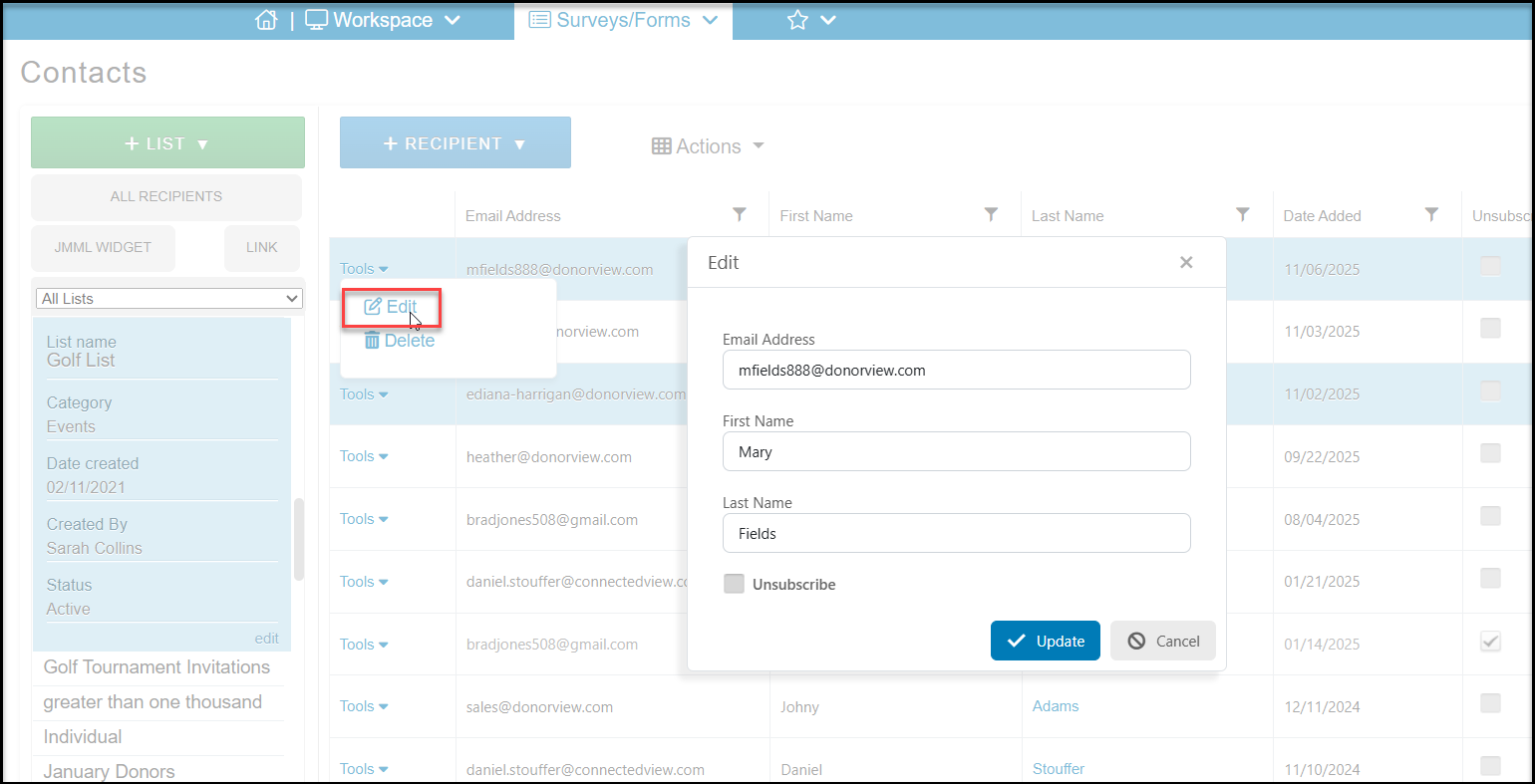
You can use the tools menu on the left side of each row to Edit a constituent's name or email address or delete them from the list. Clicking Delete only removes them from the list, it does not delete the constituent's record in the database.
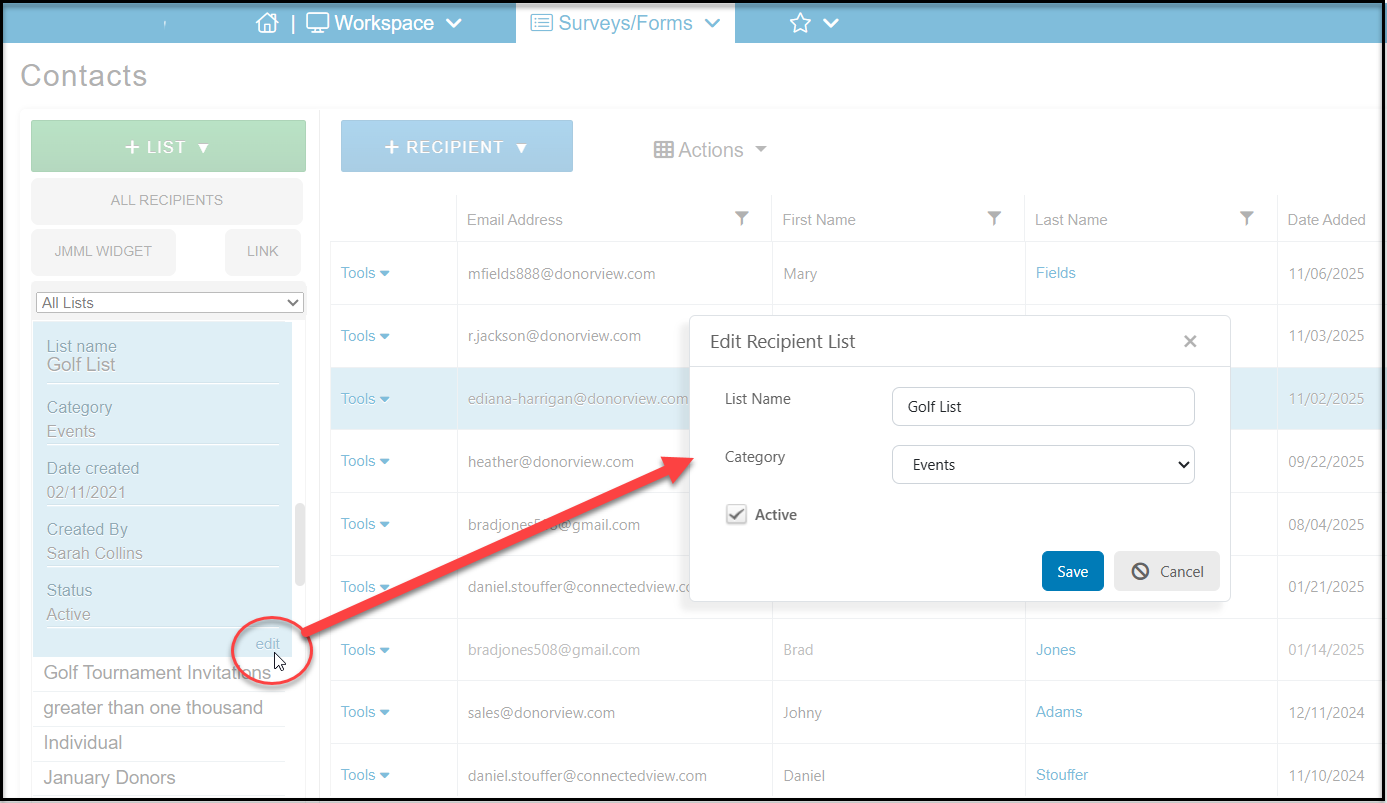
You can also edit the details for a list by clicking the edit link in the lower right corner. This will open a new window so you can edit the List Name, assign it to a different list Category or make the list inactive by unchecking the box next to Active. Always click Save to save your changes. Cancel will close the window without saving.
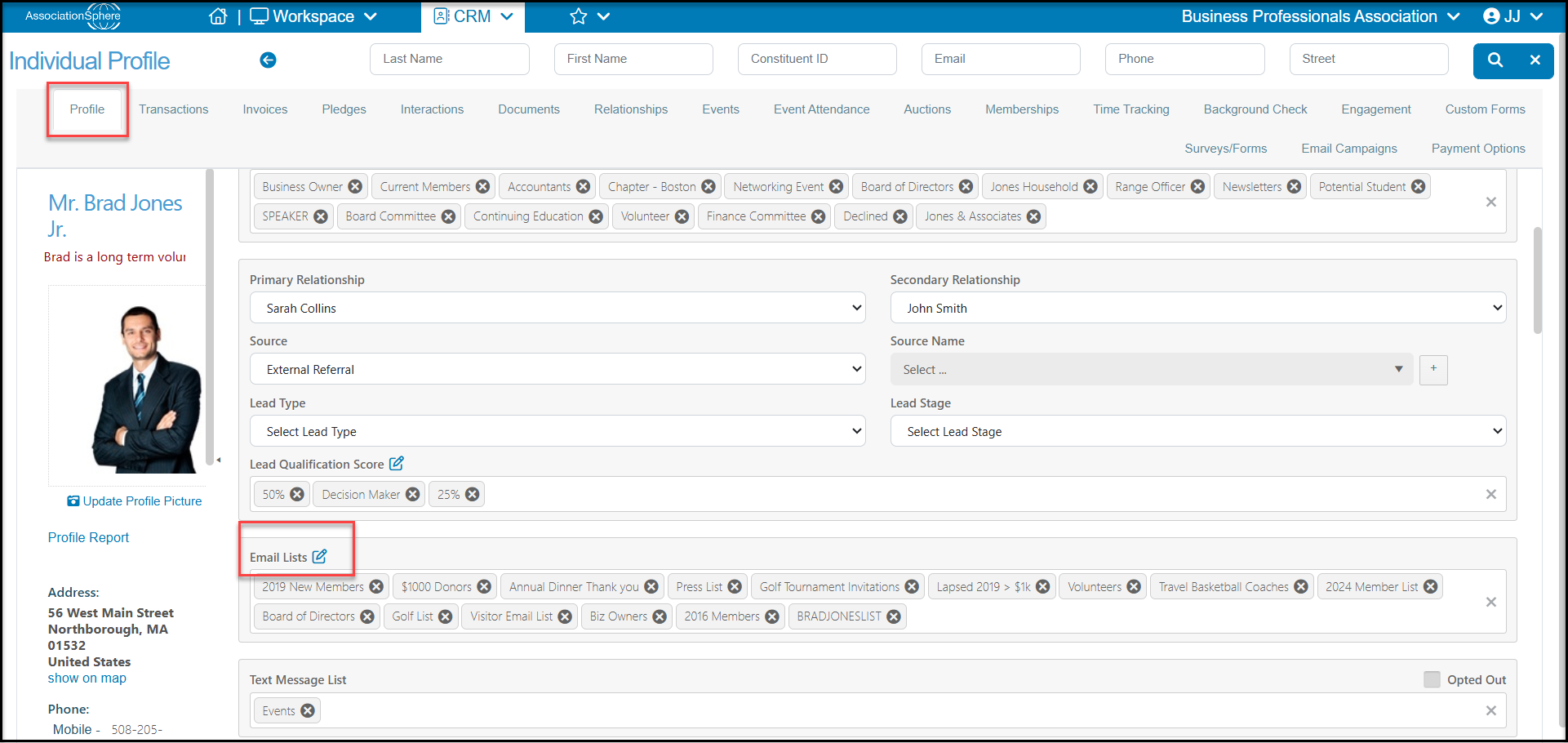
You can also add a constituent to an email list on their profile page by clicking in the white space under Email Lists and selecting which lists to subscribe them to. You can also click the “x” next to any list they are currently on to remove them from that list.
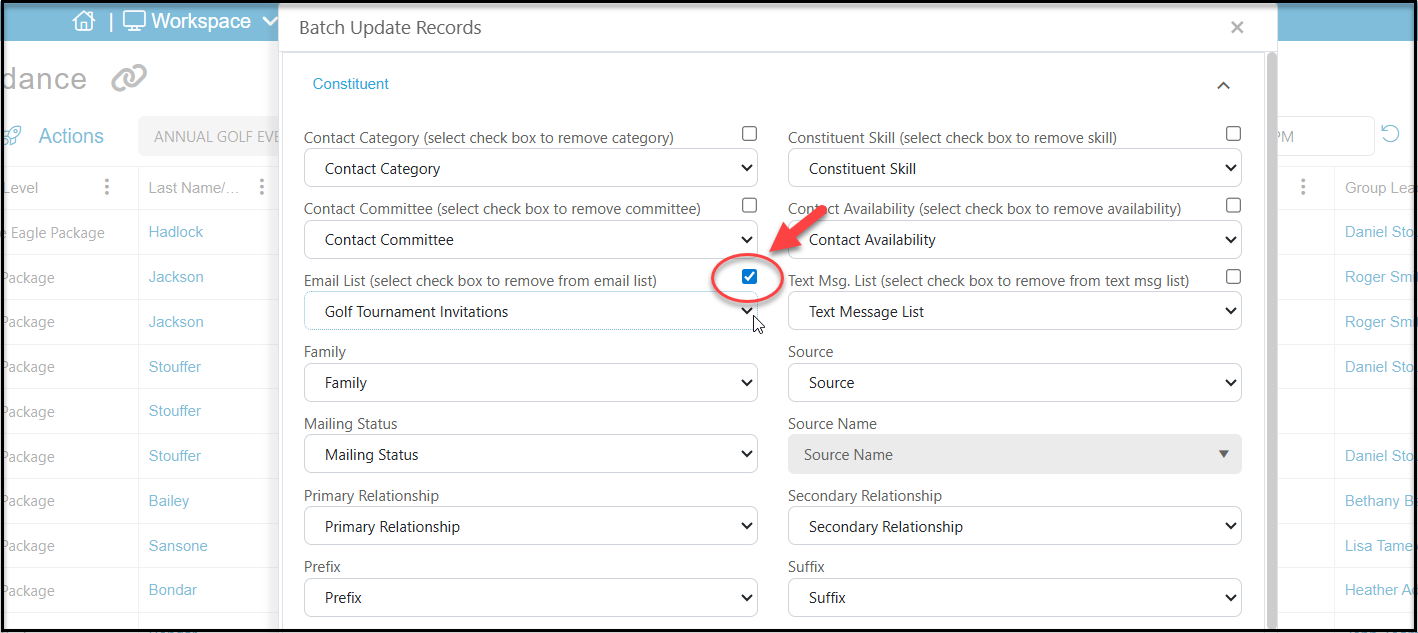
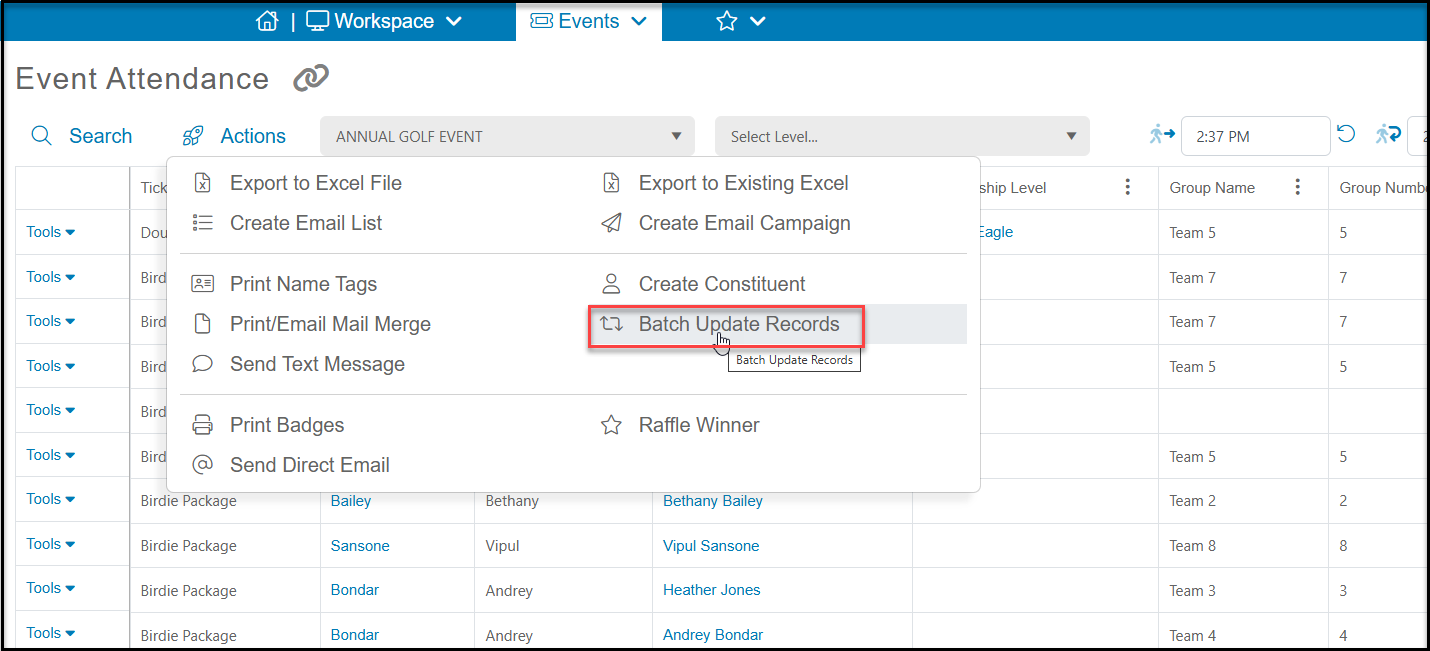
You can also use the Batch Update feature from the main grids to add or remove constituents from an email list. For example, if you want to send a reminder about tickets for an upcoming event, but you want to remove anyone who has already purchased from your email list, you can use the Batch Update link from the Actions menu.
In the new window, check the box next to the Email List field and then select the list you wish to remove them from in the drop down. Be sure to scroll all the way to the bottom of the window and click Update to save your changes.