
What is a Recurring Event?
A recurring event is one that happens on a regular frequency like:
- A safety training class that happens every Thursdays at 6 PM
- A volunteer shift for student tutoring that happens Mondays - Thursdays at 3 PM
- A networking event that happens on the third Wednesday of every month at 8 AM
- A virtual zoom meeting that happens Tuesday evenings at 7 PM, but the week varies from month to month.
- An education program that includes 7 courses and each course happens at a different time and date, but you would like one registration for the entire program.
Recurring events allow you to add multiple occurances of the same activity on one event page. This allows you to only need one URL and link for registration, constituents can sign up for many sessions at once, and attendee information is shown on one grid.
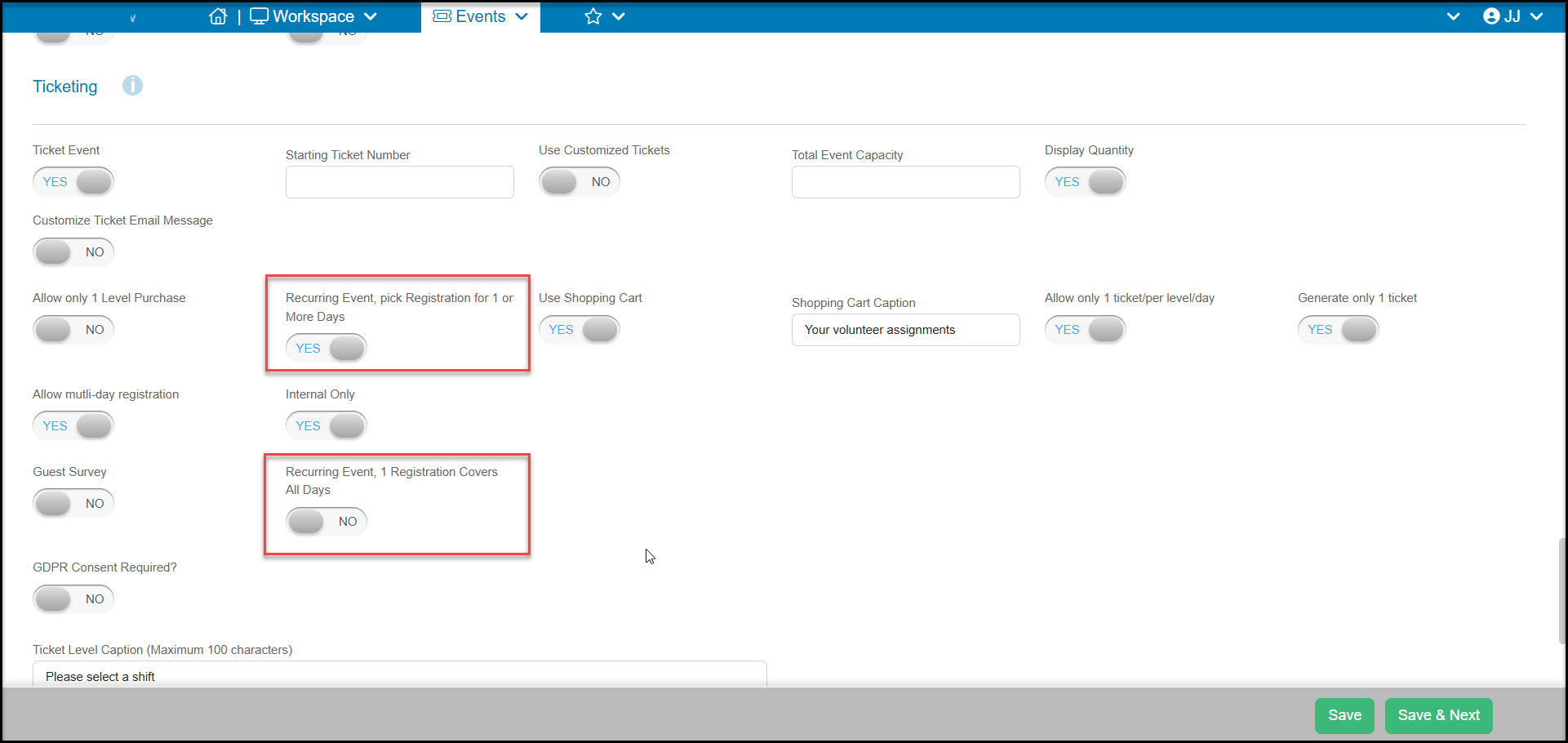
There are two basic options for recurring events.
Option 1 - Recurring Event, pick Registration for 1 or More Days- this option uses a calendar and allows the constituent to either choose specific days on the calendar to see what is available on each day or, you can activate a multi-day registration option with the calendar to register for all the sessions of a specific ticket level (activity). A new Schedule tab will be added to the event page to manage particular days and ticket level availability.
Option 2 - Recurring Event, 1 Registration Covers All Days- this option means the constituent only needs to select the ticket level (activity) once and they are registered for all sessions automatically. This option also offers a lot of flexibility in the scheduling for each specific level. This would be the option you select for the example of an education program that includes 7 courses and each course happens at a different time and date, but you would like one registration for the entire program.
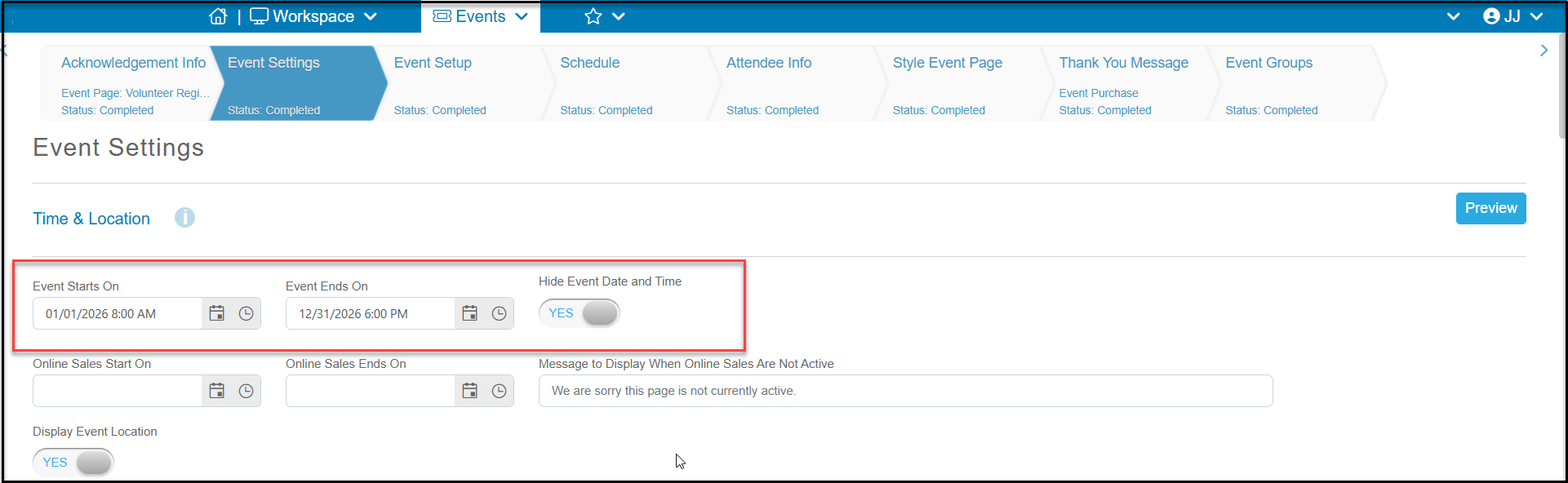
For any recurring event, it is critical to determine the duration for the entire recurring event using the Event Starts On and Event Ends On date fields at the top of the Event Settings tab.
Depending on the complexity of the event, you may want to limit this time frame to a semester or quarter to more easily manage your registrations. The longer the duration, the more records will be showing on your grids and the more days that will be included in your Schedule tab to manage.
Also, if you wish your event to show on the Events Calendar, only events with a start date within the last 420 days will show on the calendar.
To learn more about Option 1, which uses the calendar for registration, see this article: "Creating recurring events which use a calendar for registration."
To learn more about Option 2, which has one registration that covers all occurrences with a custom schedule, see this article:"Creating recurring events where one registration covers all days."