What are the summary data columns on the Constituents grid?

Updated Oct 4, 2024

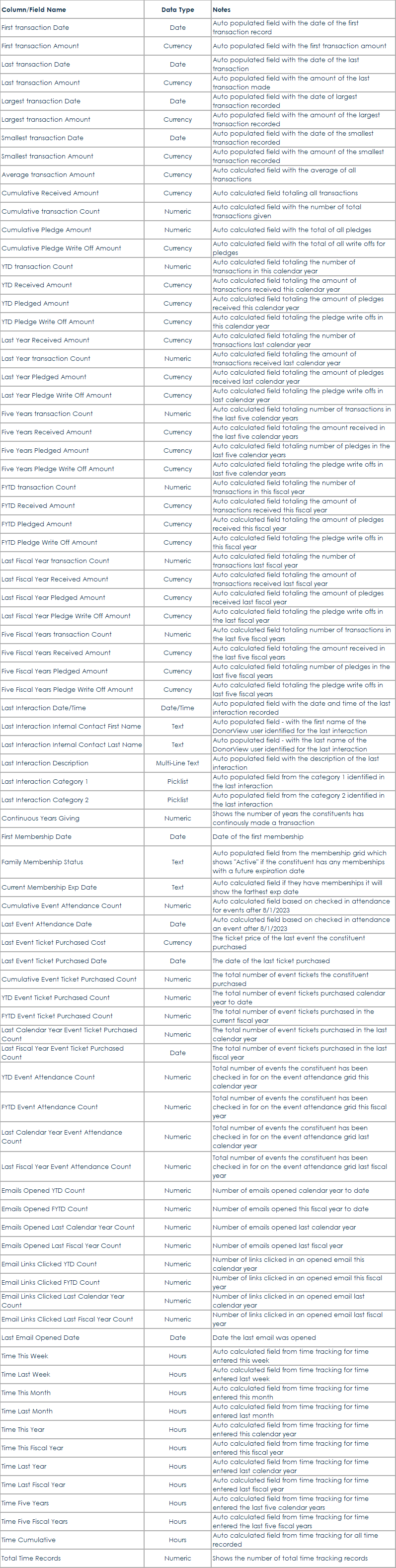
The Constituents grid includes many columns which are automatically generated from historical data. These fields, shown below, include summary information for transaction history, memberships, time tracking, event attendance, and interactions. The columns only update once per day, overnight. So if there is new data entered today, for example a new donation recorded, the new totals will not be reflected on the grid until the next morning. (Continued below table...)

Column/Field Name Data Type Notes
First Transaction Date Date Auto populated field with the date of the first transaction record
First Transaction Amount Currency Auto populated field with the first transaction amount
Last Transaction Date Date Auto populated field with the date of the last transaction
Last Transaction Amount Currency Auto populated field with the amount of the last transaction made
Largest Transaction Date Date Auto populated field with the date of largest transaction recorded
Largest Transaction Amount Currency Auto populated field with the amount of the largest transaction recorded
Smallest Transaction Date Date Auto populated field with the date of the smallest transaction recorded
Smallest Transaction Amount Currency Auto populated field with the amount of the smallest transaction recorded
Average Transaction Amount Currency Auto calculated field with the average of all transactions
Cumulative Received Amount Currency Auto calculated field totaling all transactions
Cumulative Transaction Count Numeric Auto calculated field with the number of total transactions given
Cumulative Pledge Amount Numeric Auto calculated field with the total of all pledges
Cumulative Pledge Write Off Amount Currency Auto calculated field with the total of all write offs for pledges
YTD Transaction Count Numeric Auto calculated field totaling the number of transactions in this calendar year
YTD Received Amount Currency Auto calculated field totaling the amount of transactions received this calendar year
YTD Pledged Amount Currency Auto calculated field totaling the amount of pledges received this calendar year
YTD Pledge Write Off Amount Currency Auto calculated field totaling the pledge write offs in this calendar year
Last Year Received Amount Currency Auto calculated field totaling the number of transactions last calendar year
Last Year Transaction Count Numeric Auto calculated field totaling the amount of transactions received last calendar year
Last Year Pledged Amount Currency Auto calculated field totaling the amount of pledges received last calendar year
Last Year Pledge Write Off Amount Currency Auto calculated field totaling the pledge write offs in last calendar year
Five Years Transaction Count Numeric Auto calculated field totaling number of transactions in the last five calendar years
Five Years Received Amount Currency Auto calculated field totaling the amount received in the last five calendar years
Five Years Pledged Amount Currency Auto calculated field totaling number of pledges in the last five calendar years
Five Years Pledge Write Off Amount Currency Auto calculated field totaling the pledge write offs in last five calendar years
FYTD Transaction Count Numeric Auto calculated field totaling the number of transactions in this fiscal year
FYTD Received Amount Currency Auto calculated field totaling the amount of transactions received this fiscal year
FYTD Pledged Amount Currency Auto calculated field totaling the amount of pledges received this fiscal year
FYTD Pledge Write Off Amount Currency Auto calculated field totaling the pledge write offs in this fiscal year
Last Fiscal Year Transaction Count Numeric Auto calculated field totaling the number of transactions last fiscal year
Last Fiscal Year Received Amount Currency Auto calculated field totaling the amount of transactions received last fiscal year
Last Fiscal Year Pledged Amount Currency Auto calculated field totaling the amount of pledges received last fiscal year
Last Fiscal Year Pledge Write Off Amount Currency Auto calculated field totaling the pledge write offs in the last fiscal year
Five Fiscal Years Transaction Count Numeric Auto calculated field totaling number of transactions in the last five fiscal years
Five Fiscal Years Received Amount Currency Auto calculated field totaling the amount received in the last five fiscal years
Five Fiscal Years Pledged Amount Currency Auto calculated field totaling number of pledges in the last five fiscal years
Five Fiscal Years Pledge Write Off Amount Currency Auto calculated field totaling the pledge write offs in last five fiscal years
Last Interaction Date/Time Date/Time Auto populated field with the date and time of the last interaction recorded
Last Interaction Internal Contact First Name Text Auto populated field - with the first name of the DonorView user identified for the last interaction
Last Interaction Internal Contact Last Name Text Auto populated field - with the last name of the DonorView user identified for the last interaction
Last Interaction Description Multi-Line Text Auto populated field with the description of the last interaction
Last Interaction Category 1 Picklist Auto populated field from the category 1 identified in the last interaction
Last Interaction Category 2 Picklist Auto populated field from the category 2 identified in the last interaction
First Membership Date Date Date of the first membership
Family Membership Status Text Auto populated field from the membership grid which shows "Active" if the constituent has any memberships with a future expiration date
Current Membership Exp Date Text Auto calculated field if they have memberships it will show the farthest exp date
Cumulative Event Attendance Count Numeric Auto calculated field based on checked in attendance for events after 8/1/2023
Last Event Attendance Date Date Auto calculated field based on checked in attendance an event after 8/1/2023
Time This Week Hours Auto calculated field from time tracking for time entered this week
Time Last Week Hours Auto calculated field from time tracking for time entered last week
Time This Month Hours Auto calculated field from time tracking for time entered this month
Time Last Month Hours Auto calculated field from time tracking for time entered last month
Time This Year Hours Auto calculated field from time tracking for time entered this calendar year
Time This Fiscal Year Hours Auto calculated field from time tracking for time entered this fiscal year
Time Last Year Hours Auto calculated field from time tracking for time entered last calendar year
Time Last Fiscal Year Hours Auto calculated field from time tracking for time entered last fiscal year
Time Five Years Hours Auto calculated field from time tracking for time entered the last five calendar years
Time Five Fiscal Years Hours Auto calculated field from time tracking for time entered the last five fiscal years
Time Cumulative Hours Auto calculated field from time tracking for all time recorded

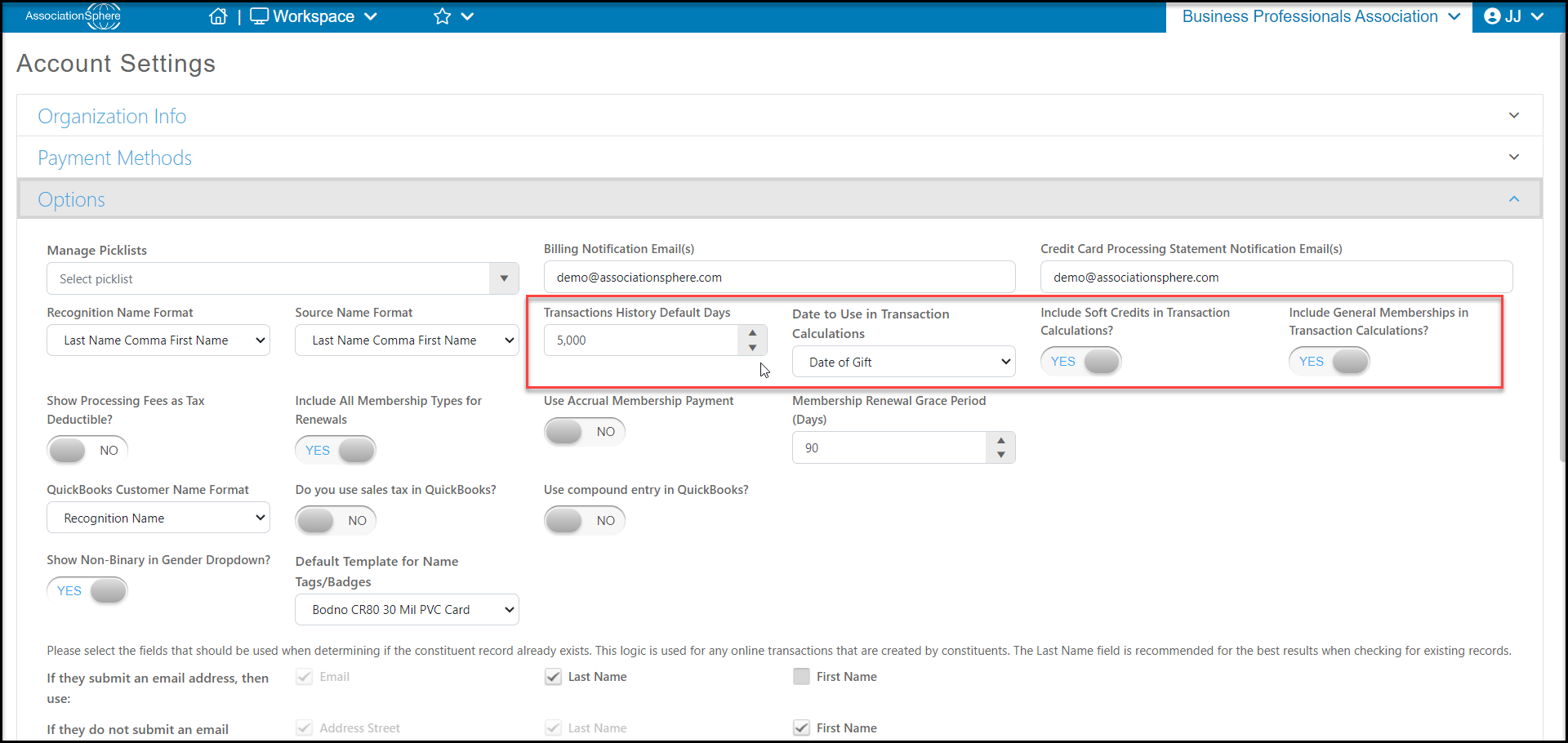
By default the transactions fields will include any general, event, membership in kind, stock, invoice payment, or pledge payment types of transactions. You can add soft credits or exclude membership transaction in these calculation if desired by going to the Account Settings page located in the menu under your organization's name. In Account Settings, go to the Options section.

  • Mark Include Soft Credits in Gift Calculations? to YESto include any general, event, membership, in kind, stock, or pledge payments, or invoice payments that are soft credited to the constituent in their summary totals.
  • Mark Include General Memberships in Gift Calculations? to NOif you wish to EXCLUDE any membership type transactions in the summary totals.

You also can choose the total number of days that are included in the calculations as well as what date is used for calculations.

  • In Transaction History Default Days you can enter a total number of days you wish to use in calculations. So if you have many years of data, you can limit it to something like 10 years (3,653) if desired. If this field is blank it will use all of the data.
  • Under Date to Use in Transactions Calculations it defaults to the Check Date, but you can select the Date of Gift, Postmark Date, or Deposit Date as desired.
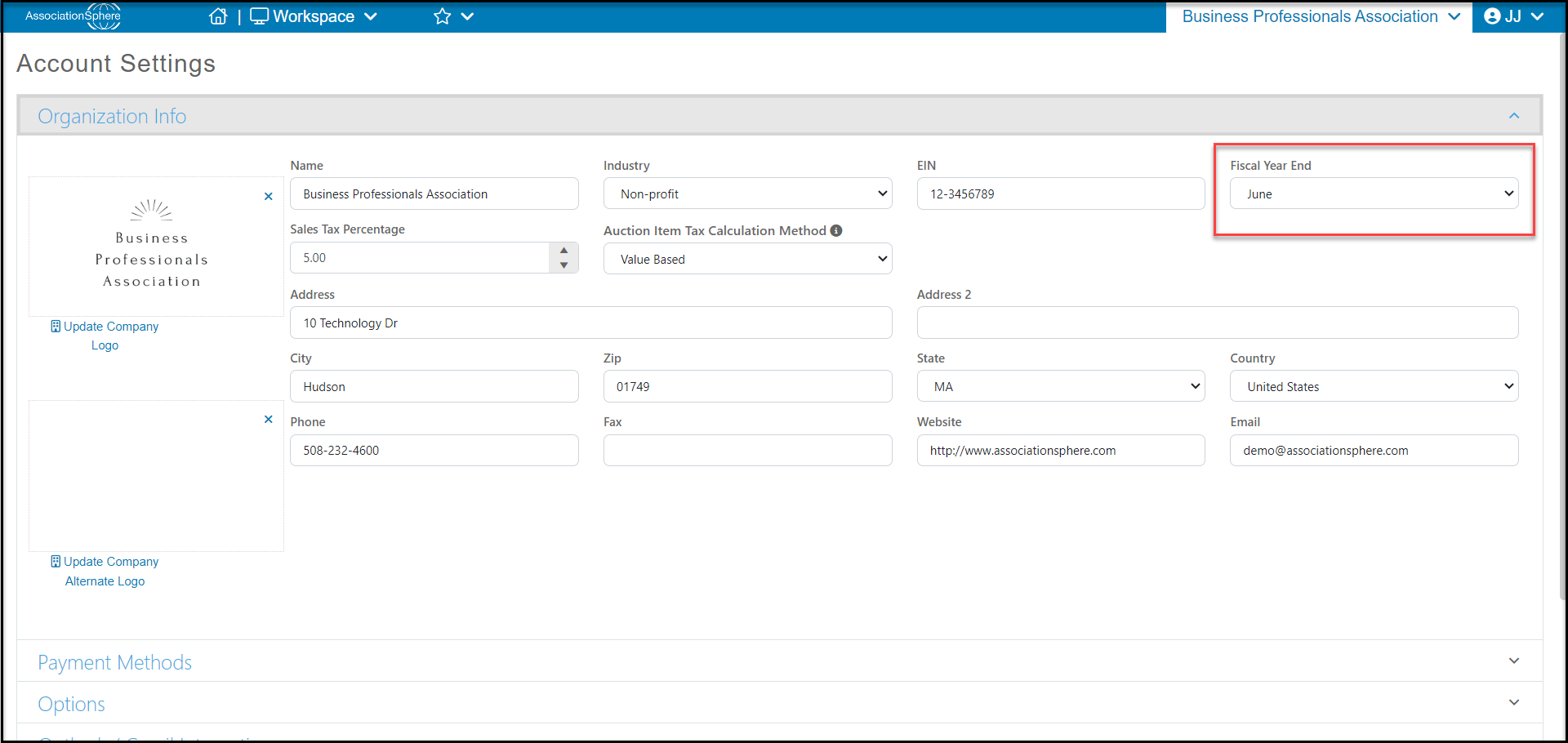
Your fiscal year data is determined by the month entered in the Fiscal Year End field in the Organization Info section of your organization's Account Settings. For example, if June is entered, the Fiscal Year data fields will include transactions between July 1st and June 30th.
Was this article helpful?