
Can I import constituents or transactions?
Yes, this feature can be activated by sending a request to support@associationsphere.com. Once activated, the support team will send an import template to organize your data.
There are two Excel files for importing data, a Constituent Import Template and a Gift Import Template. If you are only importing names and contact information, you will only need to use the Constituent Import Template. If you need to import transaction information, do the Constituent Import first, then be sure to assign the appropriate Constituent ID number to each transaction record so that it populates into the correct record. You will also import the transaction data from the Constituents grid using the Gift Import Template.
Constituent Import Template
Begin by ensuring you are not importing duplicate constituents into your database and that your data is clean and error free. For tips on cleaning your data, see this article: Tips for Data Conversion. The only required field for your import is Last Name. All other fields are optional. If you are not using a field for any of your constituents, you can delete the entire column from your import file.
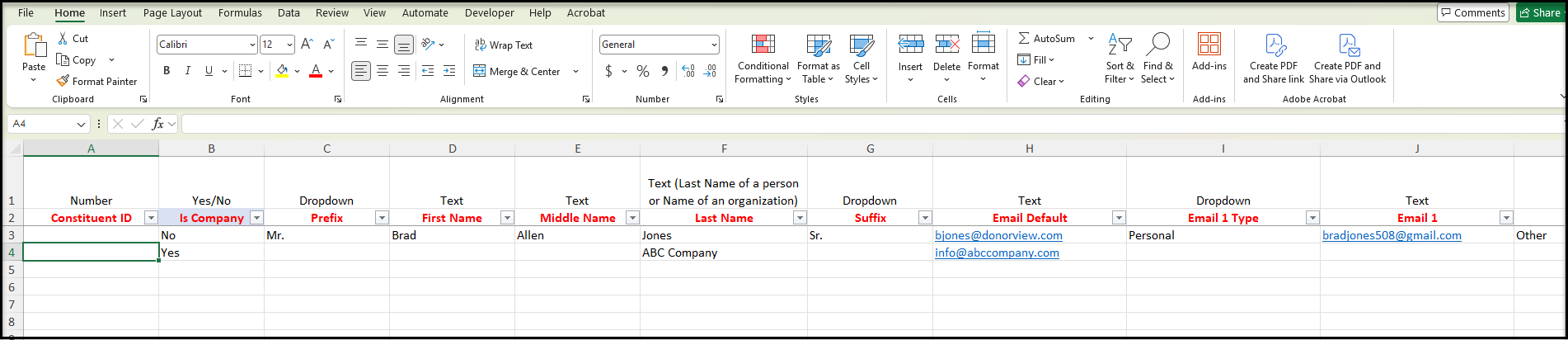
Rows & Field Types
Row 1
In the import template provided by the support team, the top row indicates the type of data for that field (column.) For example, the left most column, the Constituent ID, is a number. This row is for information only must be deleted before you perform the actual import of the data.
Row 2
The second row will include the name of the field as it shows in the AssociationSphere database. For a list of the field names, see this article: Constituent Grid Data Fields. This row should NOT be deleted as it will help you map your data.
Row 3
The third row shows an example of an individual constituent record and some sample data. This row must be deleted before you import your data.
Row 4
The fourth row shows an example of a company constituent record and some sample data. This row must be deleted before you import your data.
Columns & Data
Constituent ID
You will use one row for each constituent you wish to import. If you already have a unique number to identify the constituent, you can use the Constituent ID field for this number. If you do NOT have a number already assigned, you can leave this field blank and the software will automatically assign a number starting with "CV-" and will assign them in numerical order beginning with the first available number in your database.
Individual or Company
The next field, Is Company, determines what type of constituent record this will be. Enter YES for any records that will be a company-type constituent. This includes any organization, business, or group. Enter NO for any records that will be an individual-type constituent, this includes any individual people or couples that you wish to share one record.
Names
If the constituent is a company, enter the name of the organization in the Last Name field. You can keep the other name fields blank. If the constituent is an individual, enter the First Name and Last Name. Prefix, Middle Name and Suffix are optional.
Emails, Phones & Addresses
The next fields allow you to add the email addresses for the constituent. Email Default will be the constituent's primary email address. You can also add two additional emails for the constituent and identify the type of those additional emails. Email Type 1 and Email 1 as well as Email Type 2 and Email 2 are used for optional additional email addresses.
Similar to emails, you can import a Phone Default number and up to two additional phone numbers for the constituent.
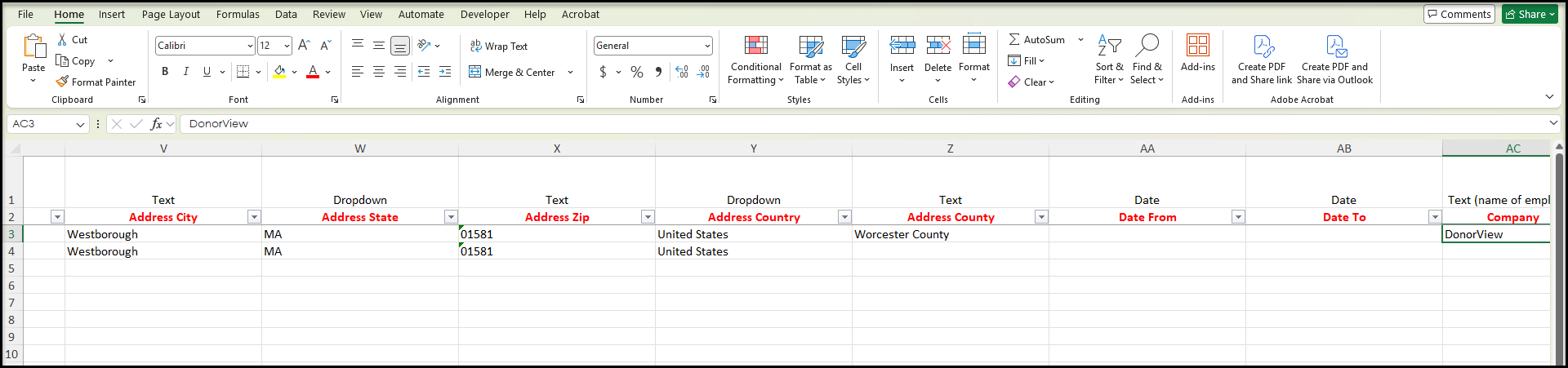
For addresses, you can only import one address per constituent. Additional addresses can be manually added to records as needed. If the address is a temporary or seasonal address, you can also add a Date To and Date From field to indicate when the address is active.
Employer Information
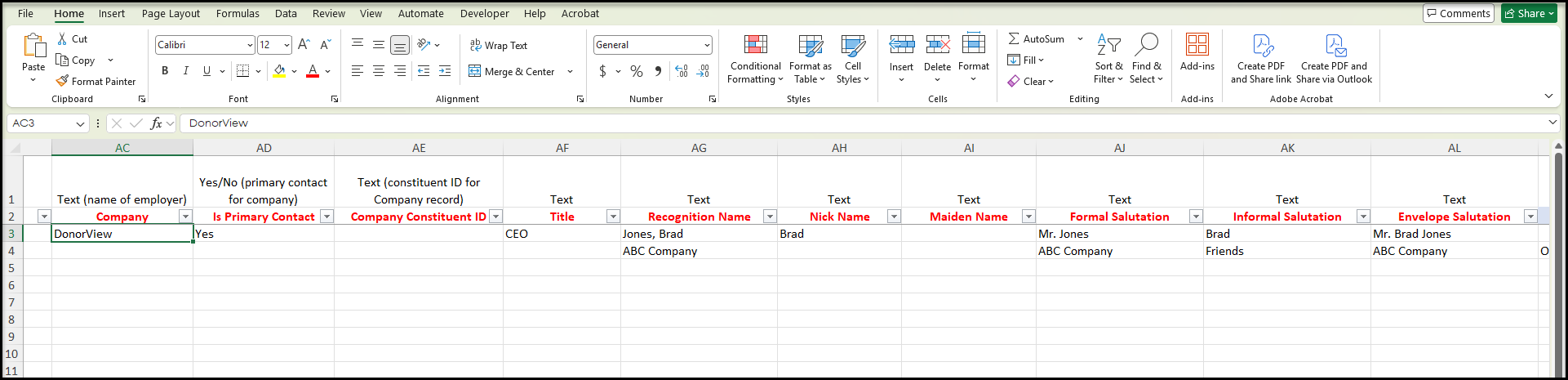
For individual constituents, you can use the Company field to enter the name of the constituent's employer. The Is Primary Contact field is Yes or No, depending on whether or not this person is the company's primary contact. If the company already exists in the software, you can enter the Company Constituent ID to link this new individual record to the existing company record and create an Employer-Employee relationship between the two. Note that any organization's listed in the Company field that are not already in the database will also become constituents and have their own constituent ID. They will also be counted in your total number of constituents.
Other Names and Salutations
You can also customize other naming information like Title, Nickname, and Maiden Name. Recognition Name is automatically assigned as either Last Name, First Name or First Name Last Name depending on your Account Settings. You can also customize the field as desired. The software will automatically update Formal Salutation to be the constituent's Prefix and Last Name, Informal Salutation will be the First Name, and Envelope Salutation is the Prefix, First Name, Last Name, and Suffix. You can leave these blank and allow the software to populate them or you can customize the information. For company constituents, you can add a generic Informal Salutation, like Supporter, as desired since company records do not have a first name.
Company Information
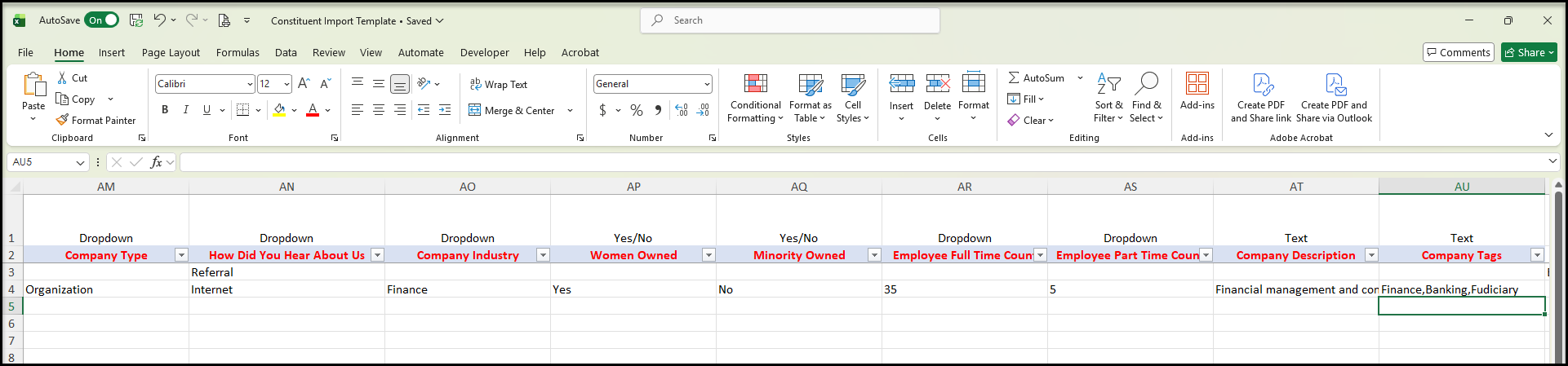
You can enter information about how the constituent came to be involved with your organization in the How Did You Hear About Us field. The other fields highlighted in blue are related to company-type constituents only. In the fields identified as Dropdown, you can enter a single response and all the different responses will become part of the dropdown list for that field. For Employee Counts, you may want to enter in a range such as 1 - 10, and 11 - 20 for easier analysis and reporting later.
Multi-Select Fields
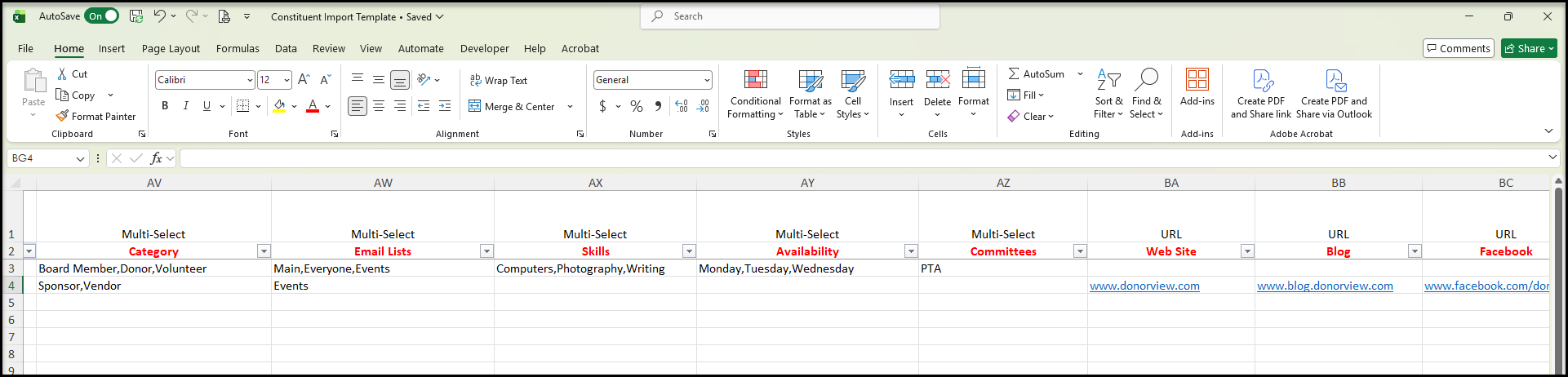
Multi-select fields allow you to add more than one value to a field. For example, in the Category field a constituent could be a member, donor, volunteer, and mentor. There is no limit to the number of assignments in a multi-select field.
Enter your assignments with a comma between each option and no space after the comma. For example, ABC,DEF is correct. ABC, DEF or ABC ,DEF is not correct.
You can learn more about Categories in this article: What is a constituent category? Constituents can be assigned to multiple Email Lists. Skills, Availabilities, and Committees are usually used for volunteer or service activities.
Website & Social Media
You can add information about the constituent's Website, Blog, and social media handles for Facebook, X (Twitter), and LinkedIn.
Additional Information
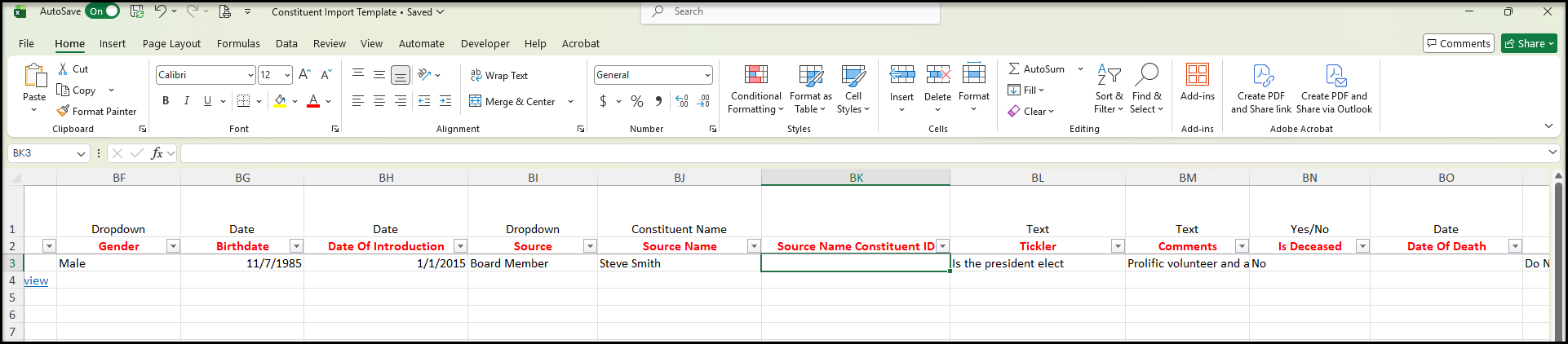
There is additional information fields to add as needed such as Gender, Birthdate, and Date of Introduction. Source another field to identify how this constituent came to be part of your database. If you wish to identify a specific constituent you can enter the Source Name and if they already exist in your database, enter the Source Name Constituent ID. Tickler is a field that will display at the top of the constituent's record and is used for important information about the constituent, such as Do Not Call After 5 PM, or Incoming President. The Comments field allows you to elaborate and add any other information about the constituent in a text format. If the constituent is deceased, you can add the details in Is Deceased and Date of Death.
Mailing Status allows you to identify different physical mailing option like Bad Address, Do Not Mail, or Do Not Solicit. Board Member Status, Board Member Term Dates, and Board Member Position allow you to add information about constituents who serve or served on your board.
Custom Fields
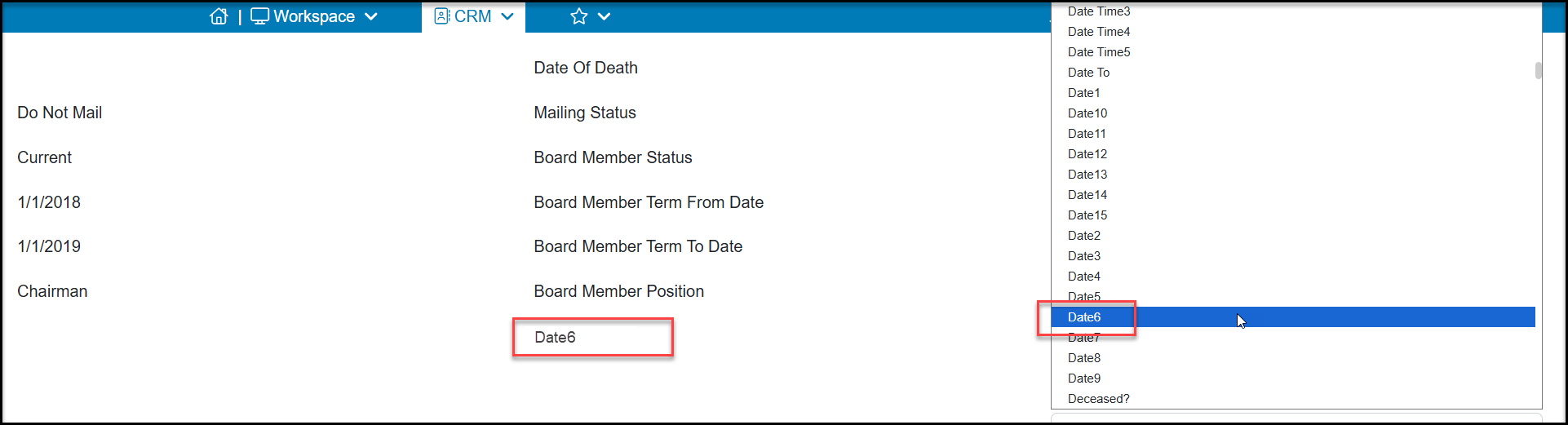
If you have custom fields in your profile pages, be sure to reach out to the support team for the internal identification name of the custom fields for your imports. If you need new custom fields, send requests to support@associationsphere.com. You will map your data to the appropriate field when you perform the import. For example, if you have a custom date field labeled "Graduation Date," its internal identification name may be "Date6." You enter "Date6" in Row 2 to make it easy to identify during your mapping.
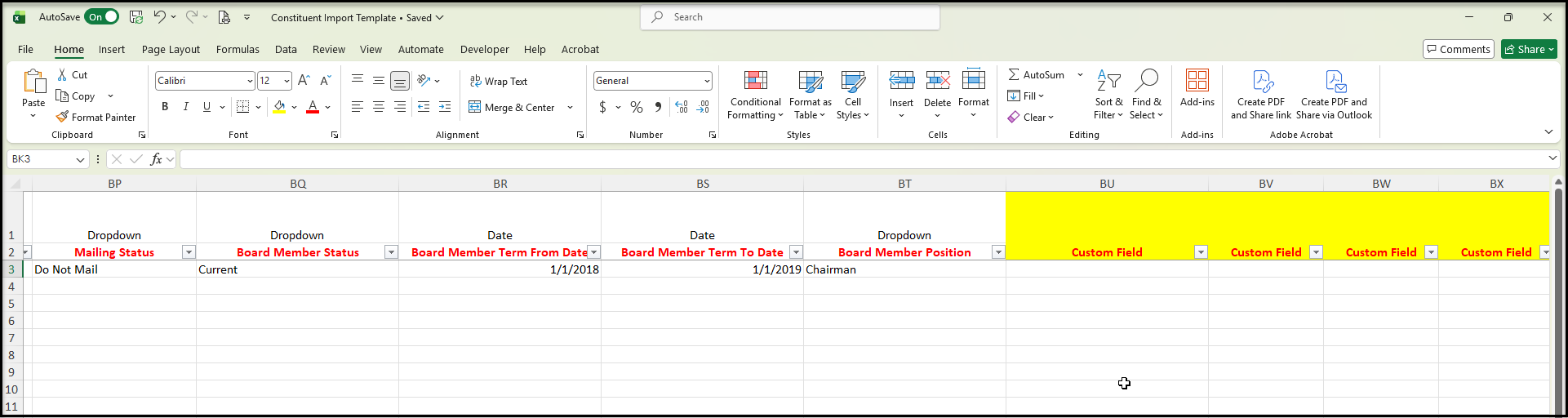
If there are any fields (columns) with no data, they can be deleted prior to import. Once you have added your data to the spreadsheet, you are ready to import.
Importing Constituents
Go to the Constituents grid and select +New and then Import.
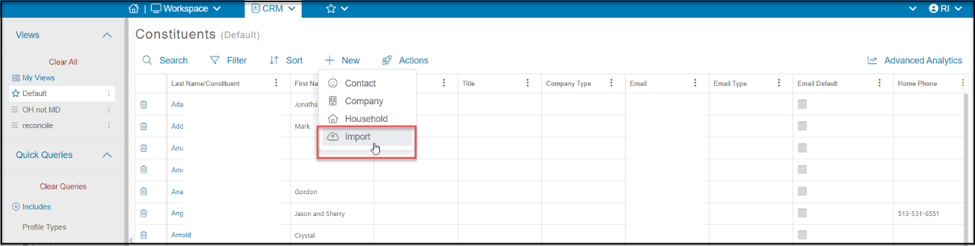
In the new window you will select your file and click Map Columns.
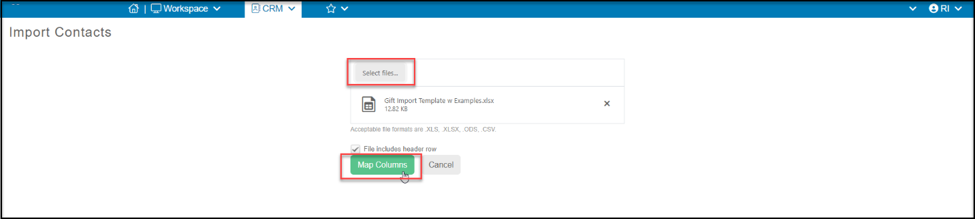
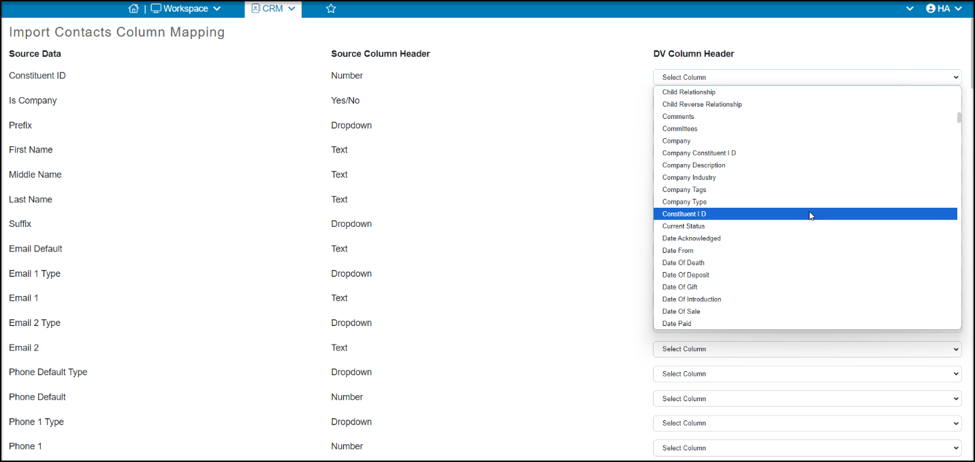
If the fields are not automatically recognized, you will need to select the AS Column Header that the data will be mapped to. For example, Constituent ID in the Source Data is mapped to Constituent ID in the AS Column Header dropdown. Note that Last Name is used also as the Company Name for company/organization records.
Custom fields will be at the bottom of your list. If you have labeled them with their internal identification, you can map the custom field to the appropriate field in your database by selecting it from the list.
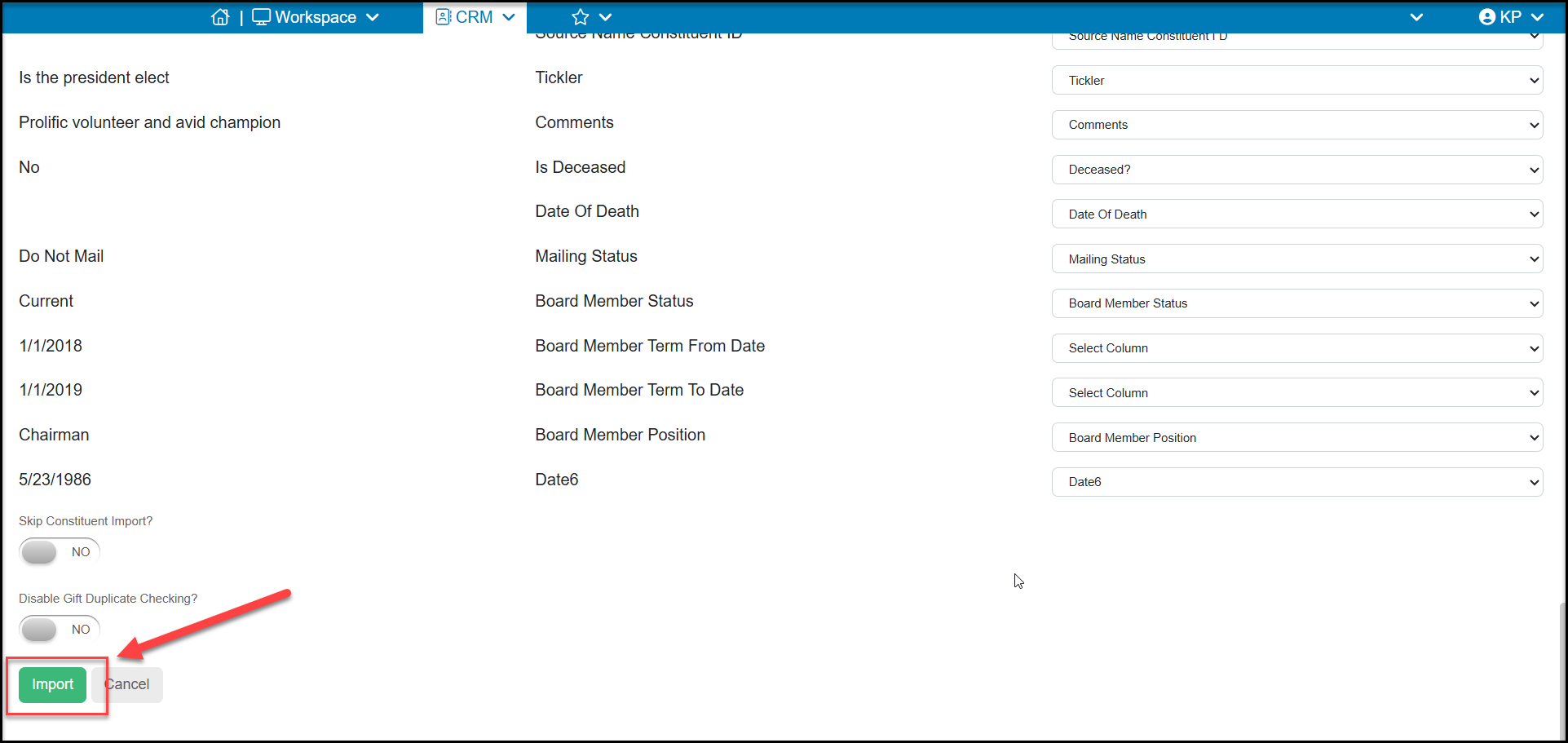
Once all your columns are mapped, click on Import at the bottom of the screen to import the data.
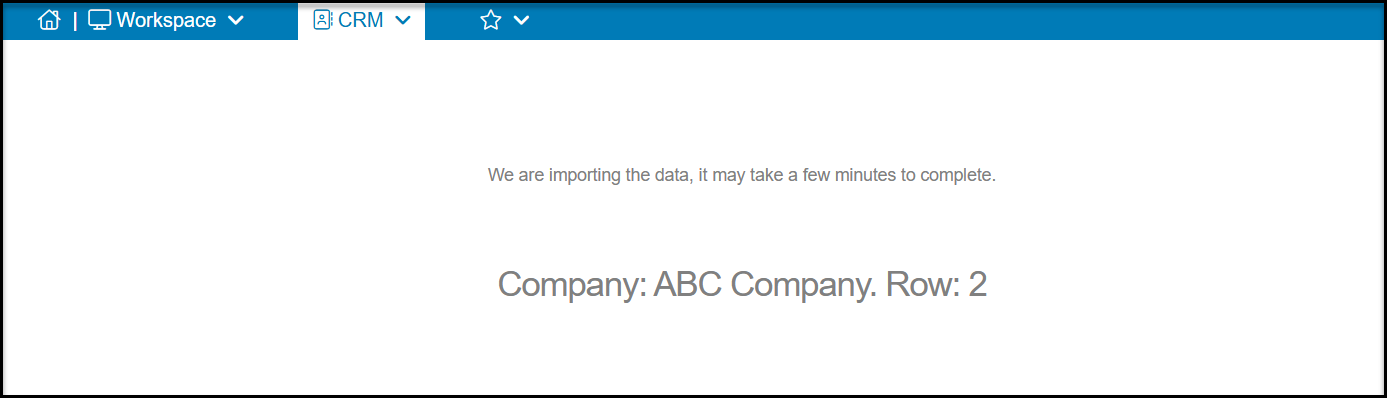
Do not close the program or navigate away during the import. As the import is in progress, you will see updates on the data being imported.
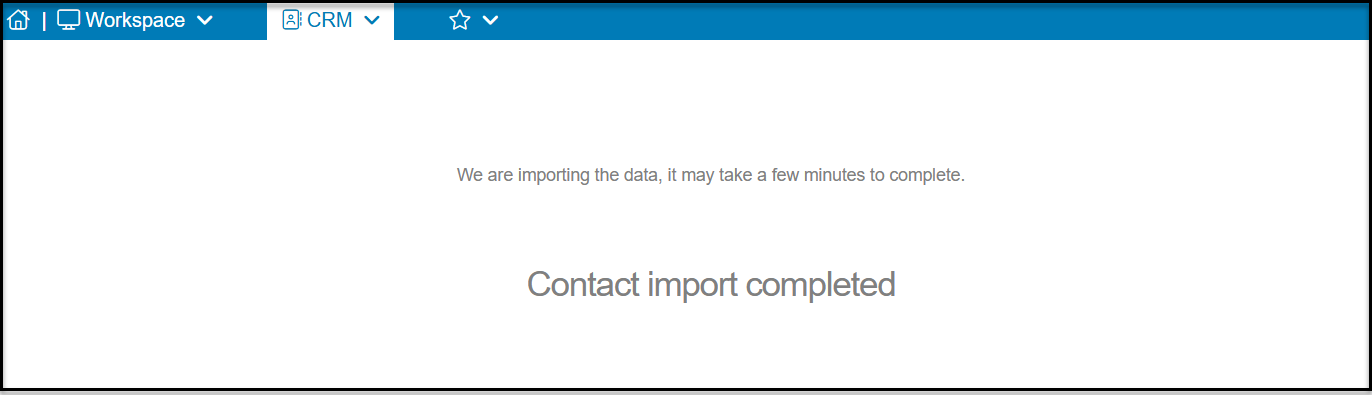
Once complete, you will see a confirmation message. You can return to the Constituents grid or any other page in the software once the import is completed.
Transactions Import Template
Very similar to the constituent import process, the transactions import process also uses the Gift Import Template supplied by the support team. The only types of transactions that can be imported using this method are general, in kind, or stock transactions. Transaction types for memberships, events, auctions, pledges, and pledge payments cannot be imported using this template. For assistance with these types of imports, contact support@associationsphere.com. Constituents must already exist in your database and the Constituent ID must be included on each transaction row.
Rows & Field Types
Row 1
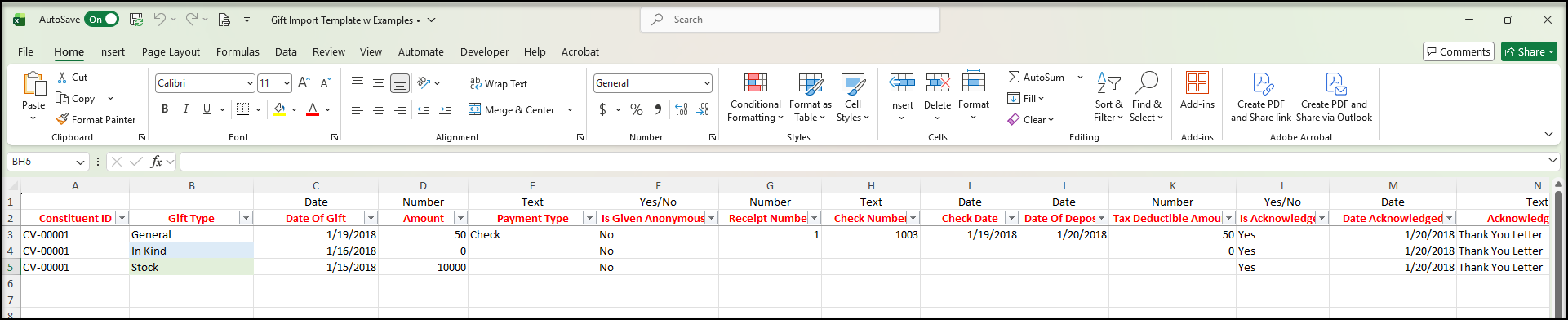
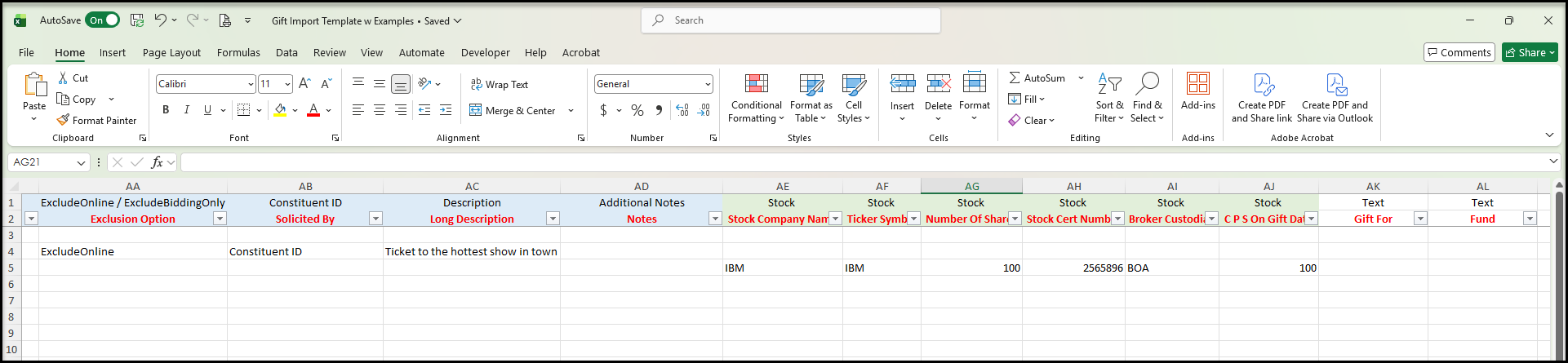
In the import template provided by the support team, the top row indicates the type of data for that field (column.) For example, the left most column, the Constituent ID is a number. This row is for information only must be deleted before you perform the actual import of the data.
Row 2
The second row will include the name of the field as it shows in the AssociationSphere database. For a list of the field names, see this article: Transactions Grid Data Fields. This row should NOT be deleted as it will help you map your data.
Row 3
The third row shows an example of a general type transaction with some data. This row must be deleted before you import your data.
Row 4
The fourth row shows an example of an in-kind transaction with some data. This row must be deleted before you import your data.
Row 5
The fifth row is also sample data for a stock transaction. This row must also be deleted before you import your data.
Columns & Data
Constituent ID & Minimum Transaction Information
For every transaction, the Constituent ID, Gift Type, Date Of Gift and Amount fields are required. Gift Type can only be one of the three options available. General, which covers most contributions which are not related to a membership, event, or pledge transaction. In-kind refers to contributions of non-monetary items such as materials, equipment, or services. Stock is for contributions of stock, not the proceeds from the sale of stock, but the actual stock itself. See What are the transaction types? for more information.
Other Transaction Information
- You can include more details about each transaction including information like the Payment Type, which includes the standard options of Cash, Check, Credit Card, and you can include other types as needed.
- If the contribution was made anonymously, you can indicate YES under Is Given Anonymously.
- If you assigned a Receipt Number, you can enter it. The software will automatically assign a Transaction ID to all transactions.
- If the payment type was a check, you can include the Check Number and Check Date.
- You can include the Date of Deposit, Tax Deductible Amount, and information about the status of the acknowledgement in the Is Acknowledged, Date Acknowledged, and Acknowledged How fields. Standard Acknowledged How options include Receipt, Thank You Letter, and Thank You Email, but you can add additional options as needed.
In Kind Contributions
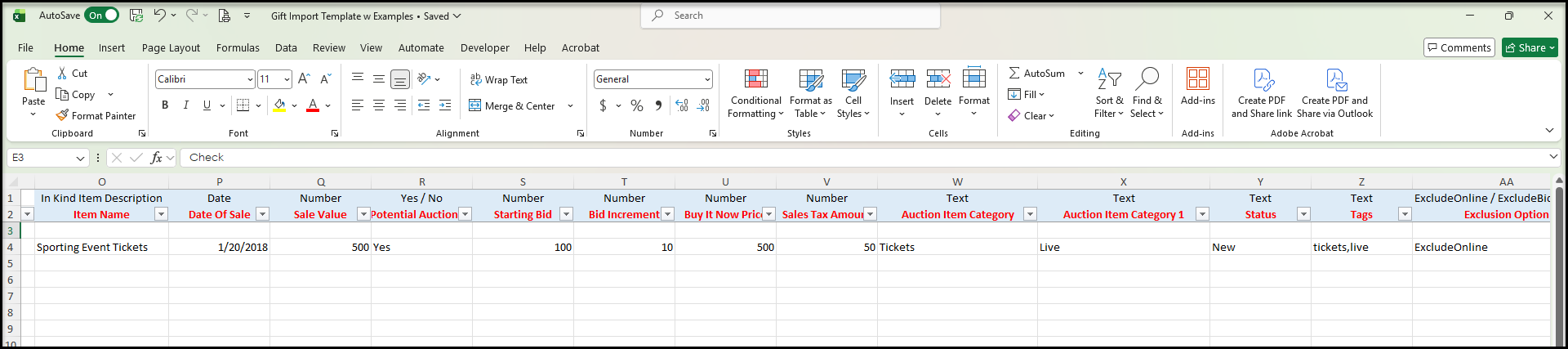
The fields highlighted in blue are related only to in-kind contributions. You can add information about the item donation under Item Name and other details about the contribution. If this in-kind item will be available to include in an auction, you can also include details for the auction item. Note that these items can all be edited after the import as needed.
Stock Contributions
The fields highlighted in green are related to stock contributions. Include the name of the company that issued the stock in Stock Company Name, as well as the Ticker Symbol, Number of Shares, Stock Certificate Number (if applicable) and the value of the shares, CPS (Cost Per Share) on Gift Date.
Revenue Categories & Location
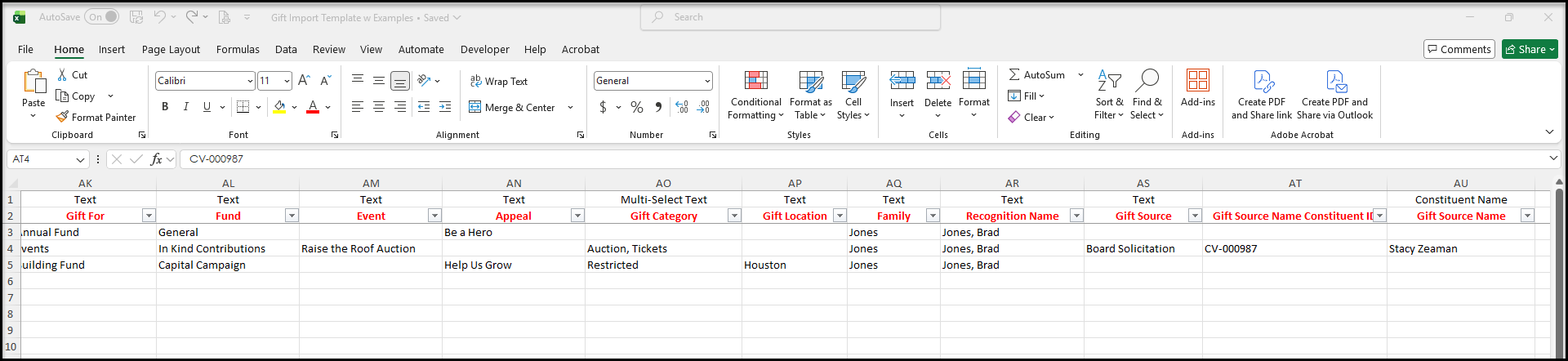
Revenue categories allow you to categorize your contributions for reporting and for QuickBooks exports. The fields include the For, Fund, Event, and Appeal. You can learn more about the revenue categories in this article: What is the difference between For, Fund, Event and Appeal? There is also a Gift Category field which is a multi-select field allowing you to assign a single transaction to multiple Gift Categories.
If your organization has multiple locations and you wish contributions to be assigned to a specific location, you can include it under Gift Location.
Additional Information
Family is a legacy field which was used prior to the Households feature. If your organization still uses this field, you can include the Family name as desired. Recognition Name will auto-populate with the recognition name included in the constituent's profile, but you can customize it as needed.
Gift Source, Gift Source Constituent ID, and Gift Source Name allow you to identify how and who solicited a contribution.
Tributes, Matching Gifts, Memos and Soft Credits
If the contribution was related to a tribute, you can include the Tribute Type (standard types include In Honor Of, In Memory Of, In Name Of, and On Behalf Of) and the name of the tributee under In Tribute Of Name. This tributee does not need to be a constituent in the database.
If the contribution will be associated with a matching gift, you can include the Matching Constituent Constituent ID, Matching Constituent (their name), Matching Percentage, and Matching Memo to include details about the expected match.
There are also two text fields, Memo and Memo 2 available for adding memos about the transaction.
If this transaction will also have soft credits applied, you can include the information on up to three other constituents to receive the soft credit. For more information on soft credits, see this article: What is a Soft Credit?

Importing Transactions
Once you have all your transaction records added to the template, you are ready to import.
Go to the Constituents grid and select +New and then Import.
In the new window you will select your file and click Map Columns.
If the fields are not automatically recognized, you will need to select the AS Column Header that the data will be mapped to. For example, Gift Type in the Source Data column will be mapped to Gift Type in the dropdown list under AS Column Header.
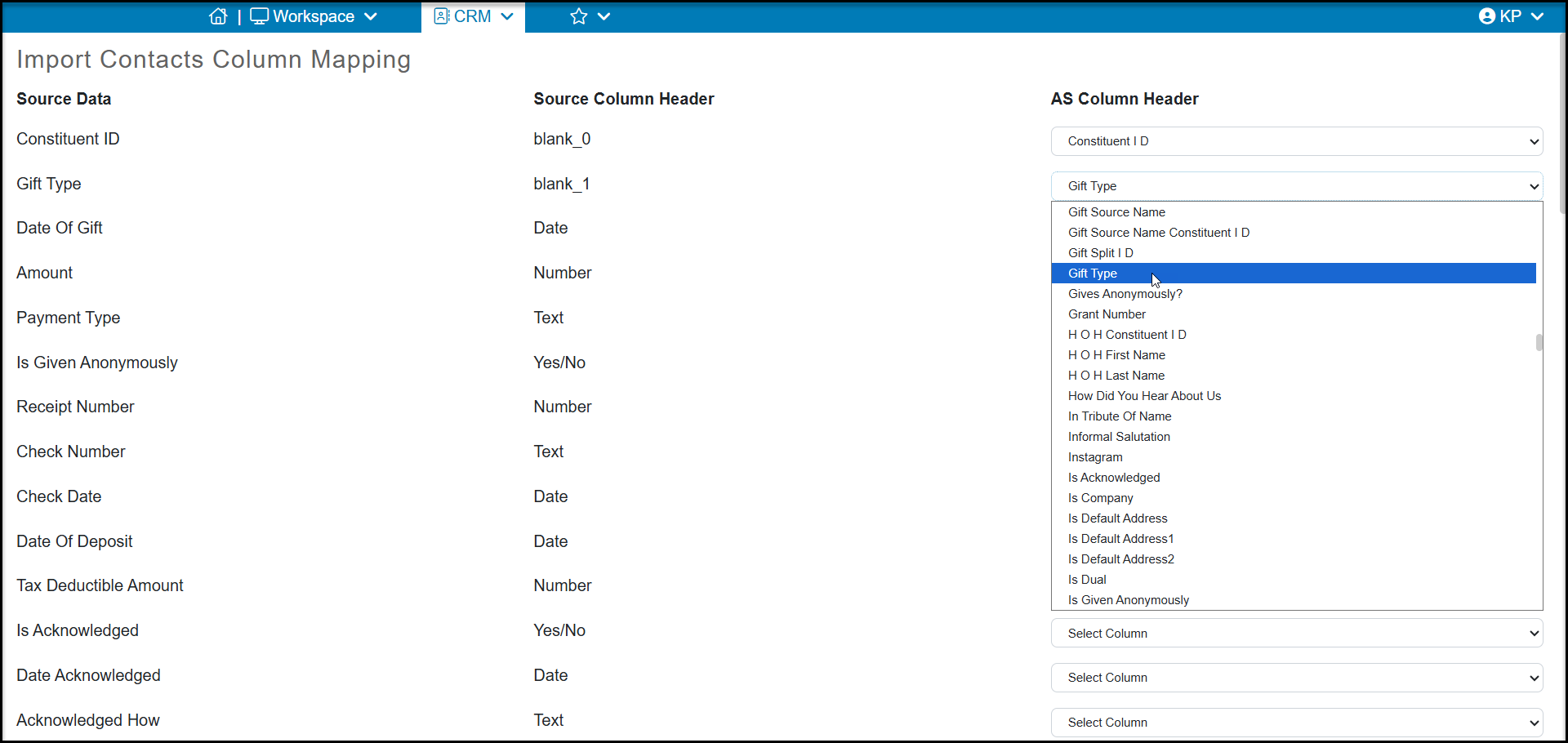
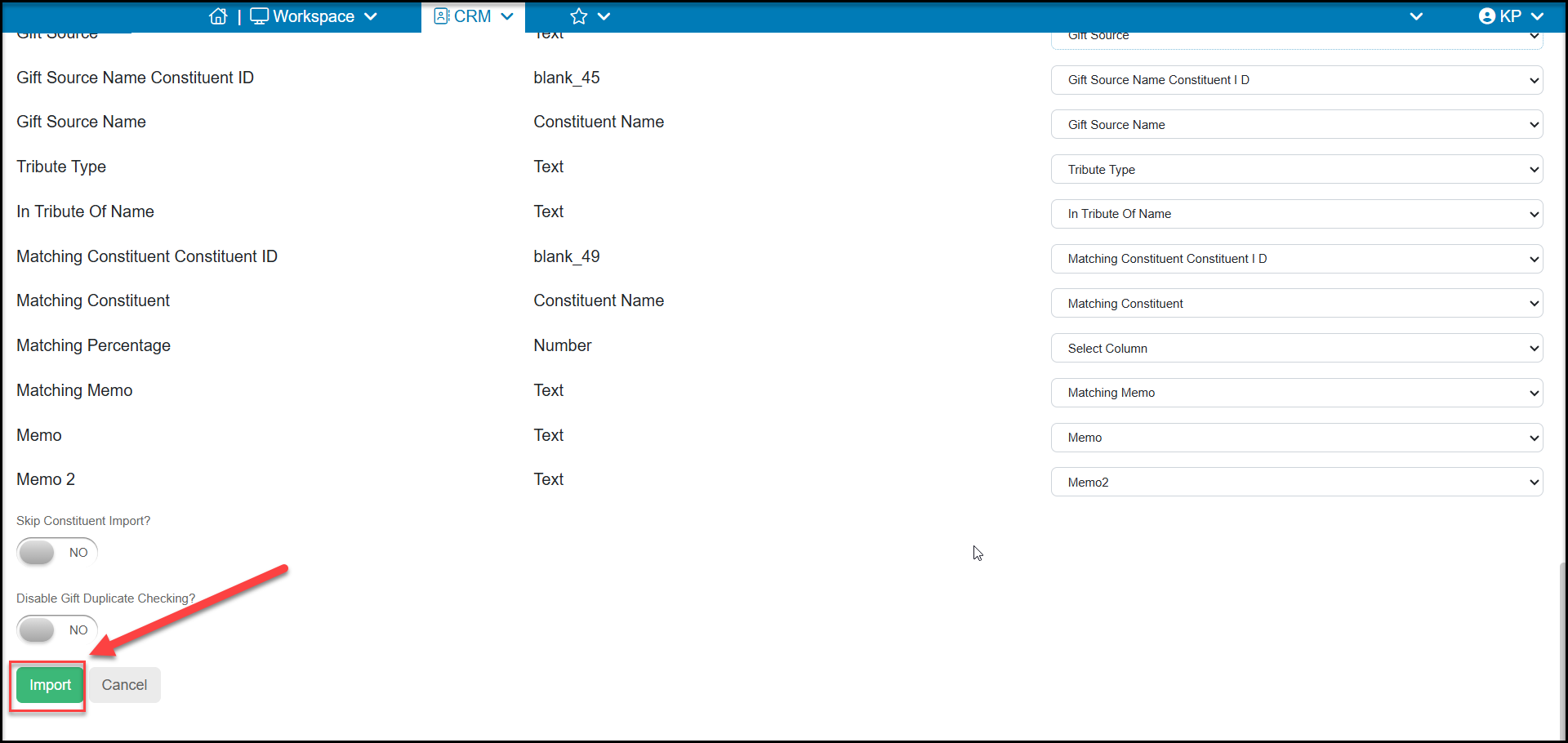
Once all your columns are mapped, click on Import at the bottom of the screen to import the data.
Do not close the program or navigate away during the import. As the import is in progress, you will see updates on the data being imported.
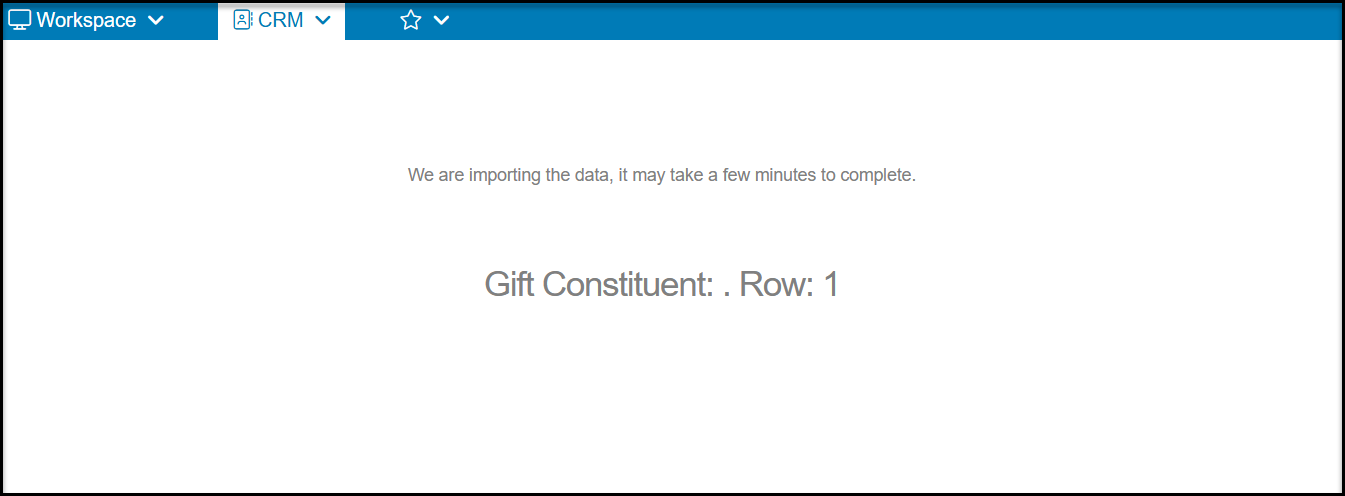
Once complete, you will see a confirmation message. You can return to the Transactions grid or any other page in the software once the import is completed.