
What tools are available on the email template editor?
Updated Oct 7, 2026·2 min read
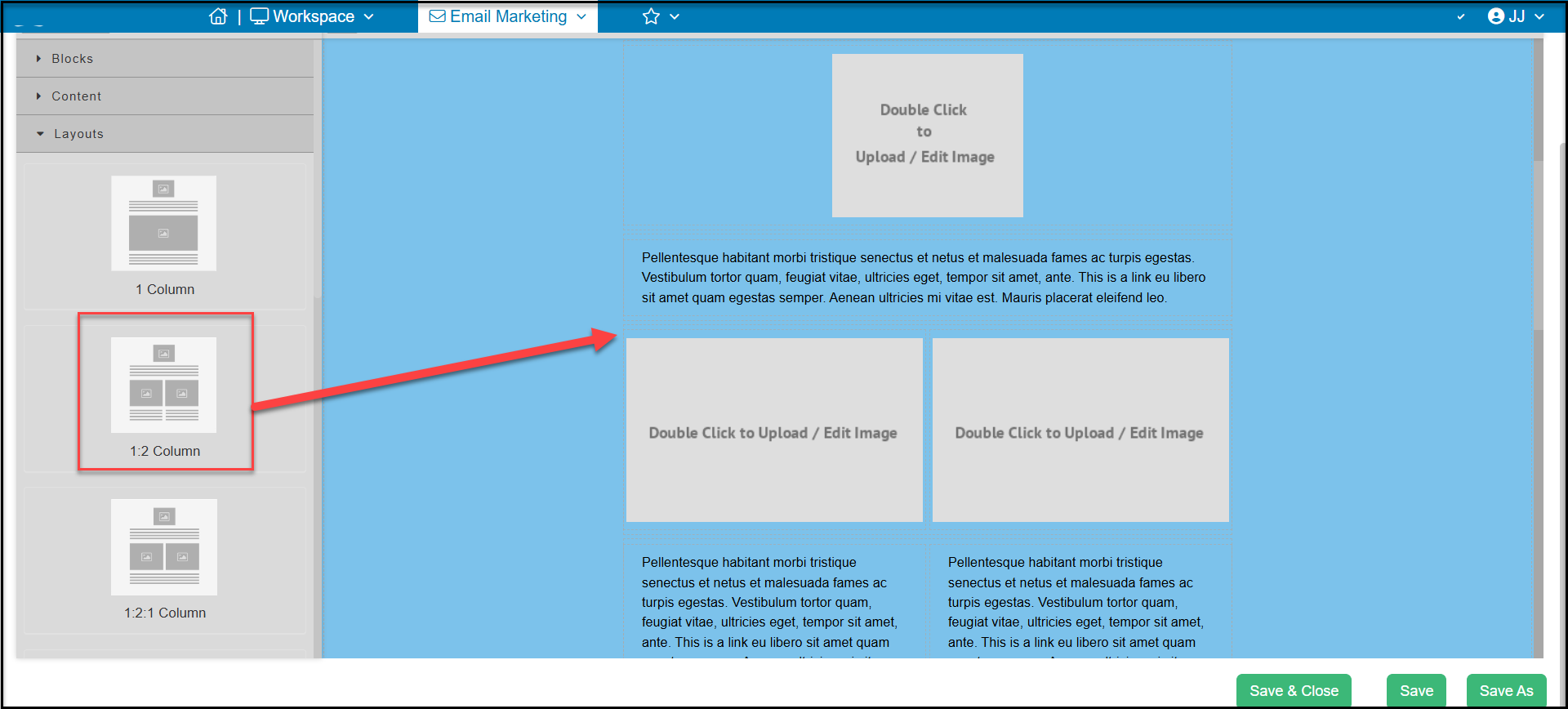
Under the Blocks tab, you can access the sub menus to add more Blocks or Content into the blocks. There is also an option to select a Layout. The layout includes a pre-made combination of several blocks and columns. You can drag and drop the layout into your email and edit as desired.
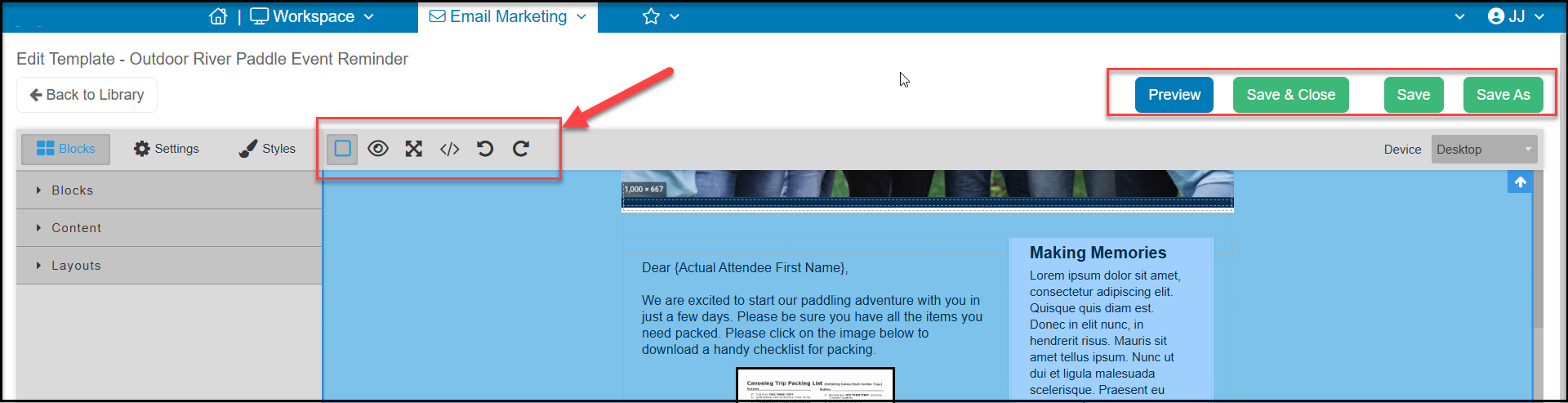
To the right of the Blocks, Settings, and Styles tabs is another menu of tools. From right to left:
- The Box icon is the standard view of the email template editor.
- The Eye icon will open the email in a browser window for a preview of the email.
- The Four Arrows will open the email editor in full screen.
- The </> icon will open the html code for the email.
- The Round Arrow icons with Undo and Redo changes that you have made in the template.
- The Preview button will also open the email in a browser window for a preview of the email.
- Save & Close saves the changes and returns you to the library.
- Save will save your changes and allow you to keep working.
- Save As will let you save the template under a new name.
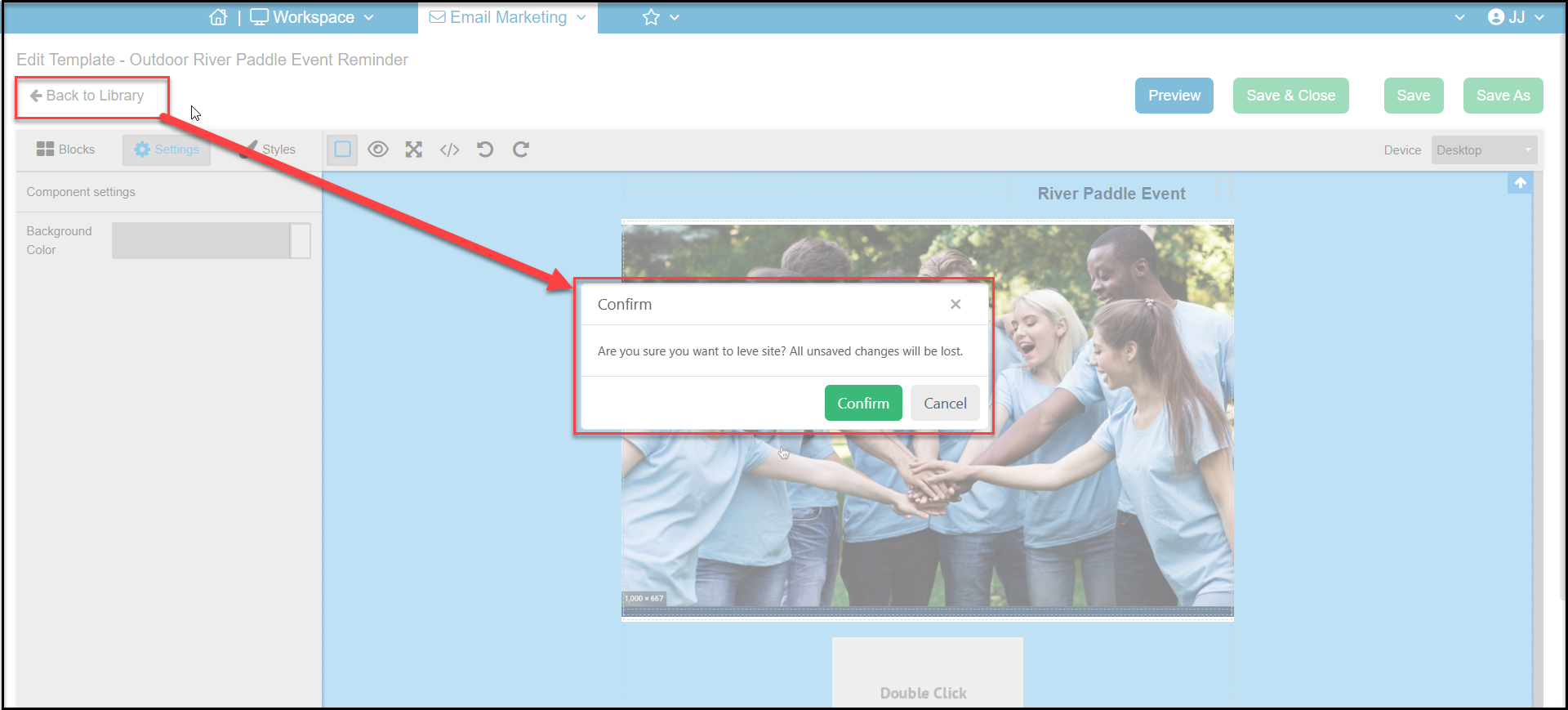
You can also return to the library by clicking on Back to Library. A popup message will open to remind you to save your changes. If you click Confirm, any changes you have made that were not saved will be lost. Click Cancel to go back and save your changes prior to returning to the library.
Was this article helpful?