How can I create a Contact Us form?
Creating "Contact Us" forms for your website using the Surveys/Forms module.
You can create a Contact Us form to collect information using the Surveys/Forms module. You can learn about the steps for creating a basic form in this article "How do I create a basic survey, application, or other form?"
An important thing to consider when creating your Contact Us form is whether or not you wish the people filling out the forms to become constituents in your database.
Creating New Constituents from Contact Us Forms
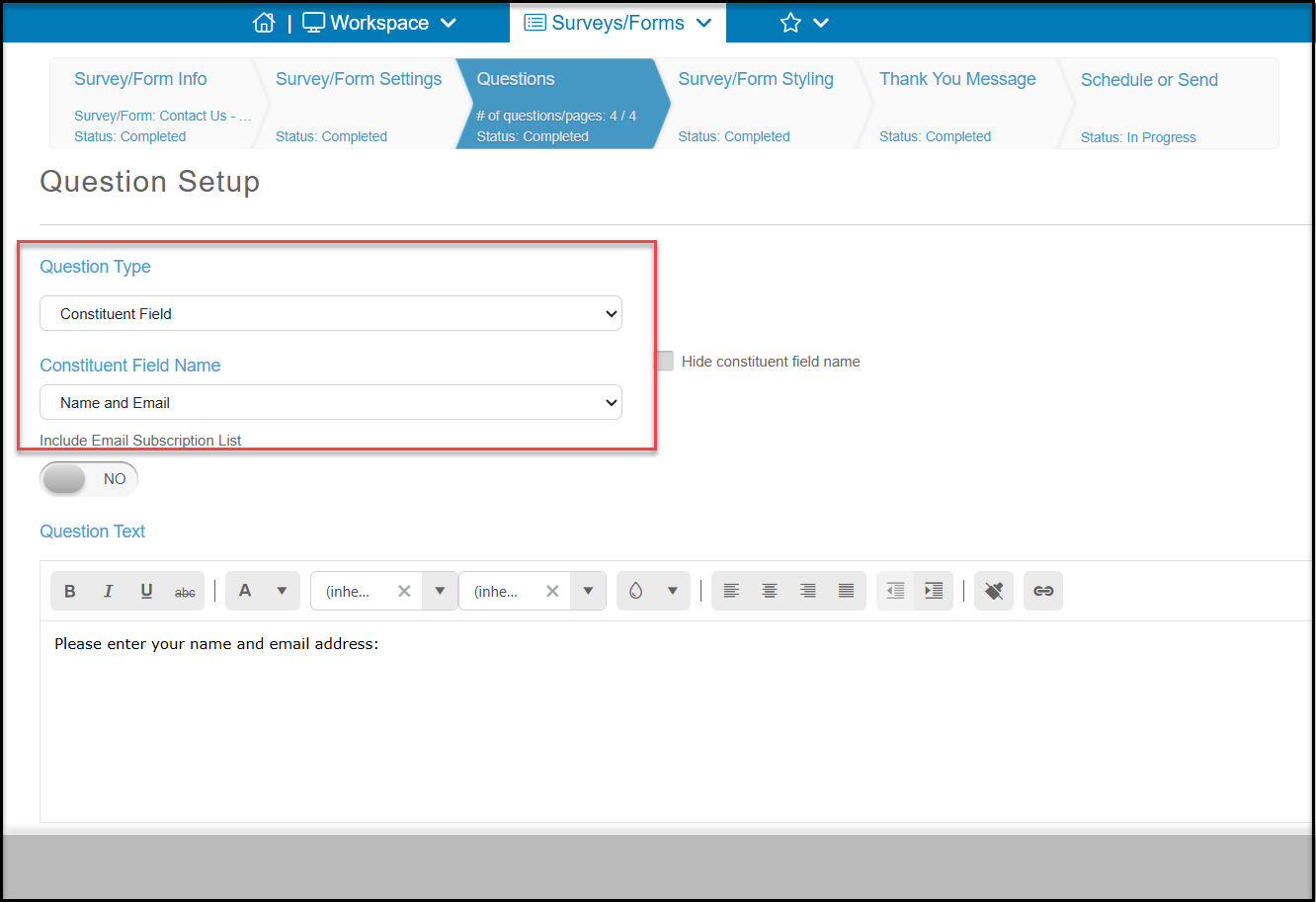
If you wish Contact Us form submitters to become constituents so that you can communicate with them through the database (direct email, email marketing, texting, etc.) be sure to include the Constituent Field "Name & Email" in your list of questions.
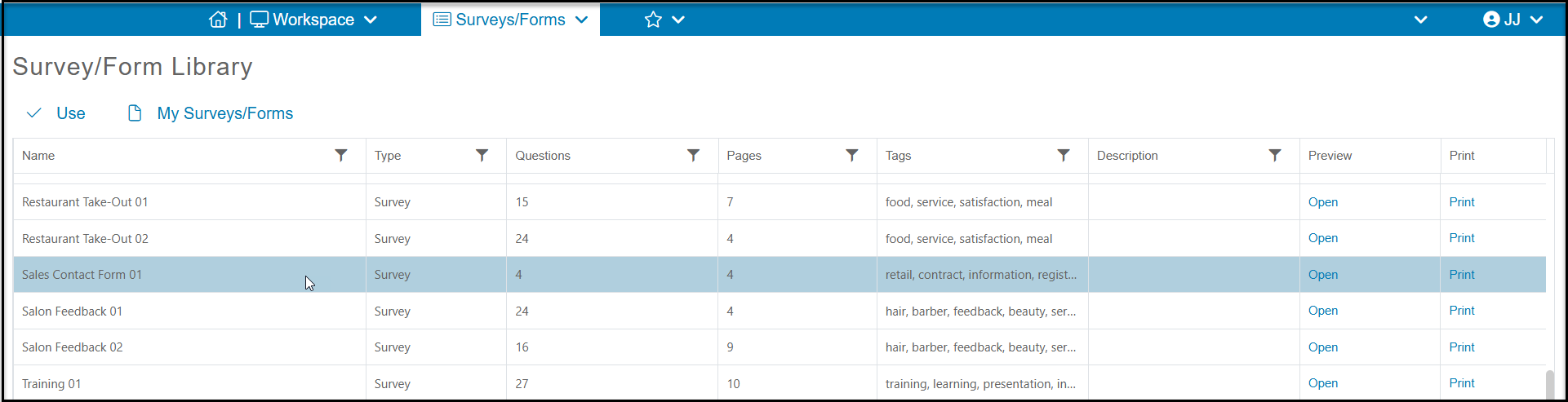
There is also a contact form available from the Surveys/Forms List grid by clicking on Survey/Form Library. On the library grid is a form called "Sales Contact Form 01" which is set up with a name, address, email, and phone number combination field. This field will create a new constituent record. Highlight this row and click Use to edit this form for your needs.
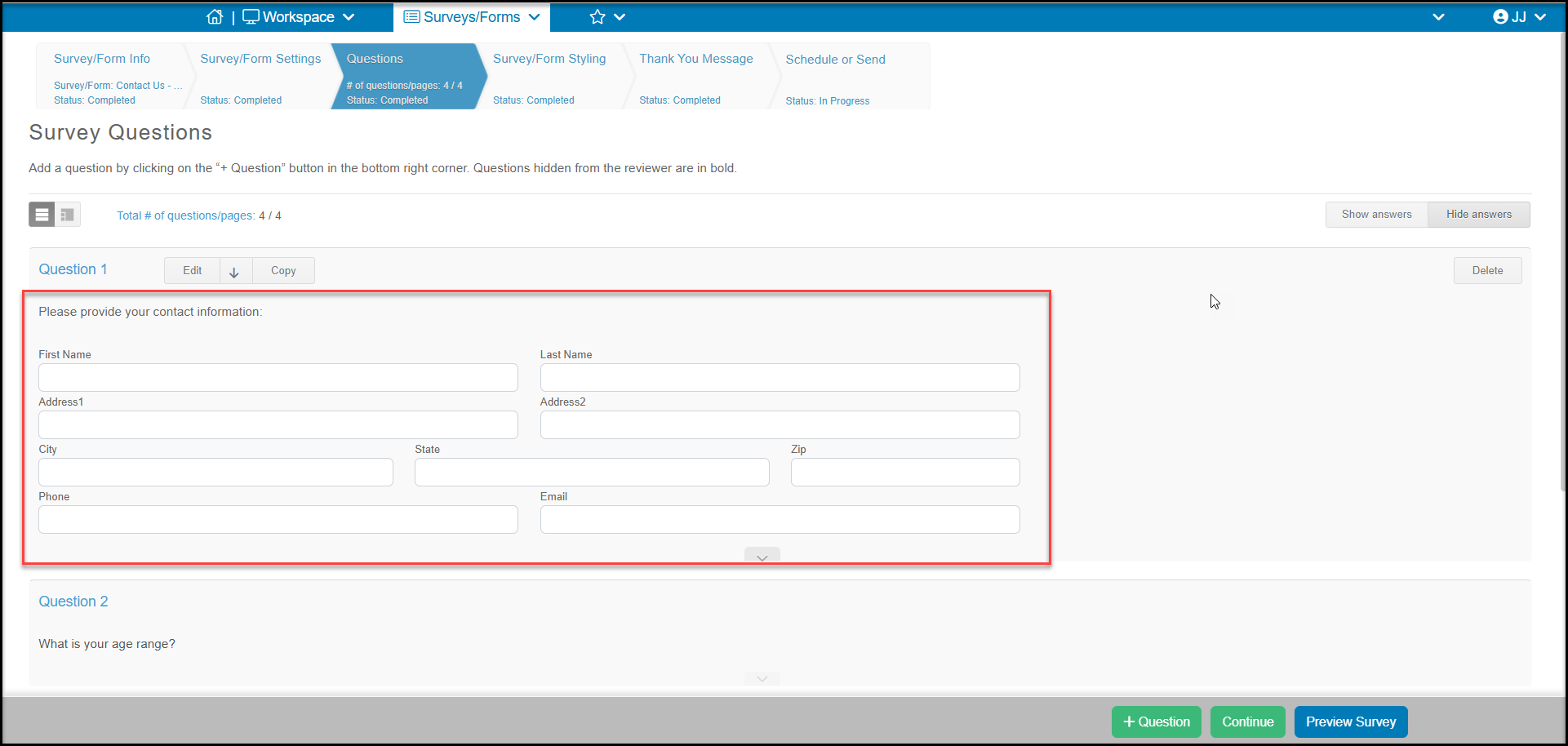
A sample Contact Us form that does create a new constituent record is below:
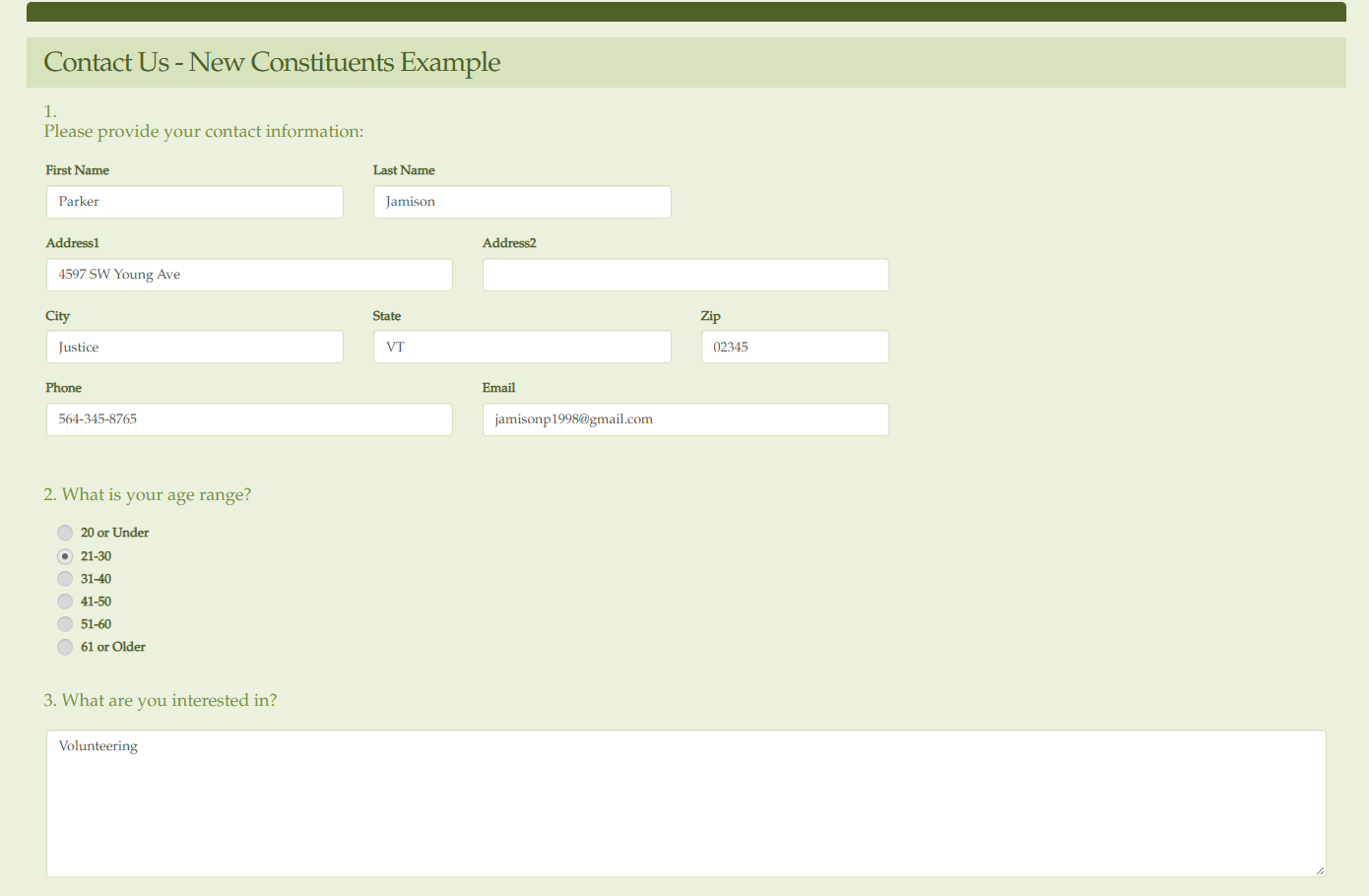
On the Survey/Forms Results grid, you will be able to see the responses and the new constituent information.

Collecting Contact Information, But Not Creating New Constituents
If you do not wish submitters to become a constituent in your database, you can still collect contact information, but you would use text fields like the Single Line of Text question to ask for this information. The necessary information will still be provided, but the submitter would not be added to your Constituents and you would need to communicate with them outside of DonorView using your Outlook or Gmail, for example.
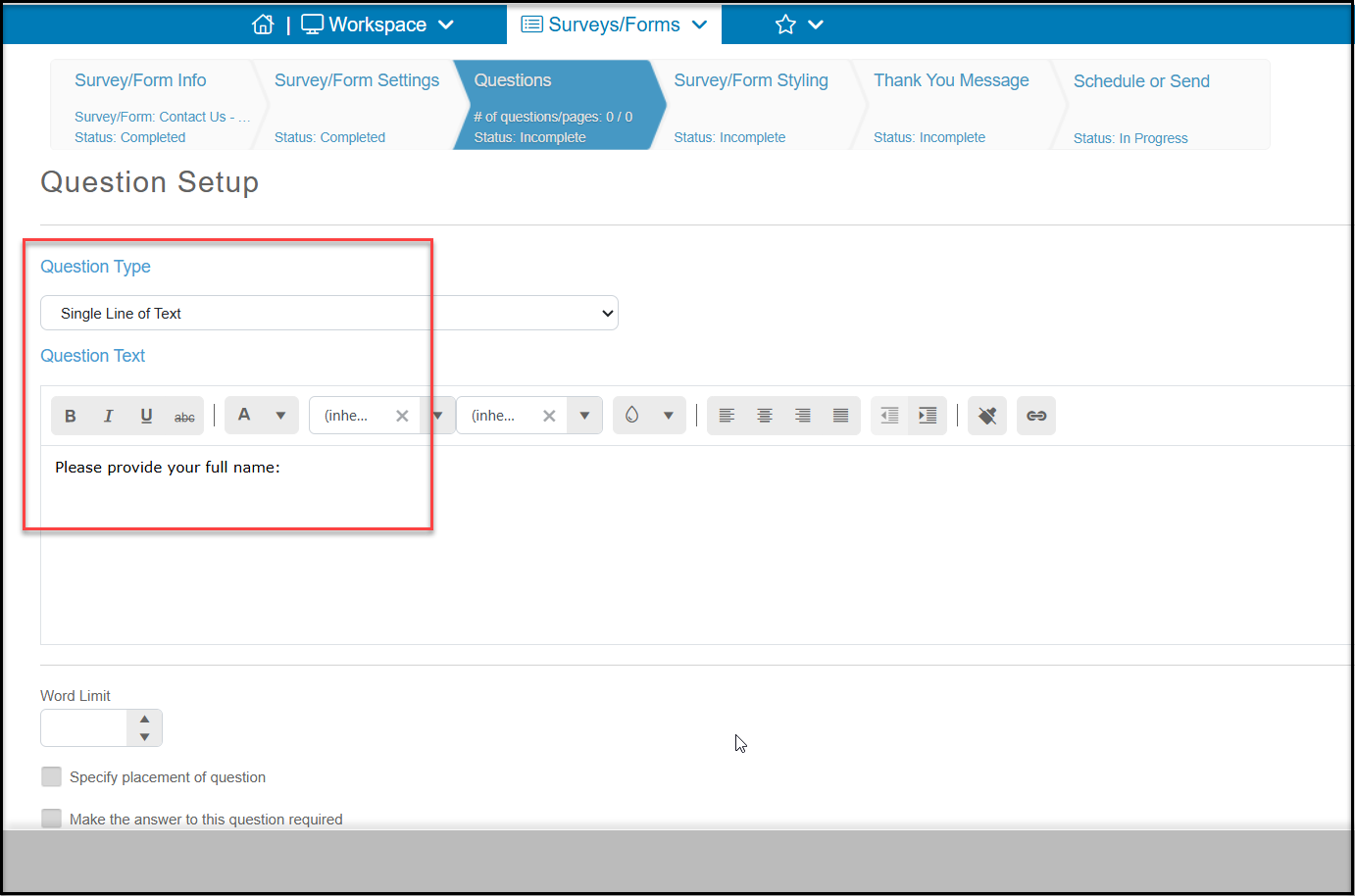
A sample Contact Us form that does not create a constituent record is below:
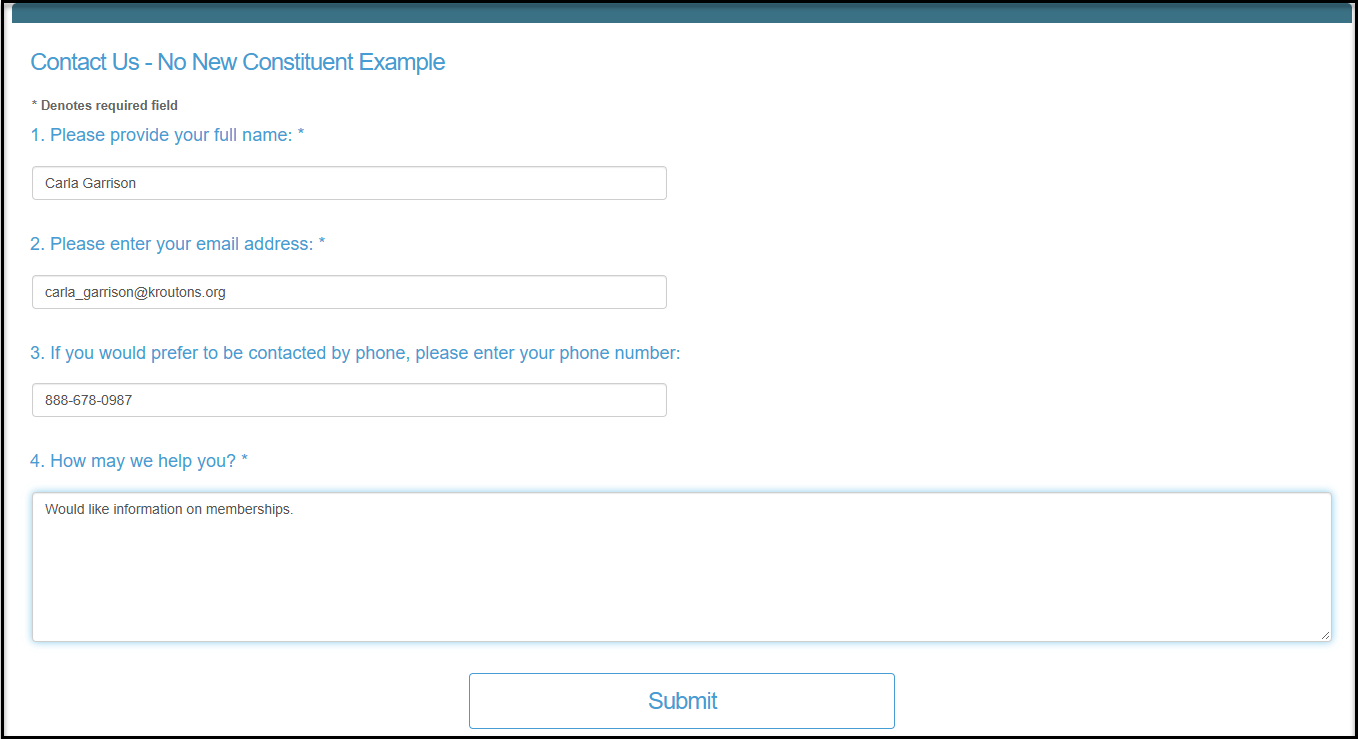
The responses will still show in the Surveys/Forms Results grid, but the standard Last Name/Constituent and Email fields will be blank.

Adding your Contact Us form to your Website
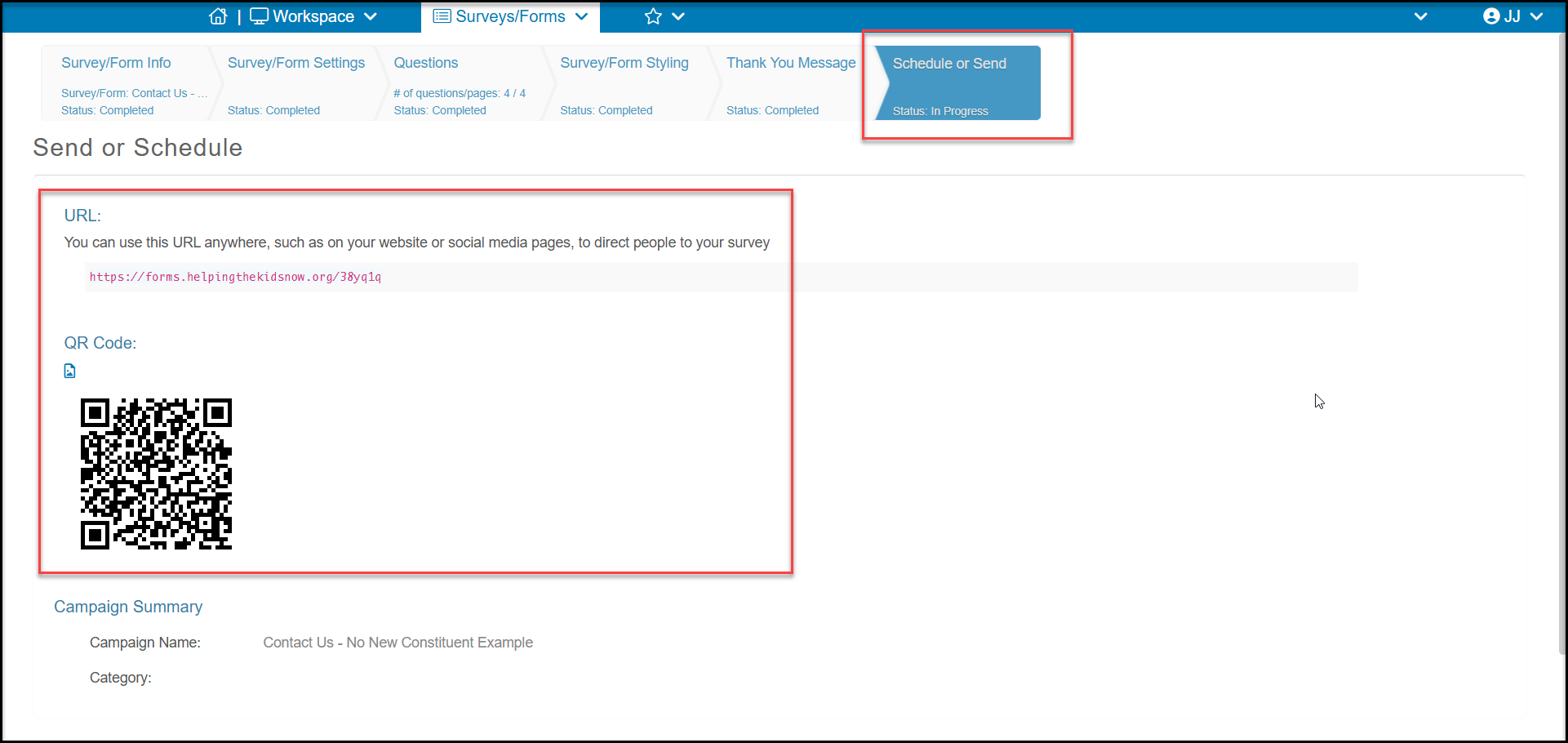
Once you have built your Contact Us form, you can share it on your website by either embedding the link in a button, adding the QR code, or by embedding the whole form. The Schedule or Send step of the form builder will include a unique URL or QR code that you can share or add to your site. The link to download the QR code is the small image icon to the top left of the QR code.
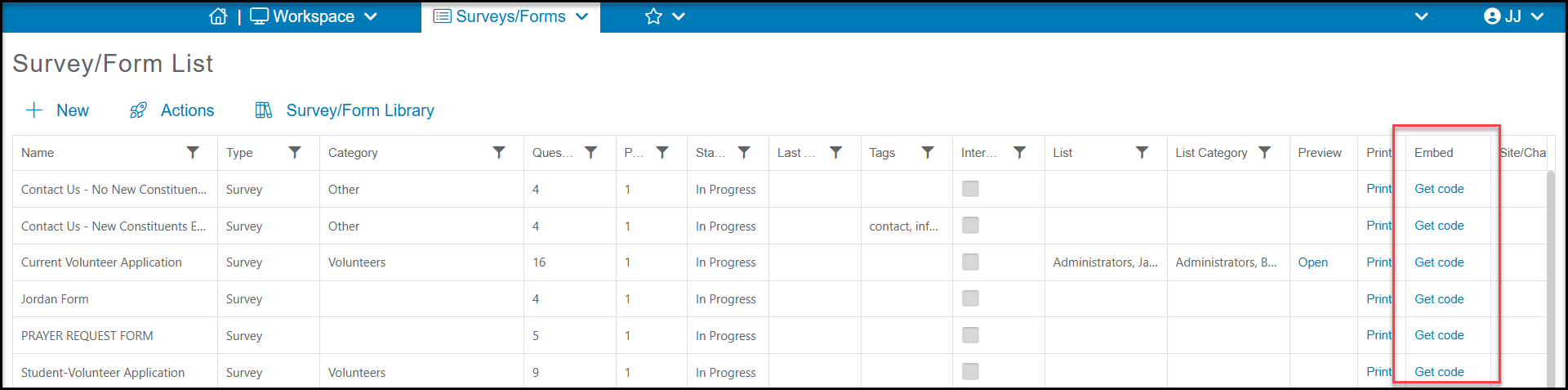
If you prefer to embed the form, go the Surveys/Forms Lists grid and look for the Embed column and click on Get Code to get a copy of the html code that you can use to add the entire form to your website.